
How to Check CPU, GPU, and RAM Compatibility in Linux
Understanding how to check CPU, GPU, and RAM compatibility in Linux is essential for anyone building a new system, upgrading components, or troubleshooting hardware issues. Unlike proprietary operating systems where hardware support is often guaranteed through vendor partnerships, Linux relies on open-source drivers and community-maintained kernel modules. This means compatibility can vary significantly between components, distributions, and kernel versions.
Hardware incompatibility can manifest in numerous ways: black screens during installation, systems that boot but run in software rendering mode, RAM sticks that aren’t fully recognized, or laptops that fail to resume from suspension. These issues aren’t insurmountable, but they require knowledge of Linux hardware detection tools and a systematic approach to diagnosis.
Modern Linux distributions have made tremendous strides in hardware compatibility. The Linux kernel now includes extensive driver support for CPUs from Intel, AMD, and ARM manufacturers. GPU support has improved dramatically with Mesa providing excellent open-source drivers for AMD and Intel graphics, while NVIDIA continues offering proprietary drivers for optimal performance. RAM compatibility is generally excellent, though certain advanced features like XMP profiles and ECC support require specific attention.
This comprehensive guide walks you through the exact commands, tools, and procedures needed to verify Linux hardware compatibility for your CPU, GPU, and RAM. Whether you’re running Ubuntu, Fedora, Arch Linux, or Debian, you’ll learn how to check hardware compatibility before installation, diagnose issues post-installation, and implement fixes for common problems.
Understanding Linux Hardware Compatibility Basics

Linux hardware compatibility operates on several layers. At the lowest level, the Linux kernel must recognize and initialize your hardware. This happens through kernel modules—loadable drivers that provide support for specific hardware components. When you boot a Linux system, the kernel probes connected hardware and loads appropriate modules automatically.
Hardware Detection Process:
The kernel communicates with hardware through several mechanisms:
- Direct hardware probing: Reading information from PCI, USB, and other buses
- ACPI/UEFI firmware tables: Getting hardware descriptions from system firmware
- Device tree files: Used primarily on ARM systems to describe hardware topology
- Microcode updates: CPU-specific patches loaded during boot to fix silicon-level bugs
For Linux hardware compatibility to work properly, several conditions must be met:
- Kernel support: The kernel version must include drivers for your hardware
- Firmware availability: Many devices require proprietary firmware blobs to function
- Correct module loading: Appropriate kernel modules must load automatically or manually
- Userspace tools: Applications must know how to interact with hardware through kernel interfaces
The good news is that mainstream hardware from Intel, AMD, and major manufacturers generally works out of the box on current Linux distributions. Cutting-edge hardware may require newer kernels, while very old or exotic hardware might need manual intervention.
Distribution Differences:
Different distributions take varying approaches to Linux hardware compatibility:
- Ubuntu and Fedora: Include proprietary firmware and offer easy installation of proprietary drivers
- Debian: Separates free and non-free firmware; users may need to enable non-free repositories
- Arch Linux: Requires users to manually install drivers and firmware as needed
Understanding these basics helps you diagnose issues systematically rather than randomly trying fixes from forum posts.
How to Check CPU Compatibility in Linux
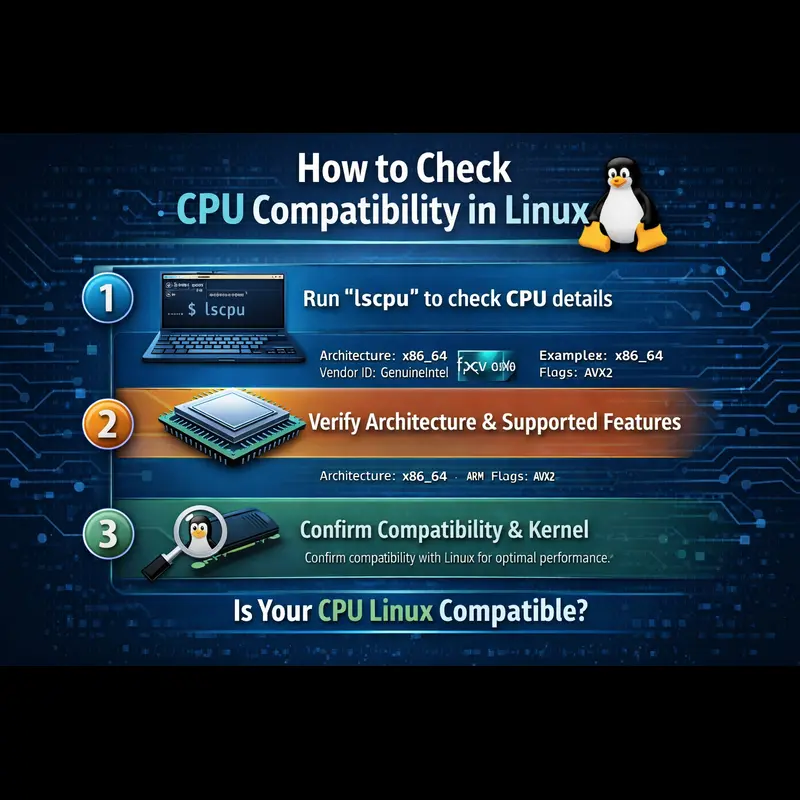
Linux CPU compatibility is generally excellent across Intel, AMD, and ARM processors. However, optimal performance requires proper microcode updates, correct CPU frequency scaling, and verification that all cores are recognized.
Basic CPU Information Commands
The primary tool for checking CPU information is lscpu:
lscpuThis command displays:
- CPU architecture (x86_64, ARM, etc.)
- Number of CPU cores and threads
- CPU frequency ranges
- Cache sizes
- Virtualization support flags
- Supported instruction sets
What to verify in lscpu output:
- Thread(s) per core: Should be 2 for CPUs with hyperthreading/SMT
- CPU MHz: Should show variable frequency, not stuck at minimum
- Flags: Look for important extensions like avx2, sse4_2, aes, vmx (Intel) or svm (AMD) for virtualization
For more detailed information, check the raw CPU data:
cat /proc/cpuinfoThis shows per-core details including model names, cache sizes, and bogomips (a rough performance indicator).
Checking CPU Microcode
Microcode updates fix CPU bugs and security vulnerabilities. Verify that microcode is loading correctly:
dmesg | grep microcodemicrocode: updated early to revision 0xf0, date = 2023-09-13
microcode: sig=0x906ea, pf=0x2, revision=0xf0microcode: CPU0: patch_level=0x0a704103
microcode: Microcode Update Driver: v2.2.If you see no microcode messages or outdated revision numbers, install microcode updates:
sudo apt update
sudo apt install intel-microcode   # For Intel CPUs
sudo apt install amd64-microcode # For AMD CPUssudo dnf install microcode_ctlsudo pacman -S intel-ucode # For Intel CPUs
sudo pacman -S amd-ucode # For AMD CPUsAfter installation, update your bootloader configuration (if required)
and reboot your system to apply the microcode update.CPU Frequency Scaling Verification
Ensure CPU frequency scaling works properly for optimal performance and power efficiency:
$ cat /sys/devices/system/cpu/cpu*/cpufreq/scaling_governorYou should see governors like powersave, performance, or schedutil. If the command fails, CPU frequency scaling isn’t working.
Install CPU frequency utilities:
sudo apt install cpufrequtilssudo dnf install kernel-toolssudo pacman -S cpupowerCheck current frequencies:
$ cpupower frequency-infoAdvanced CPU Diagnostic Tool
For comprehensive CPU analysis, use inxi:
$ inxi -CCPU Compatibility Checklist Table
| Component | What to Check | Command | Common Fix |
|---|---|---|---|
| CPU Recognition | All cores visible | lscpu | grep "CPU(s)" |
Check BIOS/UEFI for disabled cores |
| Microcode | Latest version loaded | dmesg | grep microcode |
Install intel-microcode or amd64-microcode |
| Frequency Scaling | Dynamic frequency adjustment | cpupower frequency-info |
Install cpupower, verify scaling driver |
| Virtualization | VMX (Intel) or SVM (AMD) | lscpu | grep -E "vmx|svm" |
Enable virtualization in BIOS/UEFI |
| Temperature Monitoring | Sensor data available | sensors |
Install & configure lm-sensors |
| AVX Support | Modern instruction sets | lscpu | grep avx |
No fix — hardware limitation |
How to Check GPU Compatibility in Linux

GPU compatibility is the most complex aspect of Linux hardware compatibility. The landscape includes three major vendors—NVIDIA, AMD, and Intel—each with different driver options and compatibility considerations.
Start by identifying your graphics hardware:
$ lspci | grep -E "VGA|3D"00:02.0 VGA compatible controller: Intel Corporation UHD Graphics 630
01:00.0 VGA compatible controller: NVIDIA Corporation GA106 [GeForce RTX 3060]For detailed GPU information:
$ inxi -GThis shows:
- GPU model and vendor
- Currently loaded driver
- Display server (X11 or Wayland)
- Screen resolution and refresh rate
- OpenGL renderer information
Checking GPU Driver Status
$ lsmod | grep -E "nvidia|amdgpu|i915|nouveau|radeon"What each driver means:
- nvidia: NVIDIA proprietary driver (recommended for gaming/compute)
- nouveau: Open-source NVIDIA driver (basic functionality only)
- amdgpu: Modern AMD open-source driver (excellent performance)
- radeon: Legacy AMD driver for older GPUs
- i915: Intel integrated graphics driver
Verifying GPU Acceleration
Check if GPU acceleration is working:
$ glxinfo | grep "OpenGL renderer"OpenGL renderer string: Mesa Intel(R) UHD Graphics 630 (CML GT2)
OpenGL renderer string: NVIDIA GeForce RTX 3060/PCIe/SSE2OpenGL renderer string: llvmpipe (LLVM 15.0.7, 256 bits)sudo apt install mesa-utilssudo dnf install glx-utilssudo pacman -S mesa-demosglxinfo | grep "OpenGL renderer"
Vulkan Support Verification
Modern games and applications often require Vulkan:
$ vulkaninfo | grep "deviceName"If the command fails, Vulkan isn’t properly configured. Install Vulkan components:
sudo apt install mesa-vulkan-drivers vulkan-tools   # AMD / Intel
sudo apt install nvidia-vulkan-driver # NVIDIAsudo dnf install mesa-vulkan-drivers vulkan-toolssudo pacman -S vulkan-icd-loader vulkan-tools
sudo pacman -S vulkan-intel # Intel
sudo pacman -S vulkan-radeon # AMD
sudo pacman -S nvidia-utils # NVIDIAvulkaninfo | grep "deviceName"
Checking for GPU Errors
$ dmesg | grep -i "gpu\|drm\|nvidia\|amdgpu"Common error patterns:
- Firmware missing: Direct firmware load for amdgpu/… failed
- Driver conflicts: nvidia: disagrees about version of symbol
- Initialization failures: Failed to initialize GPU
GPU Compatibility & Driver Comparison Table
| GPU Vendor | Open-Source Driver | Proprietary Driver | Wayland Support | Best Performance | Recommended Distro |
|---|---|---|---|---|---|
| AMD (RDNA / GCN) | amdgpu (excellent) | None needed | Excellent | amdgpu | Any modern distro |
| Intel | i915 / xe (excellent) | None available | Excellent | Open driver | Any modern distro |
| NVIDIA (Recent) | nouveau (limited) | nvidia (excellent) | Improving | Proprietary only | Ubuntu, Fedora, Pop!_OS |
| NVIDIA (Legacy) | nouveau (basic) | nvidia-470 / 390 | Poor | Proprietary | Ubuntu LTS |
| AMD (Legacy) | radeon (good) | None needed | Good | radeon | Any distro |
Distribution-Specific GPU Driver Installation
ubuntu-drivers devices
sudo ubuntu-drivers autoinstall
# Or manually:
sudo apt install nvidia-driver-545sudo dnf install akmod-nvidia
sudo dnf install xorg-x11-drv-nvidia-cuda # For CUDA supportsudo pacman -S nvidia nvidia-utils
# Or for LTS kernel:
sudo pacman -S nvidia-ltsnvidia-smi
How to Check RAM Compatibility in Linux

Linux RAM compatibility is generally straightforward—most DDR3, DDR4, and DDR5 memory works without issues. However, you should verify that all installed RAM is recognized, running at correct speeds, and free from errors.
Basic RAM Information
$ free -h total used free shared buff/cache available
Mem: 31Gi 8.2Gi 15Gi 892Mi 7.8Gi 22Gi
Swap: 8.0Gi 0B 8.0GiDetailed RAM Information
$ sudo dmidecode -t memorySize: 16 GBType: DDR4Speed: 3200 MT/sConfigured Memory Speed: 3200 MT/s
If “Configured Memory Speed” is lower than rated speed, your RAM isn’t running at full speed. This often happens when XMP/EXPO profiles aren’t enabled in BIOS.
Checking RAM Recognition
Verify all memory is detected:
$ lsmem$ cat /proc/meminfo | grep MemTotalTesting RAM Stability
RAM errors cause system crashes, data corruption, and mysterious bugs. Test RAM with memtest86+:
sudo apt install memtest86+      # Ubuntu / Debian
sudo dnf install memtest86+      # Fedora
sudo pacman -S memtest86+ # Arch⚠️ Any errors indicate faulty RAM or unstable memory settings.
sudo apt install memtester
sudo memtester 1024M 1 # Test 1GB onceChecking RAM Errors in System Logs
Look for memory-related errors:
$ sudo journalctl -b | grep -i "memory\|edac"Bad signs:
- EDAC MC0: CE memory error
- Machine check events logged
- Memory correctable error
These indicate RAM problems requiring replacement.
RAM Compatibility & Stability Table
| Aspect | What to Check | Command | Common Fix |
|---|---|---|---|
| Total Capacity | All RAM recognized | free -h |
Reseat modules, check BIOS/UEFI settings |
| Memory Type | DDR generation correct |
sudo dmidecode -t memory | grep Type
|
No fix — hardware mismatch |
| Speed | Running at rated speed |
sudo dmidecode -t memory | grep Speed
|
Enable XMP / EXPO in BIOS |
| ECC Status | ECC active (if supported) |
sudo dmidecode -t memory | grep ECC
|
Requires ECC RAM + CPU & motherboard support |
| Errors | No memory errors logged |
sudo journalctl -b | grep -i edac
|
Replace faulty RAM module |
| Dual Channel | Correct channel population |
sudo dmidecode -t memory
|
Install RAM in correct slots (check manual) |
ECC Memory Considerations
ECC (Error-Correcting Code) RAM detects and corrects single-bit errors, preventing crashes and data corruption. Check ECC status:
$ sudo dmidecode -t memory | grep -A 5 "Error Correction Type"ECC requires support from RAM modules, CPU, and motherboard.
For ECC functionality:
- Requires ECC RAM modules
- Requires CPU with ECC support (most server CPUs, some AMD Ryzen PRO)
- Requires motherboard ECC support
- All three must support ECC or it won’t function
Verify ECC is active:
$ sudo edac-util -v✅ Corrected errors indicate ECC is working. ❌ Uncorrected errors usually signal failing RAM or hardware issues.
Checking Hardware Compatibility Before Installing Linux
Verifying Linux hardware compatibility before installation prevents frustrating surprises. Here’s how to check compatibility without installing Linux permanently.
Live USB Testing
The most reliable method is booting a live USB:
Create bootable USB:
- Download ISO from Ubuntu, Fedora, or your chosen distribution
- Use Rufus (Windows), Etcher (cross-platform), or dd (Linux) to create bootable USB
- Boot from USB in “Try” mode without installing
Test hardware in live environment:
lscpu
cat /proc/cpuinfo | grep "cpu cores"lspci | grep VGA
glxinfo | grep "OpenGL renderer"free -h
sudo dmidecode -t memorynmcli device status
lsusb | grep Bluetoothaplay -l # List audio devices
speaker-test -c 2 # Test speakersTest critical functions:
- Display resolution and refresh rate
- External monitors if using laptop
- Suspend/resume (close lid, open lid)
- WiFi connection
- Bluetooth device pairing
- All USB ports
- Keyboard special keys
- Touchpad gestures
Hardware Compatibility Databases
Check online compatibility databases:
Linux Hardware Database (linux-hardware.org):
- Upload hardware probe: sudo -E hw-probe -all -upload
- Search for your exact hardware models
- See what works and what doesn’t for others
Ubuntu Certified Hardware:
- Visit certification.ubuntu.com
- Search for your system or components
- Shows officially tested hardware
Arch Linux Hardware Compatibility List:
- Wiki lists known compatibility issues
Community-maintained hardware notes
Pre-Purchase Research Checklist
When buying hardware for Linux:
✓ CPU: Any recent Intel, AMD, or ARM CPU works; check for microcode availability
✓ GPU: AMD and Intel work out-of-box; NVIDIA requires proprietary driver consideration
✓ WiFi: Intel WiFi chips have excellent Linux support; Realtek requires research
✓ Bluetooth: Intel Bluetooth works well; check specific chipset
✓ Audio: Most Realtek audio works; check Linux kernel support for your codec
✓ Ethernet: Intel NICs are gold standard; Realtek works but may need newer kernel
✓ Touchpad: Synaptics and ELAN have good support; check for multi-touch support
✓ Webcam: Most UVC-compatible webcams work; check privacy shutter compatibility
✓ Fingerprint: GOODIX sensors have improving support; Windows Hello often doesn’t work
Distribution-Specific Compatibility Tips
Different Linux distributions handle hardware compatibility differently. Here’s what you need to know for popular distributions.
Ubuntu & Linux Mint
Strengths:
- Extensive hardware support out-of-box
- Easy proprietary driver installation
- Large community for troubleshooting
- Hardware Enablement (HWE) kernels for newer hardware
ubuntu-drivers devices   # List available drivers
sudo ubuntu-drivers autoinstall # Install recommended driverssudo apt install linux-generic-hwe-22.04 # Ubuntu 22.04 exampleuname -rFedora Workstation
Strengths:
- Latest kernel versions (usually)
- Cutting-edge Mesa drivers
- Excellent Wayland support
- Fast hardware support updates
Weaknesses:
- Excludes proprietary firmware by default
- Requires RPM Fusion for NVIDIA drivers
sudo dnf install https://mirrors.rpmfusion.org/free/fedora/rpmfusion-free-release-$(rpm -E %fedora).noarch.rpm
sudo dnf install https://mirrors.rpmfusion.org/nonfree/fedora/rpmfusion-nonfree-release-$(rpm -E %fedora).noarch.rpmsudo dnf install akmod-nvidia
sudo dnf install xorg-x11-drv-nvidia-cuda # For CUDAuname -r
rpm -q kernelArch Linux & Arch-Based Distributions
Strengths:
- Rolling release means latest everything
- Complete control over installed components
- Excellent wiki documentation
- AUR provides drivers for exotic hardware
Weaknesses:
- Requires manual driver installation
- More potential for breakage with updates
- Steeper learning curve
Basic hardware driver installation:
sudo pacman -S nvidia nvidia-utils   # Latest driver
# Or for LTS kernel:
sudo pacman -S linux-lts nvidia-ltssudo pacman -S mesa vulkan-radeonsudo pacman -S mesa vulkan-intelglxinfo | grep "OpenGL renderer"
Install hardware info tools:
sudo pacman -S lshw inxi dmidecode- lshw – Detailed hardware tree and device info
- inxi – Human-readable system summary
- dmidecode – Firmware-level CPU, RAM, and motherboard data
Checking for missing firmware:
dmesg | grep -i firmwarelinux # Latest stable kernel
linux-lts # Long-term support (best compatibility)
linux-zen # Performance-tuned kernel
linux-hardened# Security-focused kerneldeb http://deb.debian.org/debian bookworm main non-free-firmwareThen update:
sudo apt update
sudo apt install firmware-linux-nonfreeAfter installation, reboot and recheck firmware status with:
dmesg | grep -i firmware
Install newer kernel from backports:
# Add backports repository
echo "deb http://deb.debian.org/debian bookworm-backports main" | sudo tee /etc/apt/sources.list.d/backports.list

# Update package list
sudo apt update

# Install newer kernel from backports
sudo apt -t bookworm-backports install linux-image-amd64✔ Recommended if your hardware needs a newer kernel for Wi-Fi, GPU, CPU, or storage support.
After installation, reboot and verify with:
uname -r
Debian hardware compatibility recommendation:
For new hardware (less than 2 years old), consider Debian Testing or a different distribution. Debian Stable excels with hardware from prior generations.
Common Linux Hardware Compatibility Issues & Fixes
Issue 1: Black Screen After Installation (GPU Driver Problem)
Symptoms:
- System boots to black screen
- GRUB menu appears, then nothing
- Sometimes cursor visible but no graphics
Diagnosis:
Boot into recovery mode or add nomodeset to kernel parameters:
- At GRUB, press ‘e’ to edit boot entry
- Find line starting with linux
- Add nomodeset before quiet splash
- Press Ctrl+X or F10 to boot
Fixes:
# Boot temporarily with nomodeset, then install drivers

sudo ubuntu-drivers autoinstall   # Ubuntu
sudo dnf install akmod-nvidia     # Fedora
sudo pacman -S nvidia # Arch# Kernel parameter conflicts are common
# Remove nomodeset and add one of the following:
amdgpu.dc=1 # AMD GPUs
i915.modeset=1 # Intel GPUsGRUB_CMDLINE_LINUX_DEFAULT="quiet splash amdgpu.dc=1"sudo update-grub # Ubuntu / Debian
sudo grub2-mkconfig -o /boot/grub2/grub.cfg # Fedora
sudo grub-mkconfig -o /boot/grub/grub.cfg # ArchIssue 2: GPU Acceleration Not Working (Software Rendering)
Symptoms:
- glxinfo shows llvmpipe renderer
- Poor graphics performance
- Videos stutter
- Games unplayable
Diagnosis:
glxinfo | grep "OpenGL renderer"If you see llvmpipe, the system is using software rendering.
lsmod | grep -E "nvidia|amdgpu|nouveau"Fix:
sudo apt install nvidia-driver-545   # Ubuntu

# Verify driver is working:
nvidia-smi# Ensure amdgpu is not blacklisted
sudo nano /etc/modprobe.d/blacklist.conf
# Remove any line containing:
blacklist amdgpu
# Rebuild initramfs and reboot
sudo update-initramfs -u
reboot# Ensure i915 module loads at boot
echo "i915" | sudo tee /etc/modules-load.d/i915.conf
# Load module immediately
sudo modprobe i915lsmod | grep i915
Issue 3: RAM Not Fully Detected
Symptoms:
- Installed 32GB, system shows 16GB
- free -h shows less than expected
- Some memory slots not working
Diagnosis:
sudo dmidecode -t memory | grep -E "Size|Locator"- Which memory slots (DIMM_A1, DIMM_B1, etc.) are populated
- The capacity of each RAM module
- Empty slots marked as Size: No Module Installed
Fixes:
- Reseat RAM modules — Power off, remove and firmly reinstall RAM
- Check BIOS settings — Ensure all memory slots enabled
- Test individual modules — Boot with one module at a time to identify faulty stick
- Update BIOS — Newer BIOS may improve memory support
- Check compatibility — Ensure RAM matches motherboard specifications
Memory remapping for 32-bit systems:
If running 32-bit Linux, you may need PAE (Physical Address Extension) enabled. Modern 64-bit systems don’t have this issue.
Issue 4: Laptop Suspend/Resume Failures (NVIDIA)
Symptoms:
- Laptop won’t wake from suspend
- Black screen after resume
- System freezes when closing lid
- Bluetooth/WiFi not working after resume
Diagnosis:
sudo journalctl -b -1 | grep -i "suspend\|resume"Fixes for NVIDIA laptops:
sudo nano /etc/modprobe.d/nvidia-power-management.confoptions nvidia NVreg_PreserveVideoMemoryAllocations=1 NVreg_TemporaryFilePath=/var/tmpsudo systemctl enable nvidia-suspend.service
sudo systemctl enable nvidia-hibernate.service
sudo systemctl enable nvidia-resume.serviceAfter enabling services, reboot your system and test suspend.
For hybrid graphics laptops:
Consider switching to integrated graphics for better power management:
sudo prime-select intel   # Use Intel GPU (better battery life)
# Or:
sudo prime-select nvidia # Use NVIDIA GPU (maximum performance)# Use optimus-manager (AUR)
optimus-manager --switch intel
optimus-manager --switch nvidia# Use system76-power
sudo system76-power graphics integrated
sudo system76-power graphics nvidia
sudo system76-power graphics hybridIssue 5: WiFi Not Working
Symptoms:
- No WiFi networks visible
- WiFi adapter not detected
- Intermittent disconnections
lspci | grep -i network
ip link show
rfkill list# Often requires a specific driver
sudo apt install rtl8821ce-dkms # Example: RTL8821CEsudo apt install broadcom-sta-dkms # Ubunturfkill list
sudo rfkill unblock wifisudo apt install linux-firmware # Ubuntu
sudo dnf install linux-firmware # Fedoraip link and rfkill list.
Best Practices for Building a Linux-Compatible PC
Building a PC specifically for Linux? Follow these guidelines to ensure maximum compatibility and minimal troubleshooting.
CPU Selection
Best choices:
- AMD Ryzen (any generation) — Excellent Linux support, no proprietary drivers needed
- Intel Core (any recent generation) — Excellent support, ensure microcode updates available
Avoid: Extremely new CPUs (released within last 3 months) may require kernel updates.
Verify before purchase:
- Check if CPU has integrated graphics (helpful for troubleshooting)
- Confirm microcode availability for your kernel version
- Research specific model on Linux Hardware Database
GPU Selection
Easiest experience:
- AMD Radeon RX series — Outstanding open-source driver support
- Intel Arc — Improving support, check kernel requirements
- Intel integrated graphics — Flawless support
Acceptable with setup:
NVIDIA — Excellent performance with proprietary drivers, but requires manual installation and can complicate updates
GPU recommendations by use case:
Gaming/Content Creation:
- AMD RX 7900 XTX, 7800 XT, 7600 (excellent value)
- NVIDIA RTX 4090, 4080, 4070 (if you need CUDA/OptiX)
General use/Development:
- Intel integrated graphics (UHD 630 or better)
- AMD APU integrated graphics
Machine Learning/AI:
- NVIDIA RTX series (CUDA ecosystem)
- AMD Instinct (ROCm support improving)
RAM Selection
Recommended:
- DDR4-3200 or DDR5-5200 — Sweet spot for price/performance
- Name-brand modules — Corsair, G.Skill, Kingston, Crucial
- Matched pairs — For dual-channel operation
For servers/workstations:
- ECC RAM — Requires compatible CPU and motherboard
- Registered/unbuffered — Check compatibility with your platform
Avoid:
- Unknown brands without reviews
- Extremely high speed RAM (may require manual tuning)
- Mixing different RAM speeds or brands
Linux-specific RAM consideration:
Unlike Windows, Linux won’t automatically enable XMP/EXPO profiles. Enable these in BIOS for rated speeds.
Motherboard Selection
Look for:
- Intel Ethernet NICs — Best Linux support (I219-V, I225-V, etc.)
- Intel WiFi/Bluetooth — AX200, AX201, BE200 series work excellently
- Standard audio codecs — Realtek ALC series generally well-supported
- UEFI firmware — Avoid ancient BIOS-only boards
Avoid:
- Motherboards with proprietary RGB/fan control software (may not work in Linux)
- Brand-specific “gaming” features requiring Windows software
- Realtek Ethernet (works but Intel is better)
- Realtek WiFi (can be problematic)
Check before buying:
- Linux compatibility reports for exact model
- BIOS update availability
- Known issues in forums
Storage Selection
Any SSD works, but for best experience:
NVMe SSDs:
- Check if kernel supports your NVMe controller
- Most Samsung, Western Digital, Crucial NVMe drives work perfectly
- Verify TRIM support: lsblk –discard
SATA SSDs/HDDs:
- Universal compatibility
- Good for data storage
RAID considerations:
- Linux software RAID (mdadm) is excellent
- Hardware RAID cards may need proprietary drivers
- Check specific RAID controller Linux support
Peripheral Selection
Keyboard/Mouse:
- Standard USB keyboards work universally
- Wireless keyboards: check if dongles require proprietary software
- Gaming keyboards: RGB may not work without Windows software
Monitors:
- Any DisplayPort/HDMI monitor works
- Check for Linux-compatible brightness control
- G-Sync: works on AMD GPUs (FreeSync) and NVIDIA with compatible monitors
- High refresh rate: ensure GPU/driver supports desired refresh rate
Audio Devices:
- USB audio interfaces generally work via USB Audio Class
- Check professional audio interfaces for ALSA/JACK support
- Bluetooth headphones work via PulseAudio/PipeWire
Webcams:
- UVC-compatible webcams work plug-and-play
- Check specific model Linux compatibility
- Privacy shutters shouldn’t interfere with detection
How to Build a 100% Linux Compatible PC (Step-by-Step Guide)
Planning a new Linux system? This detailed guide explains how to choose fully Linux-compatible CPUs, GPUs, motherboards, Wi-Fi cards, and peripherals to avoid driver issues and ensure maximum performance.
👉 Read the complete Linux PC build guidePre-Build Checklist
Before purchasing components:
✓ Search “[component model] Linux” in forums
✓ Check linux-hardware.org probe database
✓ Verify kernel version requirements
✓ Read distribution-specific wikis
✓ Check if firmware blobs required
✓ Confirm driver availability (especially GPU)
✓ Research known issues
✓ Have backup plan (USB WiFi, different GPU, etc.)
Frequently Asked Questions (FAQ)
How do I know if my CPU is compatible with Linux before buying?
All modern CPUs from Intel, AMD, and ARM manufacturers work with Linux. Check that microcode updates are available for your specific CPU model by searching “CPU model microcode Linux” and verify support in your target distribution’s documentation. Intel and AMD CPUs from the last decade have excellent Linux support.
Will my NVIDIA GPU work with Linux?
Yes, but requires proprietary driver installation. NVIDIA GPUs work with the open-source nouveau driver out-of-box, but for gaming and GPU-accelerated workloads, install NVIDIA’s proprietary driver through your distribution’s package manager. RTX 30-series and newer have best support. Expect to manually install drivers and potentially troubleshoot after kernel updates.
How can I check if Linux detected all my RAM?
Run free -h to see total memory. Compare this with your installed RAM—seeing 31.5GB for 32GB installed is normal due to hardware reserved memory. For detailed information, use sudo dmidecode -t memory to see all memory slots, speeds, and whether all modules are detected. If RAM is missing, reseat modules and check BIOS settings.
Which Linux distribution has the best hardware compatibility?
Ubuntu and Fedora generally offer the best out-of-box hardware compatibility due to including proprietary firmware and drivers, plus large communities for support. Ubuntu LTS with Hardware Enablement kernel is excellent for newer hardware. Pop!_OS (Ubuntu-based) excels for NVIDIA GPU support. For AMD GPUs, any modern distribution works excellently.
My GPU is detected but games run slowly—what’s wrong?
This indicates software rendering instead of GPU acceleration. Run glxinfo | grep “OpenGL renderer” and if you see “llvmpipe,” your GPU driver isn’t working. Install proper drivers: proprietary NVIDIA driver for NVIDIA cards, ensure mesa and vulkan packages are installed for AMD/Intel. After installing drivers, reboot and verify with glxinfo again.
Conclusion
Understanding how to check CPU, GPU, and RAM compatibility in Linux empowers you to build reliable systems, diagnose hardware issues efficiently, and make informed purchasing decisions. While Linux hardware compatibility has improved dramatically—with most mainstream components working excellently—knowing the right diagnostic commands and troubleshooting steps remains essential.
Start with basic commands like lscpu, lspci, and free -h to verify hardware detection. Use specialized tools such as glxinfo for GPU acceleration checks, dmidecode for detailed hardware specifications, and system logs via dmesg and journalctl for error diagnosis. Each distribution has strengths: Ubuntu and Fedora excel at out-of-box compatibility, Arch offers bleeding-edge support, and Debian provides rock-solid stability for mature hardware.
For new builds, prioritize AMD GPUs for hassle-free experience or NVIDIA if you need CUDA, choose Intel or AMD CPUs confidently, and select name-brand RAM. Always test hardware with live USBs before installation and research specific component models in Linux hardware databases.
The Linux community and kernel developers continue improving hardware support with each release. By following the practices and commands outlined in this guide, you’ll confidently verify Linux hardware compatibility, resolve issues when they arise, and enjoy a stable Linux system optimized for your hardware.
Disclaimer
Accuracy and Timeliness: This guide was written in December 2025 and reflects the current state of Linux hardware compatibility at the time of publication. Linux kernel development, driver updates, and hardware releases occur continuously. While we strive for accuracy, specific version numbers, kernel releases, and hardware support may change after publication. Always verify current compatibility information from official distribution documentation and hardware manufacturer websites.
No Warranty: The information provided in this guide is for educational purposes only. We make no warranties, express or implied, about the completeness, reliability, or accuracy of this information. Following the commands and procedures outlined here is done at your own risk.
Hardware and System Risks: Modifying system configurations, installing drivers, or updating kernels can potentially cause system instability. Always backup important data before making system changes. Test procedures in non-production environments when possible.
Third-Party Links and Products: References to specific hardware brands, models, or third-party resources are for informational purposes only and do not constitute endorsements. Product availability, specifications, and compatibility may vary by region and over time.
Professional Advice: This guide does not replace professional IT consultation. For mission-critical systems or enterprise deployments, consult with qualified Linux system administrators or hardware vendors for personalized recommendations.
By using this guide, you acknowledge that hardware compatibility can vary based on numerous factors including specific hardware revisions, BIOS versions, kernel versions, and distribution configurations.
About the Author