How to Check Hardware Compatibility Before Installing Linux
Complete Beginner-to-Advanced Guide (2026)
Why Hardware Compatibility Matters for Linux
Picture this: you’ve just finished installing Linux, excited to explore your new operating system. You reboot, and suddenly—no Wi-Fi. Or worse, you’re greeted with a black screen. Maybe the audio doesn’t work, or your laptop battery drains in two hours instead of eight.
These aren’t rare horror stories. They’re common problems that stem from one simple issue: incompatible hardware.
⚠️ Common Problems Caused by Incompatible Hardware
- Wi-Fi adapters that refuse to connect (especially Broadcom chipsets)
- Black screens or low-resolution displays (often NVIDIA-related)
- No audio output despite everything appearing configured correctly
- Excessive battery drain on laptops
- Non-functional touchpads, fingerprint readers, or webcams
- System freezes during suspend and resume cycles
Why Linux compatibility is different from Windows/macOS
Windows and macOS come pre-installed on most computers, with manufacturers providing proprietary drivers out of the box. Linux, however, relies heavily on open-source drivers built into the kernel. When hardware vendors don’t release proper documentation or Linux drivers, the community must reverse-engineer support—which takes time and doesn’t always work perfectly.
👥 Who This Guide Is For
- First-time Linux users worried about hardware compatibility
- Laptop buyers wanting to ensure Linux support before purchase
- Desktop builders planning a Linux-first system
- Dual-boot users checking whether their existing hardware will work
- Anyone tired of post-install driver headaches
This guide walks you through everything you need to check hardware compatibility before installing Linux, whether you’re working with existing hardware or planning a brand-new purchase.
Understanding Linux Hardware Compatibility (Basics)
What “Linux Compatible Hardware” Actually Means
When someone says hardware is “Linux compatible,” they’re usually talking about whether drivers exist and function properly. But there’s more nuance here.
Kernel support vs proprietary drivers
The Linux kernel includes thousands of drivers for common hardware. If your device has in-kernel support, it typically works immediately after installation—no additional steps required. This is the gold standard of Linux compatibility.
Proprietary drivers, on the other hand, are closed-source software provided by manufacturers (like NVIDIA’s graphics drivers). These require separate installation and don’t always play nicely with system updates.
In-kernel drivers vs out-of-tree drivers
In-kernel drivers are maintained as part of the official Linux kernel. They’re tested, updated regularly, and considered stable. Out-of-tree drivers live outside the kernel—they might be community projects or vendor-provided modules that need manual installation and break with kernel updates.
Open-source drivers vs closed-source drivers
Open-source drivers can be inspected, modified, and improved by anyone. They integrate seamlessly with Linux systems. Closed-source (proprietary) drivers are black boxes—you’re at the mercy of the vendor for updates and bug fixes. In real-world usage, open-source drivers often provide better long-term stability.
Why Some Hardware Works Instantly and Some Doesn’t
Role of the Linux kernel
The kernel is the bridge between your hardware and software. Modern kernels (version 6.x as of 2026) include support for thousands of devices. Older kernels might not recognize newer hardware, while cutting-edge hardware might need the absolute latest kernel to function.
Vendor support (Intel, AMD vs NVIDIA, Broadcom)
Intel and AMD actively contribute to Linux development. Their CPUs and (in AMD’s case) GPUs typically work flawlessly. Intel’s Wi-Fi chipsets are generally plug-and-play.
NVIDIA and Broadcom? Different story. NVIDIA provides proprietary drivers that work well but require extra setup. Broadcom Wi-Fi chipsets are notorious for poor Linux support, requiring firmware extraction or proprietary drivers.
New hardware vs older stable hardware
Brand-new hardware (released within the past 3-6 months) might not have kernel support yet. Conversely, hardware that’s 2-3 years old typically has mature, well-tested drivers. There’s a sweet spot where hardware is new enough to be capable but old enough to have solid Linux support.
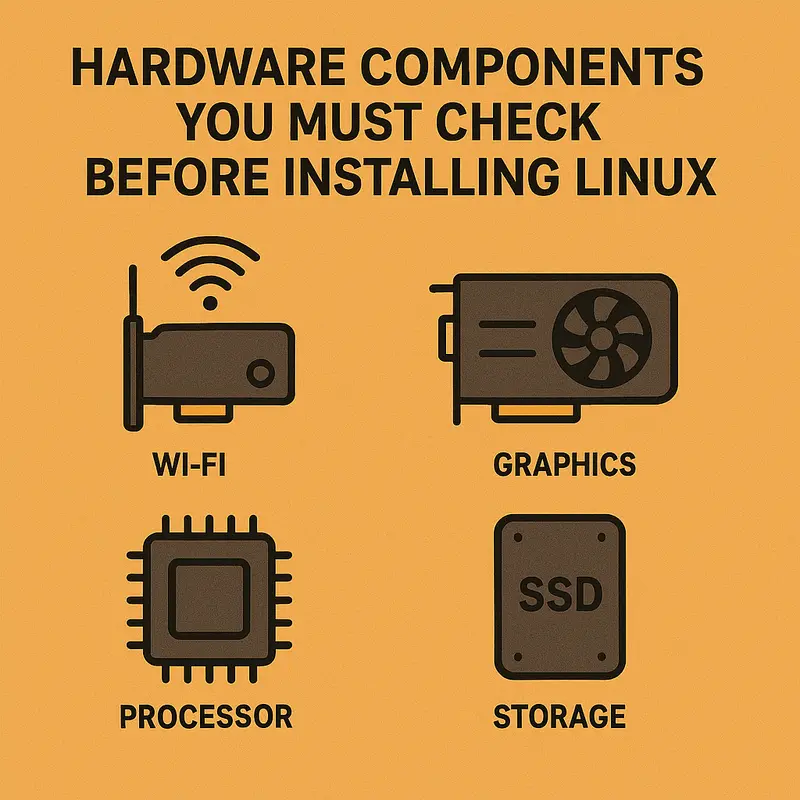
Hardware Components You Must Check Before Installing Linux
CPU Compatibility (Intel vs AMD)
✅ Good news: CPU compatibility is rarely an issue in 2026. Any modern Intel or AMD x86_64 processor works out of the box with Linux.
Supported architectures (x86_64, ARM)
Modern Linux distros support x86_64 (64-bit Intel/AMD processors) universally. ARM support has grown significantly, especially for devices like Raspberry Pi and newer ARM-based laptops. If you’re running a standard Intel or AMD processor from the last 15 years, you’re fine.
Virtualization support (VT-x / AMD-V)
Most modern CPUs include virtualization extensions (Intel VT-x or AMD-V). These aren’t critical for basic Linux use but are essential if you plan to run virtual machines. Check your BIOS/UEFI settings to ensure virtualization is enabled.
Microcode updates on Linux
Both Intel and AMD release microcode updates to fix CPU bugs and security vulnerabilities. Linux distributions include these updates as packages (intel-microcode or amd64-microcode). Your system will automatically apply them during updates.
Graphics Card (GPU) Compatibility – Most Critical
This is where most Linux compatibility issues live.
Intel integrated graphics (best experience)
Intel iGPUs offer the smoothest Linux experience. Drivers are open-source, built into the kernel, and work immediately. From Intel HD Graphics to modern Iris Xe, expect hassle-free operation with excellent Wayland support.
AMD GPUs (open-source advantage)
AMD’s AMDGPU driver is fully open-source and included in the kernel. Modern AMD cards (RX 5000 series and newer) work brilliantly on Linux. Gaming performance rivals Windows in many titles. Wayland support is excellent. Based on testing and user feedback, AMD is often the recommended choice for Linux gaming in 2026.
NVIDIA GPUs (proprietary driver considerations)
NVIDIA remains the most complicated GPU vendor for Linux. The open-source Nouveau driver exists but offers poor performance. You’ll need NVIDIA’s proprietary driver for gaming or GPU compute work.
The good news: NVIDIA has improved Linux support significantly. Their proprietary drivers work well, though installation varies by distribution. The bad news: Wayland support is still maturing, and you may encounter issues with hybrid graphics laptops.
🔗 Related Linux Hardware Guide
Choosing the right GPU is one of the most important factors for Linux compatibility—especially for Wayland, gaming, and driver stability.
👉 AMD vs NVIDIA on Linux: Which GPU Should You Choose?Wayland vs X11 impact
Wayland is the modern display protocol replacing X11. Intel and AMD GPUs handle Wayland beautifully. NVIDIA’s Wayland support improved dramatically with driver version 545+ but isn’t quite as seamless. If you’re buying for Linux, consider that Wayland is the future.
Wi-Fi & Bluetooth Adapters (Common Pain Point)
Wi-Fi compatibility frustrates more new Linux users than any other issue.
Why Wi-Fi often fails on fresh installs
Unlike Ethernet (which almost always works), Wi-Fi requires firmware—binary blobs that the Wi-Fi chip needs to function. Some distributions include proprietary firmware by default, others don’t due to licensing restrictions. Without firmware, your Wi-Fi simply won’t appear.
📡 Realtek, Broadcom, Intel Wi-Fi Chipsets Explained
- Intel Wi-Fi: Best Linux support. Works out of the box on most distributions. AX200, AX201, and AX210 chipsets are the gold standard.
- Realtek: Mixed results. Some chips work fine, others require additional firmware or drivers. RTL8821CE is notorious for Linux issues.
-
Broadcom: Worst compatibility. Many Broadcom chips require proprietary
wldrivers orb43firmware extraction. Best avoided if possible.
In real-world usage, the difference is night and day. Intel Wi-Fi “just works”, while Broadcom often means terminal commands, manual drivers, and frustration.
USB Wi-Fi as a fallback option
If your built-in Wi-Fi doesn’t work, a USB Wi-Fi adapter with known Linux support can save you. Look for adapters with Realtek RTL8812AU or Atheros chipsets. Many plug-and-play USB adapters work immediately.
Storage Devices (HDD, SSD, NVMe)
Storage compatibility is generally excellent, with a few gotchas.
SATA vs NVMe support
Both work perfectly on modern Linux. SATA drives (HDD and SSD) have universal support. NVMe SSDs are recognized automatically by recent kernels. You might need kernel 4.x or newer for some NVMe controllers, but any distribution from 2020 onward handles this.
RAID and Intel RST issues
This is where problems appear. If your laptop came with Windows and uses Intel Rapid Storage Technology (RST) for RAID or caching, you’ll have issues. Linux sees the RAID array but might not boot correctly. Solution: disable RST in BIOS and switch to AHCI mode before installing Linux.
Secure Boot and TPM considerations
Secure Boot can prevent Linux from booting if the bootloader isn’t signed. Most major distributions (Ubuntu, Fedora, Debian) include signed bootloaders that work with Secure Boot enabled. If you encounter boot problems, you can disable Secure Boot in BIOS/UEFI settings.
TPM (Trusted Platform Module) is generally not an issue for Linux, though some encryption features utilize it.
Audio, Webcam, Touchpad & Fingerprint Readers
ALSA & PipeWire audio compatibility
Audio “just works” on most systems thanks to ALSA (Advanced Linux Sound Architecture) and PipeWire (the modern audio server). Intel HDA audio and AMD audio controllers have excellent support. USB audio devices are also well-supported.
Occasional issues appear with niche sound cards or some laptop audio implementations, but these are increasingly rare.
Laptop webcam support
Most laptop webcams work immediately. They’re typically USB devices that Linux recognizes automatically. Some exceptions: cameras with special Windows-only effects or IR cameras for facial recognition may not function.
Touchpad gestures (libinput)
Modern Linux uses libinput for touchpad handling. Most touchpads work, though gesture support varies. Precision touchpads (using Microsoft’s standard) generally work excellently. Older or proprietary touchpad implementations may only support basic click and scroll.
Fingerprint reader limitations
This is hit-or-miss. Some fingerprint readers work with fprintd (the Linux fingerprint daemon), particularly Validity Sensors and some Synaptics readers. Many consumer-grade fingerprint sensors have no Linux support at all. Don’t count on fingerprint login working unless you specifically verify your model is supported.
Check Hardware Compatibility on an Existing System
Using Linux Live USB (Best Method)
Before installing Linux, create a Live USB and test your hardware. This is the single most important compatibility check you can perform.

Why Live USB is the safest test
A Live USB lets you boot Linux without installing anything. You can test hardware, explore the desktop environment, and verify everything works—all without touching your existing operating system. It’s risk-free testing.
What to test during live session:
Spend 20-30 minutes checking these:
- Wi-Fi: Connect to your network. Browse the web.
- Display resolution: Ensure your screen runs at native resolution. Test external monitors if you use them.
- Audio: Play music or videos. Test speakers and headphones.
- Sleep & suspend: Close the lid (on laptops) and reopen. Does it wake properly?
- Touchpad gestures: Try two-finger scrolling, pinch-to-zoom if your touchpad supports it.
- Brightness controls: Can you adjust screen brightness?
- USB ports: Plug in a USB drive and verify it’s recognized.
If everything works during the live session, it will work after installation.
Commands to Identify Hardware (Beginner Friendly)
Open a terminal in your live session and run these commands to identify your hardware:
🧩 lspci – List PCI Devices
The lspci command lists all PCI devices detected by your system, including graphics cards, network adapters, sound cards, and storage controllers.
lspciUse this output to identify your GPU model and network controller, then verify whether Linux drivers are available for those components before installing Linux.
🧩 lsusb – List USB Devices
The lsusb command displays all USB devices currently connected to your system, including built-in webcams, Bluetooth adapters, card readers, and USB Wi-Fi dongles.
lsusbUse this output to identify USB-based hardware such as webcams and Wi-Fi adapters, then confirm that Linux drivers or firmware are available for those devices.
🧩 inxi -Fxz – Complete System Overview
The inxi tool provides a comprehensive snapshot of your Linux system, making it one of the best commands for checking hardware compatibility before installation or troubleshooting issues.
inxi -FxzThis command shows detailed information about your CPU, GPU, network adapters, audio devices, battery, and more. It’s the best single command for getting a complete picture of your hardware.
💡 Tip: If inxi is not installed, you can install it using your distribution’s
package manager.
🧩 hwinfo – Detailed Hardware Info
The hwinfo utility provides highly detailed information about every hardware component detected by your Linux system. It’s more verbose than inxi and especially useful for troubleshooting specific devices.
sudo hwinfo --shortThis command displays a concise overview of your hardware while still exposing critical details about graphics, network interfaces, storage, input devices, and more.
Online Tools to Check Linux Hardware Compatibility
Linux Hardware Database (linux-hardware.org)
The Linux Hardware Database is a crowdsourced collection of hardware compatibility reports from real users.
How to search your model
Visit linux-hardware.org and search for your laptop model or specific hardware components. The database shows which kernels work with which hardware, plus user-submitted compatibility reports.
For example, searching “ThinkPad X1 Carbon Gen 11” shows detailed reports from users running various Linux distributions, including which components work and which don’t.
Understanding compatibility reports
Reports include:
- Kernel version used
- Working/non-working hardware components
- Distribution tested
- User notes and fixes
Green indicators mean the hardware works. Red indicators highlight problems. User comments often include workarounds for issues.
Distro-Specific Compatibility Lists
Ubuntu Certified Hardware
Ubuntu maintains a certification program. Visit ubuntu.com/certified and search for your hardware. Certified devices are guaranteed to work with Ubuntu out of the box.
Fedora Hardware Compatibility
Fedora’s hardware compatibility list covers both certified devices and community-tested hardware. Check the Fedora Project wiki for details.
Arch Linux Wiki (hardware pages)
The Arch Wiki is arguably the best Linux hardware documentation available. Even if you’re not using Arch, search “Arch Wiki [your laptop model]” for incredibly detailed hardware information, driver requirements, and configuration tips.
Laptop & PC Brand Linux Support
Dell & Lenovo Linux-certified models
Dell’s XPS Developer Edition and Precision workstations ship with Linux pre-installed. Lenovo’s ThinkPad series (especially T, X, and P lines) have excellent Linux support—many come certified for Ubuntu and Red Hat.
System76 & TUXEDO advantages
These companies build computers specifically for Linux. System76 (US-based) and TUXEDO Computers (Europe) design hardware with Linux in mind, ensuring every component works perfectly. They’re more expensive but eliminate compatibility concerns entirely.
Why gaming laptops need extra checks
Gaming laptops often include NVIDIA GPUs (requiring proprietary drivers), hybrid graphics switching (complicated on Linux), and RGB lighting controlled by Windows-only software. They work, but expect extra configuration. Check linux-hardware.org specifically for your model before buying.
Checking Hardware Compatibility Before Buying a New PC
Best Linux-Friendly Hardware Brands
CPUs
Both Intel and AMD work excellently. AMD Ryzen processors offer exceptional value and open-source friendly graphics (if using integrated GPU). Intel processors guarantee wide compatibility and solid integrated graphics.
GPUs
- Best: Intel integrated graphics or AMD discrete GPUs (RX 6000/7000 series)
- Good: NVIDIA GPUs (if you’re willing to install proprietary drivers)
- Avoid: Older NVIDIA GPUs with poor driver support, hybrid graphics setups you can’t disable
Wi-Fi chipsets
Intel Wi-Fi is the gold standard. Look for Intel AX200, AX201, AX210, or any recent Intel wireless chipset. These work immediately without configuration.
SSD brands
Any major SSD brand works fine: Samsung, Crucial, Western Digital, Kingston. NVMe support is universal on modern kernels. Avoid extremely niche or off-brand controllers.
Red Flags to Avoid When Buying for Linux
Broadcom Wi-Fi
Seriously, avoid Broadcom wireless chipsets if possible. They’ve plagued Linux users for years. Check specifications carefully—if a laptop lists Broadcom BCM43xx series Wi-Fi, consider another model.
Hybrid graphics issues
Laptops with both integrated and discrete GPUs can cause headaches. NVIDIA Optimus switching is possible on Linux (via PRIME) but adds complexity. If you can get a laptop with just one GPU, your life will be easier.
Consumer fingerprint sensors
Most consumer-grade fingerprint readers don’t work on Linux. If you absolutely need fingerprint login, verify your specific sensor model is supported by fprintd before buying.
Locked BIOS / Secure Boot problems
Some budget laptops or specialized business machines have locked BIOS settings that prevent disabling Secure Boot or changing boot order. Research whether you can access and modify BIOS settings before purchasing.
Distro Choice Matters: Pick the Right Linux Distribution
Beginner-Friendly Distros with Best Hardware Support
Ubuntu / Linux Mint
Ubuntu is the most popular Linux distribution for good reason. It includes proprietary drivers and firmware out of the box, making hardware compatibility smoother. Ubuntu’s Hardware Enablement (HWE) stack provides newer kernels on LTS releases.
Linux Mint (based on Ubuntu) offers similar hardware support with a more traditional desktop experience.
Fedora
Fedora ships recent kernel versions and cutting-edge software, which helps with newer hardware. It doesn’t include proprietary firmware by default but makes installation straightforward through repositories.
Pop!_OS
Developed by System76, Pop!_OS includes NVIDIA drivers pre-installed (if you download the NVIDIA ISO). It’s Ubuntu-based but optimized for hardware compatibility and gaming.
Rolling vs Stable Distros and Hardware Support
Why newer kernels matter for new hardware
If your hardware was released in the last 6-12 months, you probably need a recent kernel (6.5 or newer as of 2026). Rolling release distributions like Arch Linux, Manjaro, or Fedora provide cutting-edge kernels that support the latest hardware.
Stable distributions like Debian Stable might run older kernels that lack support for brand-new components.
LTS vs rolling release trade-offs
- LTS (Long Term Support): Stable, well-tested, but hardware support for new devices may lag. Great for older or mid-range hardware.
- Rolling release: Always up-to-date, best for new hardware, but occasionally update breakage.
Choose based on your hardware age. Running a 2025 laptop? Consider Fedora or a rolling release. Running a 2020 laptop? Ubuntu LTS is perfect.
How to Fix Hardware Issues After Installing Linux
Installing Missing Drivers
Proprietary drivers (NVIDIA, Wi-Fi)
Most distributions provide easy tools for installing proprietary drivers:
- Ubuntu/Linux Mint: “Additional Drivers” in Settings
- Fedora: Enable RPM Fusion repositories, install drivers via Software
- Arch: Install from AUR or official repositories
For NVIDIA, look for packages like nvidia or nvidia-dkms. For problematic Wi-Fi, search for firmware packages specific to your chipset.
Firmware packages
Many distributions separate firmware into packages due to licensing. If hardware doesn’t work, install:
- linux-firmware (most comprehensive)
- firmware-linux-nonfree (Debian-based)
- linux-firmware (Fedora/Arch)
Kernel Updates & Hardware Enablement
Using newer kernels on LTS distros
Ubuntu LTS users can enable the Hardware Enablement (HWE) stack to get newer kernels:
📌 Install Ubuntu Hardware Enablement (HWE) Kernel
sudo apt install --install-recommends linux-generic-hwe-22.04This command installs the latest Hardware Enablement (HWE) kernel on Ubuntu 22.04, improving support for newer CPUs, GPUs, Wi-Fi adapters, and other modern hardware.
This provides kernel updates backported from newer Ubuntu releases.
HWE stacks explained
HWE stacks bridge the gap between LTS stability and new hardware support. They’re tested kernel updates that add support for recent components without upgrading your entire system. Essential if you installed an LTS release on newer hardware.
BIOS & Firmware Updates
Why BIOS updates improve Linux compatibility
Manufacturers often release BIOS/UEFI updates that fix hardware bugs, improve power management, and enhance compatibility. These updates benefit Linux as much as Windows.
🔧 LVFS & fwupd Tools
The Linux Vendor Firmware Service (LVFS) and the fwupd tool make firmware updates simple and safe on Linux. With fwupd, you can update your system firmware directly from the terminal without using vendor-specific utilities.
sudo fwupdmgr refresh

sudo fwupdmgr update
These commands check for and install available firmware updates for your system and supported peripherals. Many major hardware vendors—including Dell, Lenovo, and HP—actively support firmware delivery through fwupd and LVFS.
Common Linux Hardware Compatibility Myths (Debunked)
“Linux doesn’t support modern hardware”
False. Linux supports the vast majority of modern hardware. The kernel is actively developed with support for new components added regularly. What’s true: bleeding-edge hardware (released within weeks) might need 2-3 months before kernel support arrives.
“Gaming laptops can’t run Linux”
Incorrect. Gaming laptops run Linux, though NVIDIA GPU configuration requires extra steps. With Proton and Steam Deck pushing Linux gaming forward in 2026, gaming laptop support has never been better. Just be prepared to install proprietary NVIDIA drivers.
“Wi-Fi never works on Linux”
Exaggerated. Wi-Fi issues exist, primarily with Broadcom chipsets. Intel Wi-Fi works flawlessly. Many Realtek chips work fine. The reputation comes from a vocal minority facing Broadcom problems. Choose Intel Wi-Fi hardware, and you’ll never think about this again.
✅ Quick Linux Hardware Compatibility Checklist (TL;DR)
Before installing Linux, verify:
- CPU ✔ – Any modern x86_64 Intel or AMD processor works
- GPU ✔ – Intel or AMD recommended; NVIDIA requires proprietary drivers
- Wi-Fi ✔ – Intel chipsets work best; avoid Broadcom if possible
- Secure Boot ✔ – Supported by major distros; can be disabled if needed
- BIOS Mode ✔ – Ensure UEFI is enabled (not legacy BIOS)
- Live USB Test ✔ – Boot a live session and test all hardware first
👉 If all checkmarks are green during live testing, your Linux installation will succeed.
FAQ
Can Linux run on old PCs?
Absolutely. Linux breathes new life into old hardware. Lightweight distributions like Linux Mint Xfce, Lubuntu, or antiX run smoothly on 10-15 year old computers. You’ll need at least 2GB RAM and a dual-core processor for a modern desktop experience.
Is Linux good for laptops in 2026?
Yes. Laptop support has improved dramatically. Battery life management, suspend/resume, and touchpad support are excellent on most hardware. ThinkPads, Dell XPS, and Linux-certified laptops offer Windows-comparable experiences. Gaming laptops and cutting-edge models may need extra configuration.
Which Linux distro has best hardware support?
Ubuntu and Fedora lead in hardware support. Ubuntu includes proprietary drivers/firmware by default and maintains hardware certification programs. Fedora ships recent kernels that support new hardware quickly. Pop!_OS deserves mention for excellent NVIDIA support out of the box.
Do I need internet during installation?
Not necessarily. Most distributions install completely offline. However, internet access helps if you need proprietary drivers during installation (like NVIDIA graphics or certain Wi-Fi firmware). Wired Ethernet is safest—it always works without additional drivers.
Final Thoughts: Install Linux with Confidence
Checking hardware compatibility before installing Linux isn’t complicated—it just requires a bit of preparation. The days of Linux being incompatible with mainstream hardware are long gone. In 2026, most computers run Linux without issues.
Best practices summary:
Start with a live USB test. Spend 20 minutes verifying your hardware works before committing to installation. Use commands like lspci and inxi to identify components, then cross-reference with the Linux Hardware Database.
Choose hardware wisely if buying new. Intel CPUs, AMD or Intel graphics, and Intel Wi-Fi chipsets provide the smoothest experience. Avoid Broadcom Wi-Fi and be cautious with hybrid graphics laptops.
Pick the right distribution. Ubuntu or Fedora for beginners, rolling releases if you have very new hardware. Enable hardware enablement stacks on LTS releases if needed.
The majority of hardware compatibility issues can be avoided entirely through smart hardware selection and thorough pre-installation testing. From user feedback and testing, systems built with Linux-friendly components often provide a superior experience to their Windows counterparts—faster, more stable, and with better battery life.
Ready to take the plunge? Create that live USB, check hardware compatibility before installing Linux, and join millions of users enjoying a more secure, customizable, and efficient computing experience. Your hardware is probably more compatible than you think.
For more in-depth guides on Linux Wi-Fi adapters, choosing Linux-compatible laptops, and GPU driver configuration, explore our related tutorials. The Linux community is here to help—and with proper hardware checking, your transition will be smooth and hassle-free.
✅ Install Linux the Smart Way
Check hardware compatibility before installing Linux, and you’ll avoid 90% of potential problems. Test first, install confidently, and enjoy the freedom of open-source computing.
Disclaimer
This guide provides general information about Linux hardware compatibility based on common experiences and available data as of 2026. Hardware compatibility can vary depending on specific models, firmware versions, and Linux distributions. Always test your hardware with a live USB session before installation, and consult your specific hardware manufacturer and Linux distribution documentation for the most accurate compatibility information. The author and publisher are not responsible for any hardware or software issues that may arise from following this guide.
✅ You’re Ready to Install Linux
By checking hardware compatibility in advance, you significantly reduce the risk of driver issues, display problems, and missing functionality after installation.
If your hardware works correctly in a Live USB session, you can proceed with confidence. This preparation step ensures a smooth Linux installation and a reliable daily experience.
Next step: Choose a Linux distribution that matches your hardware, create a bootable USB drive, and begin installation knowing your system is compatible.
🚀 Continue Your Linux JourneyAbout the Author