
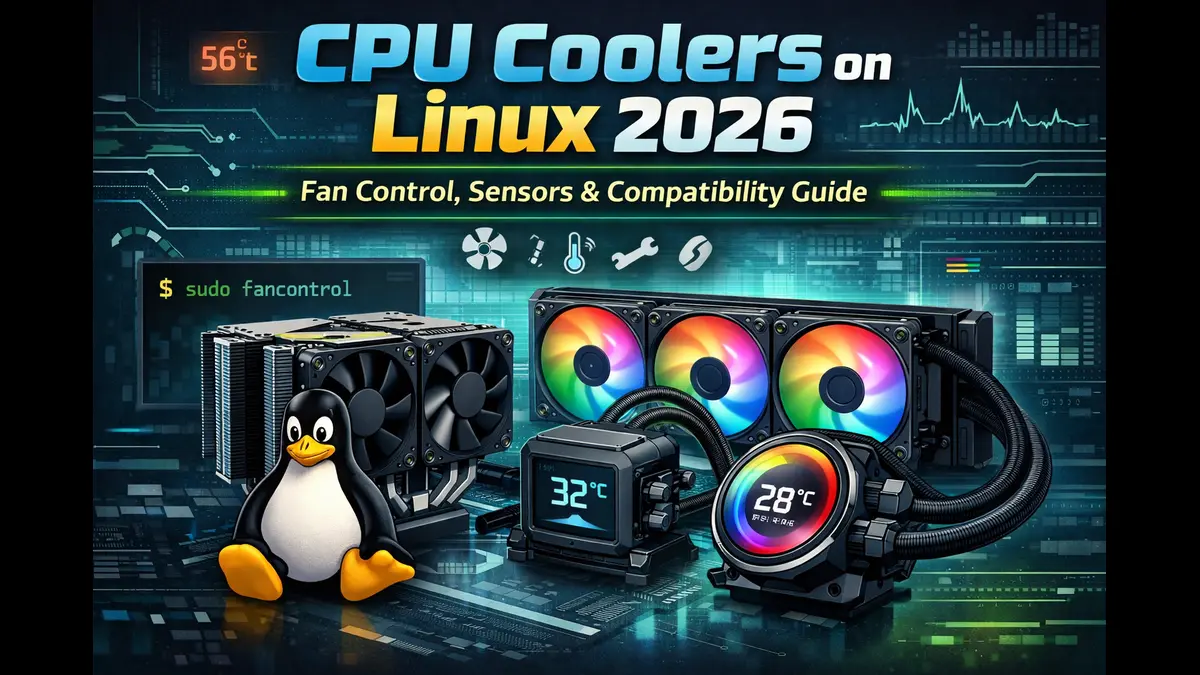
CPU Coolers on Linux (2026) Fan Control, Sensors & Compatibility Guide
Linux desktop users have spent years compromising on hardware compatibility. Graphics cards, Wi-Fi adapters, and RGB peripherals have all required workarounds or surrendering features entirely. CPU coolers on Linux follow a different pattern—most work without drama, but only if you understand what your motherboard, kernel, and sensor stack are actually capable of managing.
Choosing CPU coolers on Linux in 2026 means navigating fan control software, sensor detection, and AIO compatibility questions that Windows users never face. The good news: tower air coolers work flawlessly, and many liquid coolers integrate cleanly with the kernel’s hwmon subsystem. The challenge lies in knowing which products respect open standards and which depend on proprietary controllers that may never receive Linux support.
This guide covers how CPU coolers integrate with Linux systems, which fan control methods work reliably, and which products you can buy in the United States without gambling on compatibility. Whether you’re building a quiet workstation or a high-refresh gaming rig, the goal is simple: predictable cooling without fighting your operating system.
CPU Cooler Types and What Linux Actually Cares About
Air Coolers
Tower air coolers remain the most straightforward option for Linux users. They connect fans directly to motherboard headers, which Linux reads through the hwmon subsystem. No USB controllers, no proprietary software dependencies, no firmware quirks. If your motherboard exposes PWM control through standard headers, you can manage speeds through fancontrol, CoolerControl, or even BIOS-only configurations.
High-end air coolers from Noctua, be quiet!, and Thermalright ship with PWM fans that respond consistently to both BIOS curves and Linux userspace control. The limitation isn’t the cooler—it’s whether your motherboard manufacturer bothered implementing proper ACPI tables and sensor exposure.
AIO Liquid Coolers
All-in-one liquid coolers split into two categories on Linux. “Dumb” AIOs connect their pump and radiator fans to motherboard headers just like air coolers. These work identically: the motherboard controls everything, and Linux sees standard PWM channels.
USB-managed AIOs introduce complexity. These units use onboard controllers for pump speed, RGB lighting, LCD screens, or advanced fan curves. Some work through liquidctl or in-kernel drivers. Others don’t work at all. Corsair’s iCUE ecosystem, NZXT’s CAM software, and Thermaltake’s proprietary controllers all depend on reverse-engineered support or community-maintained tools that lag behind new product launches.
If you’re buying an AIO for Linux, default to motherboard-controlled models unless you’re willing to research specific liquidctl compatibility for your exact SKU.
Custom Loops
Custom water cooling loops fall outside this guide’s scope, but the principle holds: keep control on the motherboard whenever possible. D5 and DDC pumps with PWM or DC control integrate like any other fan header. Aquacomputer devices offer Linux support through aquacomputer_d5next kernel drivers. Avoid anything requiring Windows-only configuration software unless you’re prepared to dual-boot for initial setup.
Linux CPU Cooler Compatibility Checklist (Before You Buy)
CPU Socket Compatibility
Intel’s LGA1700 socket carried through 12th, 13th, and 14th gen processors. LGA1851 launched with Arrow Lake and requires updated mounting hardware. AMD’s AM5 socket serves Ryzen 7000 and 8000 series CPUs and shares mounting holes with AM4, though ILM pressure requirements differ slightly.
Most coolers released after 2023 include both Intel and AMD brackets. Budget models sometimes skip older sockets. Verify your specific CPU generation is listed—don’t assume “Intel compatible” covers every socket.
Case and RAM Clearance
Tower coolers range from 155mm to 168mm in height. Mid-tower cases typically clear 170mm, but compact builds cut closer. Check both case specifications and cooler dimensions before ordering.
RAM clearance matters for dual-tower designs. Noctua’s NH-D15 G2 maintains 64mm of clearance for the front fan in standard position but can shift upward if needed. Low-profile RAM (under 40mm) eliminates guesswork. RGB memory kits often exceed 45mm and force compromises.
PWM vs DC Fans
PWM (4-pin) fans modulate speed through pulse-width signals while maintaining constant voltage. DC (3-pin) fans adjust speed by varying voltage. Linux handles both through hwmon, but PWM offers finer control and reads RPM more reliably.
Modern motherboards default to PWM mode. If you’re mixing fan types, check BIOS settings per-header. Connecting DC fans to PWM headers works in most cases, but speed control may be limited or nonexistent depending on motherboard implementation.
BIOS vs Software Fan Control
Motherboard BIOS fan curves work independently of the operating system. Set curves in UEFI firmware, and they persist regardless of which OS boots. This approach eliminates Linux compatibility concerns entirely but sacrifices runtime flexibility.
Software control through Linux userspace tools requires kernel drivers and proper sensor exposure. ASUS, MSI, Gigabyte, and ASRock boards vary in hwmon implementation quality. Enthusiast-tier boards generally expose more sensors and fan headers correctly. Budget models sometimes hide headers or report incorrect mappings.
USB Controllers and RGB
USB fan controllers, RGB hubs, and LCD screens on AIO coolers depend on device-specific Linux support. liquidctl maintains compatibility lists, but new products often launch without Linux drivers. RGB lighting may remain stuck on default patterns or remain dark entirely.
If RGB or LCD functionality matters, verify Linux support before purchasing. If those features don’t matter, choose models that don’t charge a premium for them.
Linux Fan Control & Sensor Stack Explained
hwmon Subsystem
The kernel’s hwmon subsystem provides a standard interface between hardware monitoring chips and userspace applications. It exposes temperature sensors, fan RPM readings, and PWM control through sysfs under /sys/class/hwmon/. Every temperature sensor, fan header, and voltage rail your system supports should appear here if drivers load correctly.
Different sensor chips report through different kernel modules. nct6775 covers many Nuvoton Super I/O chips common on Intel boards. k10temp reads AMD CPU temperatures directly. it87 handles ITE chips. Your motherboard manual won’t tell you which chip it uses—you discover that by loading lm-sensors and probing.
lm-sensors
The lm-sensors package provides userspace tools for reading hardware monitors. Run sensors-detect as root to probe for available sensor chips and generate the necessary module configuration. This script asks permission before loading each potential driver module and writes results to /etc/modules or /etc/modules-load.d/ depending on your distribution.
After detection completes, the sensors command displays current readings:
iwlwifi_1-virtual-0
Adapter: Virtual device
temp1:        +46.0°C

k10temp-pci-00c3
Adapter: PCI adapter
Tctl:         +55.0°C
Tccd1:        +48.0°C

nct6798-isa-0a20
Adapter: ISA adapter
fan1:        1150 RPM
fan2:         850 RPM
Note: Output varies by hardware. Linux systems may show multiple temperature sensors, fan speeds, and sometimes voltage rails. Mapping these readings to physical motherboard headers often requires testing and observation.
fancontrol and pwmconfig
The fancontrol daemon applies fan curves based on temperature inputs. Before running fancontrol, execute pwmconfig to identify which PWM outputs correspond to which fans and which temperature sensors make sense as control sources.
pwmconfig tests each PWM channel by ramping speed up and down while monitoring RPM changes. This identifies functional connections. You then associate each fan with a temperature sensor and define minimum/maximum speeds. The utility writes a configuration file to /etc/fancontrol.
Start the fancontrol service, and it continuously adjusts fan speeds based on your defined curves. This approach works reliably but requires manual configuration and doesn’t provide a graphical interface.
CoolerControl
CoolerControl offers a modern GUI for fan and pump management. It builds on hwmon and liquidctl while providing visual curve editing, sensor monitoring, and per-device profiles. The application detects available fans and temperature sources automatically, presents them in a logical interface, and allows curve adjustments without editing text configuration files.
CoolerControl works well for users who want visual feedback and don’t enjoy manually mapping sensor labels to physical headers. It supports both motherboard-connected fans and USB-controlled devices through liquidctl integration.
Installation varies by distribution. Debian and Ubuntu users can install from PPAs. Arch users find it in the AUR. Fedora requires manual package building or Flatpak installation. Check the project’s GitHub for current distribution support.
liquidctl
liquidctl provides command-line and library support for USB-connected cooling devices. It handles Corsair, NZXT, ASUS, and EVGA products that use proprietary USB protocols for pump control, fan management, and RGB lighting.
Supported devices receive direct control over pump speeds, fan curves, and sometimes LCD screens or lighting effects. Unsupported devices may appear in USB listings but won’t respond to commands. The project maintains a compatibility list on GitHub—check it before buying any USB-managed AIO.
liquidctl runs as a userspace utility. You can invoke it manually, integrate it into systemd services, or let CoolerControl use it as a backend. For USB AIOs that appear in the compatibility list, this tool often provides better control than leaving everything to BIOS defaults.
Verifying Fan & Sensor Support on Linux (Practical Guide)
BIOS Preparation
Before booting Linux, enter your motherboard’s UEFI firmware and set all fan headers to PWM mode. Disable any “smart” or “auto” modes that might conflict with software control later. Set a safe static speed—perhaps 50%—on each header.
Note which headers your motherboard exposes. High-end boards offer six or more chassis and CPU fan headers. Budget boards might provide three total. Physical labels on the PCB sometimes don’t match BIOS labels. Taking notes now prevents confusion during sensor mapping.
Detecting Sensors
Boot Linux and install lm-sensors. Run sensors-detect and accept the recommended drivers. Review the output of sensors to see what appeared.
You’re looking for fan RPM readings that correspond to connected fans, temperature sensors that match CPU and motherboard locations, and PWM control paths in /sys/class/hwmon/hwmon*/pwm*. If a fan spins but doesn’t report RPM, the header may lack tachometer wire support or the sensor chip doesn’t expose that channel.
Mapping PWM Headers
Identifying which /sys/class/hwmon/hwmon3/pwm2 controls which physical fan requires testing. Stop fancontrol if it’s running. Manually write values to PWM files and listen for speed changes:
echo 100 > /sys/class/hwmon/hwmon3/pwm2
This command manually sets the PWM duty cycle for a fan header
exposed through the Linux hwmon interface.
The value 100 represents the PWM level supported by your hardware
(range varies by motherboard).
Important: You may need root privileges
(sudo) and the fan must be configured for
manual PWM control (pwmX_enable=1)
before this command works.
PWM values range from 0 to 255. Writing 100 runs the fan at roughly 40% speed. Increase to 200 or 255 and confirm audible speed changes. Cross-reference these tests with sensors output showing RPM increases.
Document your mappings. Create labels using sensors configuration files in /etc/sensors.d/ to rename generic entries like fan2 to CPU_Fan or Rear_Exhaust.
Common Mistakes
Temperature source mismatches: Using motherboard chipset temperature to control CPU fans results in sluggish response. CPU fans should respond to CPU temperature sensors—usually labeled Tctl, Tdie, or Package.
Inverted fan curves: Setting minimum speed higher than maximum speed produces unexpected behavior. Always verify your curve logic before saving.
Conflicts between BIOS and software control: If BIOS applies aggressive curves, software control may fight against it. Choose one control method and commit. Hybrid approaches cause instability.
AIO Liquid Coolers on Linux: What Works and What Doesn’t
Motherboard-Controlled AIOs
AIOs that connect pump and fans exclusively to motherboard headers require zero Linux-specific drivers. The pump runs as a PWM or DC device on a dedicated header. Radiator fans connect to chassis or CPU fan headers. Linux sees standard hwmon entries for everything.
ARCTIC Liquid Freezer III models use this design. Radiator fans and VRM fans connect to motherboard headers. The pump draws power from SATA but receives speed control from a 4-pin header. No USB cable, no proprietary controller, no driver dependencies.
These coolers work identically to tower air coolers from a software perspective. Set curves in BIOS or use fancontrol or CoolerControl. Reliability matches any other PWM device.
USB-Managed AIOs
Corsair, NZXT, ASUS, and others embed USB controllers in their AIO pumps for advanced features. Pump speed, RGB lighting, LCD screens, and sometimes fan control all pass through proprietary USB protocols.
Linux support depends on reverse engineering. liquidctl supports many Corsair Hydro and iCUE models, NZXT Kraken series, and select ASUS and EVGA units. Support arrives months after product launch and may not cover every feature. LCD screens often remain dark. RGB might stay on default rainbow patterns.
If you’re buying a USB AIO for Linux, consult the liquidctl compatibility list first. Recently released models may lack support entirely. Premium features like LCD customization or per-LED RGB control frequently don’t work, even when basic pump and fan control do.
Realistic Expectations
Linux users should expect functional cooling and noise control from any AIO. Aesthetic features—RGB synchronization, LCD screens, addressable lighting effects—remain hit-or-miss. If you’re paying extra for Commander cores, LCD screens, or integrated RGB controllers, verify Linux support exists.
For many users, motherboard-controlled AIOs deliver identical cooling performance without the compatibility gamble. ARCTIC’s Liquid Freezer III series routinely outperforms USB-managed competitors while costing less and requiring no special software.
Building Quiet and Stable Fan Curves on Linux
Choosing Temperature Sources
CPU fans should respond to CPU temperature. Avoid motherboard, chipset, or VRM sensors for CPU fan control—they don’t reflect CPU thermal load accurately. AMD systems report Tctl (control temperature) through k10temp. Intel systems report Package temperature through coretemp.
Case fans can reference CPU temperature, but GPU or motherboard temperature makes more sense if you’re cooling expansion cards or chipset heat. Match the fan location to the thermal source it affects.
Pump speed on AIOs should remain constant or follow a very gentle curve. Rapid pump speed changes create noise and provide minimal thermal benefit. Set pumps between 60-80% speed and leave them there.
Example Fan Curves
Silent workstation: Set minimum fan speed at 30% and maximum at 70%. Use a gradual curve that doesn’t ramp aggressively until CPU exceeds 70°C. This keeps noise low during idle and light work while preventing thermal throttling under sustained load.
Gaming PC: Set minimum at 40% and maximum at 90%. Begin ramping at 60°C and reach maximum by 80°C. This balances acoustics with thermal headroom during gaming sessions.
Quiet idle, aggressive load: Set minimum at 20% for near-silent idle. Ramp steeply starting at 65°C, reaching 100% by 75°C. This allows whisper-quiet operation most of the time but responds aggressively when needed.
Pump Speed Best Practices
AIO pumps perform best at constant speeds. Variable pump curves introduce noise without meaningfully improving cooling. Set pump speed between 60-80% and leave it static.
Some AIOs include separate pump and fan headers. The pump header should maintain constant speed. Only adjust radiator fan speeds based on coolant or CPU temperature.
Best CPU Coolers for Linux (US Market, 2026)
Best Air Coolers
Noctua NH-D15 G2 (chromax.black available)
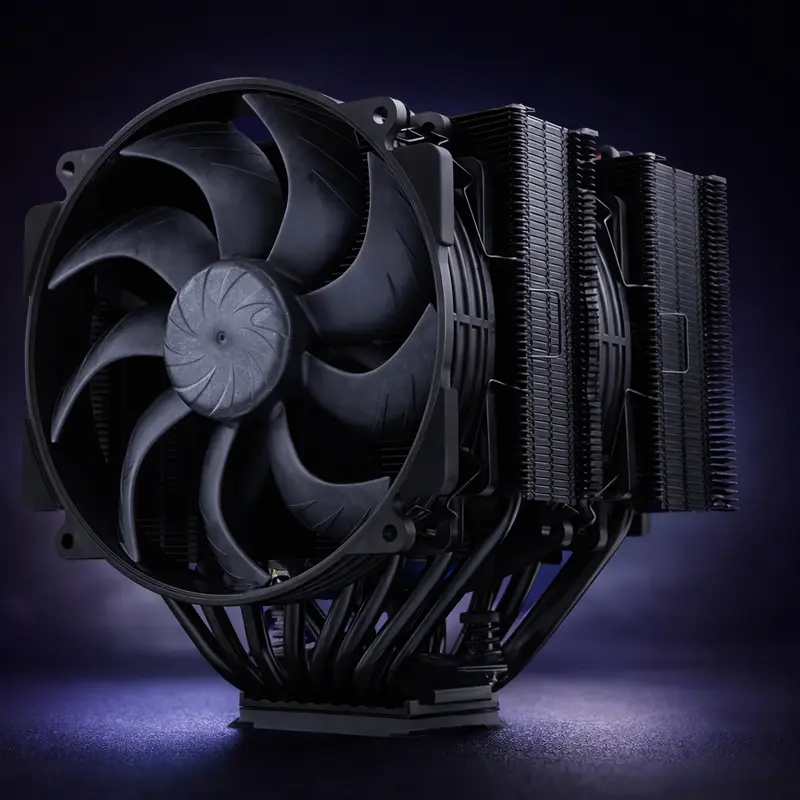
The NH-D15 G2 updates Noctua’s flagship dual-tower cooler with improved heatpipe layout and refined mounting hardware. Two 140mm NF-A14x25 G2 PWM fans provide exceptional airflow at low noise levels. Height reaches 168mm with fans installed—verify case clearance first.
Linux compatibility is flawless. Fans connect to standard motherboard headers and respond perfectly to PWM control through hwmon. No drivers, no quirks, no surprises. The chromax.black version offers neutral aesthetics for builds that skip RGB.
Thermal performance matches or exceeds most 280mm AIOs while producing less noise. Suitable for Ryzen 9 and Core i9 processors under sustained workloads. RAM clearance allows up to 64mm with the front fan in standard position.
be quiet! Dark Rock Pro 5
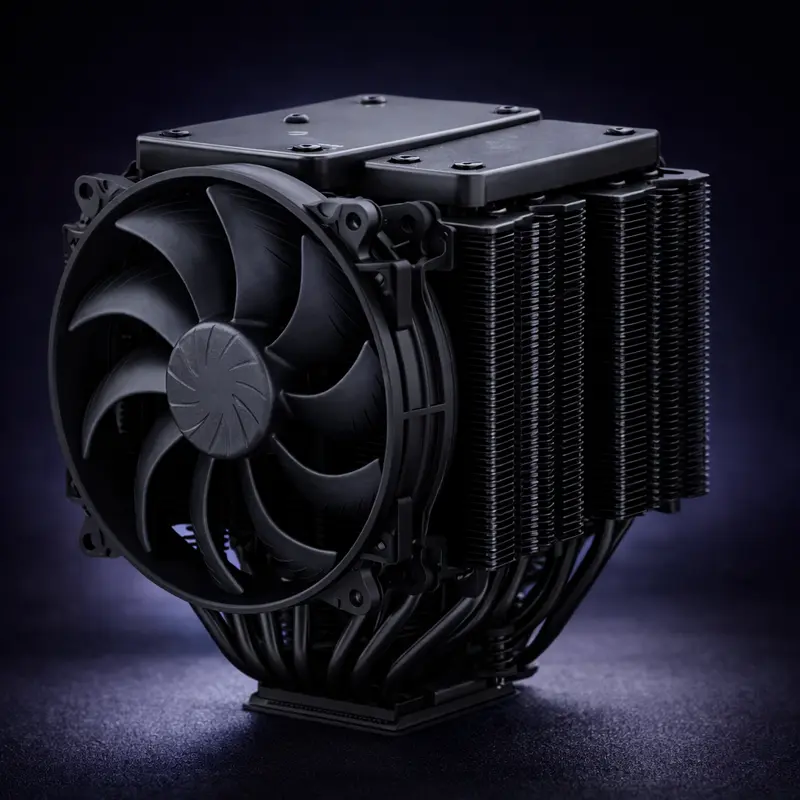
Be quiet!’s flagship maintains the company’s focus on silence. Dual 135mm Silent Wings fans push air through an offset tower design that improves RAM compatibility. Maximum height of 168mm still requires careful case selection.
PWM control works without issue on Linux. Fans respond smoothly to BIOS curves and userspace control through fancontrol or CoolerControl. All-black aesthetic with brushed aluminum top cover.
Thermal performance trails the NH-D15 G2 slightly but remains excellent for high-end CPUs. Acoustics edge out Noctua’s offering at equivalent fan speeds. Consider this for quiet-focused builds.
Thermalright Phantom Spirit 120 EVO
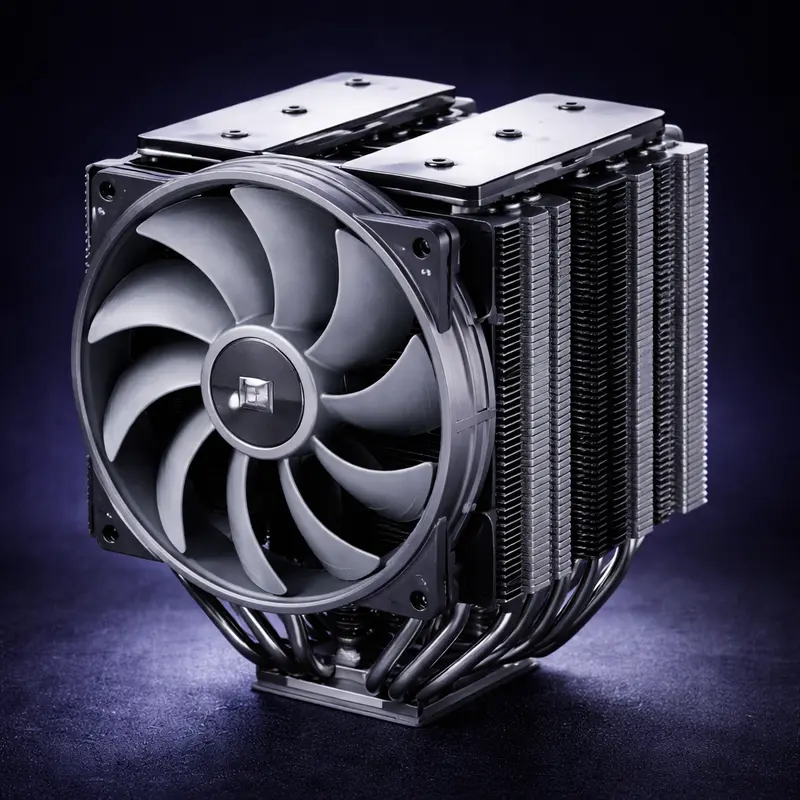
Thermalright delivers flagship-tier performance at mid-range pricing. Dual 120mm PWM fans and a dual-tower heatsink handle Core i7 and Ryzen 7 processors comfortably. Height of 157mm fits most cases without drama.
Linux sees these as standard PWM fans. No compatibility concerns whatsoever. Thermalright’s value proposition makes this ideal for budget-conscious Linux builders who still want strong cooling.
Thermal performance matches be quiet! and Noctua options within a few degrees while costing significantly less. RGB versions exist but add cost without improving cooling.
Cooler Master Hyper 212 (latest revision)
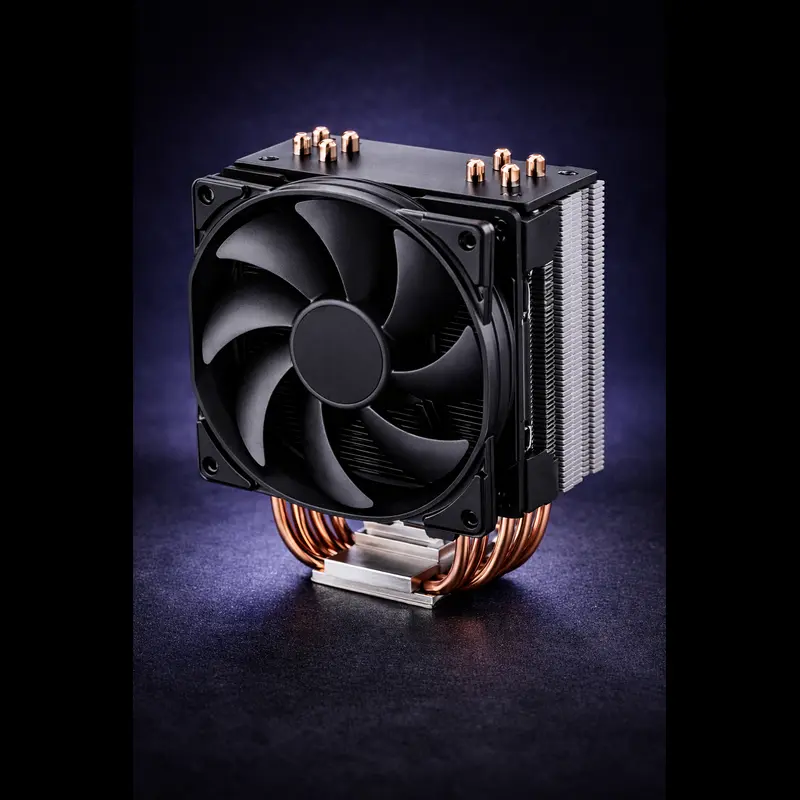
The Hyper 212 remains a budget staple. Single-tower design with one or two 120mm fans handles mid-range CPUs adequately. Recent revisions improved mounting hardware and updated fan designs.
Standard PWM control works fine on Linux. Height around 158mm fits most cases. Thermal performance suffices for Core i5, Ryzen 5, and lower-power CPUs but struggles with flagship processors under sustained load.
Consider this for basic builds, office workstations, or secondary systems. For gaming or high-performance work, spend more elsewhere.
DeepCool AK620 / AK620 DIGITAL
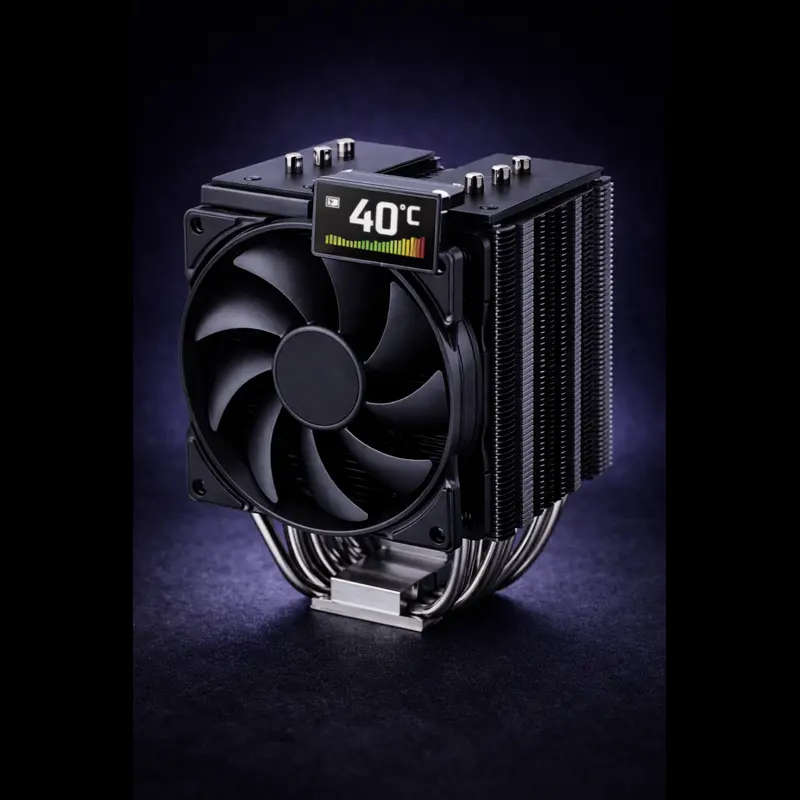
DeepCool’s AK620 offers dual-tower performance at aggressive pricing. Two 120mm PWM fans provide strong airflow. Height reaches 160mm—generally compatible with mid-tower cases.
The DIGITAL variant adds a small LCD screen showing temperature or custom images. This screen requires Windows software for configuration but continues displaying the last-set content on Linux. Cooling performance remains identical between variants.
Linux PWM control works perfectly. Thermal performance competes with much more expensive options. Strong choice for value-oriented builders.
Best AIO Liquid Coolers
ARCTIC Liquid Freezer III 360
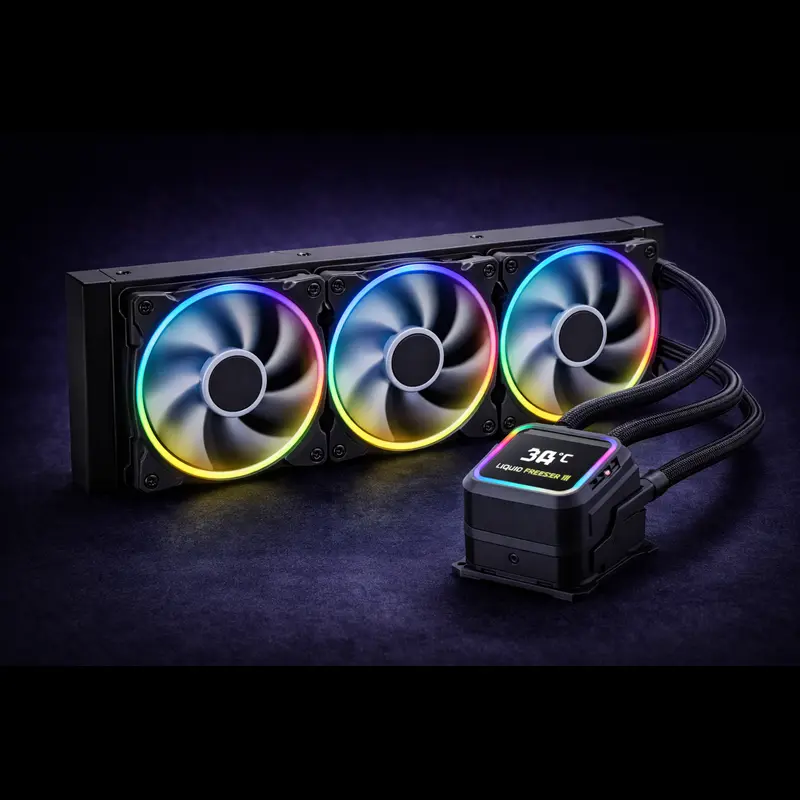
ARCTIC’s latest AIO prioritizes performance and Linux compatibility. The 360mm radiator and three 120mm P12 PWM fans connect directly to motherboard headers. No USB controller, no software dependencies. A VRM fan on the pump block provides additional cooling for motherboard components.
Linux compatibility is perfect. Every component appears as standard hwmon devices. Control everything through BIOS, fancontrol, or CoolerControl without driver concerns. Thermal performance leads the 360mm class. Noise levels remain low even under load. Price significantly undercuts competitors offering similar cooling but worse Linux support. Best overall AIO for Linux users in 2026.
ASUS ROG Ryujin III 360
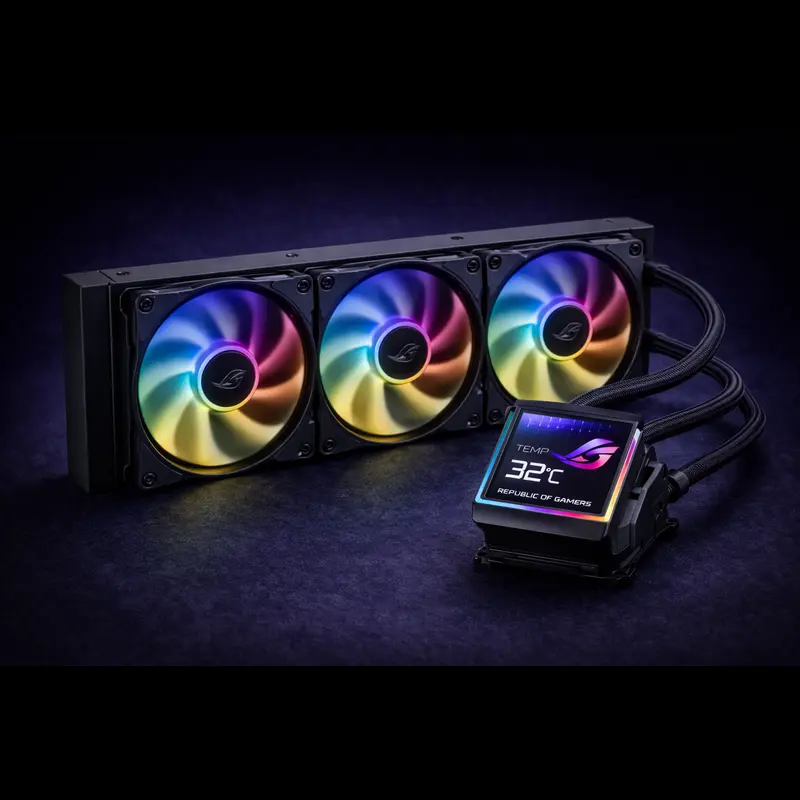
ASUS combines a 360mm radiator with a 3.5-inch LCD screen and Noctua NF-A12x25 radiator fans. The LCD displays system stats, custom images, or animations. USB connection required for pump control and LCD functionality.
Linux support exists through liquidctl for pump speed control. LCD functionality requires Windows for initial configuration but can display static images afterward. RGB lighting works partially. Noctua fans provide excellent performance and low noise.
Expensive but delivers premium cooling. Only choose this if you’ve verified liquidctl supports your specific revision and you’re comfortable with limited LCD functionality on Linux.
MSI MAG CORELIQUID E360
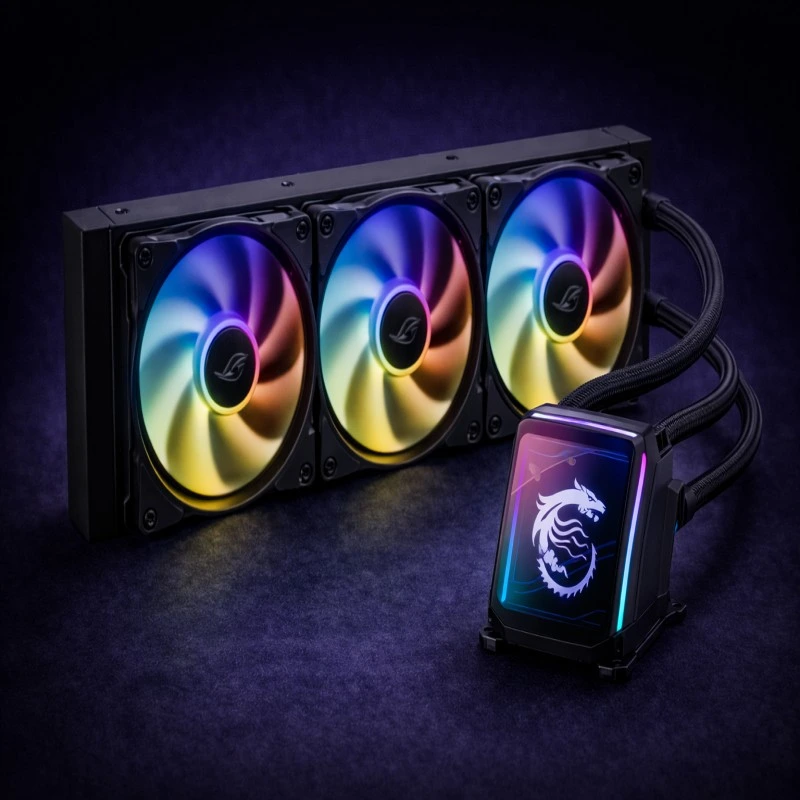
MSI’s E-series AIO features a 360mm radiator, three 120mm ARGB fans, and a small LCD screen on the pump. USB connection manages pump speed and LCD display. Pricing sits between ARCTIC and ASUS.
liquidctl support varies by production batch. Recent models appear in compatibility lists, but verify before purchasing. LCD screens show MSI branding by default and may not respond to Linux control. Cooling performance is strong but not exceptional.
Consider this if you find it on sale and have confirmed Linux support for your exact model. Otherwise, better options exist.
Corsair iCUE LINK TITAN 360 RX (with caveats)
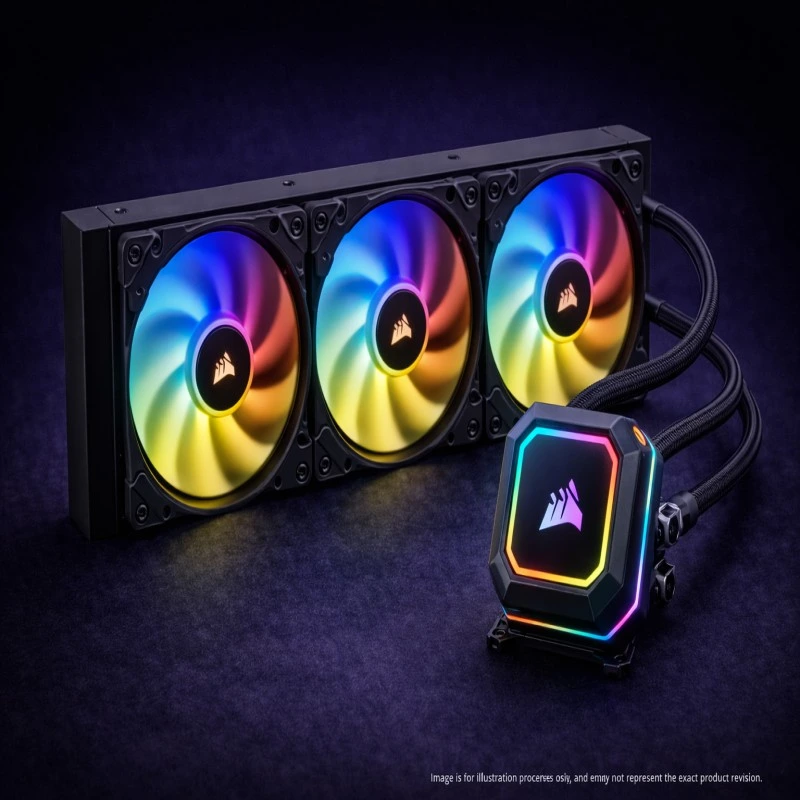
Corsair’s newest flagship uses the iCUE LINK ecosystem for simplified cable management. Magnetic fan connections and a single cable to the AIO controller reduce build complexity. Cooling performance ranks among the best 360mm options.
Linux support through liquidctl is limited. The iCUE LINK controller requires reverse engineering, and support lags behind product launches. Basic pump control may work. RGB, LCD, and advanced features likely won’t.
Only buy this if you’re prepared to control everything through BIOS and accept that aesthetic features may not function. For the price, better Linux-friendly alternatives exist.
Recommended Linux Build Scenarios
- Cooler: Noctua NH-D15 G2 or be quiet! Dark Rock Pro 5
- Fans: 140 mm PWM fans tuned for low static speed (≈30–40% at idle)
- Fan Control: BIOS fan curves or Linux
fancontrolwith gentle, progressive slopes - Case: Sound-dampened chassis with dust filters for airflow control and noise reduction
This configuration prioritizes low noise, thermal stability, and long-term reliability. It’s ideal for Linux workstations where predictable fan behavior and minimal background noise matter more than peak boost clocks.
Tower air coolers eliminate pump noise entirely. Set conservative fan curves that keep speeds below 800 RPM during typical workloads. Use case fans with rubber dampeners or low-speed configurations.
Configure minimum speeds low enough to remain inaudible from normal sitting distance. Maximum speeds can stay below 70% if thermal headroom allows. Prioritize silence over lowest possible temperatures.
- Cooler: ARCTIC Liquid Freezer III 360 or Thermalright Phantom Spirit 120 EVO
- Fans: High static-pressure fans for radiators, airflow-focused fans for the case
- Fan Control: CoolerControl with moderate, responsive fan curves
- Case: Mesh front panel for unrestricted intake and sustained airflow
This setup targets stable boost clocks, controlled thermals, and consistent airflow during extended gaming sessions on Linux. Moderate fan curves keep temperatures in check without unnecessary noise spikes.
Gaming loads benefit from larger radiators or high-performance tower coolers. Configure curves that ramp smoothly from 50% to 90% as CPU temperature rises from 60°C to 80°C.
Monitor GPU temperatures separately and adjust case fan curves accordingly. Most gaming thermal loads come from the GPU, not CPU. Balanced airflow matters more than aggressive CPU cooling alone.
- Cooler: ASUS ROG Ryujin III 360 (verify
liquidctlsupport before purchase) - Fans: ARGB fans connected to motherboard headers (avoid proprietary USB hubs)
- Fan Control: Combination of BIOS fan curves and
liquidctlwhere hardware support exists - Case: Tempered-glass chassis with RGB-compatible components and adequate airflow
Important: Many RGB controllers, LCD screens, and vendor utilities are designed for Windows-only software. Core cooling will work on Linux, but advanced lighting effects or displays may have limited or no support.
RGB on Linux requires motherboard-connected ARGB headers controlled through OpenRGB or similar tools. USB RGB controllers from Corsair, NZXT, or Razer rarely work reliably.
Expect compromises. Static colors and simple effects work. Synchronized rainbow waves, reactive lighting, and complex patterns may not. If RGB matters more than Linux, reconsider your OS choice for this build.
Troubleshooting Common Linux Cooling Problems
Fans Stuck at Full Speed
Check BIOS settings first. Ensure fan headers are set to PWM mode, not DC or voltage mode. Verify fancontrol or CoolerControl isn’t running if you intended BIOS-only control.
If sensors detect fans but can’t control them, the hwmon driver may lack write support for your motherboard’s sensor chip. Some boards require manual kernel module parameters. Check your motherboard model against community forums for known workarounds.
Missing RPM Readings
Fans spinning without reporting RPM usually indicate missing tachometer wire connections or unsupported sensor channels. Verify you’re using 4-pin PWM fans, not 3-pin DC fans, if RPM monitoring matters.
Budget motherboards sometimes don’t expose all fan headers to software monitoring. The physical header works, but the sensor chip doesn’t connect that channel. Check your motherboard manual for confirmed monitoring capabilities.
PWM Control Unavailable
If /sys/class/hwmon/ shows fan sensors but no corresponding pwm* files, your sensor chip driver doesn’t support PWM output. Some motherboards require out-of-tree kernel modules or patches to enable write access.
Search for your motherboard chipset and “Linux PWM support.” Community-maintained patches sometimes exist for popular boards. Alternatively, rely on BIOS fan curves exclusively.
USB AIO Not Detected
Verify the device appears in lsusb output. If the USB device shows up but liquidctl doesn’t recognize it, support may not exist yet. Check the project’s GitHub issues for your specific model and firmware version.
Some AIOs require initialization through Windows software before Linux recognizes them. If you have access to a Windows system, configure the device there, then reconnect to Linux.
Fan Curve Instability
Curves that oscillate between speeds indicate temperature sensor noise or inappropriate temperature sources. Use CPU package temperature instead of individual core temperatures. Apply hysteresis in fan curves—require temperature to rise 3-5°C before increasing speed and fall 5-7°C before decreasing.
Avoid multiple temperature sources controlling the same fan. Choose one primary sensor per fan or fan group.
FAQ
How do I control CPU fans on Linux?

Use lm-sensors to detect hardware monitors, then configure fan curves through BIOS, the fancontrol daemon, or CoolerControl GUI. Most motherboards expose PWM fan headers through the kernel’s hwmon subsystem. Install lm-sensors, run sensors-detect, then use pwmconfig to map fans to temperature sensors.
Are AIO liquid coolers safe to use on Linux?
Yes. AIOs that connect fans and pumps to motherboard headers work identically to air coolers. USB-managed AIOs require liquidctl support, which varies by model. Verify compatibility before purchasing. Leaks and mechanical failures occur independent of operating system—AIO reliability on Linux matches Windows.
Does RGB or LCD work on Linux coolers?
Sometimes. Motherboard-connected RGB headers work through OpenRGB or vendor-specific tools. USB RGB controllers and LCD screens depend on reverse-engineered support through liquidctl. Many features don’t work or require Windows for initial configuration. Don’t buy coolers primarily for RGB features if Linux is your main OS.
Should I use BIOS or Linux fan control?
BIOS control works universally and persists across operating systems. Use it if you want reliability and don’t need runtime adjustments. Linux software control through fancontrol or CoolerControl offers more flexibility and real-time changes but depends on proper driver support. Choose based on whether you value simplicity or customization.
Why does Linux report wrong fan speeds?
Sensor chips sometimes misreport multipliers or label fans incorrectly. Use pwmconfig to test physical fan responses and create custom labels in /etc/sensors.d/. Some motherboards report duplicate sensors or swap fan headers in software. Manual mapping solves most issues.
What’s the difference between PWM and DC fan control?
PWM (4-pin) fans receive constant 12V power and modulate speed through pulse-width signals. DC (3-pin) fans adjust speed by varying voltage. Linux supports both through hwmon, but PWM provides finer control and more accurate RPM reporting. Modern builds should use PWM fans exclusively.
Do I need special drivers for my CPU cooler?
No. Air coolers and motherboard-controlled AIOs require no special drivers—standard hwmon sensors handle everything. USB-managed AIOs may need liquidctl, which is a userspace tool, not a kernel driver. Install your distribution’s lm-sensors package and run sensors-detect to load appropriate motherboard sensor drivers.
Can I use Corsair iCUE or NZXT CAM on Linux?
No. These are Windows-only applications with no official Linux support. liquidctl provides command-line control for many Corsair and NZXT devices but with limited feature support compared to native Windows software. RGB, LCD screens, and advanced controls often don’t work.
Conclusion: Choosing the Right CPU Cooler for Linux in 2026
CPU cooling on Linux works well when you choose hardware that respects open standards. Prioritize motherboard-connected fans and pumps over USB-managed controllers. Verify PWM support exists for your motherboard chipset. Research liquidctl compatibility before buying any AIO with LCD screens or proprietary controllers.
Air coolers like the Noctua NH-D15 G2 or be quiet! Dark Rock Pro 5 eliminate all compatibility concerns while delivering excellent performance. For liquid cooling, ARCTIC’s Liquid Freezer III series provides flagship performance without driver dependencies. Budget builders find strong value in Thermalright’s Phantom Spirit or DeepCool’s AK620.
Set expectations appropriately. Linux handles thermal management and fan control reliably, but aesthetic features like RGB synchronization and LCD customization often require compromise. If you’re building primarily for Linux, prioritize cooling performance and noise levels over visual effects.
For more Linux hardware guidance, research motherboard chipset compatibility, case airflow design, and power supply selection. Each component affects system thermals and noise beyond the CPU cooler alone.
Disclaimer
Article Date and Product Availability
This article was written as a forward-looking guide for 2026 and contains references to products, model numbers, and specifications that may be speculative or not yet released as of the publication date. While based on current market trends and existing product lines as of early 2025, some products mentioned may:
- Not yet be available for purchase
- Have different specifications than described
- Be released under different model names or numbers
- Have varying levels of Linux compatibility than predicted
Verification Recommended
Before making any purchase decisions:
- Verify current product availability through authorized retailers
- Check manufacturer websites for exact specifications and compatibility
- Consult the liquidctl GitHub repository for up-to-date AIO cooler support
- Test Linux compatibility through community forums and user reports
- Confirm socket compatibility with your specific CPU generation
Linux Compatibility
Hardware compatibility on Linux changes with kernel updates, driver improvements, and community contributions. The compatibility information provided reflects understanding as of early 2025. Always research your specific hardware and kernel version combination before purchasing.
No Affiliate Relationships
This article contains no affiliate links. Product recommendations are based on technical merit, Linux compatibility, and US market availability, not commercial relationships.
Not Professional Advice
This guide provides general information for educational purposes. Consult your hardware specifications, motherboard manual, and distribution documentation for your specific use case.
Choosing the right CPU cooler is only one part of a stable Linux system. Motherboard fan headers, sensors, firmware behavior, and component compatibility all play a critical role in long-term reliability.
Read: How to Build a 100% Linux-Compatible PCCovers hardware selection, BIOS setup, driver support, and real-world Linux testing.
About the Author