Linux Compatible Printers (2026) – Complete Buyers Guide (1)
Let me save you the Sunday afternoon I once lost trying to get a “Linux compatible” printer to actually work on Linux.
The box said compatible. The manufacturer’s website said compatible. CUPS disagreed. Loudly. What followed involved three hours of forum digging, a .ppd file from 2011, and eventually — after all that — the printer worked. Sort of. The scanner never did.
That experience is what this guide is trying to prevent for you. Finding genuinely good Linux compatible printers in 2026 is easier than it used to be, but it still requires knowing what to look for — because manufacturers use “Linux compatible” very loosely, and the difference between a printer that works flawlessly and one that half-works can be completely invisible until you’ve already bought it.
Everything on this list has been verified as currently available to buy in the USA as of March 2026 — through Amazon, Best Buy, Walmart, Staples, or direct from the manufacturer. I’ve also checked each model against real Linux driver pages and community reports, not just marketing copy.
First, the One Thing Most Buyers Don’t Know
Printing and scanning are completely separate problems on Linux.
A printer can work perfectly — auto-detected over Wi-Fi, zero configuration, just works — and then you hit scan, and nothing. Because printing is handled by CUPS (Common Unix Printing System) and scanning is handled by SANE (Scanner Access Now Easy), and they don’t share drivers. So a printer that earns glowing “Linux compatible” reviews might still leave you stranded on the scan side.
This matters a lot if you’re buying an all-in-one. Keep it in mind as you read through the options below — I flag the scan situation for each model.
Also worth knowing: the best development in Linux printing over the past few years is driverless printing via IPP Everywhere. It’s an open standard that lets Linux (and macOS, Android, etc.) print to a compatible printer with zero driver installation. Modern printers that support it genuinely just work. For printing, at least. Scanning still needs its own setup, typically via a package called sane-airscan or the manufacturer’s own SANE backend.
The Linux Compatible Printers Worth Buying in 2026
1. Brother HL-L2480DW
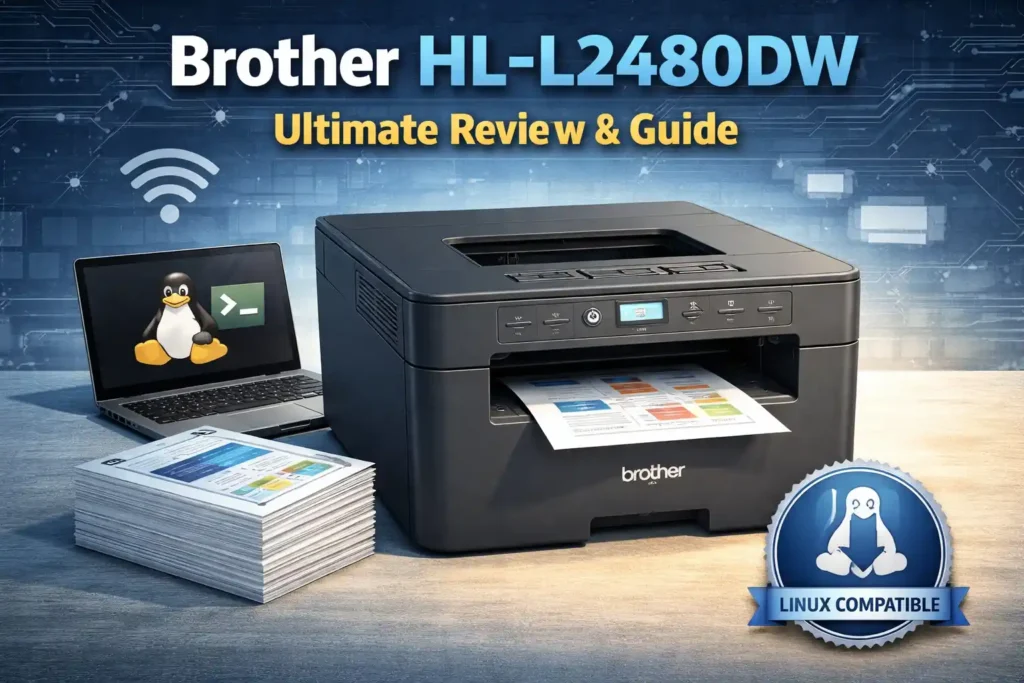
The HL-L2480DW is Brother’s current replacement for the long-recommended (and now discontinued) HL-L2395DW, and it carries on the same tradition. Brother publishes official Linux drivers — both .deb and .rpm packages, updated as recently as July 2025 — directly from their support page. The scanner driver for this model was also updated in the same batch. That kind of active maintenance is exactly what you want to see.
In terms of hardware, it’s nearly identical to its predecessor: 36 pages per minute, auto-duplex, 250-sheet tray, 2.7-inch touchscreen, and connections via dual-band Wi-Fi, Ethernet, and USB. It’s compact enough for a home office desk and uses TN830/TN830XL toner.
Setup on Ubuntu, Mint, Fedora, or Arch follows the same path as older Brother models — download the Driver Install Tool from Brother’s Linux support page, run it, and CUPS picks up the printer. The scanner (via Brother’s brscan4 SANE backend) works reliably over USB. Wi-Fi scanning requires sane-airscan but it works, and there are documented setups for it.
If you just want a Linux printer that works without a fight, this is still the safest default recommendation in 2026. The only reason to look elsewhere is if you need color.
2. HP LaserJet MFP M234dw
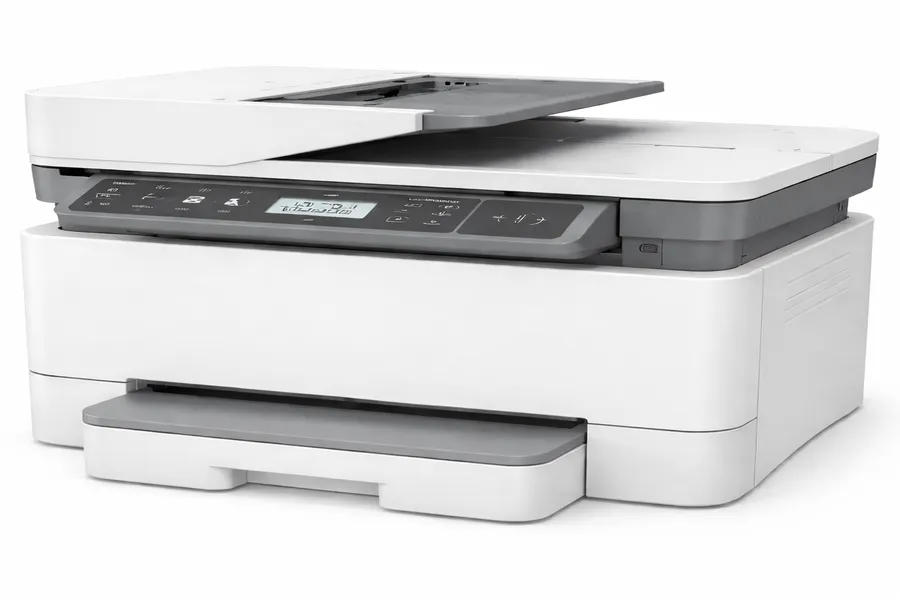
HP’s approach to Linux has quietly shifted in a useful direction. Newer HP models like the M234dw support driverless IPP printing natively, which means on many Linux distributions — modern Ubuntu, Fedora, Mint — this printer is auto-detected on the network and ready to print without installing anything at all. That’s not marketing copy; it’s how IPP Everywhere works, and this printer is certified for it.
The HPLIP driver package is still available if you need it for more advanced features or scanning configuration, but increasingly, Linux users are skipping HPLIP entirely and getting better results through the driverless route for printing.
Scanning on the M234dw uses eSCL, the network scanning equivalent of IPP, which sane-airscan handles cleanly. USB scanning is also reliable. The printer itself is compact, connects via USB, Wi-Fi, or Ethernet, and has a 150-sheet paper tray. Ethernet is a genuinely useful option here if you want a stable shared printer on a home network.
No cartridge subscription drama with this one — it’s a laser printer, so HP’s inkjet ink restriction policies don’t apply.
3. HP OfficeJet Pro 9125e
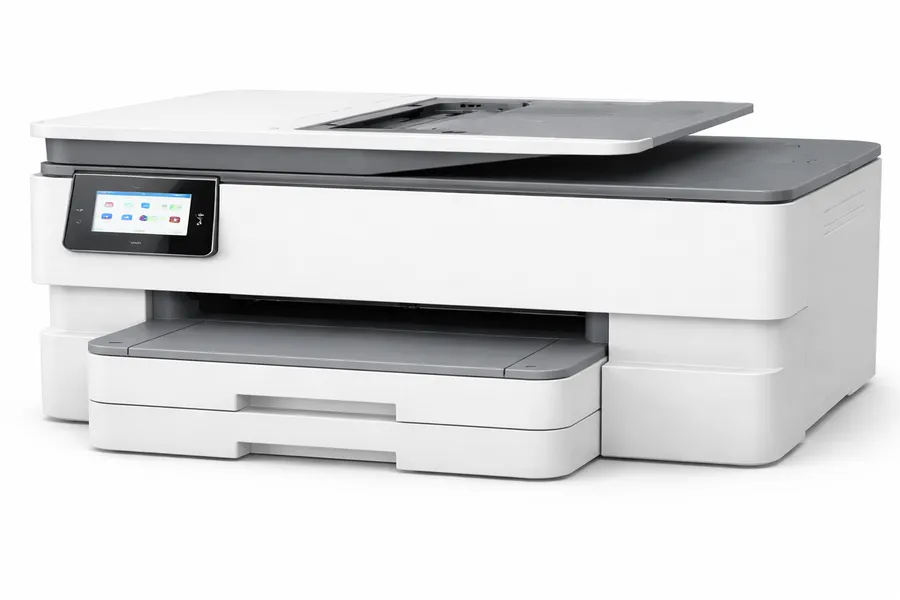
The 9125e is HP’s current-generation replacement for the 9015e, and it’s a meaningful step up. It prints at up to 22 pages per minute, has a 35-sheet ADF for multi-page scan jobs, dual-band Wi-Fi, auto-duplex, and a 250-sheet paper tray. Connectivity covers USB, Wi-Fi, and Ethernet.
For Linux, HPLIP covers this model and the community has validated it across Ubuntu, Fedora, and Arch. Scanning via USB works well through HPLIP’s hp-scan. Wi-Fi scanning works through either HPLIP or sane-airscan. The broader HP user community means problems with this model are documented fast.
Honest caveat on inkjet ownership in general: if your printer sits idle for weeks at a time, inkjet heads can dry out. The 9125e has an automatic maintenance cycle, but it doesn’t eliminate the risk — it just manages it. If you print a few times a week or more, it’s a non-issue. If the printer might sit untouched for a month, a laser printer will be less aggravating long-term.
For users who specifically need color printing and ADF scanning in one device with solid Linux driver support, this is the most practical option at this price point.
4. Epson EcoTank ET-4850
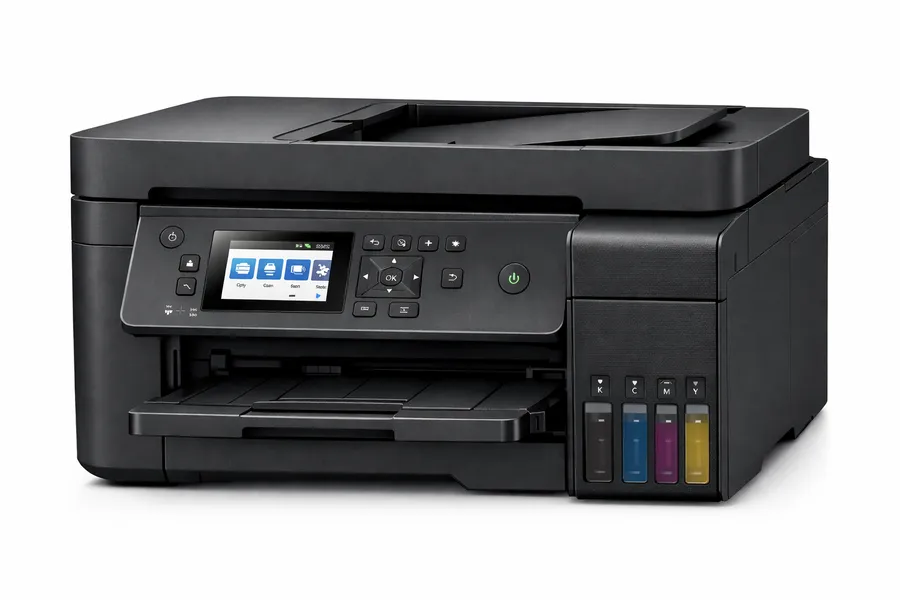
The EcoTank concept is simple and the economics are genuinely good: you fill built-in ink tanks from bottles instead of buying replacement cartridges. The starter set bundled with the ET-4850 is rated for roughly 4,500 black pages and 7,200 color pages. For most home users, that’s close to a year or more of ink from the box it comes in.
Earlier EcoTank models had Linux driver problems that are worth flagging because older forum posts still come up in search results. The ET-4850 is in better shape. Epson now publishes official .deb and .rpm driver packages, and the printer supports driverless IPP printing as well. Printing setup is genuinely straightforward. Scanning over USB works via Epson’s epsonscan2 SANE backend. Wi-Fi scanning needs sane-airscan, but it’s documented.
It’s a full all-in-one: print, scan, copy, fax. 30-sheet ADF, 2.7-inch touchscreen, Ethernet, Wi-Fi, and USB. Build quality is solid for the price range.
The $350 upfront cost is real. Whether it makes sense depends on your print volume — if you’re doing hundreds of pages a month, the ink cost savings over a cartridge-based printer add up faster than you’d expect. If you print 20 pages a month, the math doesn’t work out the same way.
5. Canon PIXMA G3570 / G3270 Successor
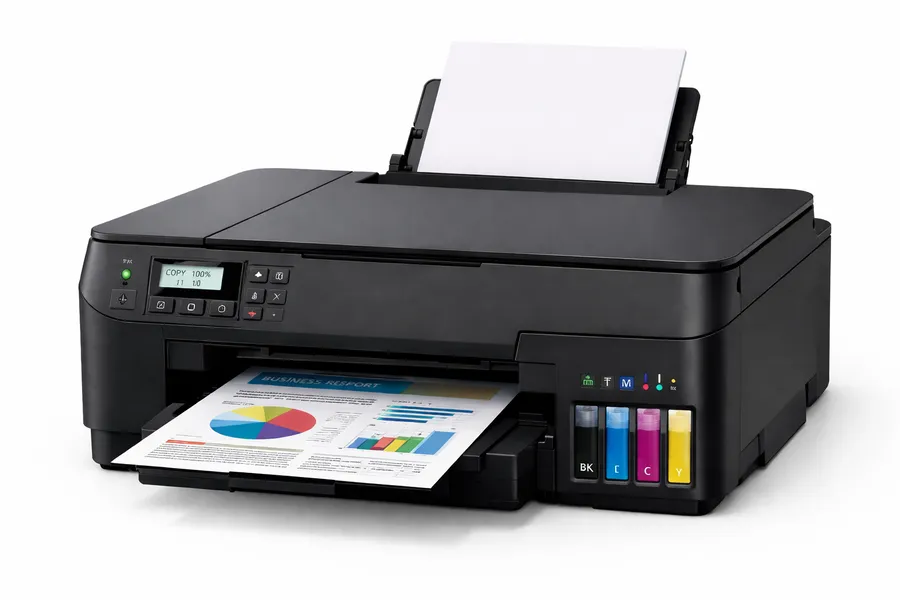
Canon has refreshed the MegaTank G-series lineup with the G3570 as the current successor to the now-discontinued G3270. It’s the same fundamental concept — ink tank printing, wireless AIO — with updated hardware and connectivity. Canon publishes official Linux drivers (.deb and .rpm) for the G-series, and the G3570 also supports driverless IPP printing, making setup on modern distros straightforward.
Scanning is handled by Canon’s scangearmp2 driver. USB scanning is reliable; Wi-Fi scanning works with sane-airscan. No automatic duplex (manual flip for two-sided printing) and no ADF — those are real limitations if you need either. But for a home user who wants color printing and occasional scanning at low running cost, it’s hard to beat the price-to-output value.
The ink tank system means the included bottles last a long time — Canon rates the G-series starter ink for thousands of pages per set. Print quality is good for documents and genuinely nice for photos, thanks to the hybrid pigment black / dye-color ink system.
Note: Check current availability for the specific G-series model in your region, as Canon has been transitioning between G3270 and G3570 in US retail. Both use the same driver ecosystem and Linux compatibility is consistent across the G3 line.
6. Brother MFC-L3780CDW
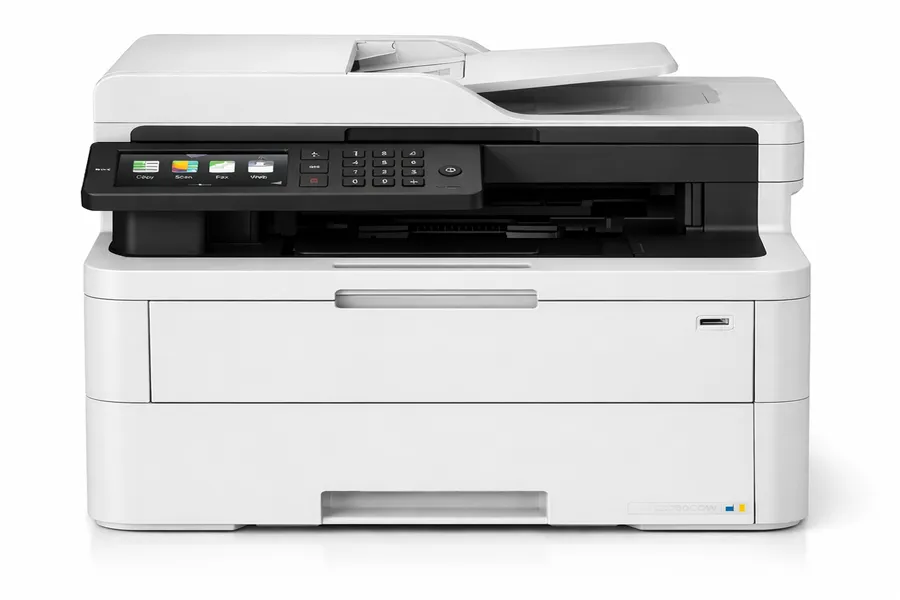
Color laser is a different category from color inkjet — crisper text on documents, faster output, no dried head concerns, and lower per-page toner cost at any real volume. The tradeoff is upfront cost, and the MFC-L3780CDW is not cheap.
But if you need color laser with Linux compatibility you can count on, this is where you go. Brother provides official Linux drivers (same .deb/.rpm approach as their mono laser line, updated through 2025), brscan4 handles the SANE scanner backend, and the community has validated this model extensively on Ubuntu, Fedora, and Arch.
Specs: auto-duplex, 50-sheet ADF, 33 pages per minute in color, Wi-Fi, Ethernet, and USB. Four toner cartridges (CMYK) means replacements are a recurring cost, and they never run out simultaneously — which is one of the quiet annoyances of color laser ownership. But for a small business or a user who needs real color document quality on Linux, this is a reliable choice with genuine manufacturer driver support behind it.
7. Xerox B310
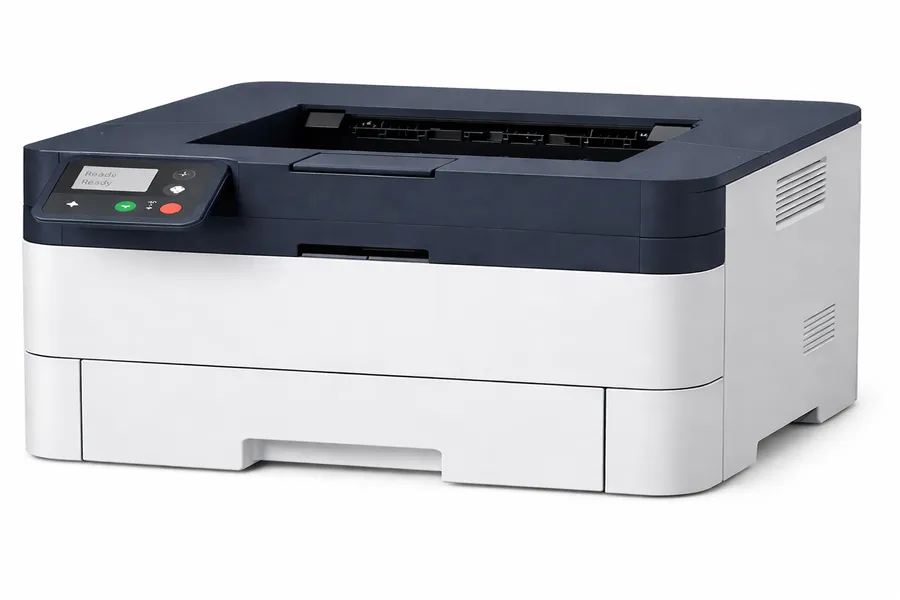
This one is for a specific kind of user. The B310 does up to 42 pages per minute and carries a rated monthly duty cycle of 80,000 pages. That is genuinely not a home printer number — it’s a small-office number.
It’s print-only, no scanner, which actually simplifies the Linux setup considerably because you’re only solving one problem. The B310 supports PostScript and PCL, both of which CUPS speaks natively. Xerox publishes Linux drivers through their support portal. Ethernet is the recommended connection for a shared network setup, and it’s solid.
Most people reading this don’t need a Xerox B310. If you’re a developer printing documentation in volume, a small team with a shared printer, or running any kind of home-based business with serious print demand, the extra upfront cost pays off. For everyone else, the Brother HL-L2480DW at $120 makes more sense.
Side-by-Side Comparison
| Printer Model | Printer Type | Price (USD) | Linux Driver | Driverless IPP | Wi-Fi Scanning on Linux | Best For |
|---|---|---|---|---|---|---|
| Brother HL-L2480DW | Mono Laser AIO | ~$200–$250 | Official .deb / .rpm | Yes | Needs sane-airscan | Most users — Best Overall |
| HP LaserJet MFP M234dw | Mono Laser AIO | ~$180–$240 | HPLIP + Driverless | Yes | Via sane-airscan (eSCL) | Budget Laser, Ethernet Setups |
| HP OfficeJet Pro 9125e | Color Inkjet AIO | ~$280–$310 | HPLIP | Yes | Via HPLIP / sane-airscan | Color Printing + ADF Scanning |
| Epson EcoTank ET-4850 | Color Ink Tank AIO | ~$450–$550 | Official .deb / .rpm | Yes | Needs sane-airscan | High-Volume, Low Ink Cost |
| Canon PIXMA G3570 | Color Ink Tank AIO | ~$280–$350 | Official .deb / .rpm | Yes | Needs sane-airscan | Budget Color, Photo Printing |
| Brother MFC-L3780CDW | Color Laser AIO | ~$470–$570 | Official .deb / .rpm | Yes | Via brscan4 | Color Laser Quality, Small Business |
| Xerox B310 | Mono Laser | ~$300–$350 | PostScript / PCL | Yes | N/A (Print Only) | High-Volume Document Printing |
How to Vet Any Printer Before You Buy
Check OpenPrinting first. The OpenPrinting database at openprinting.github.io lists thousands of printers with community-verified ratings, from “works perfectly” to “paperweight.” Sixty seconds here can save you hours later.
Look for IPP Everywhere certification. It’s the clearest signal that a printer will work on Linux without drama. Certified printers work with CUPS natively — no third-party driver required. For printing at least.
Search the exact model name plus your distro. “Brother HL-L2480DW Ubuntu 24.04” will surface more useful, specific information than any manufacturer page. Look for posts from the last 12 months — driver support changes, and older forum threads may not reflect the current state.
Avoid GDI/host-based printers. Some budget printers have no built-in print language — they offload everything to a Windows-only driver. They will not work on Linux. No workaround exists. Low price isn’t a reliable warning sign, so always look up the specific model.
Decide whether you need scanning before you buy. If you do, specifically verify the scanner works on Linux — not just the printer. Check for SANE backend support or sane-airscan eSCL compatibility for the exact model you’re considering.
Verify availability before purchasing. Printer product lines move faster than most people expect. Models get discontinued with little fanfare — the Brother HL-L2395DW is a recent example, discontinued just as this guide was being written. Always check the manufacturer’s official US site before buying based on any guide, including this one.
Which Brands Are Actually Reliable for Linux
Brother is the honest first answer for most people. They publish and maintain real Linux driver packages, update them regularly, and their printers have the deepest community validation. The Linux community’s default recommendation has been Brother for years, and they’ve continued earning it.
HP is solid, especially for printing. Newer HP models with IPP Everywhere support are often even easier to set up than HPLIP-based configurations. Just keep HP’s inkjet subscription policies in mind — their laser line is unaffected, but inkjets with “Instant Ink” features have had restriction controversies worth knowing about.
Epson has come a long way. Official Linux drivers for EcoTank models are actively maintained. Earlier EcoTanks were a different story — stay with current-generation models.
Canon is reliable for the PIXMA G-series ink tanks. Official Linux drivers exist, IPP support on recent models makes initial printing setup clean, and the community coverage is good.
Xerox PostScript printers have been reliable on Linux for a long time. PostScript is an open standard CUPS handles natively. For serious volume printing, they’re worth a look.
The Bottom Line
For most people, the answer is Brother HL-L2480DW. It’s $120–$140, it works on every major Linux distribution without drama, the drivers are current and official, and the printer just does its job. Start and end there unless you have a specific reason not to.
If you need color on a tighter budget, the Canon PIXMA G3570 is the sensible pick — low ink costs, good print quality, official Linux drivers, under $220.
If ink costs matter and you print in real volume, pay more upfront for the Epson EcoTank ET-4850 and watch the savings add up over time.
For a full office AIO with ADF scanning and color inkjet, the HP OfficeJet Pro 9125e has strong HPLIP driver coverage and a large community behind it.
Color laser if you have the budget: Brother MFC-L3780CDW. High-volume mono document printing: Xerox B310.
And one final piece of advice that applies regardless of which printer you choose: don’t trust any “Linux compatible” label — including anything in this guide — without spending five minutes verifying it yourself on OpenPrinting and a Linux forum. The community there is honest, specific, and current in a way that no static guide can be. Use it.
Disclaimer
This guide is for informational purposes only. Product availability, pricing, and specifications are subject to change without notice. Always verify current availability and pricing directly with the retailer or manufacturer before purchasing. We are not affiliated with any of the brands or retailers mentioned in this guide, and no sponsored or paid placements have influenced our recommendations. Links and prices referenced are approximate as of March 2026. We are not responsible for any purchasing decisions made based on the information provided here.
Don’t Choose Your Linux Setup Before Reading These
Avoid compatibility issues, performance problems, and wrong distro choices. These guides will help you make the right decision.
About the Author