
Best Accessories for Linux Laptops: Complete 2026 Buying Guide
Choosing the right accessories for your Linux laptop can transform your productivity and enhance your computing experience. Whether you’re a developer working on open-source projects, a system administrator managing servers, or simply someone who values the freedom and flexibility of Linux, having compatible, reliable accessories makes all the difference.
The good news? Linux hardware compatibility has come a long way. In 2026, most accessories work seamlessly with popular distributions like Ubuntu, Fedora, Arch, and Mint. However, some accessories still offer better out-of-the-box support than others. This comprehensive guide will walk you through the Best Accessories for Linux Laptops, covering everything from external monitors and USB hubs to keyboards, mice, storage solutions, and laptop bags.
Let’s dive into what you need to create the perfect Linux laptop setup.
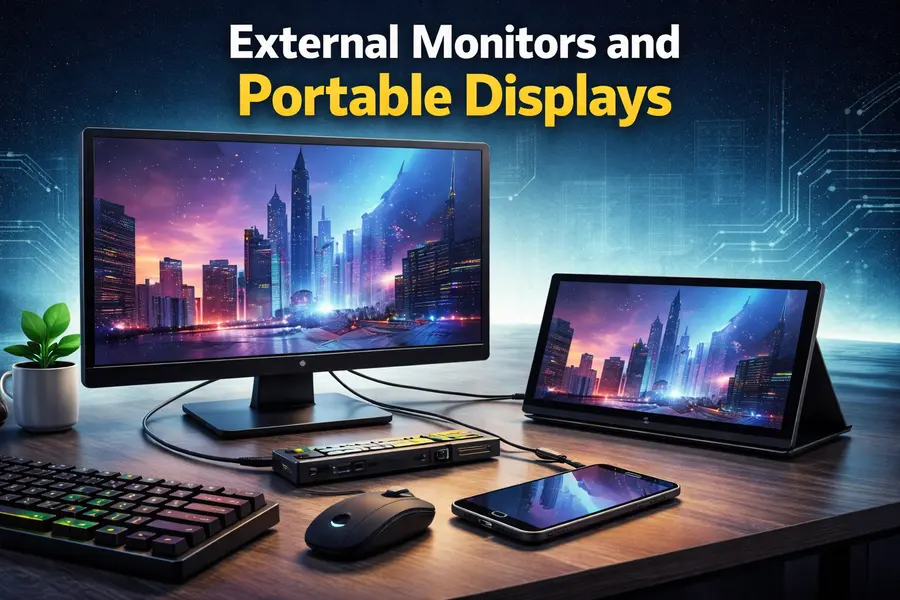
1. External Monitors and Portable Displays
Why You Need an External Monitor for Linux
If you’re coding, managing multiple terminal windows, or simply want more screen real estate, an external monitor is essential. Linux has excellent multi-monitor support through Wayland and X11, making it easy to extend your workspace.
Best Portable Monitors for Linux Users
KEFEYA 14″ FHD Portable Monitor
One of the most versatile options for Linux users, the KEFEYA portable monitor offers plug-and-play functionality across all major operating systems. This 14-inch display features 1920×1080 Full HD resolution with IPS technology, delivering sharp visuals and wide viewing angles.
What makes this monitor particularly appealing for Linux users is its broad compatibility. It works seamlessly with Ubuntu, Fedora, Arch, and other distributions through both USB-C and HDMI connections. The monitor supports mirror, extension, landscape, and portrait modes, giving you flexibility in how you arrange your workspace.
At just 2.3 pounds, it’s highly portable and fits into most laptop bags. The monitor includes built-in speakers (though external audio is recommended for better sound quality) and features blue light filtering to reduce eye strain during long coding sessions.
Price: Approximately $99-$139 depending on the model
Where to Buy: Amazon
Mobile Pixels Trio Portable Monitor
For developers and power users who need maximum screen space, the Mobile Pixels Trio is one of the most popular triple monitor solutions on the market. This innovative system allows you to add one or two 13.3-inch Full HD IPS displays to your laptop, creating a dual or triple-screen setup.
What sets the Trio apart is its slide-out design with built-in magnets that attach to your laptop screen (or you can use the included kickstand for a magnet-free setup). The monitors support 270° rotation, allowing you to switch between landscape, portrait, and presentation modes easily. Each screen offers 1920×1080 resolution with 60Hz refresh rate.
The Trio works seamlessly with Linux distributions through both USB-C and USB-A connections. No drivers are required when using a full-function USB-C port, making it truly plug-and-play with Ubuntu, Fedora, Arch, and other distributions. The system is compatible with laptops from 13 to 17 inches and works with Windows, Mac, and Linux.
Mobile Pixels has established a strong reputation in the portable monitor space, and the Trio is particularly useful for developers working with multiple codebases, system administrators monitoring various services, or anyone juggling multiple applications simultaneously. The slim, lightweight design (just 2.6 lbs per screen) makes it easy to transport.
Price (February 2026):
- Trio 13.3″ (single screen): $179-$229
- Trio Max 14.1″ (single screen): $199-$249
- Trio 3 Pro (dual QHD screens with 120Hz): Currently on sale for $449 (regularly $599)
Where to Buy: Mobile Pixels Official Store
Desktop Monitor Recommendation: Look for Displays with AMD FreeSync
If you’re setting up a permanent workstation, consider monitors with AMD FreeSync support. Linux has excellent support for FreeSync through the AMDGPU driver, providing smooth visuals whether you’re working with animations, video editing, or just want a better desktop experience.
Many users in the Linux community recommend monitors from brands like Dell, ASUS, and BenQ, which typically have good Linux compatibility. Look for models with DisplayPort and HDMI connections for maximum flexibility.
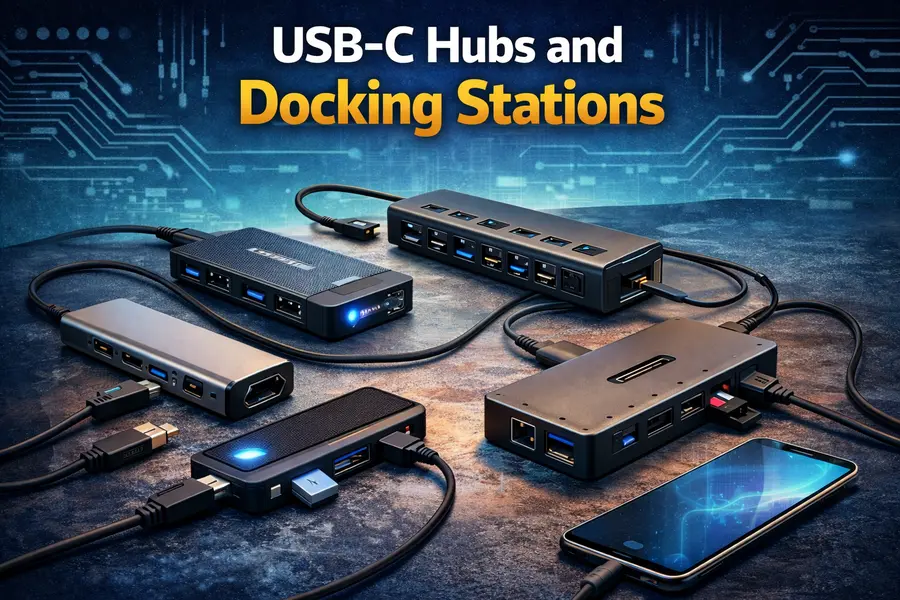
2. USB-C Hubs and Docking Stations
The Importance of a Good Docking Solution
Modern laptops often sacrifice ports for portability. A quality USB-C hub or docking station restores connectivity, allowing you to connect multiple peripherals, external displays, and charging cables through a single connection.
Top USB-C Hubs for Linux
Anker 575 USB-C Docking Station (13-in-1)
Anker has built a solid reputation for reliable peripherals, and the 575 docking station delivers on that promise. This powerhouse offers 13 ports including triple-monitor support, SD card slots, Ethernet, and multiple USB ports.
For Linux users, the Anker 575 works out of the box with most distributions. It delivers up to 85W power delivery for laptop charging and 18W for phones or tablets. The dock supports 4K@60Hz on a single display, which is important for developers who need crisp text rendering.
The included 135W power brick means you won’t drain your laptop battery, and the metal housing provides excellent heat dissipation during heavy use. Linux users have reported excellent compatibility with Ubuntu, Fedora, and Pop!_OS.
Price: Approximately $199-$250
Where to Buy: Anker Official Store
Plugable USB-C Universal Docking Station
The Plugable brand is well-known in the Linux community for its commitment to open-source driver support. Their USB-C universal docking station offers excellent compatibility across Linux distributions.
This dock features dual HDMI ports supporting 4K resolution, six USB 3.0 ports, Gigabit Ethernet, and a 60W USB-C charging port. It uses DisplayLink technology, which has good Linux support through the DisplayLink driver (available in most distribution repositories).
The dock supports multiple monitors at 4K resolution (2x 1920×1080 at 60Hz or one monitor at 2560×1600 at 60Hz). For Linux users, Plugable provides documentation specifically for Ubuntu and Fedora, making setup straightforward.
Price: Approximately $129-$179
Where to Buy: Amazon
Budget Option: iKling USB-C 9-in-1 Hub
If you’re looking for basic functionality without breaking the bank, the iKling hub offers solid value. It provides 9 ports including dual HDMI, USB 3.0, SD card reader, and 100W pass-through charging.
Linux users report good compatibility with this hub, though you’ll need to provide your own USB-C charger for the pass-through charging feature. The hub works well with Ubuntu, Mint, and Fedora without requiring additional drivers.
Price: Approximately $39-$59
Where to Buy: Amazon
For Linux-First Hardware: ThinkPenguin USB-C Dock
ThinkPenguin specializes in GNU/Linux compatible hardware. Their USB-C universal docking station is designed specifically for Linux users and guarantees compatibility with popular distributions.
While potentially pricier than mainstream options, you’re paying for the peace of mind that comes with guaranteed Linux support and a company that actively supports the open-source community.
Where to Buy: ThinkPenguin.com
3. Keyboards and Mice
What to Look for in Linux-Compatible Input Devices
The good news is that most modern keyboards and mice work perfectly with Linux through standard USB and Bluetooth protocols. However, some devices with proprietary software for customization may have limited functionality on Linux unless community drivers are available.
Best Wireless Keyboard and Mouse Combos
Logitech MK270 Wireless Combo
Logitech is a favorite among Linux users because their devices typically work out of the box without requiring proprietary drivers. The MK270 is a full-sized wireless keyboard and mouse combo that offers excellent value.
The keyboard features a standard layout with a number pad (essential for many developers) and programmable hotkeys. While Logitech’s official configuration software doesn’t run on Linux, you can use Solaar (available in most package managers) to customize buttons and manage the device.
The combo uses 2.4 GHz wireless connectivity through a single USB dongle, ensuring stable connections. The keyboard runs on two AAA batteries, and the mouse uses a single AA battery, both included in the package. Logitech claims long battery life, with users reporting several months of use before needing replacements.
Price: Approximately $24-$34
Where to Buy: Amazon
Logitech MX Keys Combo
For those wanting premium typing experience and advanced features, the Logitech MX Keys combo is worth the investment. This keyboard and MX Master 3 mouse combination is beloved by developers and content creators.
The MX Keys features backlit keys with smart illumination that adjusts to lighting conditions. It supports multi-device connectivity (up to three devices) via Bluetooth or the included USB receiver, making it perfect if you switch between your Linux laptop, desktop, or even a Raspberry Pi.
On Linux, the MX Keys works perfectly through standard Bluetooth. You can use Solaar or input-remapper for advanced customization. The keyboard is rechargeable via USB-C, with Logitech claiming up to 10 days of battery life with backlighting on.
The MX Master 3 mouse is equally impressive, featuring a comfortable ergonomic design, customizable buttons, and a precision scroll wheel. Linux users can customize the mouse buttons using Solaar or Piper (for some models).
Price: Approximately $155-$200 (regularly on sale in early 2026)
Where to Buy: Logitech Official Store
Budget Option: RAPOO Wireless Keyboard and Mouse
The RAPOO combo offers multi-device connectivity at a fraction of the premium brands’ cost. You can connect up to four devices simultaneously and switch between them seamlessly.
The combo works well with Linux distributions through standard USB wireless dongles. While it lacks the premium feel of Logitech products, it’s reliable for everyday use and offers good value for students or budget-conscious users.
Price: Approximately $29-$49
Where to Buy: Amazon
Mechanical Keyboard Options
Anne Pro 2
The Anne Pro 2 is one of the most popular 60% mechanical keyboards among Linux users. It offers multiple switch options (Cherry MX, Gateron, Kailh), customizable RGB lighting, and both wired and wireless connectivity.
What makes it great for Linux users is that it works perfectly out of the box. You can program keys using the keyboard’s built-in functionality (accessible through key combinations), and there are community tools available for advanced customization.
The compact 60% layout saves desk space and is popular among programmers who prefer keeping their hands close to the home row. However, the lack of dedicated function keys and number pad isn’t for everyone.
Price: Approximately $79-$119 depending on switches
Where to Buy: Amazon
4. External Storage Solutions
Why External SSDs Matter for Linux Users
External SSDs offer fast backup solutions, portable Linux installations, and expanded storage for your projects. Modern external SSDs can reach speeds of 1000-2000 MB/s, making them ideal for working with large datasets, video files, or running virtual machines.
Important Note for February 2026: SSD and memory prices have increased significantly due to a global NAND shortage. Prices have roughly doubled since late 2025. If you’re shopping for storage, expect to pay more than historical averages, and availability may be limited for some capacities.
Best External SSDs for Linux
Samsung T7 Portable SSD
Samsung’s T7 is one of the most popular portable SSDs, and for good reason. It offers excellent speeds (up to 1050 MB/s read and 1000 MB/s write), comes in capacities from 500GB to 2TB, and features both USB-C and USB-A cables.
For Linux users, the T7 works perfectly out of the box. It comes formatted with exFAT by default, but you can easily reformat it to ext4, btrfs, or any Linux-native filesystem for optimal performance. The drive is compact, lightweight, and durable with a shock-resistant design.
Samsung includes encryption software, though it’s Windows/Mac only. Linux users can set up LUKS encryption for similar functionality using standard Linux tools.
Price (February 2026 – prices increased due to global memory shortage):
- 500GB: Currently limited availability
- 1TB: $170-$280
- 2TB: $210-$310 (when in stock)
Where to Buy: Amazon
SanDisk Extreme Portable SSD
The SanDisk Extreme offers rugged durability with IP65 water and dust resistance, making it ideal for users who work in various environments. It features speeds up to 1050 MB/s and includes a built-in carabiner loop for easy attachment to bags.
Linux compatibility is excellent, with the drive working perfectly across all distributions. The drive comes formatted with exFAT but can be reformatted to any Linux filesystem. The shock-resistant design (rated for drops up to 2 meters) provides peace of mind for mobile users.
SanDisk includes 256-bit AES hardware encryption, though the configuration software is Windows/Mac only. Linux users can implement their own encryption using LUKS.
Price (February 2026 – affected by memory shortage):
- 500GB: $84-$104
- 1TB: $129-$159
- 2TB: $199-$249
- 4TB: $379-$449
Where to Buy: Scandisk Website
Crucial X10 Pro Portable SSD
For users needing maximum speed, the Crucial X10 Pro delivers read speeds up to 2100 MB/s through USB 3.2 Gen 2×2. This makes it one of the fastest portable SSDs available.
The drive features IP55 dust and water resistance, drop protection up to 7.5 feet, and compatibility with Windows, Mac, Linux, Android, and gaming consoles. It’s available in capacities from 1TB to 4TB.
On Linux, the drive works flawlessly and can be formatted with any filesystem. The high speeds make it ideal for video editors working with 4K footage, developers compiling large projects, or anyone working with large datasets.
Price (February 2026 – affected by memory shortage):
- 1TB: $139-$179
- 2TB: $219-$279
- 4TB: $449-$549
Where to Buy: Best Buy
Western Digital My Passport SSD
WD’s My Passport SSD offers good value with speeds up to 1050 MB/s read and 1000 MB/s write. It’s more affordable than Samsung’s offerings while still delivering solid performance.
The drive works well with Linux and supports USB-C connectivity. Like other drives, it comes with Windows/Mac software for password protection, but Linux users can implement their own security measures.
Price (February 2026 – affected by memory shortage):
- 500GB: $69-$89
- 1TB: $99-$129
- 2TB: $169-$219
Where to Buy: Amazon
5. Laptop Backpacks and Cases

Protecting Your Linux Laptop Investment
A quality laptop backpack protects your device while providing organization for all your accessories. Look for backpacks with adequate padding, water resistance, and enough compartments for your tech gear.
Best Laptop Backpacks
MATEIN Travel Laptop Backpack
The MATEIN is one of Amazon’s best-selling laptop backpacks, with tens of thousands of five-star reviews. It offers a TSA-friendly design that lays flat for airport security, making it ideal for traveling developers or remote workers.
Features include:
- Fits laptops up to 17 inches
- External USB charging port (requires power bank, not included)
- Hidden anti-theft pocket on the back panel
- Water-resistant polyester material
- Luggage strap for attaching to rolling suitcases
- Breathable mesh back panel
The backpack offers 30 liters of capacity with multiple compartments for organizing your laptop, cables, mouse, external drives, and other accessories. For the price, it’s hard to beat.
Price: $39-$59
Where to Buy: Amazon
The North Face Borealis Backpack
For those wanting durability and outdoor versatility, The North Face Borealis is an excellent choice. It features a dedicated padded laptop sleeve (fits up to 15 inches), FlexVent suspension system for comfort, and multiple pockets for organization.
The backpack includes:
- Water-resistant material
- Reflective bike-light loop
- Comfortable padded shoulder straps
- Front elastic bungee system
- Mesh water bottle pockets
While pricier than budget options, The North Face products are built to last. Many users report using their Borealis backpacks for years without issues.
Price: $89-$109
Where to Buy: The North Face Official Store
Timbuk2 Authority Laptop Backpack Deluxe
The Timbuk2 Authority is designed for professionals who need excellent organization and durability. It features dedicated compartments for laptops, tablets, and numerous accessories.
Key features:
- Fits laptops up to 17 inches
- Water-resistant 1680D ballistic nylon
- Lifetime warranty
- Multiple organizational pockets
- Comfortable padding and straps
- Professional appearance
The backpack is popular among developers and IT professionals who carry multiple devices and accessories daily. The build quality justifies the higher price point.
Price: $129-$169
Where to Buy: Amazon
SwissGear 1900 ScanSmart TSA Laptop Backpack
SwissGear’s ScanSmart backpack is designed specifically for frequent travelers. The laptop compartment unfolds flat, allowing you to keep your laptop in the bag during TSA screening.
Features include:
- Fits laptops up to 17 inches
- Lay-flat ScanSmart design
- RFID-blocking pocket for passport and credit cards
- Weather-resistant material
- Multiple organizational pockets
- Padded tablet pocket
This backpack is ideal if you travel frequently for conferences, client meetings, or work remotely from different locations.
Price: $69-$89
Where to Buy: Amazon
6. Additional Essential Accessories
Laptop Cooling Pads
If you’re running resource-intensive tasks like compiling code, running virtual machines, or doing video encoding, a cooling pad can help maintain optimal temperatures.
Look for cooling pads with:
- Adjustable fan speeds
- USB-powered operation (works perfectly with Linux)
- Ergonomic angles
- Quiet operation
Recommended: Havit HV-F2056 (approximately $25-$35 on Amazon)
USB Webcams
While most laptops have built-in webcams, an external webcam often provides better quality for video calls and streaming.
Logitech C920 HD Pro Webcam is the gold standard and works perfectly with Linux through the UVC (USB Video Class) driver, which is built into the kernel. No additional drivers needed.
Price: $69-$89
Where to Buy: Amazon
Cable Management
Don’t underestimate the value of good cable management. Velcro cable ties, cable clips, and organizers can keep your workspace tidy and prevent cable damage.
Recommended: JOTO Cable Management Sleeve (approximately $12-$18 on Amazon)
Linux-Specific Considerations
Driver Availability
Most modern accessories use standard protocols that Linux supports natively:
- USB keyboards and mice: Work out of the box
- USB webcams: UVC driver support built into kernel
- External displays: DisplayPort and HDMI work natively
- External storage: Plug and play with any filesystem
Community Support
When in doubt, check with the Linux community:
- Search your distribution’s forums
- Check the Arch Wiki (great resource even if you don’t use Arch)
- Look for Reddit discussions in r/linux and distribution-specific subreddits
- Check GitHub for community drivers or configuration tools
Tools for Device Management
- Solaar: GUI application for managing Logitech wireless devices
- Piper: GUI for configuring gaming mice
- input-remapper: Remap input device keys and buttons
- GWE: NVIDIA GPU control panel (if you have NVIDIA graphics)
Install these through your distribution’s package manager.
Building Your Perfect Setup: Budget Tiers
Choose the ideal workstation setup based on your budget. From affordable essentials to premium productivity gear, these tiers help you build the perfect workspace.
Budget Setup ($300–$400)
- Logitech MK270 Keyboard & Mouse: $30
- KEFEYA Portable Monitor: $120
- iKling USB-C Hub: $50
- WD My Passport SSD 500GB: $80
- MATEIN Backpack: $40
Mid-Range Setup ($650–$850)
- Logitech MX Keys Combo: $180
- KEFEYA Portable Monitor: $120
- Anker 575 Docking Station: $220
- Samsung T7 1TB SSD: $200
- The North Face Borealis Backpack: $90
Premium Setup ($1200+)
- Logitech MX Keys Combo: $180
- Dual Portable Monitors: $250
- CalDigit TS4 Thunderbolt Dock: $400
- Samsung T7 2TB SSD: $280
- Crucial X10 Pro 2TB SSD: $250
- Timbuk2 Authority Backpack: $150
Final Thoughts
The Best Accessories for Linux Laptops are those that offer broad compatibility, reliable performance, and good value. Fortunately, Linux hardware support has never been better, with most accessories working out of the box without requiring proprietary drivers or software.
When shopping for accessories:
- Check compatibility: While most modern accessories work with Linux, verify community feedback for peace of mind
- Prioritize standard protocols: USB, Bluetooth, HDMI, DisplayPort are all well-supported
- Consider build quality: Investing in durable accessories saves money long-term
- Think about your workflow: Choose accessories that genuinely enhance your productivity
- Support Linux-friendly companies: When possible, buy from vendors that actively support Linux
Remember, the goal isn’t to buy the most expensive accessories but to build a setup that enhances your Linux experience. Start with essentials (a good keyboard, mouse, and backup storage), then expand based on your specific needs.
Whether you’re coding late into the night, managing servers, or simply enjoying the freedom that Linux provides, the right accessories can make your computing experience more productive, comfortable, and enjoyable.
Disclaimer
This article is for informational purposes only. Product compatibility may vary depending on your Linux distribution, laptop model, and system configuration. Always check official specifications and user reviews before making a purchase. All product names and trademarks belong to their respective owners.
Last Updated: February 13, 2026
Prices reflect current market conditions including the 2026 global memory shortage affecting SSD and storage pricing. Always check current prices at retailers as they may fluctuate.
This guide is based on extensive research and community feedback from Linux users across various distributions.
Frequently Asked Questions
Do all USB keyboards work with Linux?
Yes, virtually all USB keyboards work with Linux out of the box. Wireless keyboards using standard USB dongles or Bluetooth also work without additional drivers.
Can I use DisplayLink docks with Linux?
Yes, DisplayLink docks work with Linux, but you’ll need to install the DisplayLink driver. Most distributions have it available in their repositories. Plugable provides specific Linux documentation for their DisplayLink products.
Will my external SSD be slower on Linux?
No, external SSDs perform the same on Linux as on other operating systems. In fact, using Linux-native filesystems like ext4 or btrfs may offer better performance than exFAT or NTFS.
How do I customize my Logitech mouse buttons on Linux?
Install Solaar (available in most package repositories) or use input-remapper for button customization. Many features work out of the box without additional software.
Are mechanical keyboards better for Linux development?
This is personal preference. Many developers prefer mechanical keyboards for the tactile feedback and durability, but membrane keyboards work equally well for Linux. The Anne Pro 2 and other mechanical keyboards work perfectly with Linux.
About the Author