Best Budget Webcam for Linux in 2026 (Plug-and-Play Picks)
Finding the best budget webcam for Linux in 2026 doesn’t have to be complicated. Unlike Windows or macOS, where almost any webcam works with vendor software, Linux users need to be selective. The key is UVC compliance—webcams that follow the USB Video Class standard work plug-and-play across Ubuntu, Fedora, Arch, and virtually all mainstream distributions without proprietary drivers or vendor apps.
This guide cuts through the confusion. We’ve identified budget-friendly webcams under $100 that actually work on Linux, deliver solid image quality for video calls and streaming, and are readily available in the USA and Europe. Whether you need a basic 720p camera for under $30 or a 1080p autofocus model for $60, you’ll find practical recommendations that prioritize compatibility, value, and real-world performance over marketing hype.
Quick Answer: Best Budget Webcams for Linux (2026)
Cut to the chase? Here are my top picks:
- Logitech C920S HD Pro – The reliable workhorse everyone recommends for a reason. 1080p, autofocus, works instantly on literally every distro I’ve tried.
- NexiGo N60 – Shockingly good for $35. Has a privacy shutter and wide-angle lens, though the colors skew a bit blue.
- Logitech C270 – It’s 720p and looks like it was designed in 2012, but for $25 it’s hard to argue with plug-and-play simplicity.
- Creative Live! Cam Sync 4K – Actual 4K for around $50-60, though you’ll need to manually focus it like it’s 1995.
- NexiGo N930AF – Budget autofocus that doesn’t suck, usually under $60.
- Razer Kiyo X – If you’re streaming on OBS and want 60fps options without breaking the bank.
The golden rule? Stick with UVC-compliant webcams. Seriously, this will save you so much frustration. UVC means the camera follows the USB Video Class standard, which Linux supports natively through the uvcvideo driver that’s been in the kernel since 2.6.26. It’s the difference between “plug it in and join your meeting” versus “spend your afternoon reading Arch Wiki pages.”
What “Linux-Compatible” Really Means (And What Still Breaks)
Most modern webcams work on Linux because they follow the UVC (USB Video Class) specification. The Linux kernel includes native UVC support through the uvcvideo driver, part of the Video4Linux2 subsystem (Source: Linux Kernel docs). When you plug in a UVC webcam, Linux automatically detects it and makes it available to Zoom, Meet, OBS Studio, and native tools like Cheese or Kamoso—no installation needed.
What Still Breaks
Vendor apps don’t exist on Linux: Logitech Capture, Razer Synapse, and similar tools are Windows/Mac only. You lose AI framing, background blur, HDR toggles, and easy firmware updates.
Manual controls are limited: Tools like v4l2-ctl and guvcview work but aren’t as polished as vendor apps. Some webcams expose fewer controls via UVC than through proprietary software.
Watch out for:
- “Windows/Mac only” listings or models requiring companion software
- Heavy AI features that need vendor apps
- Unusual resolutions (like 1600×900) that confuse conferencing apps
- Proprietary drivers (rare but still exist on some high-end models)
Look for:
- “UVC compliant” or “USB Video Class” in specs
- “Plug-and-play” or “works with Chromebook” (ChromeOS uses UVC)
- Standard resolutions: 720p, 1080p, 2K, or 4K
Budget Buyer’s Checklist (Use This Before You Shop)
Resolution: 1080p Is the Sweet Spot
1080p balances quality with performance. Most conferencing apps max out here anyway.
2K/1440p helps if you record for YouTube or want cropping flexibility in OBS.
4K is overkill for calls—most apps don’t support it. Useful only for content creation.
720p works on tight budgets with good lighting but looks noticeably less sharp.
FPS: 30 vs 60
30fps is standard and works everywhere. Perfect for calls and most streaming.
60fps matters only for gaming streams or high-motion content. Don’t pay extra unless you need it.
Focus Type
Autofocus adjusts as you move. Convenient but can hunt and be distracting.
Fixed focus locks to a range (typically 20 inches to 10 feet). Stable and reliable.
Manual focus gives control via an adjustment ring. Set once and forget.
Other Essentials
Microphone: Built-in mics are backup quality. Use a separate mic for better audio.
Mounting: Check monitor clip compatibility and look for a 1/4-inch tripod thread for desk arms.
Cable length: Budget webcams typically have 5-6 foot cables. Measure your setup first.
Privacy shutter: Physical lens cover for peace of mind. Common on $30+ models.
Lighting matters most: A $30 webcam with good lighting beats a $150 webcam in dim conditions. Face a window or add an LED panel.
How We Picked (Linux-First Criteria)
I focused on webcams that check these boxes:
- UVC compliance confirmed through either manufacturer specs or actual testing reports from Linux users
- Works across multiple distros without weird kernel patches or driver hunting
- Actually available to buy from mainstream US retailers—no “only ships from Shenzhen” situations
- Performs decently in real-world conditions (aka my moderately lit home office, not a professional studio)
- Costs under $100 because this is a budget guide
I also prioritized models with a track record. Webcams that have been working on Linux for years are safer bets than brand-new models with zero user reports.
Best Budget Webcams for Linux in 2026 (Main Buying Guide)
1. Logitech C920S HD Pro – Best Overall Value 1080p
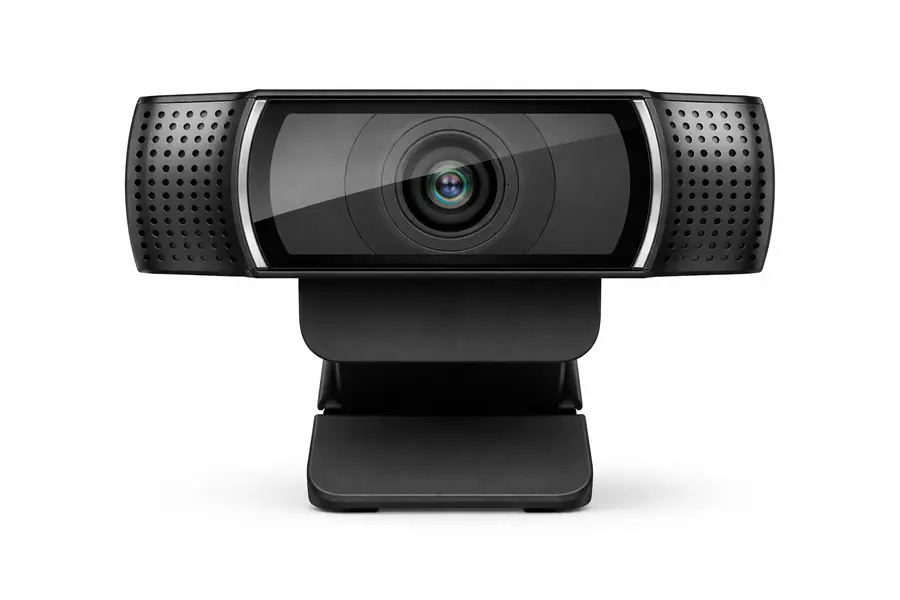
Best for: Video calls, hybrid work, general-purpose streaming
Why it’s good on Linux: The C920S is a UVC webcam that works plug-and-play on virtually every Linux distribution. It’s been a community favorite for years because it just works. The uvcvideo kernel driver recognizes it immediately, and it’s compatible with Zoom, Meet, Teams (browser and Electron apps), OBS Studio, and every other major Linux video application. Logitech’s software doesn’t work on Linux, but you don’t need it—basic controls are accessible via v4l2-ctl or guvcview.
Highlights:
- Full 1080p at 30fps with good image quality in decent lighting
- 78-degree field of view covers most desk setups
- Autofocus works reliably on Linux
- Dual stereo microphones with decent quality
- Privacy shutter included
- Long USB cable (approximately 6 feet)
- Tripod thread for flexible mounting
Watch-outs:
- Logitech Capture software (Windows/Mac only) not available on Linux—you can’t easily access advanced settings without v4l2-ctl
- Auto light correction is decent but not as aggressive as some competitors
- Performs noticeably better on USB 3.0 vs 2.0 ports
- Older firmware versions had minor issues; current models are stable
Typical price range: $60-80 USD / €60-75 EUR
Buy it if: You want a reliable, well-documented webcam that definitely works on Linux and delivers consistent 1080p quality for calls and streaming.
Skip it if: You need 60fps or 4K, or you want advanced software controls without command-line tools.
2. NexiGo N60 – Best Under $50
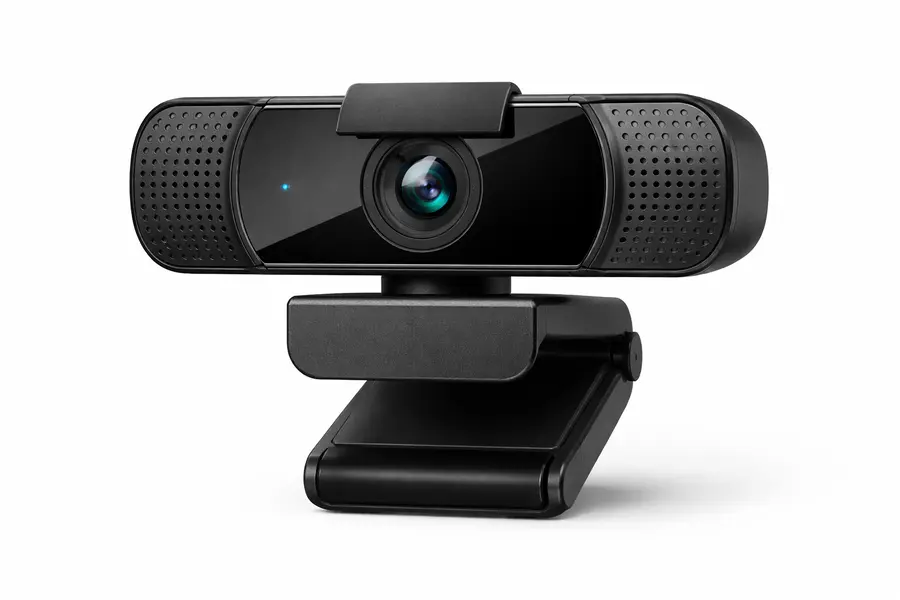
Best for: Budget-conscious users, students, remote workers on tight budgets
Why it’s good on Linux: NexiGo explicitly lists Linux 2.6.24 and Ubuntu 10.04+ compatibility. It’s a UVC webcam that works plug-and-play. Users report successful usage with OBS, browser conferencing apps, and native Linux video tools. No proprietary drivers needed.
Highlights:
- Full 1080p at 30fps
- Wide 110-degree field of view (great for showing more of your space or multiple people)
- Privacy cover included
- Tripod threading on mount
- Excellent build quality and adjustability for the price
- USB 2.0/3.0 compatible
- Fixed focus (optimized for 19.6 inches to 13 feet)
Watch-outs:
- Fixed focus means you can’t adjust focal distance
- Color balance can be slightly off (tends toward cool/blue tones)
- Noticeable fisheye distortion at the wide 110-degree FOV
- Microphone quality is functional but not impressive
- NexiGo software is Windows/Mac only (doesn’t affect basic operation on Linux)
Typical price range: $30-40 USD / €30-40 EUR
Buy it if: You need a solid 1080p webcam for under $50 and appreciate the wide FOV and privacy shutter.
Skip it if: You need autofocus or prefer a narrower, more natural field of view.
3. Logitech C270 – Best Ultra-Budget Option
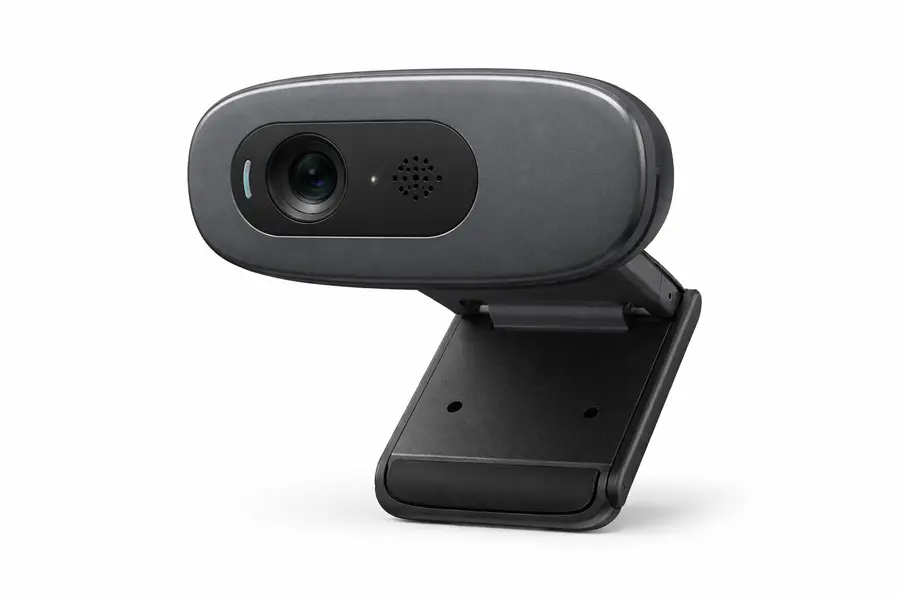
Best for: Ultra-tight budgets, basic video calls, students
Why it’s good on Linux: The C270 is one of the most documented Linux-compatible webcams. It’s UVC compliant and has been working reliably on Linux distributions for over a decade. Community forums are full of success stories with Ubuntu, Fedora, Arch, and others. It’s recognized by uvcvideo immediately.
Highlights:
- 720p resolution at 30fps (adequate for calls)
- Very affordable (often under $30)
- Built-in microphone with noise reduction
- Compact and portable
- USB 2.0 compatible (doesn’t require USB 3.0)
- Long track record of Linux compatibility
Watch-outs:
- Only 720p—noticeably less sharp than 1080p
- Fixed focus
- No privacy shutter
- Microphone quality is basic
- 60-degree field of view is narrower than most modern webcams
- Can look grainy in low light
Typical price range: $20-30 USD / €20-30 EUR
Buy it if: You need the cheapest possible webcam that reliably works on Linux and don’t need 1080p.
Skip it if: You can stretch your budget to $40-50 for a significant quality upgrade.
4. Creative Live! Cam Sync 4K – Best 2K Value
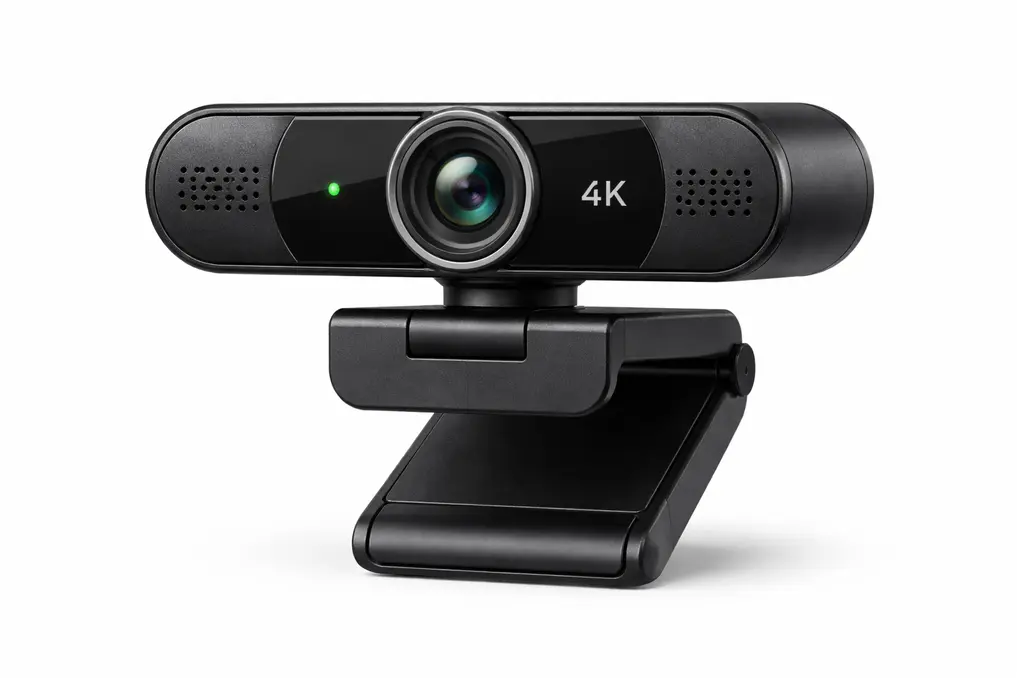
Best for: Content creators, users who want high resolution on a budget
Why it’s good on Linux: The Sync 4K is UVC compliant and works on Linux via standard drivers. It offers 4K (2160p) resolution at an extremely competitive price. While Creative doesn’t provide Linux software, the camera functions fully through V4L2.
Highlights:
- 4K/2K resolution (2160p at 30fps, 1080p at 30fps, 720p at 60fps options)
- Exceptional value for resolution
- Privacy shutter included
- Microphone mute button (hardware toggle)
- Wide field of view
- Dual built-in microphones
Watch-outs:
- Manual focus only—no autofocus (you adjust once and it stays)
- Manual backlight adjustment required (not auto-exposure)
- Color balance can be inconsistent out-of-box
- Frame rate drops slightly below spec in some conditions
- No Linux software for adjustments (use v4l2-ctl or guvcview)
Typical price range: $50-60 USD / €50-60 EUR
Buy it if: You want 4K capability for recording or streaming content locally and can live with manual focus.
Skip it if: You need autofocus or prefer fully automatic exposure/white balance.
5. NexiGo N930AF – Best Budget Autofocus
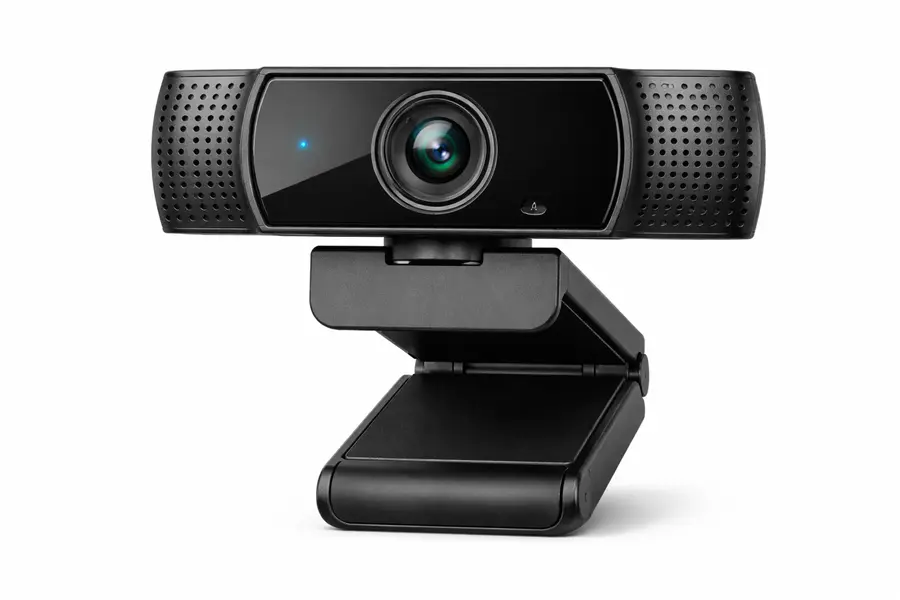
Best for: Users who move around during calls or need reliable autofocus
Why it’s good on Linux: Like other NexiGo models, this explicitly supports Linux 2.6.24+ and Ubuntu 10.04+. It’s UVC compliant and the autofocus works through standard V4L2 controls on Linux. The autofocus can be toggled on/off using v4l2-ctl if needed.
Highlights:
- Full 1080p at 30fps
- Autofocus with decent range (starts at 7cm/2.75 inches)
- Privacy cover included
- Dual noise-canceling microphones
- 75-degree field of view (natural perspective)
- Can disable autofocus for manual control
- Tripod thread included
Watch-outs:
- Autofocus can occasionally hunt when lighting changes
- NexiGo software for fine-tuning is Windows/Mac only
- Microphone quality is adequate but not exceptional
- Slightly more expensive than the fixed-focus N60
Typical price range: $45-60 USD / €45-55 EUR
Buy it if: Autofocus is important to you and you want it at a budget price point.
Skip it if: You prefer fixed focus for stability and want to save $10-15.
6. Razer Kiyo X – Best for OBS/Casual Streaming
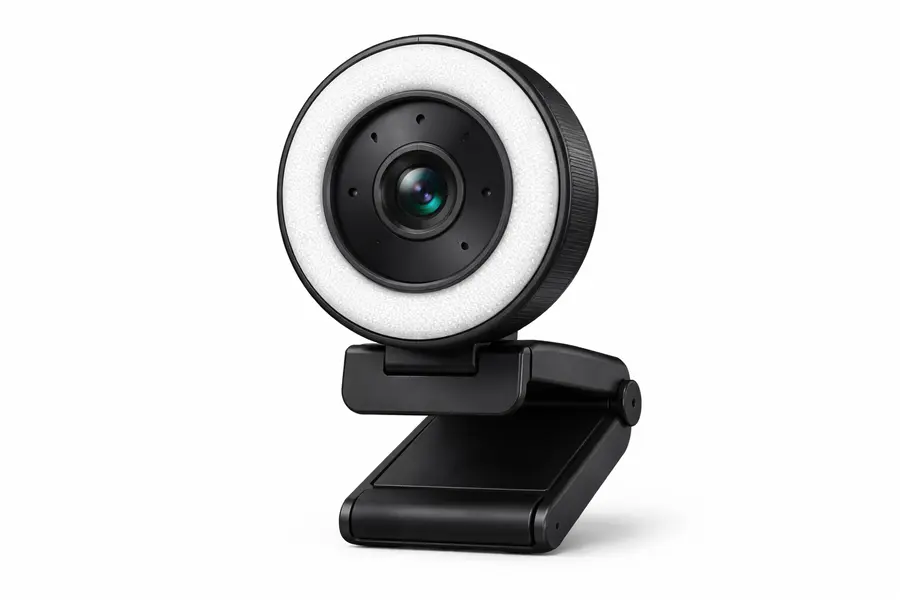
Best for: Streamers, content creators who use OBS on Linux
Why it’s good on Linux: The Kiyo X is UVC compliant and works well on Linux. User reports confirm compatibility with OBS Studio, browser apps, and native tools. Razer Synapse (for advanced settings) is Windows/Mac only, but the camera provides good default performance and basic controls via V4L2.
Highlights:
- Full 1080p at 30fps (also supports 720p at 60fps for smoother motion)
- Autofocus that works on Linux
- Customizable settings via Synapse on Windows (if dual-booting)
- Good low-light performance for the price
- Compact and travel-friendly
- Tripod mount included
- Documented Linux usage in community
Watch-outs:
- Razer Synapse not available on Linux (limits advanced customization)
- No built-in ring light (original Kiyo had one, this doesn’t)
- Microphone quality is average
- Slightly more expensive than generic 1080p options
- Aggressive autofocus can be distracting in some conditions
Typical price range: $50-70 USD / €50-65 EUR
Buy it if: You’re using OBS Studio on Linux and want a webcam optimized for streaming with 720p/60fps option.
Skip it if: You don’t stream and just need a basic call webcam.
7. Logitech Brio 100/300 Series – Best with Privacy Shutter (Newer Options)
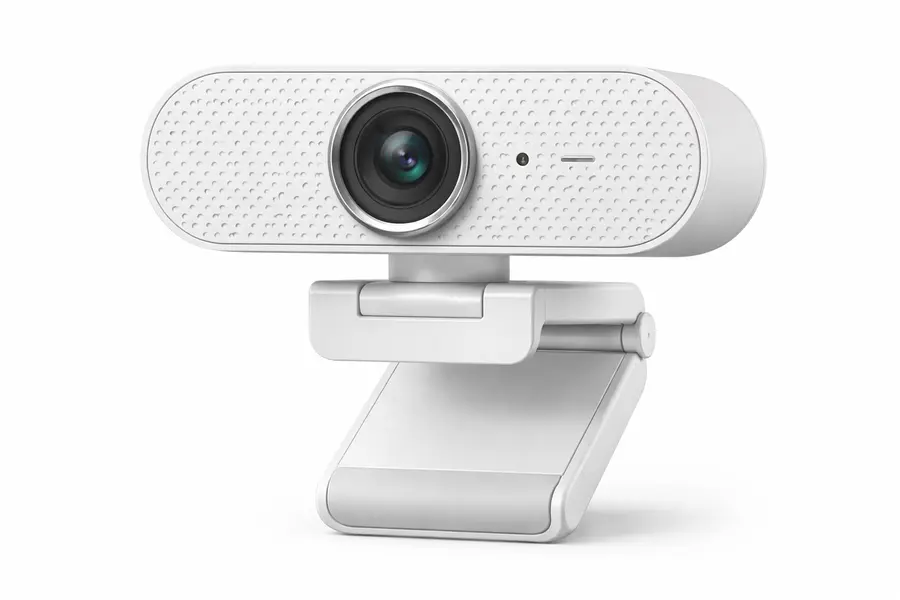
Best for: Users who prioritize privacy and want updated Logitech hardware
Why it’s good on Linux: These newer Logitech models (released 2023-2024) are UVC compliant and work on Linux. The Brio 100 offers basic 1080p at 30fps with a privacy shutter, while the Brio 300 adds better low-light performance and wider FOV.
Highlights:
- 1080p at 30fps (Brio 100) or enhanced 1080p with better sensor (Brio 300)
- Privacy shutter on both models
- Modern design and build quality
- Logitech’s typical UVC reliability
- Works with all major Linux conferencing apps
- RightLight technology for better auto-exposure
Watch-outs:
- Logitech G Hub/Logi Tune software is Windows/Mac only
- Fixed focus on Brio 100 (autofocus on Brio 300)
- More expensive than equivalent NexiGo or generic options
- Limited community documentation compared to older C920/C270
Typical price range:
Brio 100: $40-50 USD / €40-50 EUR
Brio 300: $60-80 USD / €60-75 EUR
Buy it if: You want modern Logitech hardware with privacy shutter and trust the brand’s UVC track record.
Skip it if: You’re comfortable with older C920/C270 models at better value.
8. Microsoft LifeCam HD-3000 – Best Proven Windows-to-Linux Crossover
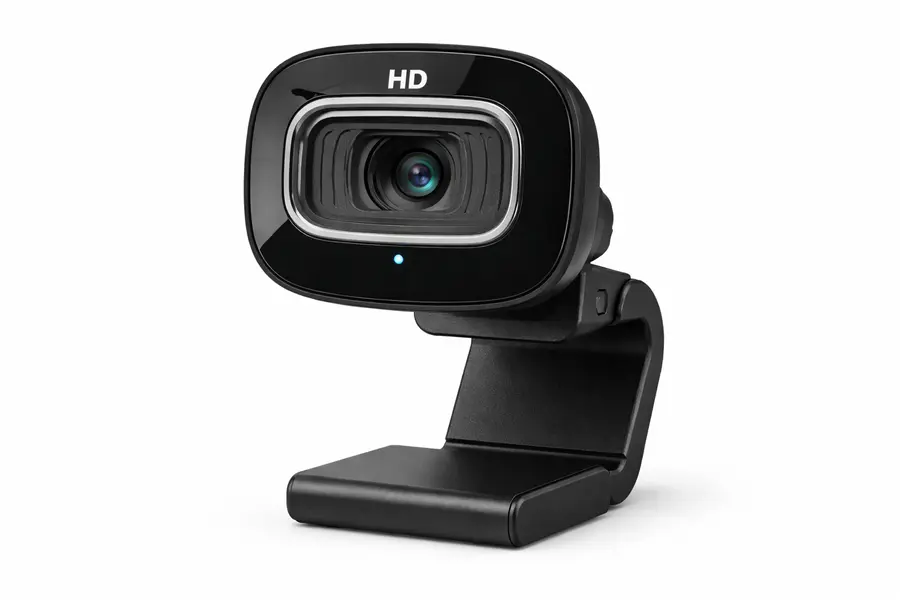
Best for: Users migrating from Windows, basic conferencing
Why it’s good on Linux: The LifeCam HD-3000 is a classic that’s been working on Linux for years. It’s UVC compliant and widely documented in Linux forums. Simple, reliable, plug-and-play performance.
Highlights:
- 720p at 30fps
- Very widely compatible across distros
- TrueColor technology for better color reproduction
- Wideband microphone
- Lightweight and portable
- Often available at deep discounts
Watch-outs:
- Only 720p (dated by 2026 standards)
- Fixed focus
- No privacy shutter
- Older design
- Limited availability in some regions
- Better options exist at similar or lower prices now
Typical price range: $20-35 USD / €20-35 EUR (varies by retailer and sales)
Buy it if: You find it on sale and just need a basic 720p webcam with proven Linux compatibility.
Skip it if: You can get a 1080p option for a few dollars more.
9. Generic 1080p UVC Webcams (Angetube, EMEET, etc.)
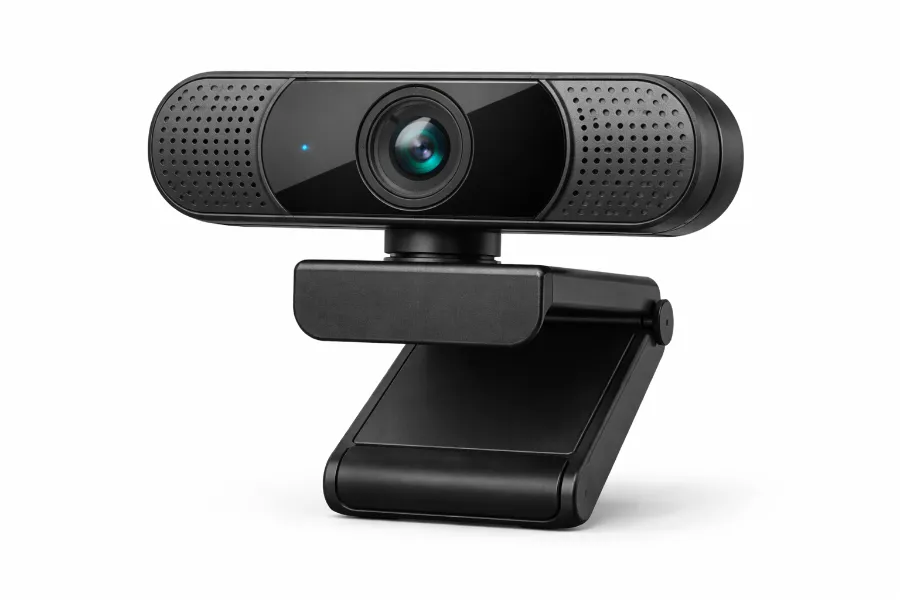
Best for: Absolute best value hunters, users willing to research specific models
Why it’s good on Linux: Many no-name or lesser-known brands produce UVC-compliant 1080p webcams that work perfectly on Linux. As long as they explicitly mention “plug-and-play,” “driver-free,” “works with Chromebook,” or “UVC,” they’ll likely work. Check reviews mentioning Linux or look for YUY2/MJPEG format support in specs.
Highlights:
- Often the cheapest 1080p options ($25-40)
- UVC compliance means plug-and-play
- Many include privacy shutters and autofocus
- Wide variety of designs and features
Watch-outs:
- Quality varies significantly by brand and batch
- Less community documentation for specific models
- Return policies are essential
- Some models may have quirks with specific distros or apps
- Firmware updates (if needed) may be impossible
- Customer support is often minimal
Typical price range: $25-45 USD / €25-40 EUR
Buy it if: You’re comfortable testing and returning if needed, and want maximum value.
Skip it if: You prefer the peace of mind of established brands with documented Linux support.
10. HP 320 FHD Webcam – Best Lightweight/Portable
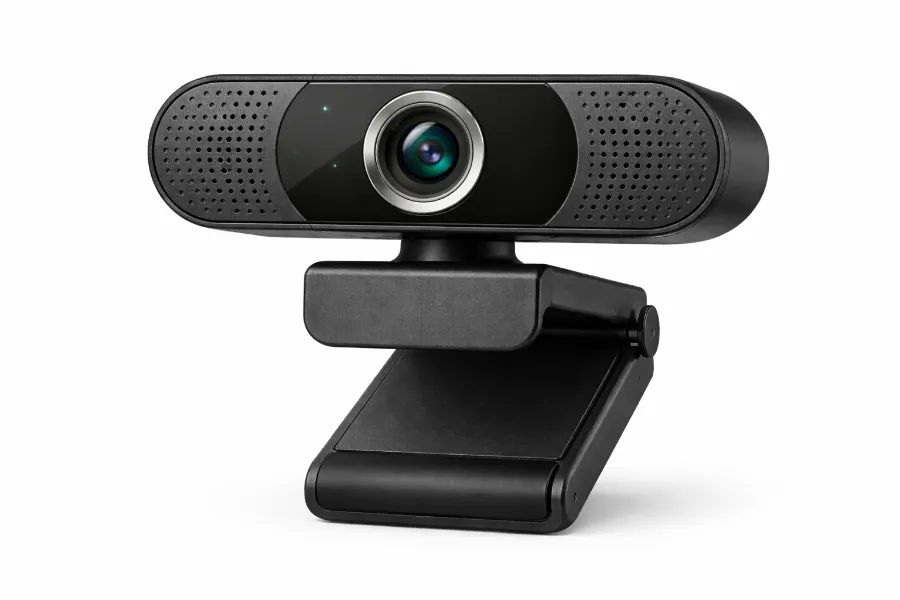
Best for: Travelers, hot-desking workers, minimalists
Why it’s good on Linux: The HP 320 is UVC compliant and works plug-and-play on Linux. It’s designed for simplicity—just plug it in and it auto-adjusts to your lighting. User reports confirm compatibility with major distros.
Highlights:
- 1080p at 30fps
- Extremely lightweight and portable
- 360-degree swivel mount
- 66-degree field of view (tighter framing)
- Integrated privacy shutter
- Single directional microphone
- 4x digital zoom (works via software)
- Auto light adjustment
Watch-outs:
- Narrower 66-degree FOV than most competitors
- Digital zoom only (not optical)
- Microphone is mono and basic
- Limited manual controls
- Less common in budget roundups (but worth considering)
Typical price range: $40-50 USD / €40-50 EUR
Buy it if: Portability is a priority and you like the compact form factor.
Skip it if: You prefer wider field of view or better microphone quality.
Comparison Table (Fast Decision)
| Model | Best For | Res/FPS | Focus | Shutter | Linux Notes | Typical Price |
|---|---|---|---|---|---|---|
| Logitech C920S | Reliability | 1080p/30 | Auto | Yes | Works everywhere, tons of documentation | $60-80 |
| NexiGo N60 | Budget value | 1080p/30 | Fixed | Yes | Colors run blue, needs tweaking | $30-40 |
| Logitech C270 | Ultra-cheap | 720p/30 | Fixed | No | Ancient but reliable | $20-30 |
| Creative Sync 4K | 4K content | 4K/30 | Manual | Yes | Manual everything, great for recording | $50-60 |
| NexiGo N930AF | Autofocus | 1080p/30 | Auto | Yes | AF works via V4L2 | $45-60 |
| Razer Kiyo X | Streaming | 720p/60 | Auto | No | Good for OBS, no Synapse on Linux | $50-70 |
| Brio 100/300 | Modern Logitech | 1080p/30 | Varies | Yes | Newer models, less documentation | $40-80 |
| MS LifeCam HD-3000 | Proven legacy | 720p/30 | Fixed | No | Decade of Linux success | $20-35 |
| HP 320 FHD | Portability | 1080p/30 | Auto | Yes | Compact, narrow FOV | $40-50 |
Linux Setup: Make Your Webcam Look Better in 10 Minutes
Check If It’s Detected
Plug in your webcam and run:
lsusb | grep -i cameraOr check for video devices:
ls /dev/video*You should see /dev/video0 or similar. That means Linux sees it.
Test it quickly:
- GNOME users: Open Cheese (install with sudo apt install cheese)
- KDE users: Use Kamoso
- Command line: ffplay /dev/video0 (if you have ffmpeg)
If it works in these apps, it’ll work in your browser for Zoom/Meet/Teams.
Fix Your Lighting First
Stop. Before you touch any settings, fix your lighting. I’m serious.
- Face a window during daytime
- Add a light source in front of you (even a desk lamp works)
- Avoid sitting with a bright window behind you (you’ll be a dark silhouette)
- A $15 LED panel from Amazon will do more for your video quality than a $100 webcam upgrade
Browser-Based Conferencing
Google Meet: Go to Settings → Video in the meeting, select your webcam. Meet auto-adjusts most things and doesn’t give you many manual controls anyway.
Zoom: Use the web version (zoom.us) or the native Linux client. Go to Settings → Video, select your camera, and enable HD if available.
Microsoft Teams: Web version at teams.microsoft.com works better than trying to get the Electron app to behave. Select your camera in device settings before joining.
Browser tips:
- Chrome/Chromium generally has the best webcam support on Linux
- Firefox works well but can be pickier with some cameras
- Always allow camera permissions when prompted
Advanced Controls with v4l2-ctl
Want to actually adjust your webcam settings? Install v4l2-ctl:
# Debian / Ubuntu
sudo apt install v4l-utils

# Fedora
sudo dnf install v4l-utils

# Arch Linux
sudo pacman -S v4l-utils
See what your camera can do:
v4l2-ctl -d /dev/video0 --list-ctrlsThis shows every adjustable parameter. Common ones:
# Increase brightness (usually 0–255)
v4l2-ctl -d /dev/video0 --set-ctrl=brightness=140

# Adjust exposure
v4l2-ctl -d /dev/video0 --set-ctrl=exposure_absolute=200

# Turn off autofocus (if it's annoying)
v4l2-ctl -d /dev/video0 --set-ctrl=focus_auto=0

# Set manual focus distance
v4l2-ctl -d /dev/video0 --set-ctrl=focus_absolute=25
GUI option: If terminal commands aren’t your thing, install guvcview:
sudo apt install guvcview    # Debian / Ubuntu
sudo dnf install guvcview    # Fedora
sudo pacman -S guvcview      # Arch Linux
It gives you sliders for everything. Way more user-friendly.
OBS Studio Tips
OBS works great with Linux webcams:
- Add a Video Capture Device (V4L2) source
- Select /dev/video0 (or whichever device is your webcam)
- Choose your resolution and framerate
- Right-click the source → Filters → Color Correction to tweak the image
- Add Chroma Key if you’re using a green screen
For streaming: Set your bitrate to 2500-4000 kbps for 1080p, or 1500-2500 for 720p.
USA + Europe Shopping Tips (Don’t Get Burned)
Where to Actually Buy
USA retailers:
- Amazon – Biggest selection, easy returns, competitive prices
- Best Buy – In-store pickup option lets you test and return same-day if it sucks
- B&H Photo – Excellent product info and customer service
- Newegg – Good for tech deals and sales
- Micro Center – If you have one nearby, in-person shopping is clutch
Europe options:
- Amazon (DE, UK, FR, IT, ES) – Varies by country but generally reliable
- MediaMarkt / Saturn – Physical stores in many EU countries
- Local electronics shops – Often have better return policies than you’d expect
Return Policies Are Essential
Buy from places with actual return windows. Amazon gives you 30 days, Best Buy typically offers 15-30 days depending on membership level.
You NEED to test the webcam on your actual Linux setup. What works for someone on Ubuntu 22.04 might have quirks on your Fedora 39 installation with Wayland.
Test Checklist (Do This Immediately)
Within the first few days:
- Plug it in – Does Linux detect it instantly?
- Test in Cheese/Kamoso – Does it show video?
- Try a browser call – Join a Google Meet or Zoom test meeting
- Check focus – Sit at your normal desk distance and verify it’s sharp
- Test the mic – Record a quick video and play it back to check audio sync
- Try different times of day – Test in morning light, afternoon, and evening with artificial lights
- Verify cable length – Make sure it reaches comfortably
- Test privacy shutter – If it has one, make sure it slides smoothly
If anything fails or annoys you, return it. Don’t settle because you think maybe it’ll get better with tweaking. It probably won’t.
Product Listing Red Flags
Phrases to look for (good signs):
- “UVC compliant” or “USB Video Class”
- “Plug-and-play” or “driver-free”
- “Works with Chromebook”
- “Compatible with Linux” (bonus if they list specific distros)
- Mentions of MJPEG or YUY2 formats
Red flags (avoid these):
- “Requires companion software”
- “Windows/Mac only”
- No OS compatibility mentioned at all
- Heavy emphasis on AI features that need an app
- “Proprietary driver required”
FAQs
Do webcams need drivers on Linux?
Nope—UVC webcams work instantly because the uvcvideo driver has been baked into the Linux kernel since 2008, so just plug it in and it shows up in Zoom, Meet, or whatever you’re using.
Is 4K actually worth it for Zoom and Meet calls?
Not even close—Zoom, Meet, and Teams all max out at 1080p anyway, so your fancy 4K webcam just downscales to match, making it pointless unless you’re recording YouTube videos locally.
Why does my webcam look so noisy and terrible on Linux?
It’s almost always your lighting, not Linux—webcam sensors need way more light than your eyes do, so face a window or grab a cheap LED panel before blaming the software.
Does autofocus work properly on Linux?
Yeah it works fine through V4L2 controls, though if it gets annoying and hunts too much you can just disable it with v4l2-ctl -d /dev/video0 –set-ctrl=focus_auto=0 and set manual focus instead.
How do I control brightness and exposure without vendor software?
Install guvcview for a GUI with sliders, or use v4l2-ctl from terminal to adjust brightness, exposure, white balance, and everything else your camera supports—just run v4l2-ctl -d /dev/video0 –list-ctrls to see what’s available.
Final Recommendations (Just Tell Me What to Buy)
If you want the safest, most reliable choice: Get the Logitech C920S. It costs $60-80, delivers solid 1080p, has autofocus, includes a privacy shutter, and works instantly on every Linux distro. It’s the recommendation I give to people who just want something that definitely works without any fiddling.
If your budget is tight ($30-40): Grab the NexiGo N60. Yeah, the colors lean blue and you’ll want to tweak white balance, but for $35 you’re getting 1080p with a privacy shutter. It’s shockingly good value.
If you only have $20-25: The Logitech C270 works. It’s 720p and looks dated, but it’s reliable and documented. Just don’t expect to be impressed.
If you need 4K for content creation: The Creative Sync 4K is real 4K for around $50-60. Accept that you’ll manually adjust focus and exposure, and it’s a steal.
If autofocus is important and you’re on a budget: Get the NexiGo N930AF for $45-60. The autofocus works through V4L2 and you can disable it if it gets annoying.
If you’re streaming on OBS: The Razer Kiyo X gives you 720p at 60fps for smoother motion, and it works great with OBS Studio on Linux.
Quick decision tree:
- Under $30 → C270 (if you must) or save $10 more for the N60
- $30-50 → NexiGo N60 (best value) or Brio 100 (brand reliability)
- $50-80 → C920S (overall best) or N930AF (if you prioritize autofocus)
- Need 4K → Creative Sync 4K
- Streaming → Razer Kiyo X
The real advice: Get decent lighting before upgrading your webcam. A $20 LED panel will improve your image quality more than jumping from a $30 webcam to an $80 one.
Disclaimer
Prices fluctuate constantly based on sales, retailer, and region. What costs $60 today might be $45 next week during a sale or $75 when stock is low. Availability varies—sometimes models go out of stock for weeks.
Some features that work great on Windows or macOS through vendor software (AI framing, background effects, one-click HDR) won’t be accessible on Linux. This is the trade-off for open-source freedom. Most users don’t miss these features, but if they’re critical to you, you might need to dual-boot or run Windows in a VM to configure them.
Always buy from retailers with solid return policies and test the webcam on your specific Linux setup within the return window. What works flawlessly on Ubuntu 24.04 might have quirks on Fedora 39 with Wayland, or vice versa. Hardware compatibility can be unpredictable, so having an easy return option is insurance.
Also Read
Best Keyboards for Linux 2026: That Work Perfectly (Ultimate Guide)
About the Author