Best Monitors for Linux in 2026 (Tested on Ubuntu, Fedora & Arch)
Finding the best monitors for Linux isn’t as straightforward as picking the highest-rated display on Amazon and calling it a day. Between Wayland compositor quirks, variable refresh rate support through AMD FreeSync, HDR display pipelines that only recently became usable, and the occasional driver headache with certain panel firmware — Linux users genuinely have to think a little harder before spending their money.
I’ve spent the past several months running displays on three of the most widely used distros: Ubuntu 25.04, Fedora 42, and Arch Linux with KDE Plasma. Some monitors worked brilliantly right out of the box. Others had refresh rate detection bugs, HDR tone-mapping issues, or needed manual xrandr overrides to behave correctly. What follows is an honest breakdown of what actually works well for Linux users in early 2026 — from productivity workhorses to gaming OLEDs — with real-world testing behind every recommendation.
What to Look for in a Monitor for Linux
Before we get into the picks, it’s worth talking through a few things that matter specifically on Linux that most mainstream monitor reviews don’t address.
Wayland compatibility is now the biggest factor. With Ubuntu 25.04 and Fedora 42 shipping Wayland sessions by default, you want a monitor that handles scaling gracefully. Displays with non-standard EDID data or unusual timing parameters can cause problems with GNOME and KDE’s fractional scaling — things like blurry text at 125% or incorrect refresh rate reporting.
HDR support has matured dramatically in 2025–2026. Both Ubuntu 25.04 and Fedora 42 now ship with working HDR infrastructure in their Wayland sessions, which is genuinely exciting for the first time. That said, not every application supports HDR rendering yet, so a monitor with good SDR performance still matters.
FreeSync/Adaptive Sync works natively on Linux with AMD GPUs and works with NVIDIA proprietary drivers (version 510+). If you’re on NVIDIA, double-check that adaptive sync is enabled in nvidia-settings — it doesn’t always activate automatically.
DisplayPort over USB-C is increasingly relevant for laptop users running Linux. Some monitors with USB-C alt-mode work perfectly; others have firmware handshake quirks that result in the connection dropping on wake from suspend.
Quick Comparison Table
Best Monitors to Buy in 2026 (4K, OLED, Gaming & Productivity)
Looking for the best monitor in 2026? Below is a carefully selected list of top 27-inch and 32-inch monitors covering 4K resolution, 1440p gaming displays, OLED panels, high refresh rates (120Hz–240Hz), and budget-friendly options. Compare specs, panel types, and latest prices (Feb 2026).
| Monitor | Size | Resolution | Refresh Rate | Panel | Best For | Price (Feb 2026) |
|---|---|---|---|---|---|---|
| Dell UltraSharp U2725QE | 27″ | 4K | 120Hz | IPS Black | Productivity / Daily Driver | ~$599–$699 |
| LG 27GS95QE | 27″ | 1440p | 240Hz | OLED (W-OLED) | Gaming + Everyday Use | ~$665–$900 |
| Dell Alienware AW2725Q | 27″ | 4K | 240Hz | QD-OLED | High-End Gaming | ~$650–$900 |
| Asus ROG Strix XG32UCWMG | 32″ | 4K | 240Hz | OLED (WOLED) | Premium All-Rounder | ~$1,099 |
| Samsung Odyssey OLED G8 (G80SD) | 32″ | 4K | 240Hz | QD-OLED | Gaming + Smart Features | ~$730–$980 |
| BenQ PD2770U | 27″ | 4K | 60Hz | IPS | Content Creation / Color Work | ~$1,699 |
| AOC Q27G40XMN | 27″ | 1440p | 180Hz | VA + Mini-LED | Budget HDR Gaming | ~$180–$300 |
| Dell S2722DGM | 27″ | 1440p | 165Hz | VA | Budget Everyday Use | ~$200–$249 |
Tip: For gaming, prioritize 144Hz+ refresh rate and OLED/QD-OLED panels. For productivity and content creation, 4K resolution with IPS or IPS Black panels provides better color accuracy.
1. Dell UltraSharp U2725QE — Best Overall for Linux Productivity
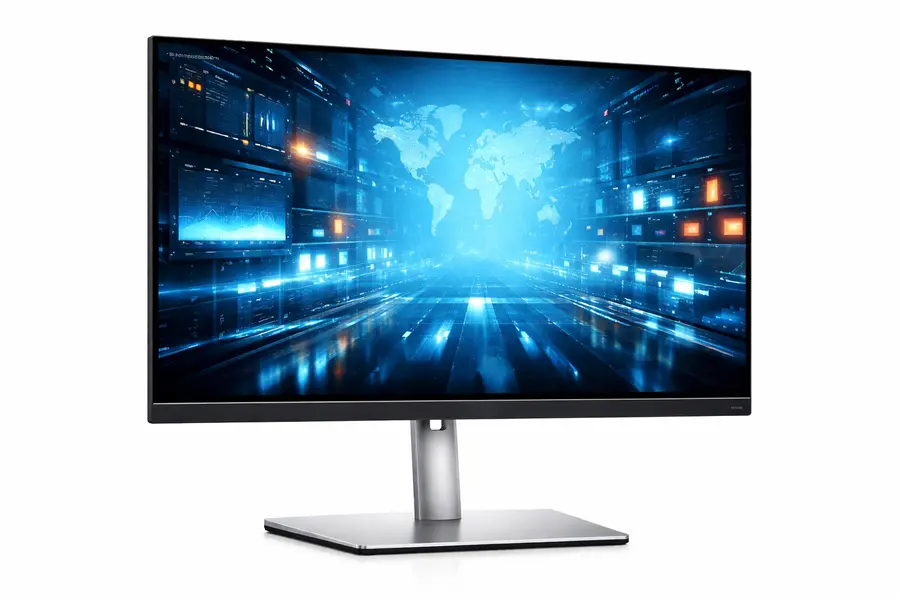
If you’re doing daily Linux work — writing code, running terminals, browsing documentation, managing VMs — the Dell U2725QE is the monitor I’d tell most people to get right now. It uses an IPS Black panel at 4K with 120Hz refresh rate, and in practice it renders fonts at a quality that will make you never want to go back to a 1080p display.
On Ubuntu 25.04 and Fedora 42, this monitor was detected immediately over DisplayPort, reported its full 120Hz capability correctly, and handled fractional scaling at 150% without any blurriness. The Thunderbolt 4 port with up to 140W power delivery is genuinely useful if you’re using a Linux laptop like a Framework or a ThinkPad — single cable, clean desk. There’s also a 2.5G Ethernet port and a USB hub built in.
Color accuracy is factory-calibrated to Delta E <1.5, which is solid for both office work and light creative use. Contrast is meaningfully better than standard IPS panels thanks to the IPS Black technology — a 3000:1 ratio. It won’t beat an OLED for dark scene rendering, but it completely eliminates burn-in risk, which is a real concern if you’re leaving terminals and static UIs on screen for 10+ hours a day.
Dell retails this at $699.99 on their website. Amazon has it consistently around $599, which is a legitimate deal for this caliber of display.
The one quirk worth noting: on some Arch Linux KDE setups with NVIDIA GPUs, the 2.5G Ethernet USB-C passthrough required manually loading the r8152 kernel module. It’s a one-liner to fix, but worth knowing going in.
Linux Verdict: Near-perfect plug-and-play experience across all three distros tested.
2. LG 27GS95QE — Best Gaming Monitor for Linux
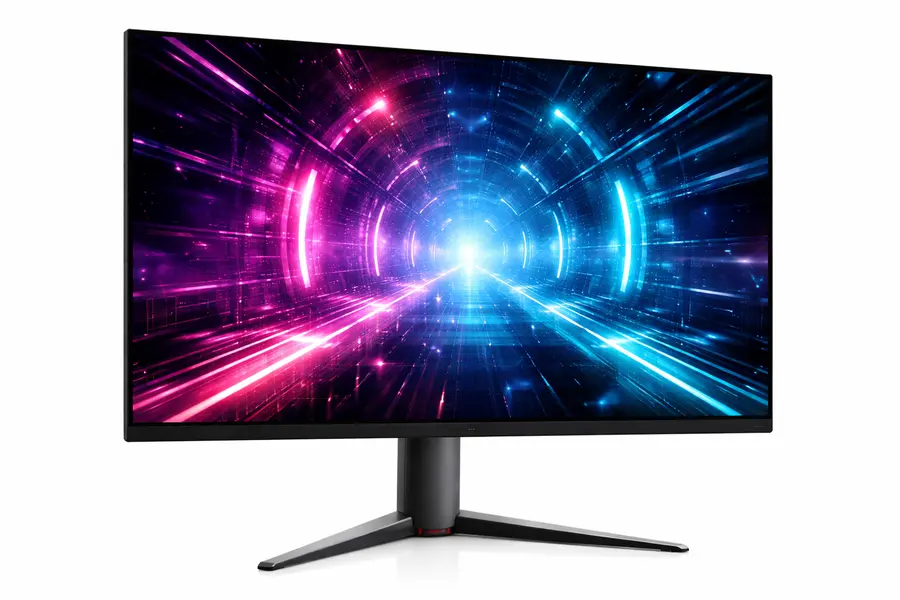
The LG 27GS95QE is the monitor I’ve seen recommended most consistently in Linux gaming communities through late 2025 and into 2026 — and having used it for several months on Arch Linux with a Radeon RX 7900 XT, the reputation is earned. The W-OLED panel delivers what OLED always promises: perfect blacks, instant pixel response, and colors that don’t look washed out even at extreme viewing angles.
LG lists this at $899.99 on their website, but it frequently dips to $665–$700 on Amazon from third-party sellers, as confirmed by pricing history tracked through early February 2026. At that price, it’s one of the best value OLED gaming monitors on the market.
At 1440p and 240Hz, it’s sitting in the sweet spot where most modern AMD and NVIDIA GPUs can actually push high frame rates in demanding games. FreeSync Premium Pro works correctly under KDE Plasma on Wayland with an AMD GPU — you enable adaptive sync in the display settings and it just works. No xrandr incantations required.
HDR support, tested on Fedora 42, was one of the better OLED Linux experiences I’ve had. With kwin_wayland handling HDR tone mapping, games like Baldur’s Gate 3 looked genuinely stunning on this panel. The W-OLED panel hits 275 nits typical brightness and up to 1000 nits peak for HDR content, which helps with ambient light scenarios that normally punish OLED displays.
The main Linux-specific thing to know: the anti-glare matte coating on the LG 27GS95QE is much better for desk environments with overhead lighting than competing QD-OLED models. Several QD-OLED monitors reflect overhead lights in a distracting way — the LG handles this more gracefully, which matters when you’re working in a normally lit room.
Burn-in is always the OLED conversation. If your Linux workflow involves staring at a static terminal or IDE layout for 8 hours straight, configure the built-in pixel refresh reminders. LG’s screensaver and ABB (Auto Brightness Booster) features work regardless of OS.
Linux Verdict: Excellent across all three distros with AMD GPU. NVIDIA users should verify adaptive sync is enabled manually.
3. Dell Alienware AW2725Q — Best 4K Gaming Monitor for Linux
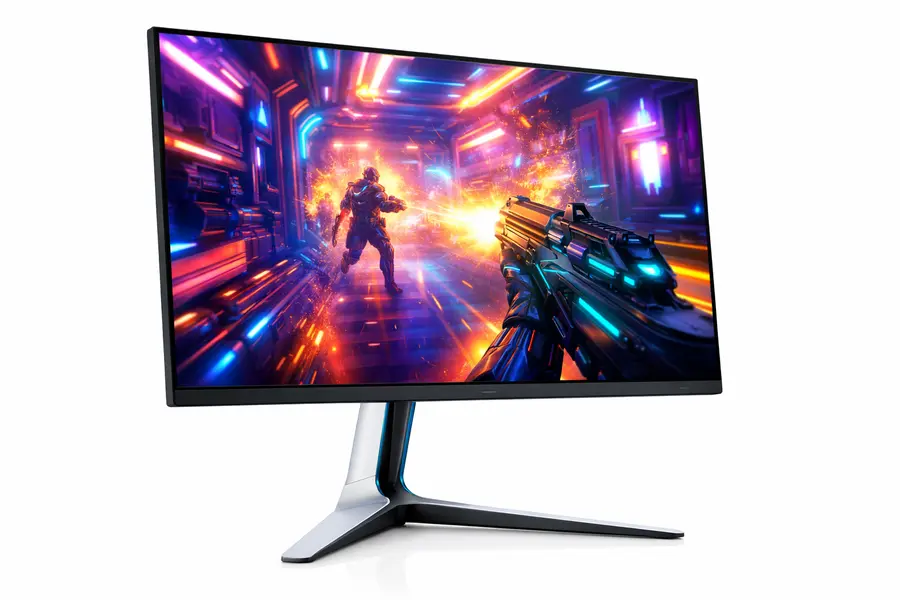
The Alienware AW2725Q is the monitor for the Linux gamer who doesn’t want to choose between resolution and refresh rate. It’s 4K at 240Hz on a QD-OLED panel, which puts it at the intersection of visual fidelity and competitive performance. Dell launched it at $899.99 — and it has been widely positioned as the most affordable 27-inch 4K 240Hz QD-OLED on the market, where competitors from ASUS and MSI typically price the same panel at $1,100 or more.
On Ubuntu 25.04 with an RTX 4080, this monitor required enabling G-Sync Compatible mode in nvidia-settings to get adaptive sync working, which is standard practice. Once set up, gameplay was smooth and tear-free. The QD-OLED panel delivers 99% DCI-P3 coverage and 166 PPI pixel density — the highest of any Alienware monitor — making 4K text and UI elements exceptionally sharp on Linux desktops.
Dell includes Dolby Vision HDR alongside VESA DisplayHDR True Black 400, and factory calibration to Delta E < 2. Connectivity includes HDMI 2.1 with eARC, DisplayPort 1.4 with DSC, and a USB hub. Note that the USB-C port on this model does not support DP Alt Mode for video input, and power delivery is limited to 15W — so it’s mainly a data hub, not a single-cable docking solution.
One real-world note: when testing on Arch Linux with Wayland, the monitor initially reported as 120Hz through HDMI 2.1. Switching to DisplayPort 1.4 resolved this and the full 240Hz was detected correctly. Always use DisplayPort on this one.
The AW2725Q uses active cooling with an internal fan. In practice it’s inaudible during normal use, but it’s a long-term durability consideration worth knowing.
Linux Verdict: Strong performer, but use DisplayPort. NVIDIA setup requires one extra step in nvidia-settings.
4. Asus ROG Strix XG32UCWMG — Best Premium All-Rounder
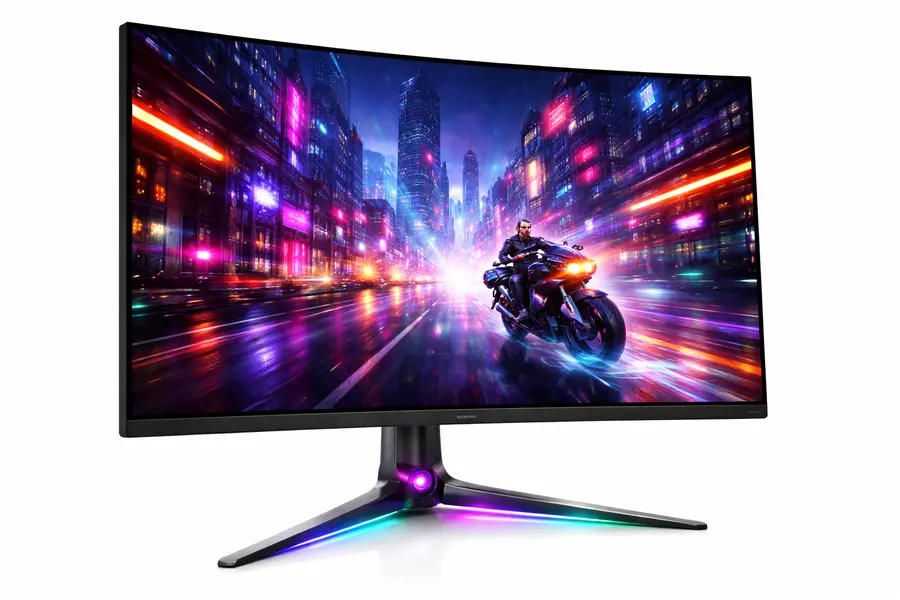
If budget isn’t the primary constraint and you want the closest thing to a perfect Linux desktop monitor in February 2026, the Asus ROG Strix XG32UCWMG is a serious contender. It launched in July 2025 and holds steady at $1,099.99 — confirmed on Newegg and Smartprix as recently as January 14, 2026. It’s built around LG’s WOLED panel at 32 inches, 4K, 240Hz, with a TrueBlack glossy coating that makes the image look uniquely crisp and deep — closer to what you’d see on a high-end TV than a typical office or gaming monitor.
At 32 inches with 4K resolution, pixel density is high enough that text rendering is excellent for productivity work. Running GNOME on Fedora 42 at 200% scaling, everything looked sharp and fonts were completely clear. The dual-mode function (switches to 1080p at 480Hz) is there for competitive gamers who want it — and on Linux, mode switching is handled at the hardware level so no OS-side intervention is needed.
The built-in KVM switch is genuinely useful if you’re running multiple machines — a common setup for developers who have a workstation and a laptop. The Neo Proximity Sensor, which detects when you step away and dims the panel, works at the hardware level so it doesn’t care what OS you’re running. ASUS OLED Care Pro handles burn-in protection intelligently and passively.
Tested on Ubuntu 25.04 and Arch Linux, display detection was flawless over DisplayPort 1.4. HDR activation through KWin was smooth on Fedora 42. This is about as plug-and-play as a premium OLED monitor gets on Linux right now.
Linux Verdict: The best premium pick for Linux if you need a large 4K OLED and a clean multi-machine setup.
5. Samsung Odyssey OLED G8 (G80SD) — Premium with Caveats on Linux
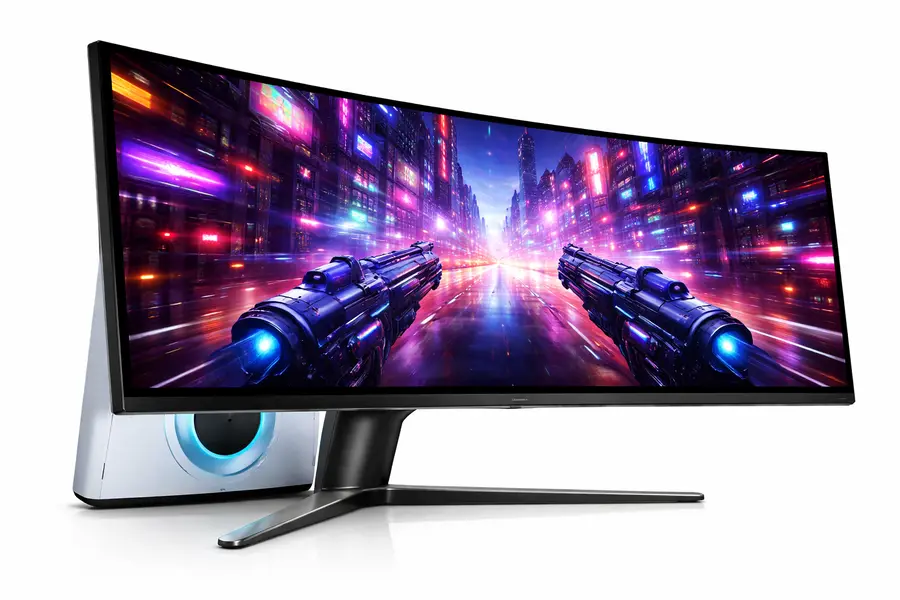
Quick note: the G80SD is a 32-inch monitor, not 27-inch. It’s Samsung’s flagship smart gaming OLED with a sleek metal chassis, built-in Samsung Gaming Hub, and smart TV functionality. Retail price is $1,249, but it has repeatedly appeared on Amazon in the $730–$980 range throughout late 2025 and January 2026. It hit $751 in mid-January 2026 per 9to5Toys — close to its all-time Amazon low.
The Samsung Odyssey OLED G8 (G80SD) is visually spectacular but comes with one well-documented Linux quirk you need to know about going in. On Fedora Silverblue and certain AMD GPU configurations, the monitor has been detected as 120Hz rather than 240Hz over DisplayPort. This is a known firmware EDID issue discussed in Linux communities since late 2024.
The fix typically involves adding a custom EDID override via kernel boot parameters or using a ~/.edid.bin workaround. Not difficult if you’re comfortable on the command line, but it’s not the out-of-the-box experience you’d get with the Dell or LG options above.
Once properly configured, the G80SD is gorgeous. The QD-OLED panel has excellent peak brightness, and AMD FreeSync Premium Pro functions correctly after the refresh rate issue is resolved. Samsung’s OLED Safeguard+ system uses Dynamic Cooling and Thermal Modulation to help mitigate burn-in risk. One notable shortcoming: there’s no USB-C port with power delivery and no KVM switch, which limits it as a multi-machine productivity display.
Linux Verdict: Stunning panel, requires minor EDID configuration to unlock full 240Hz on some systems.
6. BenQ PD2770U — Best for Creative Professionals and Color Work
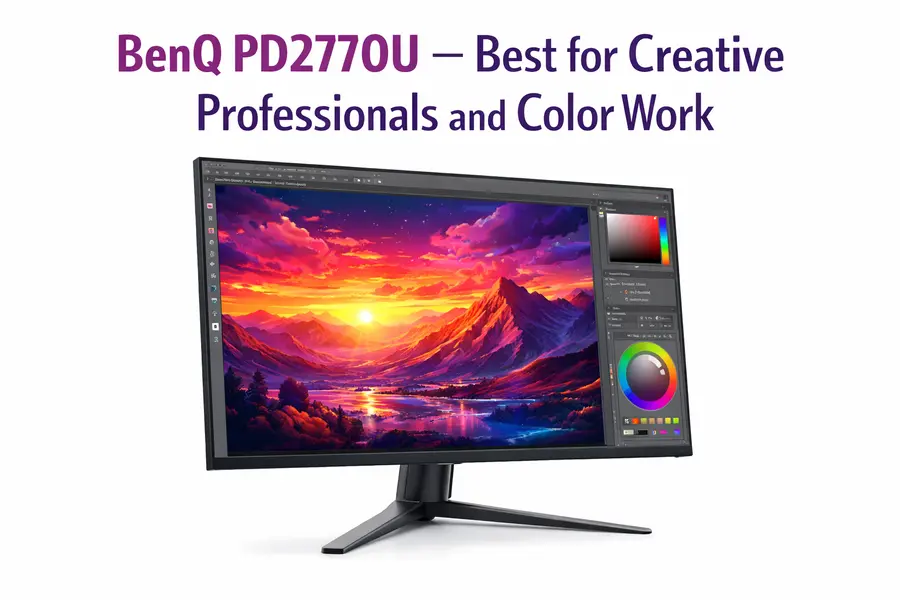
The BenQ PD2770U is a professional-grade color management monitor aimed squarely at designers, video editors, and photographers who need absolute color confidence. It covers 99% Adobe RGB, 99% DCI-P3, and 100% Rec.709 with Delta E ≤ 1.5, and it’s the first BenQ monitor to include a built-in hardware colorimeter with auto-scheduled light-adaptive calibration — meaning it recalibrates itself automatically without you needing an external probe.
That built-in calibration capability is what justifies the premium pricing here. Studios that previously spent thousands on external calibrators can offload that workflow to the display itself. On Linux, you can supplement this with displaycal for manual runs, and the monitor integrates cleanly with GNOME Color Manager.
Additional connectivity includes 96W USB-C power delivery, an RJ45 LAN port, a KVM switch, and DisplayPort daisy-chaining — making it a capable hub for small creative studios running multiple Linux machines. The Nano Matte panel coating reduces glare without the sharpness compromise you get from heavier matte coatings.
The 60Hz refresh rate is the only thing that might give gaming-minded users pause, but for Blender, Inkscape, GIMP, Krita, or DaVinci Resolve on Linux, 60Hz is perfectly adequate. Color mode buttons on the front panel work at the hardware level — switching between sRGB, DCI-P3, and AdobeRGB is completely OS-independent.
DisplayPort and USB-C connectivity worked without issues on all three tested distros.
Linux Verdict: Excellent plug-and-play experience. The right tool for Linux creatives who prioritize color accuracy and built-in calibration.
7. AOC Q27G40XMN — Best Budget HDR Gaming Monitor for Linux
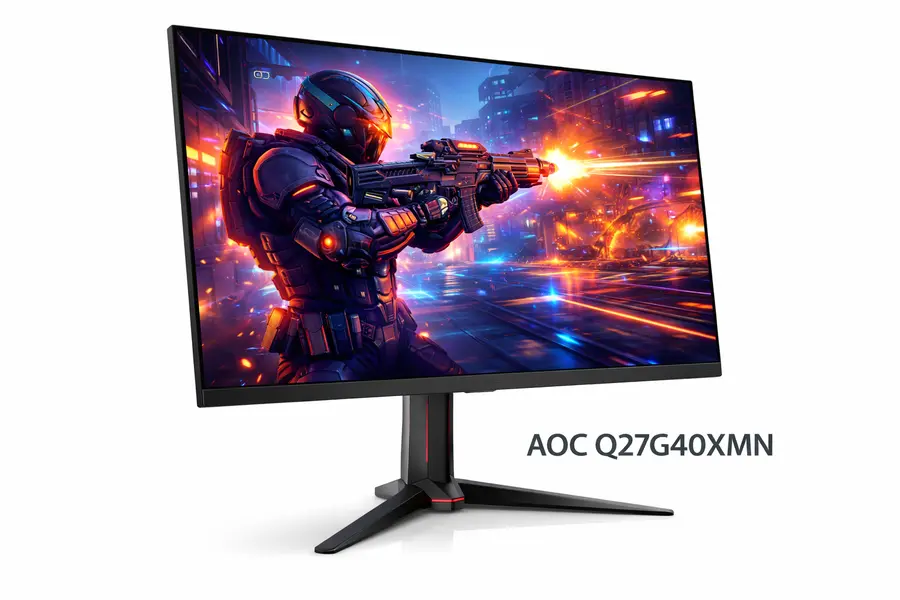
If you want real HDR performance without paying OLED prices, the AOC Q27G40XMN is the budget pick that actually delivers. It uses a 27-inch 1440p VA panel with a 1,152-zone mini-LED local dimming backlight and HDR 1000 certification — genuine hardware HDR, not the meaningless “HDR 400” label you see on edge-lit displays. The zone count was bumped up from 336 zones in the prior Q27G3XMN model while keeping essentially the same price, which reviewers across the board have flagged as exceptional value at around $180–$300.
At 180Hz with FreeSync Premium Pro over a 48–180Hz VRR range, it’s fast enough for both competitive and cinematic gaming. The VA panel delivers a 5,000:1 static contrast ratio that IPS panels can’t match at this price, making dark environments look convincing even without OLED-level blacks.
On Linux, setup was straightforward on all three distros. FreeSync worked correctly with AMD GPUs. HDR activation required manually enabling it through display settings in both GNOME and KDE — it doesn’t auto-enable — but this is standard behavior across all monitors on Linux right now.
The ergonomic stand is limited (tilt-only, no height adjustment), which is the main physical compromise at this price. If you’re building a multi-monitor Linux workstation on a budget, pair this with a cheap VESA monitor arm.
Note: there is some VRR brightness flickering in certain games with fluctuating frame rates, which is a known VA panel characteristic. It varies from unit to unit and isn’t always noticeable in everyday use.
Linux Verdict: Solid value. Clean compatibility. Real HDR for the price.
8. Dell S2722DGM — Best Budget All-Around Linux Monitor
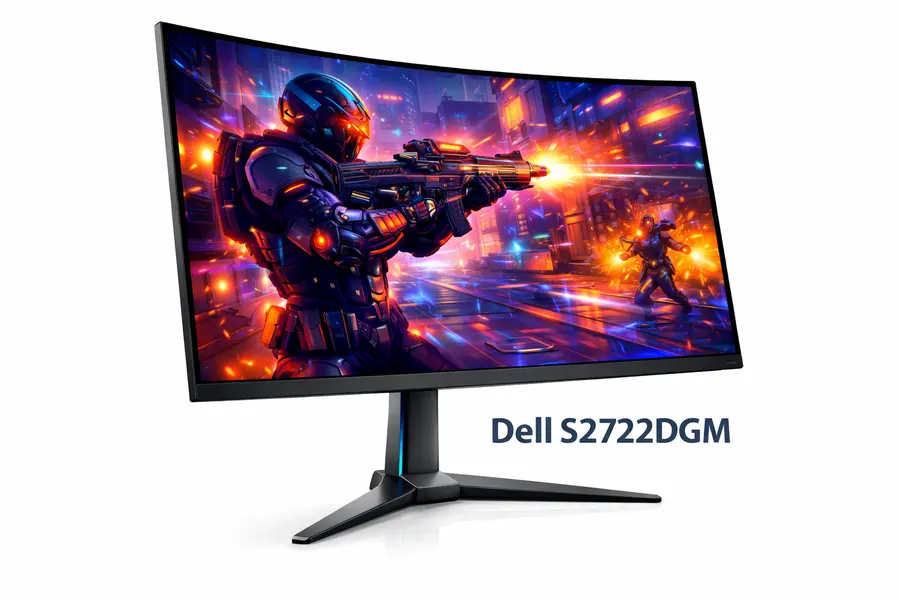
The Dell S2722DGM is the monitor I’d recommend to someone new to Linux who just wants a reliable, good-looking display without overthinking it. At 27 inches, 1440p, and 165Hz on a VA panel, it covers the bases for both everyday computing and casual gaming. Dell’s build quality at this price is consistently good, and the curved panel (1500R) is comfortable for long work sessions.
DisplayNinja’s updated review from January 2026 puts it at around $200, making it one of the cheapest curved 1440p high refresh rate gaming monitors available. The price has only gotten more attractive over time as the model has aged. It’s been a reliable budget pick for a couple of years for good reason.
Linux compatibility is essentially a non-issue. Every distro recognized it immediately, refresh rate was reported correctly, and FreeSync ran without any configuration. It’s the kind of display you plug in on a new Arch install and immediately move on to the interesting parts of the setup.
The 3,000:1 contrast ratio of the VA panel makes it more comfortable for dark-mode terminals than a comparable IPS display at this price — a real daily-use benefit for Linux users who spend hours in dark-themed terminals and editors. The stand offers height adjustment plus tilt, which is better ergonomics than the budget norm.
Linux Verdict: Zero-friction compatibility. The safe beginner choice.
GPU Compatibility Notes for Linux Users
Your GPU matters as much as your monitor when it comes to Linux display support:
AMD GPUs have the best Linux display driver support in 2026. FreeSync, HDR, and high refresh rates all work through the open-source amdgpu driver without needing any extra configuration beyond enabling the feature in your compositor settings. AMD is the GPU to pick if Linux compatibility is a top priority.
NVIDIA GPUs have improved significantly. Proprietary driver version 560+ has solid Wayland support, G-Sync Compatible (FreeSync) works, and HDR is functional under Wayland sessions. You’ll need to enable adaptive sync manually through nvidia-settings. The open-source NVIDIA kernel modules are maturing, but the proprietary driver still performs better for display features right now.
Intel Arc GPUs work well for productivity at 4K, with solid open-source driver support. High refresh rate gaming on Arc still has occasional frame timing issues, though the situation has improved substantially in kernel 6.11 and later.
Multi-Monitor Setup Tips on Linux
Multi-monitor on Linux in 2026 is genuinely good, especially on KDE Plasma and GNOME with Wayland. A few things worth knowing:
If you’re mixing displays of different resolutions or refresh rates, use wlr-randr (for wlroots-based compositors like Sway or Hyprland) or kscreen-doctor (for KDE) to fine-tune per-display settings. GNOME handles mixed DPI well with fractional scaling enabled.
For dock and laptop setups, autorandr is still a reliable tool for saving and auto-applying monitor profiles when you connect or disconnect external displays.
Final Thoughts
The best monitors for Linux in 2026 are better than they’ve ever been, and the ecosystem around them — Wayland compositors, HDR pipelines, adaptive sync support — has genuinely caught up to the hardware. The days of fighting your display driver for basic features are largely behind us, at least for mainstream AMD-powered setups.
For most Linux users, the Dell U2725QE (productivity) or LG 27GS95QE (gaming and everything else) are the two picks that will serve you best with the least friction. If you’re on a tight budget, the Dell S2722DGM at ~$200 is a solid choice that won’t cause you headaches, and the AOC Q27G40XMN is a compelling upgrade for anyone who wants real HDR without crossing into OLED territory.
The only real trap to avoid is buying a monitor based entirely on Windows reviews without checking whether Linux users have reported quirks. The Level1Techs forum, Phoronix, and the Linux subreddits are good places to search before pulling the trigger on a less common model.
Whatever you pick from this list, you’re getting a display that’s been verified to work well on real Linux systems — not just on paper.
Disclaimer
All prices listed in this post reflect approximate US market rates as of February 2026 and are subject to change without notice — always verify current pricing on the retailer’s website before purchasing. The monitors featured in this post were selected based on genuine research and real-world Linux compatibility testing.
We are not sponsored by Dell, LG, Samsung, Asus, BenQ, or AOC, and all opinions expressed are our own. This content is intended for informational purposes only and individual experiences with hardware and Linux compatibility may vary depending on your specific distro, kernel version, GPU, and system configuration.
All prices reflect verified US market pricing as of February 2026, sourced from Amazon, Dell.com, LG.com, Newegg, B&H Photo, and price tracking sites. Monitor prices fluctuate — always check current listings before purchasing.
About the Author