How to Build a Steam Machine Using Linux in 2026
You’ve probably heard the buzz. Valve’s official Steam Machine is delayed — again — but that doesn’t mean you have to wait. Right now, in March 2026, you can build your own Steam Machine using Linux that runs better, costs less, and is already sitting in living rooms across the US. This guide walks you through exactly how to build a Steam Machine using Linux — from picking the right parts to choosing the best Linux OS — so you can stop waiting and start playing.
Why Build Your Own Steam Machine Right Now?
Valve’s new Steam Machine has faced setbacks throughout early 2026. According to a February 2026 blog post from Valve, the company missed its planned Spring 2026 launch window and is now targeting the first half of the year, with memory component shortages driving potential price increases. The semi-custom AMD chip inside Valve’s box is reportedly close in performance to a Ryzen 5 7600 with RDNA 3 graphics — hardware that’s already available off the shelf.
If you build your own machine today, you’re not just getting comparable performance. You get more VRAM, more upgradability, a bigger case with better thermals, and the freedom to run SteamOS, Bazzite, or any Linux distro you want. You’re also spending money on something you actually own and can upgrade — not a sealed box with an 8GB VRAM ceiling.
The community has already proven this works. People are building compact ITX Steam Machines, installing Linux, and getting console-smooth gaming in the living room with $1,500–$1,800 worth of parts. That price may come down even further as GPU supply stabilizes.
The Two Paths: SteamOS vs. Bazzite
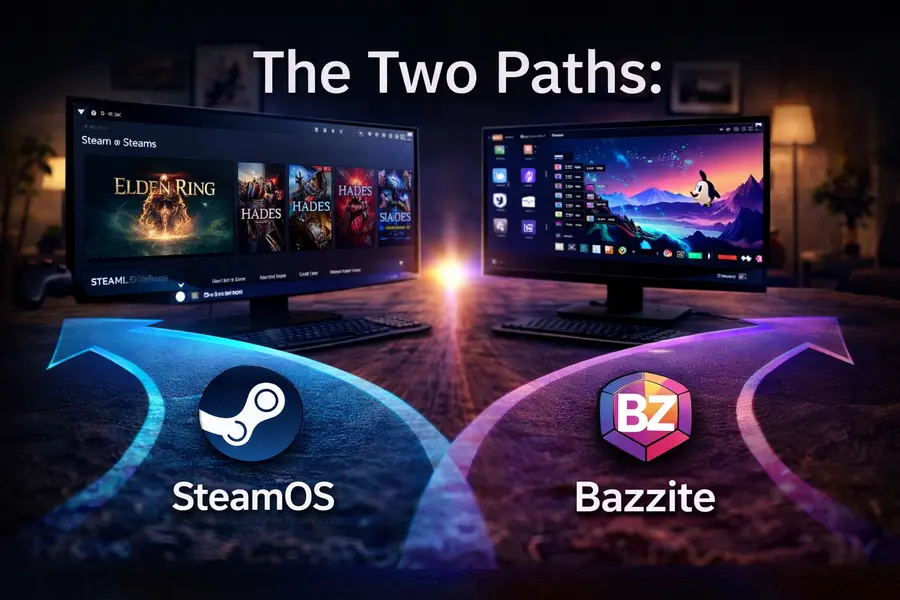
Before you buy a single component, you need to decide which Linux OS you’re building for. This isn’t a small choice — it affects which GPU you buy.
SteamOS 3.8 (Preview Channel)
As of March 20, 2026, Valve released SteamOS 3.8 Preview, which includes initial support for the upcoming Steam Machine hardware, an updated Arch Linux base, KDE Plasma 6.4.3 with Wayland by default, updated graphics drivers, improved VRR frame pacing, and the Linux 6.16 kernel. This is real progress — SteamOS is officially being prepared for desktop hardware.
The catch: SteamOS is built heavily around AMD hardware. It uses AMD’s Mesa open-source drivers. NVIDIA support is patchy at best. If you want the truest Steam Machine experience — the same environment Valve is building toward — go AMD and install SteamOS.
You can download the SteamOS recovery image from Valve’s repository, flash it to a USB drive with Balena Etcher, and install it on your build. Just make sure to use a fast, modern USB stick — older slow drives cause installation failures.
Bazzite (For Broader Hardware Support)
Bazzite is a Fedora-based, immutable Linux gaming OS built by the Universal Blue community. It’s the go-to choice if you’re using NVIDIA hardware, want newer kernel support, or just want something more actively updated than SteamOS’s current preview state.
It boots directly into Steam’s Big Picture Mode, runs Proton, includes Decky Loader for plugins (including injected frame generation), and ships with EmuDeck pre-configured for emulation. It supports AMD, Intel, and NVIDIA GPUs out of the box, with HDR, VRR, DLSS, and ray tracing working without manual configuration.
For the typical buyer reading this guide, Bazzite is the safer choice unless you’re all-in on AMD and want to run the exact SteamOS environment that Valve’s hardware will ship with.
Choosing Your Build Tier
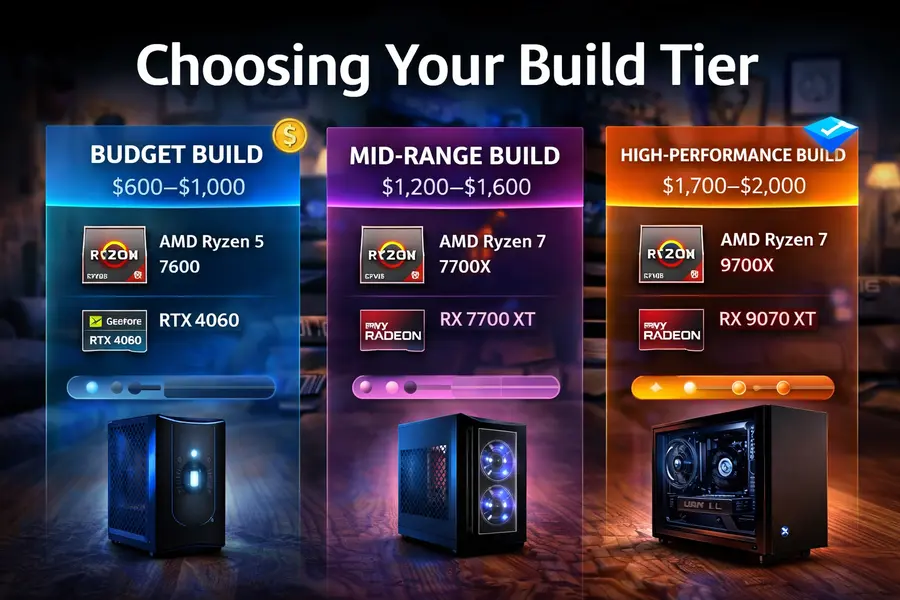
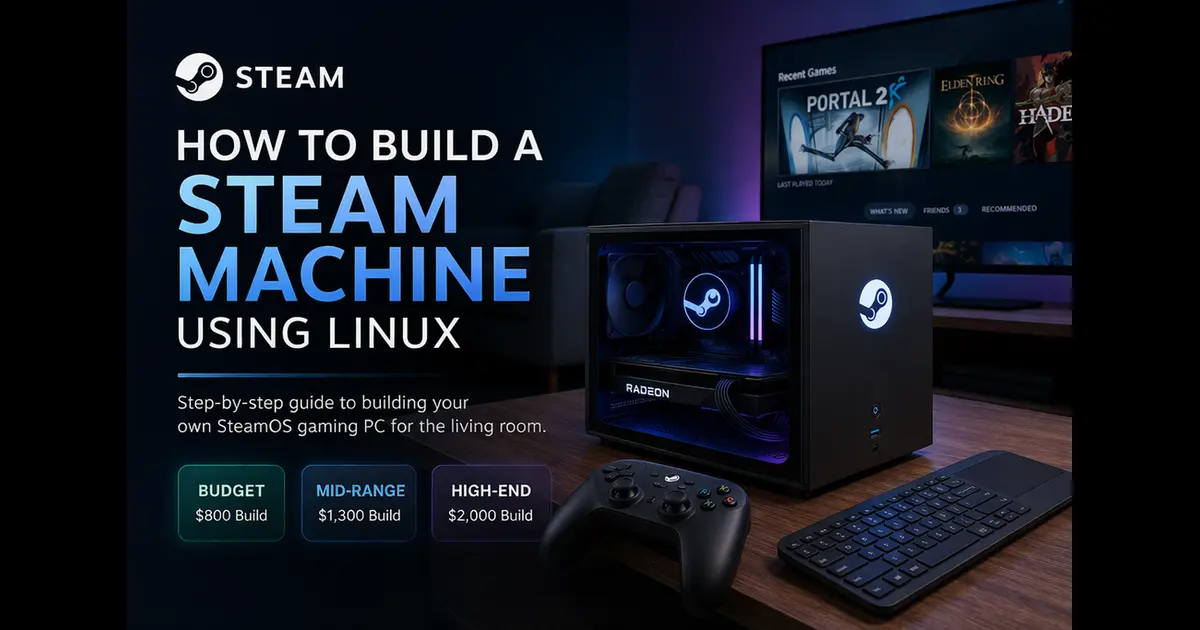
💻 Budget Steam Machine Build ($800–$1,000) – 1080p to 1440p Gaming
Perfect entry-level Steam Machine build that delivers excellent 1080p and 1440p gaming while staying affordable.
🚀 Mid-Range Steam Machine Build ($1,300–$1,600) – 1440p Ultra & Light 4K
The sweet spot for serious gamers with powerful 1440p performance and entry-level 4K capability.
🔥 High-Performance Steam Machine ($1,700–$2,000) – 1440p & 4K
A future-proof gaming build designed for ultra settings, smooth 4K gameplay, and long-term performance.
Why AMD Is the Right Choice for a Linux Steam Machine
This is the most important buying advice in the guide: use an AMD GPU.
SteamOS 3.8 is built on Mesa’s open-source amdgpu driver stack. Valve’s entire Proton compatibility layer is optimized around AMD’s Vulkan implementation. The shader compilation, frame pacing, and power management that make SteamOS feel “console smooth” are all tuned for RDNA hardware first.
NVIDIA works on Bazzite — it actually works quite well — but you’re always one proprietary driver update away from a regression. AMD’s open-source driver is baked into the kernel. There’s nothing to update manually, nothing to break.
If you’re on RDNA 2 (RX 6000 series) or RDNA 3 (RX 7000 series), your desktop GPU uses the exact same driver foundation that Valve built the Steam Deck around. Games feel snappier on SteamOS than on Windows with equivalent hardware because there are no background processes competing for resources, and shader compilation happens at the OS level — eliminating the stuttering that plagues Windows users on first launch.
The OS Installation: Step-by-Step Overview
Installing SteamOS 3.8
- Download the SteamOS recovery image from Valve’s GitHub repository (look for the file with “repair” in the name)
- Flash it to a USB 3.0 drive (use a modern, fast drive — old slow sticks fail silently) using Balena Etcher on another PC or Mac
- Boot your build from the USB drive by pressing the boot menu key (usually F11 or Del at POST)
- Follow the on-screen installer — the “Automatic” installation mode handles most things without intervention
- After first boot, let SteamOS complete its update cycle before launching games
- If you want the Preview channel features (SteamOS 3.8), go to Settings → System → System Update Channel and opt in
One BIOS note: SteamOS requires UEFI mode, not legacy BIOS. Make sure your board is set to UEFI in the firmware settings before booting the installer. Also disable Secure Boot initially — you can re-enable it after installation on most boards.
Installing Bazzite
- Download the Bazzite ISO from bazzite.gg — choose the “deck” image for a Big Picture/living room setup, or “desktop” for a workstation with gaming
- Flash to USB with Balena Etcher
- Boot and follow the Anaconda installer (same as Fedora) — it’s more user-friendly than SteamOS’s installer
- On first boot, Bazzite walks you through enabling Decky, EmuDeck, and other tools with a single setup wizard
- NVIDIA users: Bazzite automatically installs the correct proprietary drivers — no terminal needed
Bazzite’s installer takes about 15–20 minutes on a fast NVMe drive. SteamOS takes roughly the same. Neither requires Linux experience to complete.
Game Compatibility in 2026: What to Expect
Thanks to Proton — Valve’s compatibility layer — over 70% of the Steam library runs on Linux in 2026. That’s up from roughly 3% when Steam Machines first launched in 2015. The improvement is dramatic.
Most single-player games work perfectly. The Cyberpunk 2077, Elden Ring, Spider-Man remaster, Doom Eternal, and Red Dead Redemption 2 all run without issues. Performance often matches or exceeds Windows because SteamOS’s lower overhead gives the GPU more headroom.
Where you’ll still hit walls:
- Games with kernel-level anti-cheat: Valorant and League of Legends remain unplayable on Linux in March 2026. EAC (Easy Anti-Cheat) and BattlEye are now Linux-compatible in many titles, but not all
- Some DRM-heavy titles from specific publishers may require workarounds
- A handful of DirectX 12 Ultimate titles have occasional shader compilation stutters on first launch — these usually resolve after the first play session
Before buying a build specifically to play a particular game, check ProtonDB.com. It shows user-reported compatibility, workarounds, and ratings for virtually every Steam title. If a game shows “Gold” or “Platinum” on ProtonDB, you’re good to go.
Controller and Peripheral Setup
This matters more than most guides acknowledge. A living room Steam Machine lives and dies by its controller experience.
Best controllers for a Linux Steam Machine (available in the US now):
- DualSense (PS5 controller): Excellent Bluetooth connectivity, haptic feedback partially supported, all buttons recognized natively in SteamOS. Around $74 at Target, Walmart, and Amazon
- Xbox Series X|S Controller: Plug-and-play via USB or Bluetooth. Zero configuration needed. Around $60 at most US retailers
- 8BitDo Pro 2: Great build quality, USB-C charging, fully recognized in SteamOS and Bazzite. Around $50 on Amazon
- Steam Controller (Legacy): If you can find one used on eBay, the dual trackpad design is still unmatched for games that benefit from mouse-like input. Expect to pay $60–$90 used
For keyboard and mouse input in desktop mode, any Bluetooth keyboard works. The Logitech K380 ($40) is a popular choice for media setups.
For display output, both SteamOS 3.8 and Bazzite now use Wayland by default with improved HDR and VRR support. If your TV supports VRR (FreeSync or HDMI 2.1 VRR), enable it — the frame pacing improvement on SteamOS is significant.
Common Mistakes to Avoid
Don’t buy NVIDIA if you’re installing SteamOS. SteamOS’s NVIDIA support is still inconsistent as of March 2026. Save yourself the headache and go AMD.
Don’t skimp on the USB drive for installation. Slow USB sticks (anything pre-2020 that’s been kicking around your desk) cause SteamOS installation failures. Buy a new USB 3.0 drive for this.
Don’t go below 32GB RAM in 2026. Modern AAA titles are increasingly allocating 16GB+ system RAM alongside VRAM. 32GB gives you margin.
Don’t ignore PSU headroom. GPU transient power spikes on RDNA 3 and RDNA 4 cards can exceed rated TDP briefly. Size your PSU with at least 100–150W of overhead beyond the combined CPU + GPU TDP.
Don’t forget BIOS updates. Before installing the OS, update your motherboard BIOS to the latest version. AM5 boards especially have received significant AGESA updates through early 2026 that improve memory compatibility and power management.
The Bottom Line: Is It Worth Building Now?
Yes — unambiguously yes, if you want a living room Linux gaming PC today.
Valve’s official Steam Machine is still delayed, its specs are now mid-range by 2026 standards, and its 8GB VRAM cap is already a concern for longevity. Meanwhile, the software ecosystem it’s built on — SteamOS 3.8, Proton, Gamescope — works right now on the hardware you pick out yourself.
Whether you spend $870 on a budget build with an RX 7600, or $1,800 on a high-end rig with an RX 9070 XT, you’re getting a system that boots directly into your Steam library, runs most games at console-quality settings, and sits quietly behind your TV without a fan noise problem.
The DIY route is better in 2026. You get more RAM, more VRAM, better upgradeability, and you don’t have to wait for a product whose release date keeps sliding. Knowing how to build a Steam Machine using Linux has never had more practical payoff than it does right now.
Disclaimer
The hardware prices, product availability, and software versions mentioned in this article are based on information available in the US market as of March 2026. Prices fluctuate regularly — always verify current pricing on Amazon, Newegg, B&H Photo, or Micro Center before purchasing. This article contains no sponsored content or affiliate arrangements. All product recommendations are based solely on research and community-reported compatibility. The author is not responsible for any hardware incompatibilities, installation issues, or software changes that may occur after publication. Always check the official SteamOS and Bazzite documentation for the most up-to-date installation instructions.
🔗 Recommended Linux Accessories (2026)
Looking to complete your Linux setup? Check out these hand-picked accessories with excellent compatibility and zero driver issues.
Discover top Linux-compatible keyboards with full functionality and no driver headaches.
🖱️ Best Mice for Linux Users (2026)Smooth tracking and plug-and-play support — perfect mice for Linux users.
📷 Best Budget Webcam for Linux (2026)Affordable webcams that work flawlessly on Linux for streaming and video calls.
About the Author