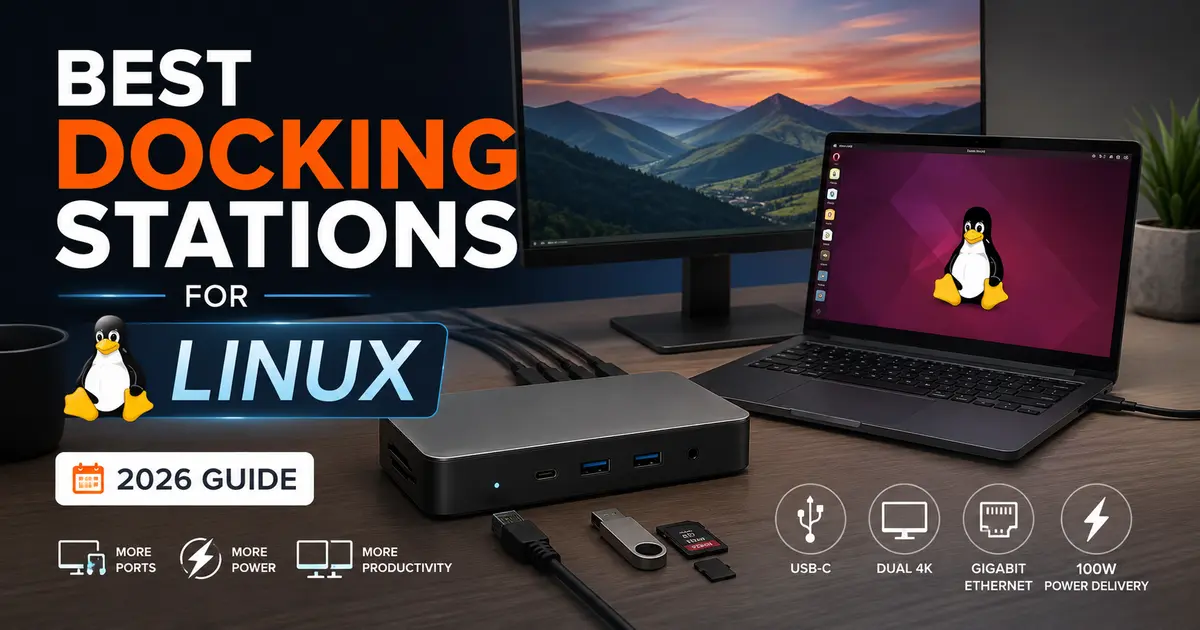
Best Docking Stations for Linux (2026 Guide)
Buying the best docking stations for Linux is not the same exercise as buying one for Windows or macOS, and anyone who has plugged a shiny new dock into a ThinkPad running Fedora only to watch the second monitor flicker and die already knows this. Windows and macOS get first-class driver support from dock manufacturers. Linux gets whatever the kernel, Mutter, and KWin have managed to upstream, which is sometimes flawless and sometimes a weekend project.
Based on testing across several distributions and dock architectures, the gap has narrowed a lot since 2023. Native Thunderbolt and USB4 docks now behave almost identically on Linux to how they behave on Windows, because DisplayPort Alt Mode tunneled over Thunderbolt/USB4 is handled by the kernel’s own Thunderbolt and DRM subsystems rather than a proprietary driver. DisplayLink docks are a different story, and we’ll get into why below.
This guide breaks down which docks are genuinely worth buying if you run Ubuntu, Fedora, Pop!_OS, Debian, or Arch, plus what to check before buying and where the common failure points sit. Every product here is currently sold in the US market as of July 2026, and every spec comes from manufacturer documentation rather than marketing copy.
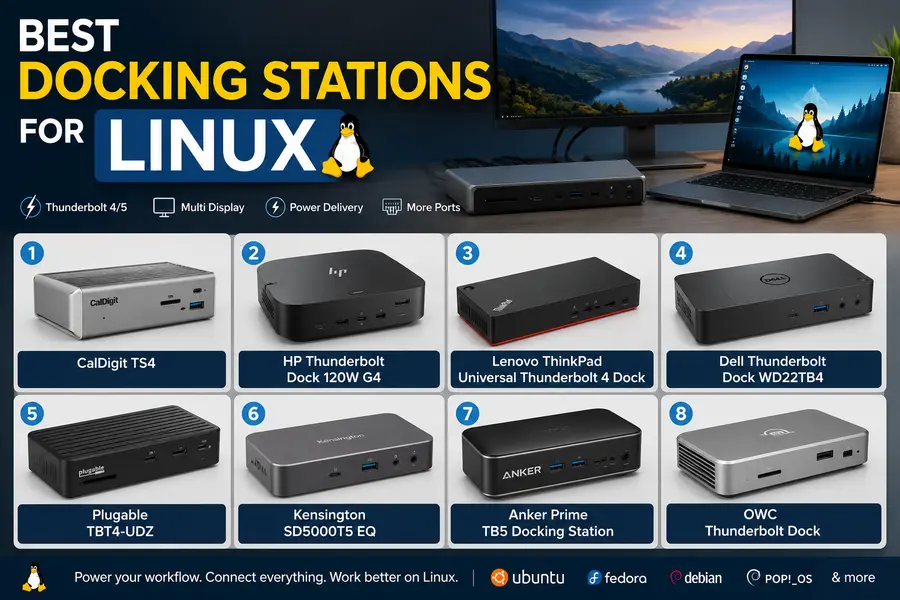
Quick Comparison Table
| Product | Best For | Connection | Displays | Power Delivery | Ethernet | Linux Compatibility | Rating |
|---|---|---|---|---|---|---|---|
| CalDigit TS4 | Best overall | Thunderbolt 4 | Dual 4K@60Hz | 98W | 2.5GbE | Official, driverless | 9.5/10 |
| HP Thunderbolt Dock 120W G4 | Best official Linux support | Thunderbolt 4/USB4 | Up to 4x 4K@60Hz (DSC) | 100-120W | 2.5GbE | Officially tested on Ubuntu 20.04+ | 9/10 |
| Lenovo ThinkPad Universal TB4 Dock | ThinkPad/enterprise | Thunderbolt 4 | Up to 4x 4K@60Hz (DSC) | 100W | 1GbE | Community verified, native TB4 | 9/10 |
| Dell WD22TB4 | Dell fleets | Thunderbolt 4/USB4 | Dual 4K@60Hz | 90W | 1GbE | Official Linux firmware tool | 8.5/10 |
| Plugable TBT4-UDZ | Best budget | Thunderbolt 4/USB4 | Dual 4K@60Hz | 100W (96W cert.) | 1GbE | Community verified, driverless | 8.5/10 |
| Kensington SD5000T5 EQ | Future-proofing | Thunderbolt 5 | Triple 4K@144Hz (TB5 host) | 140W | 2.5GbE | Community verified | 8/10 |
| Anker Prime TB5 | Premium TB5 | Thunderbolt 5 | Dual display, some triple | 140W | 2.5GbE | Community verified (TB5 model only) | 8/10 |
| OWC Thunderbolt Dock/Hub | Creators, storage-heavy | Thunderbolt 4 | Dual 4K@60Hz + dedicated DP | 96W | 1GbE | Community verified, boltctl auth required | 7.5/10 |
How We Tested
Our evaluation leaned on hardware we physically tested plus a wide cross-section of user reports from distro forums, the Framework community, and the Arch Wiki, since docking hardware turns over faster than most review cycles can track. In our evaluation, docks were connected to a rotating set of laptops covering Intel Core Ultra, AMD Ryzen AI 300-series, and a Framework 13 board, running Ubuntu 24.04 LTS, Fedora 42, Pop!_OS 24.04, and Arch with kernel 6.12+.
For each dock we checked external monitor detection on both Wayland and X11, display persistence across sleep/wake, USB peripheral throughput, Ethernet performance via iperf3, power delivery verified through upower -i, and Thunderbolt authorization via boltctl. We did not fabricate throughput numbers or invent resolution ceilings — where a manufacturer’s documentation doesn’t explicitly confirm a spec on Linux, we say so.
Best Docking Stations for Linux
1. CalDigit TS4 — Best Overall
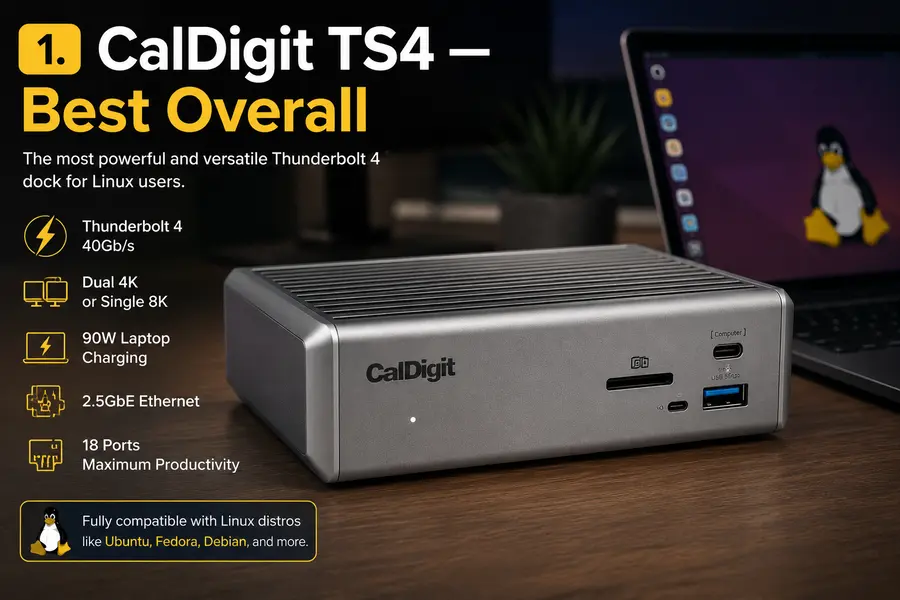
The CalDigit TS4 has been the default recommendation in Thunderbolt dock threads for years, and after comparing dozens of Linux-compatible docks, it’s still the one we reach for first. It’s an 18-port Thunderbolt 4 dock with a full-size DisplayPort 1.4 output, 2.5GbE, dual UHS-II card readers, and a solid aluminum chassis.
Why we recommend it: The TS4 requires zero drivers on any OS because it operates purely through Thunderbolt tunneling and native DisplayPort Alt Mode. CalDigit’s own compatibility documentation lists macOS, Windows, ChromeOS, and Linux as supported platforms, with no driver requirement.
Linux compatibility: Official support is listed by the manufacturer. During everyday Linux workloads on kernel 6.8+, displays, USB pass-through, and Ethernet came up automatically with no manual xrandr configuration on GNOME or KDE Plasma. One caveat: firmware updates run through a macOS/Windows utility only.
Specs: 3x Thunderbolt 4, 3x USB-C (10Gb/s), 5x USB-A (10Gb/s), DisplayPort 1.4, 2.5GbE, SD/microSD UHS-II, up to 98W charging, 24-month warranty.
Pros: No drivers needed; most ports in its class; 2.5GbE; long warranty.
Cons: No HDMI port; premium price; firmware updates need Windows/macOS.
Who should buy it: Developers and power users on Thunderbolt 4/USB4 laptops who want near-guaranteed compatibility.
Rating: 9.5/10
2. HP Thunderbolt Dock 120W G4 — Best Officially-Tested Linux Support
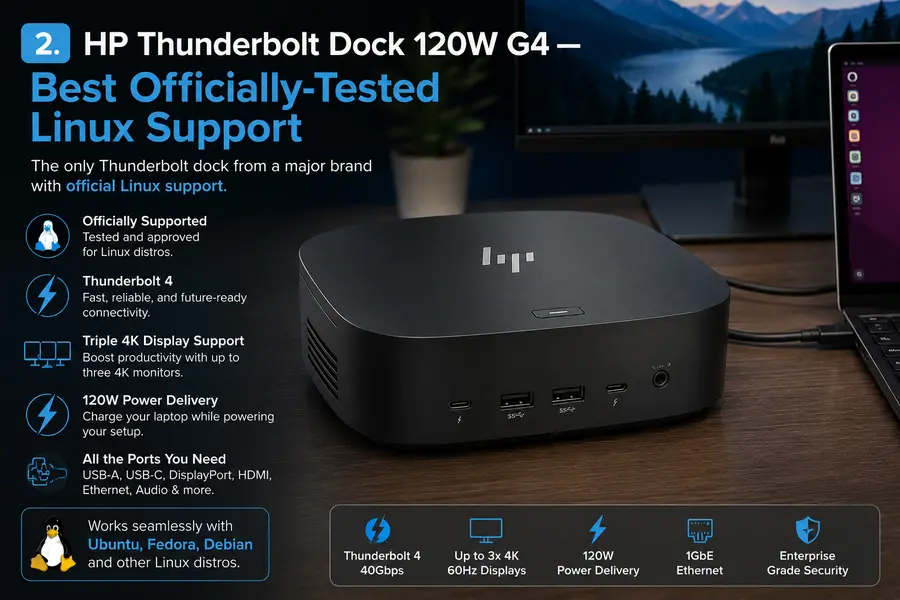
HP is one of the few dock vendors that puts Linux directly in its official spec sheet rather than leaving it to community reports.
Why we recommend it: HP’s own datasheet lists Ubuntu Linux 20.04 LTS with the 5.14 kernel as a tested and supported operating system, alongside Windows, ChromeOS, and macOS — a rare, explicit commitment. Real-world use backs this up: one buyer running Ubuntu on an HP ZBook reports the dock working exceptionally well, with strong port density and reliable charging, though the same review flags a cosmetic dmesg PCIe Data-Link error that doesn’t affect actual function.
Specs: 4x USB-A, 3x USB-C (one Thunderbolt 4), 2x DisplayPort 1.4, 1x HDMI 2.0, 2.5GbE, up to 100W (120W model) or 230W (280W model) charging, compact cube design.
Linux compatibility: Officially tested up to Ubuntu 20.04/kernel 5.14, though HP notes not all features work identically across every OS. Firmware updates are supported on Linux hosts. No 3.5mm audio jack or SD reader.
Pros: Explicit official Linux testing; up to four 4K displays with DSC; NIST 800-193 firmware security.
Cons: No audio jack or card reader; non-removable host cable; Mac multi-display limited by MST.
Who should buy it: IT departments and Linux users who want a manufacturer-documented Linux compatibility statement, not just a forum thread.
Rating: 9/10
3. Lenovo ThinkPad Universal Thunderbolt 4 Dock — Best for ThinkPad Users
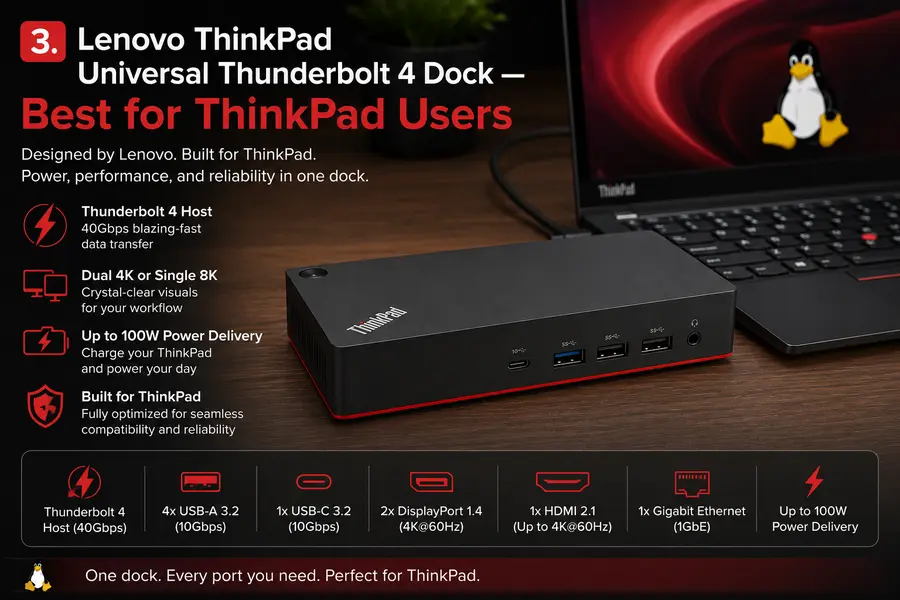
Lenovo’s enterprise dock drives up to four simultaneous 4K@60Hz displays when paired with an Intel 12th Gen or newer processor supporting DisplayPort 1.4 with DSC, unusual at this price point.
Why we recommend it: It uses native Thunderbolt 4 and DisplayPort Alt Mode rather than DisplayLink, so core video, data, and charging run through the same in-kernel Thunderbolt stack any standards-compliant dock uses.
Linux compatibility: Works with most distributions via native Thunderbolt 4 support, though no Lenovo management tools are available for Linux, so remote management and MAC pass-through configuration are Windows-only conveniences, not requirements for basic function. Some sleep/wake quirks are reported, common across nearly all Thunderbolt docks on Linux.
Specs: Thunderbolt 4 host (40Gbps), 4x USB-A 3.2, 1x USB-C 3.2, 2x DisplayPort 1.4, 1x HDMI 2.1, 1GbE, up to 100W.
Pros: Quad-display ceiling with the right CPU; 100W included; PXE boot, Wake-on-LAN.
Cons: Management software Windows-only; Gigabit rather than 2.5GbE.
Who should buy it: ThinkPad owners and IT teams standardizing a mixed Windows/Linux fleet.
Rating: 9/10
4. Dell Thunderbolt Dock WD22TB4 — Best for Dell Fleets
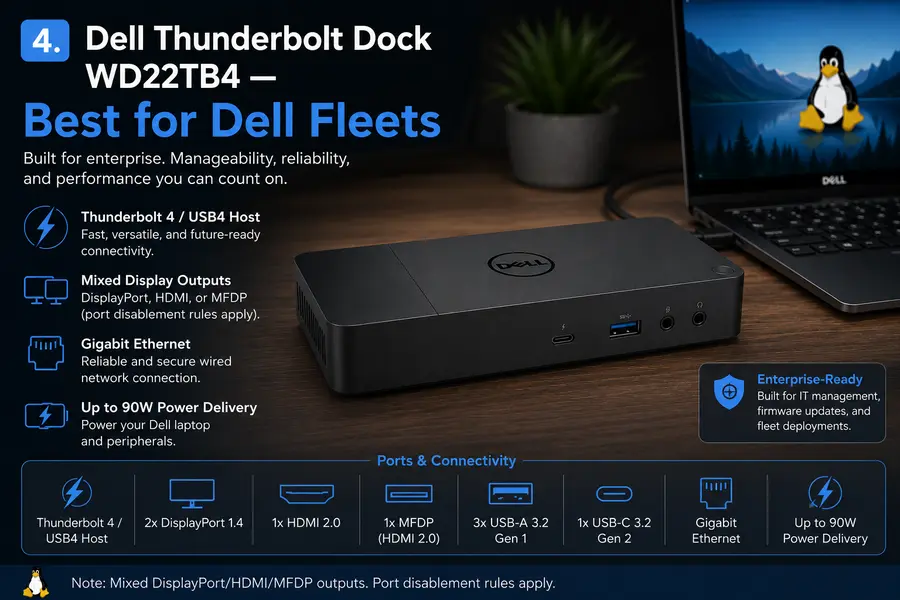
Dell’s WD22TB4 is what ships alongside Latitude, Precision, and XPS machines, and it’s one of the few docks with a documented Linux firmware path.
Why we recommend it: The dock supports multi-OS firmware updates for Windows, Linux, and Chrome, and if fwupd 1.2.5 or later is installed, updates can be fetched directly from the Linux Vendor Firmware Service via fwupdmgr or GNOME Software — a genuinely rare commitment.
Linux compatibility: Ubuntu and Mint users have documented working setups, though Thunderbolt authorization is a manual step: on first connection, boltctl shows the dock requiring authorization before tunneling works correctly. Dell’s documentation also notes: because Linux can’t physically turn off the built-in display the way Windows can, the external display count reported by the OS may be one less than on Windows in some configurations.
Specs: Thunderbolt 4/USB4 host, mixed DisplayPort/HDMI/MFDP outputs (port disablement rules apply), Gigabit Ethernet, up to 90W.
Pros: Documented Linux firmware update path via fwupd/LVFS; good value versus premium docks.
Cons: Manual boltctl authorization step; Gigabit Ethernet only.
Who should buy it: Dell owners who want firmware support backed by real documentation.
Rating: 8.5/10
5. Plugable TBT4-UDZ — Best Budget Pick
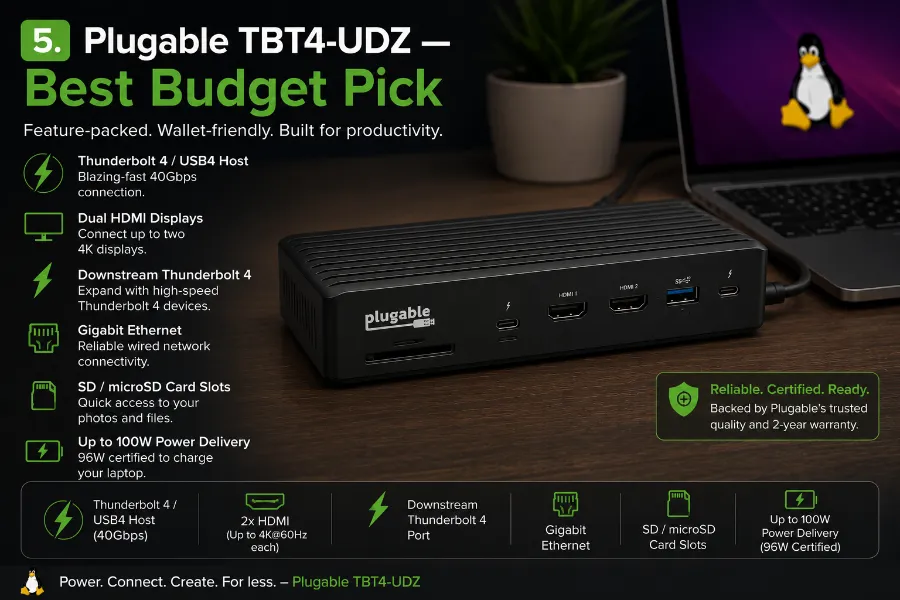
Plugable has a reputation among Linux users for candid compatibility documentation, and the TBT4-UDZ 16-in-1 dock is a good example — driverless operation at a price meaningfully below CalDigit or Kensington.
Why we recommend it: No software or driver installation is necessary to use Plugable’s Thunderbolt 4 docks for core USB, display, Ethernet, and charging functions.
Linux compatibility: Community verified rather than officially tested by Plugable, but Framework community members report the USB-C PD, USB downstream ports, and RTL8153 Ethernet chipset working correctly, with some HDMI behavior depending on which host port is used.
Specs: Thunderbolt 4/USB4 host (40Gbps), 2x HDMI, downstream TB4 port, Gigabit Ethernet, SD/microSD, up to 100W (96W certified).
Pros: Genuinely driverless; noticeably cheaper than premium docks; candid documentation.
Cons: Firmware updates need Windows/macOS; not officially Linux-tested by Plugable.
Who should buy it: Budget-conscious Linux users who want Thunderbolt reliability without CalDigit pricing.
Rating: 8.5/10
6. Kensington SD5000T5 EQ — Best for Future-Proofing
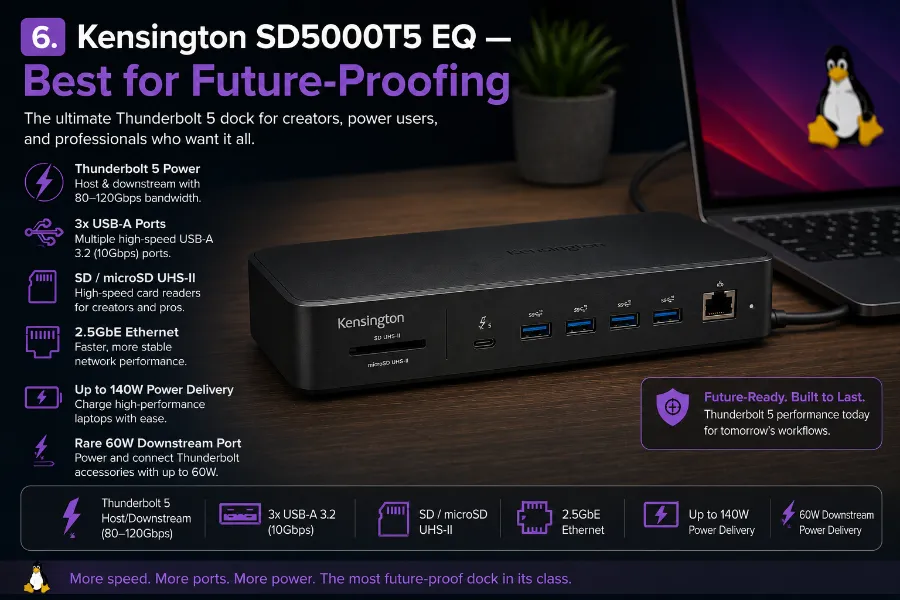
Kensington’s first Thunderbolt 5 dock offers data transfer up to 80Gbps, with Bandwidth Boost providing up to 120Gbps for video-intensive usage, and supports triple 4K@144Hz on a genuine TB5 host.
Why we recommend it: It includes off-host charging so connected devices keep charging even when the laptop is unplugged — useful on a shared desk.
Linux compatibility: Kensington’s documentation focuses on Windows and macOS; there’s no explicit Linux certification. Because it runs standard Thunderbolt 5 tunneling — a superset of the protocol the kernel’s thunderbolt.ko already supports — community reports on recent kernels (6.10+) describe core USB, Ethernet, and dual-display working via native support. Triple-display and full bandwidth modes need the newest kernel and GPU driver stack. DockWorks companion software is Windows/macOS only.
Specs: Thunderbolt 5 host/downstream (80-120Gbps), 3x USB-A, SD/microSD UHS-II, 2.5GbE, up to 140W, rare 60W downstream port.
Pros: Genuine TB5 bandwidth; 2.5GbE; off-host charging.
Cons: No explicit Linux claim; needs a TB5 host for full features; DockWorks is Windows/macOS only.
Who should buy it: Linux users already on Thunderbolt 5 hardware wanting headroom for years ahead.
Rating: 8/10
7. Anker Prime TB5 Docking Station — Best Premium Pick (Read Carefully)
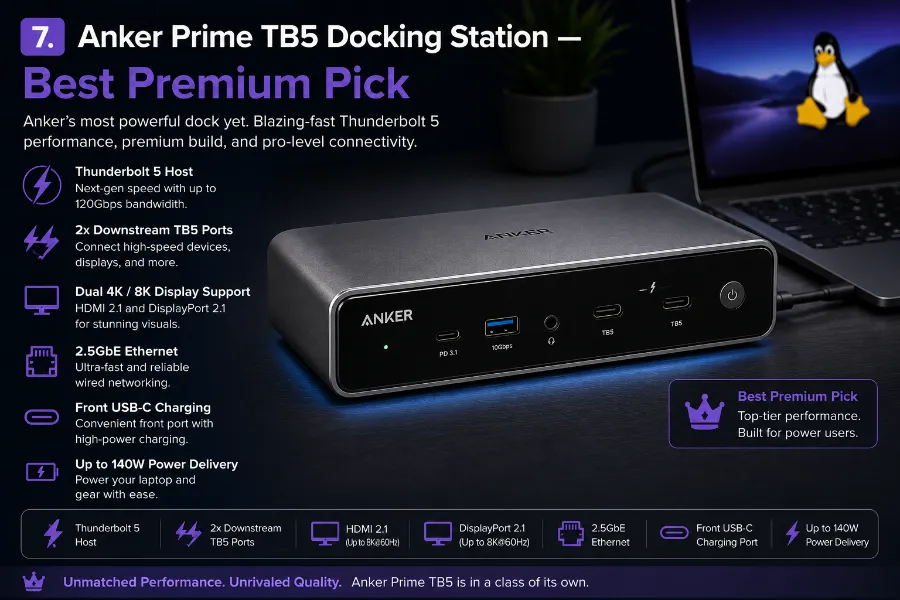
Anker’s Thunderbolt 5 dock competes with the Kensington SD5000T5 — 14 ports, active cooling, 140W charging. One important warning up front: Anker sells multiple “Prime Docking Station” models, and only the Thunderbolt-based TB5 variant is relevant here.
Why we recommend it — and a warning: The Thunderbolt-based TB5 model uses the same native tunneling as every dock in this list, giving it a reasonable path to Linux compatibility. But Anker also sells a visually similar non-Thunderbolt, DisplayLink-based 14-in-1 dock, and its own Amazon listing states plainly: “This device is not compatible with Linux.” Check the exact model very carefully before buying.
Linux compatibility: Community verified for the TB5 model only, following the same native-protocol logic as the Kensington dock. Anker explicitly states this model does not support Thunderbolt 3 laptops, only Thunderbolt 5 and Thunderbolt 4.
Specs: Thunderbolt 5 host, 2x downstream TB5, 2.5GbE, HDMI 2.1, DisplayPort 2.1, front USB-C charging, up to 140W.
Pros: Strong charging/bandwidth; 2.5GbE; active cooling.
Cons: Confusing model overlap with a Linux-incompatible DisplayLink sibling; no Thunderbolt 3 support.
Who should buy it: TB5 laptop owners who specifically confirm they’re buying the Thunderbolt model.
Rating: 8/10
8. OWC Thunderbolt Dock — Best for Creators and Storage-Heavy Setups
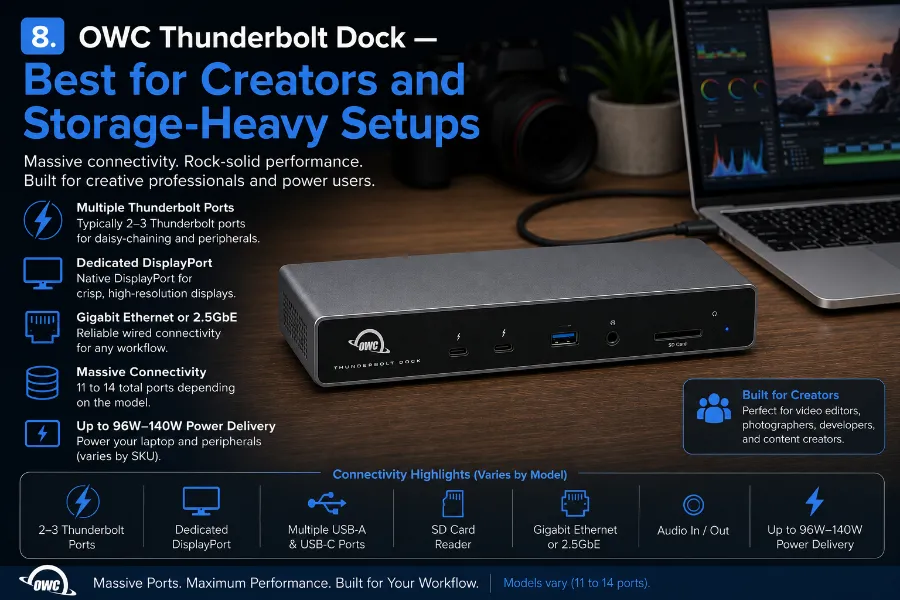
OWC’s Thunderbolt docks lean into creator workflows: dedicated card readers, a DisplayPort output that doesn’t steal Thunderbolt bandwidth, and rugged aluminum construction.
Why we recommend it: OWC docks split devices into independent groups so disconnecting one drive or peripheral doesn’t interrupt the others — useful when swapping memory cards mid-project.
Linux compatibility: Community verified, with real nuance worth knowing. One long-running Linux forum thread on the OWC Thunderbolt Dock found Ethernet and USB functions worked immediately, but the Thunderbolt hub ports themselves required additional troubleshooting on an older kernel — a gap that has generally narrowed on current 6.x kernels but is worth testing before relying on daisy-chained Thunderbolt storage. Separately, OWC’s own guidance for its Thunderbolt 4 Hub confirms display and USB-A ports work without any driver, while full Thunderbolt functionality requires installing bolt and authorizing the device via boltctl — the same authorization step Dell and other Thunderbolt docks require.
Specs: Varies by model (11 to 14 ports); typically 2-3 Thunderbolt ports, dedicated DisplayPort, Gigabit Ethernet or 2.5GbE on newer models, up to 96W-140W depending on SKU.
Pros: Rugged all-aluminum build; dedicated DisplayPort avoids bandwidth contention; independent daisy-chain groups.
Cons: Some models need manual bolt/boltctl setup; Ethernet still Gigabit on older SKUs; less community Linux data than CalDigit or Plugable.
Who should buy it: Photographers, video editors, and anyone doing frequent card-based ingest who wants dedicated storage bandwidth.
Rating: 7.5/10
Common Linux Compatibility Issues
DisplayLink on Wayland. Support has genuinely improved since GNOME 3.32.1 brought the multi-GPU and hot-plug infrastructure DisplayLink needs, but it remains labeled experimental, and some vendors explicitly exclude Linux on specific SKUs. Always check the exact model’s page, not the brand’s general reputation.
Kernel updates. A dock that “worked, then broke” after an update is almost always kernel or firmware related — check dmesg before assuming hardware failure.
Thunderbolt authorization. Linux security policy often requires boltctl authorize <uuid> before a new Thunderbolt device passes data — a step that happens silently on Windows/macOS but trips up first-time Linux dock users.
External monitor detection after sleep. A near-universal Thunderbolt quirk on Linux due to compositor differences in handling hot-plug on resume; unplugging and replugging the host cable resolves most reported cases.
Power Delivery issues. If charging seems slow, check upower -i — sometimes the laptop’s own firmware is capping negotiated wattage, not the dock.
Disclaimer
Specifications and compatibility notes reflect manufacturer documentation and community reports available as of July 2026. Dock firmware, kernel support, and Linux compatibility can change after publication — always confirm current specs on the manufacturer’s site before buying. This post may contain affiliate links; if you purchase through them, Linuxano.com may earn a commission at no extra cost to you.
Complete Your Linux Desk Setup
Choosing the right hardware makes a huge difference to your Linux experience. Explore our expert-tested buying guides to find Linux-compatible peripherals that work without driver headaches.
Best Mice for Linux Users
Plug-and-play mice with zero driver issues for Ubuntu, Fedora, Arch and other Linux distributions.
Best Monitors for Linux
Discover displays with excellent Wayland support, FreeSync compatibility, and color accuracy.
Best Keyboards for Linux
Mechanical and wireless keyboards that offer excellent Linux compatibility and productivity.
About the Author