How to Build a 100% Linux-Compatible PC (No Driver Headaches)
Building a PC specifically for Linux used to be a gamble. You’d assemble your dream machine, boot up your favorite distribution, and then spend hours—sometimes days—hunting down obscure drivers, patching kernel modules, or accepting that your Wi-Fi card simply wouldn’t work. Those frustrating days are largely behind us, but only if you know what to look for.
In 2025, Linux desktop adoption has reached new heights, with market share climbing past 4% globally and significant traction among developers, content creators, and gamers in the USA. Major hardware manufacturers now explicitly support Linux, and the open-source driver ecosystem has matured dramatically. Yet compatibility pitfalls still exist, especially with bleeding-edge hardware or components that rely on proprietary firmware.
This comprehensive guide will walk you through how to build a 100% Linux-compatible PC from the ground up—no driver headaches, no surprises, no compromises. Whether you’re migrating from Windows, setting up a development workstation, or building a Linux gaming rig, you’ll learn exactly which components play nicely with the penguin and which ones will leave you troubleshooting at 2 AM.
What Does “100% Linux-Compatible” Actually Mean?
Before we dive into component selection, let’s establish what we mean by “100% Linux-compatible.” This isn’t just about whether Linux will boot on your hardware—it’s about whether every component will work seamlessly without manual intervention, proprietary blob installations, or feature limitations.
Kernel support is the foundation. The Linux kernel includes thousands of hardware drivers, and components with mainline kernel support work out-of-the-box across virtually all distributions. When hardware requires drivers that aren’t in the mainline kernel, you’ll need to install additional packages, compile modules, or accept reduced functionality.
Driver quality matters just as much as availability. An open-source driver maintained by the community typically offers better long-term stability and integration than a proprietary driver that might break with kernel updates. However, some proprietary drivers (like NVIDIA’s) offer superior performance for specific workloads.
Firmware requirements are often overlooked. Many modern components—especially Wi-Fi cards, Bluetooth adapters, and some GPUs—require binary firmware blobs to function. While these usually install automatically on mainstream distributions, they represent a dependency on proprietary code.
Long-term update compatibility is crucial. A truly compatible system remains functional through distribution upgrades and kernel updates without requiring manual driver reinstallation or configuration changes. This stability is what separates a well-chosen Linux PC from one that works “for now.”
When we talk about building a 100% Linux-compatible PC, we’re aiming for hardware that meets all these criteria: mainline kernel support where possible, mature drivers, minimal proprietary dependencies, and proven stability across kernel versions.
Choose Your Linux Distribution First
Here’s a counterintuitive piece of advice: before buying a single component, decide which Linux distribution you’ll be running. Different distributions have different philosophies about proprietary drivers, firmware, and bleeding-edge hardware support, and this choice significantly impacts what constitutes “compatible” hardware.
Ubuntu LTS (currently 24.04 LTS as of late 2024, with 24.10 released) represents the safe, middle-ground choice. Canonical includes proprietary drivers and firmware by default, provides excellent hardware enablement stacks for newer kernels on LTS releases, and has the largest user base for troubleshooting support. If you’re building a workstation or general-purpose machine, Ubuntu LTS offers the best balance of stability and hardware compatibility. The broad adoption means manufacturers often test specifically with Ubuntu.
Fedora Workstation sits on the cutting edge, typically shipping kernel versions just months behind mainline development. This makes Fedora excellent for very new hardware that requires recent kernel features. Fedora leans toward open-source drivers but pragmatically includes necessary firmware. For developers or enthusiasts who want near-latest features with reasonable stability, Fedora strikes an excellent balance. The six-month release cycle ensures you’re never running outdated drivers.
Arch Linux (and derivatives like EndeavourOS or Manjaro) gives you maximum control and absolutely bleeding-edge packages. Arch runs mainline kernels shortly after release, making it ideal for brand-new hardware. However, the rolling-release model means you’re also first in line for any driver regressions or compatibility issues. Arch is best suited for experienced users who enjoy tinkering and staying on top of system maintenance.
Pop!_OS deserves special mention as System76’s Ubuntu-based distribution with exceptional NVIDIA driver integration and gaming optimizations. If you’re planning a Linux gaming build with NVIDIA graphics, Pop!_OS eliminates much of the traditional configuration headache.
Your distribution choice affects everything from which kernel version you’ll run to how easily you can install proprietary drivers. Make this decision before shopping for components, and research how your chosen distribution handles the specific hardware you’re considering.
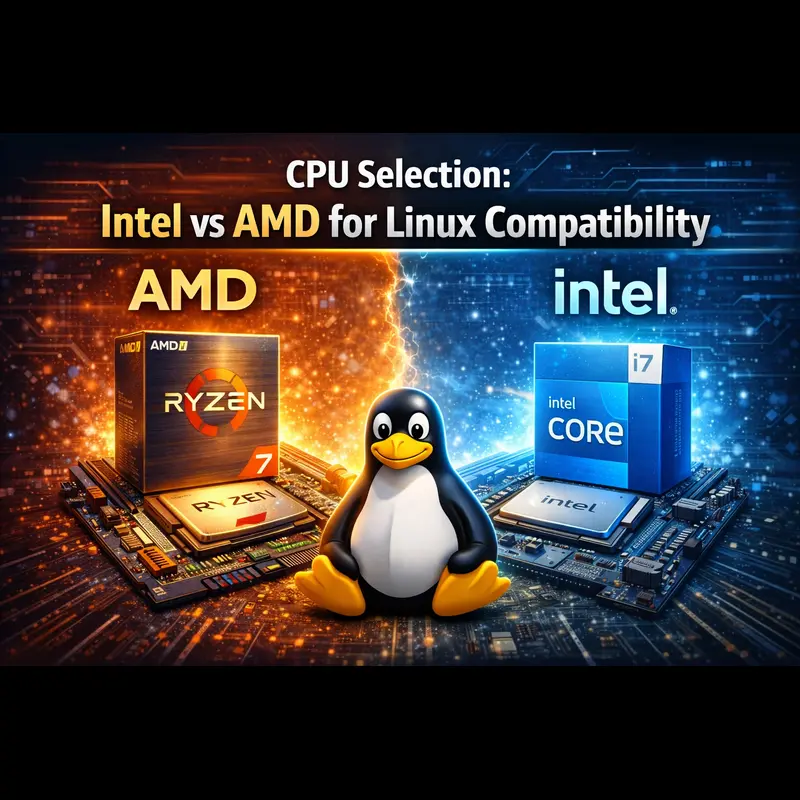
CPU Selection: Intel vs AMD for Linux Compatibility (2025)
The good news: both Intel and AMD CPUs work excellently with Linux in 2025. The even better news: AMD has become the community favorite thanks to its open-source friendliness and hassle-free Linux compatibility.
AMD CPUs: The Linux Community Favorite
AMD Ryzen processors (7000 and 9000 series) deliver outstanding Linux compatibility with fully open-source drivers and excellent mainline kernel support. AMD’s integrated GPUs use the same AMDGPU open-source driver stack as their discrete graphics cards, ensuring seamless performance without proprietary software.
AMD has earned strong trust within the Linux ecosystem by contributing directly to open-source driver development, resulting in reliable support across Ubuntu, Fedora, Arch, and other major distributions.
- Best High-Performance Picks: Ryzen 7 9700X, Ryzen 9 9900X
- Best Budget Linux CPU: Ryzen 5 8600G (excellent Radeon iGPU support)
- Platform Advantage: AM5 socket offers long-term upgrades
Intel CPUs: Mature and Reliable Linux Support
Intel Core processors (13th, 14th, and 15th Gen) also work smoothly on Linux. Intel’s integrated graphics rely on the i915 driver, which is mature, stable, and well-maintained within the Linux kernel.
Intel’s hybrid architecture (Performance-cores and Efficiency-cores) is fully supported by modern Linux schedulers. For best results, use Linux kernel 6.5 or newer, which handles workload distribution intelligently.
One caveat: Intel Arc discrete GPUs are improving quickly but still trail AMD in terms of long-term driver maturity on Linux.
Final Verdict: Which CPU Is Best for Linux?
For a 100% Linux-compatible PC with zero driver headaches, AMD currently edges ahead due to its unified open-source driver ecosystem and strong community support.
Intel remains an excellent choice, especially for users prioritizing single-threaded performance or upgrading within an existing Intel platform. In reality, you can’t go wrong with either brand’s current generation when it comes to Linux CPU compatibility.
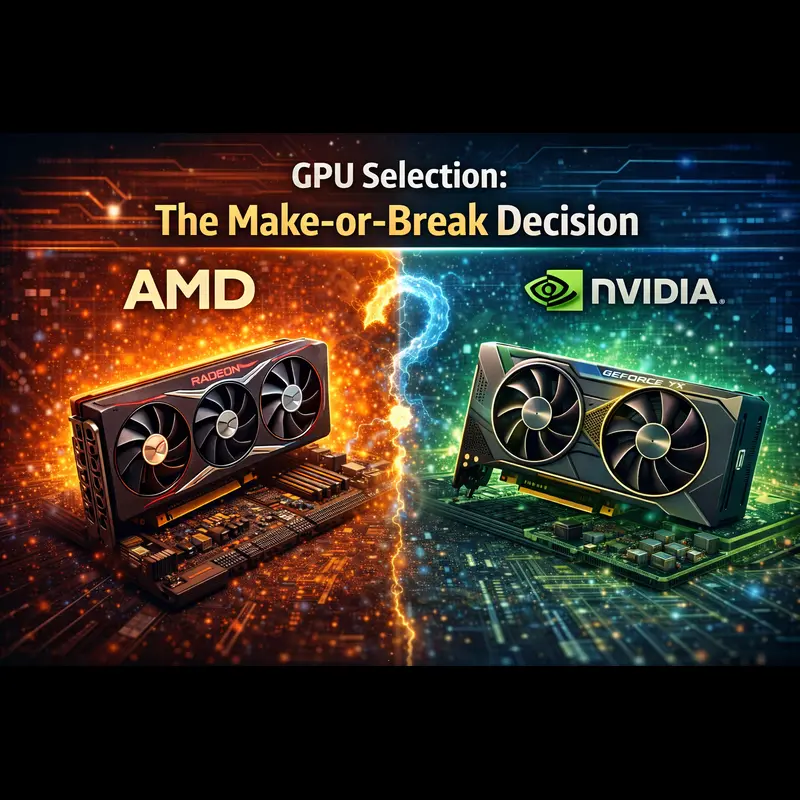
GPU Selection: The Make-or-Break Decision for Linux PCs (2025)
Graphics cards are the single most important compatibility decision when building a Linux PC. Choose poorly, and you may face driver headaches, instability, or broken performance. Choose wisely, and your Linux system will run smoothly for years.
AMD GPUs: The Gold Standard for Linux Graphics
AMD GPUs are the safest and most hassle-free choice for Linux in 2025. The open-source AMDGPU driver is built directly into the Linux kernel, meaning Radeon RX 7000-series cards work immediately after installation—no manual setup, no proprietary drivers.
Performance is excellent, power management works correctly, and modern display features such as FreeSync and HDR are well supported across major distributions.
- Best Linux Gaming GPUs: Radeon RX 7800 XT, RX 7900 XTX
- Still Excellent: RX 6000-series (mature, stable drivers)
- Key Advantage: Open-source drivers improve over time
AMD integrated graphics found in Ryzen 8000G APUs work flawlessly on Linux. Budget builds can skip a discrete GPU entirely while still enjoying capable gaming and full hardware acceleration.
NVIDIA GPUs: Powerful but Require Extra Care
NVIDIA GPUs present a more complex situation on Linux. The open-source Nouveau driver exists but lacks performance, power management, and modern features—making it unsuitable beyond basic desktop use.
NVIDIA’s proprietary drivers, however, deliver excellent performance and have improved significantly in recent years. Distributions like Ubuntu, Fedora, and Pop!_OS provide relatively easy installation paths.
- Recommended NVIDIA GPUs: RTX 4070, 4070 Ti Super, 4080 Super
- Best Use Cases: CUDA workloads, ML/AI, DLSS gaming
- Trade-off: Manual driver management after updates
NVIDIA is viable for Linux in 2025—but only if you’re comfortable managing proprietary drivers and occasional troubleshooting after major kernel or distribution upgrades.
Intel Arc GPUs: An Emerging Open-Source Alternative
Intel Arc GPUs have made impressive progress with open-source Linux drivers. The Arc A750 and A770 work out-of-the-box with Linux kernel 6.2 or newer.
While gaming performance still trails AMD and NVIDIA equivalents, Intel Arc offers excellent video encoding, media acceleration, and rapidly improving driver maturity throughout 2025.
- Best For: Budget builders and media workloads
- Strength: Fully open-source driver stack
- Limitation: Lower gaming performance
Integrated Graphics: Enough for Many Linux Users
For non-gaming systems, integrated graphics are often more than sufficient. AMD Radeon iGPUs and Intel Iris Xe graphics work perfectly for development, office work, media playback, and light content creation.
You can always add a discrete GPU later if your needs change, making integrated graphics an excellent starting point for cost-effective Linux builds.
Final Verdict: Best GPU Choice for Linux
If your goal is a zero-maintenance, 100% Linux-compatible PC, AMD GPUs are the clear winner thanks to their open-source driver ecosystem.
NVIDIA remains powerful and relevant for specialized workloads, while Intel Arc is a promising open-source alternative for budget users. Choose based on your tolerance for driver management—and how much you value simplicity.
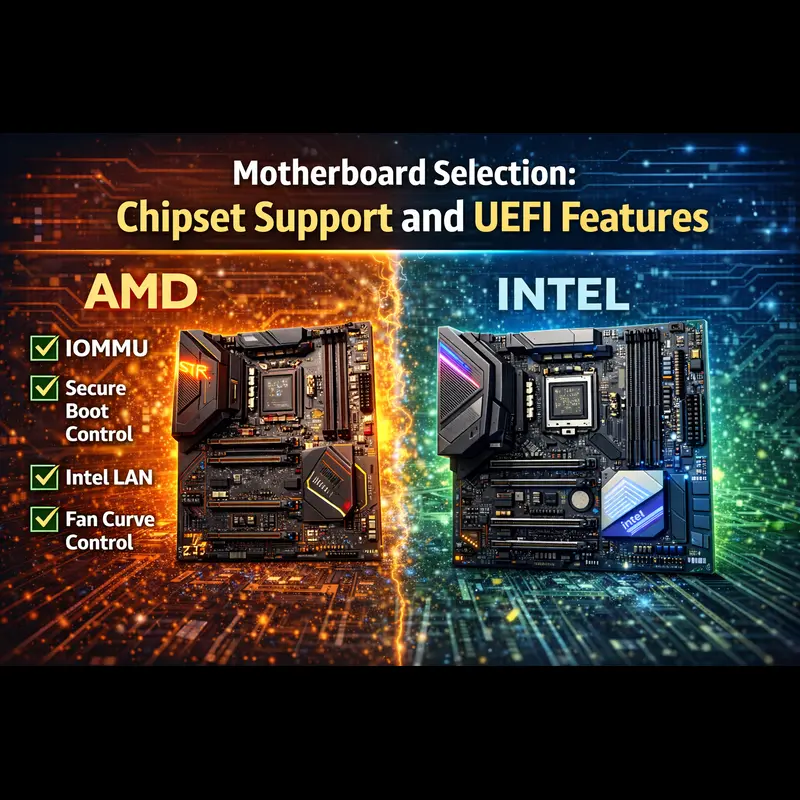
Motherboard Selection: Chipset Support & UEFI Features (Linux 2025)
Your motherboard choice affects everything from USB compatibility to how smoothly firmware updates and bootloaders work. The good news is that most modern motherboards work very well with Linux—if you focus on the right chipsets and features.
AMD Motherboards: AM5 Platform (Ryzen 7000 & 9000)
AMD AM5 motherboards using X670, B650, and A620 chipsets offer excellent Linux compatibility. Kernel support is mature, and modern features like PCIe 5.0 and DDR5 work reliably across major distributions.
Manufacturers such as ASUS, MSI, Gigabyte, and ASRock all produce Linux-friendly boards. ASUS in particular stands out for high-quality UEFI firmware and consistent BIOS update availability.
- High-End Choice: ASUS TUF Gaming X670E-PLUS WIFI
- Best Value Option: MSI B650 GAMING PLUS WIFI
- Platform Strength: Long-term AM5 upgrade support
Intel Motherboards: Z790, B760 & H610 Chipsets
Intel motherboards built on Z790, B760, and H610 chipsets for 13th–15th generation Core processors also work seamlessly with Linux. Intel platforms have enjoyed mature Linux support for many years, and the latest chipsets continue that reliability.
The primary consideration with Intel boards is ensuring that onboard controllers—Wi-Fi, Bluetooth, audio, and Ethernet—use Linux-supported chipsets. Choosing well-known components avoids driver issues entirely.
UEFI Firmware: A Critical Factor for Linux
UEFI quality plays a major role in Linux system stability. Look for boards with clean, accessible UEFI interfaces, proper Secure Boot support, and regular firmware updates.
Secure Boot now works reliably with most mainstream distributions, and vendors like ASUS and Gigabyte have strong track records for long-term UEFI maintenance.
Key Motherboard Features to Verify Before Buying
- Ethernet Controller: Intel I219-V, I225-V, or Realtek RTL8125B (excellent Linux driver support)
-
Audio Codec:
Realtek ALC1220, ALC4080, or similar (works with
snd_hda_intel) - USB Controllers: Native AMD or Intel USB preferred; avoid obscure third-party chips
- RGB Support: Linux tools like OpenRGB support many boards, but not all implementations
Best Practices for Linux Motherboard Compatibility
Avoid motherboards built on brand-new or obscure chipsets that lack mainline kernel support. As a rule of thumb, choose platforms that have been on the market for at least six months.
Before purchasing, research specific models on trusted sources such as r/linux_gaming and the Arch Wiki hardware compatibility lists . These communities provide real-world reports that help confirm long-term Linux stability.
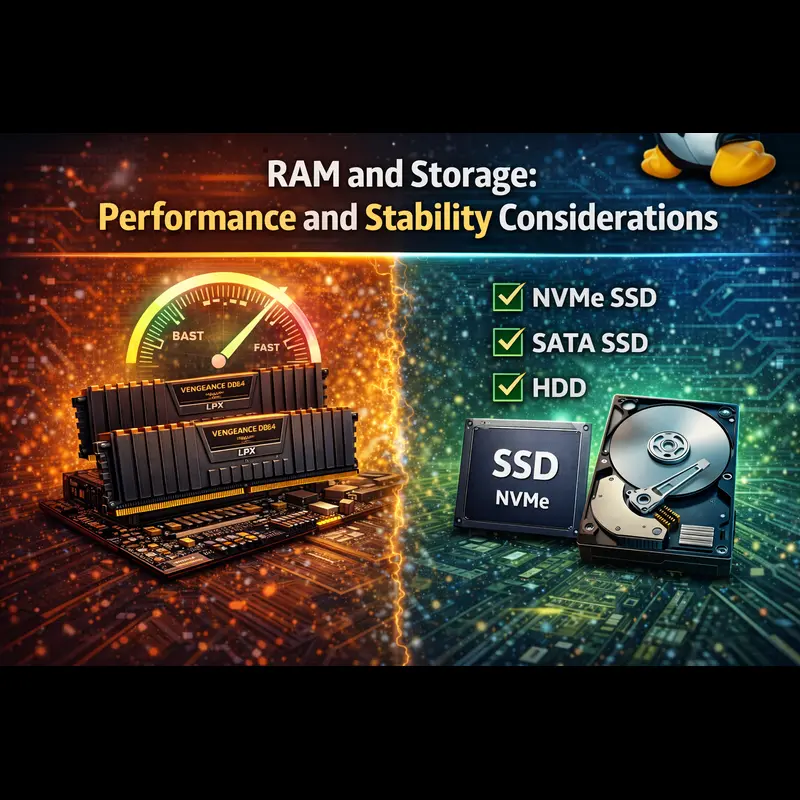
RAM & Storage Selection: Performance and Stability Considerations (Linux 2025)
Memory and storage are among the most straightforward components for Linux compatibility. Nearly all standard DDR4/DDR5 RAM and SATA or NVMe storage works out of the box. A few smart choices, however, can significantly improve system performance and long-term stability.
RAM Selection: Speed, Capacity & Compatibility
RAM compatibility on Linux is rarely an issue. Stick with reputable brands such as Corsair, G.Skill, Kingston, or Crucial, and verify that your kit appears on your motherboard’s QVL (Qualified Vendor List) for guaranteed stability.
- Best for AMD Ryzen 7000/9000: DDR5-6000 (optimal performance sweet spot)
- Best for Intel 13th–15th Gen: DDR5-5600 (stable and efficient)
- DDR4: Still fully supported on compatible platforms
Capacity depends on workload rather than Linux itself. The Linux kernel manages memory efficiently, meaning many users can run comfortably with less RAM than on Windows.
- 16GB: General desktop use, browsing, media
- 32GB: Development, gaming, content creation
- 64GB+: Virtualization, containers, large compile jobs
NVMe SSDs: Fast, Reliable, and Fully Supported
NVMe SSDs work universally on Linux. The kernel’s NVMe driver stack is mature, stable, and highly optimized. Performance matches—or exceeds—other operating systems with no special configuration.
- Top Linux-Friendly NVMe SSDs: Samsung 990 PRO, WD SN850X, Crucial P5 Plus
- Recommendation: Choose drives with onboard DRAM cache
- Why: DRAMless SSDs may show minor I/O quirks under heavy workloads
SATA SSDs & Hard Drives: Universal Compatibility
SATA SSDs and HDDs work without exception on Linux. Any standard SATA drive connects and operates immediately, making them ideal for secondary storage or backups.
Traditional hard drives behave identically under Linux as under any other OS and remain excellent choices for bulk data storage.
RAID on Linux: Software Over Hardware
Linux software RAID using mdadm is powerful, stable, and more flexible than most consumer hardware RAID controllers. For most users, it is the preferred RAID solution.
Avoid so-called “fake RAID” (BIOS or motherboard RAID). These solutions often introduce compatibility issues without providing meaningful benefits over Linux’s native RAID implementation.
Best Practices for Maximum Stability
For the cleanest and most reliable setup, install Linux on a dedicated NVMe drive rather than sharing a disk with Windows. This avoids bootloader disruptions from Windows updates and simplifies backups, recovery, and future upgrades.
With quality RAM, a solid NVMe SSD, and Linux’s mature storage stack, memory and storage will be the least of your compatibility concerns.

Wi-Fi & Bluetooth Hardware: Avoiding Connectivity Headaches (Linux 2025)
Wireless connectivity is one of the last remaining trouble spots when building a Linux PC. The good news: perfect Wi-Fi and Bluetooth support is easy to achieve by choosing the right chipsets.
Intel Wi-Fi: The Gold Standard for Linux
Intel Wi-Fi cards are the undisputed champions for Linux compatibility. Chipsets such as Intel AX200, AX210, and BE200 (Wi-Fi 6, 6E, and 7) work flawlessly using the in-kernel iwlwifi driver.
These cards rely on firmware blobs that install automatically on all mainstream distributions. Reliability, range, and throughput are consistently excellent across Ubuntu, Fedora, Arch, and Debian-based systems.
- AX200: Wi-Fi 6 + Bluetooth 5.2
- AX210: Wi-Fi 6E + Bluetooth 5.3
- BE200: Wi-Fi 7 + Bluetooth 5.4
Many motherboards already include Intel Wi-Fi. If not, a PCIe or M.2 card based on these chipsets typically costs $20–$40 and eliminates Wi-Fi driver issues entirely.
MediaTek Wi-Fi: Improved, but Secondary
MediaTek Wi-Fi chipsets, such as the MT7921 (Wi-Fi 6E), have made significant progress thanks to the open-source mt76 driver. Compatibility has improved notably throughout 2024–2025.
While MediaTek is now viable—especially in laptops—Intel remains the safer and more predictable choice for desktop builds where you control component selection.
Realtek Wi-Fi: Best Avoided for Linux Builds
Realtek Wi-Fi chipsets have historically caused problems on Linux, often requiring out-of-tree drivers or delivering inconsistent performance. Although newer models have improved, they still lag behind Intel in reliability.
If your motherboard includes Realtek Wi-Fi, consider disabling it and installing an Intel-based Wi-Fi card instead. This small upgrade can save hours of troubleshooting.
Bluetooth Compatibility on Linux
Bluetooth is typically integrated into the same module as Wi-Fi. Intel AX200/AX210/BE200 cards include modern Bluetooth versions that work seamlessly with Linux’s BlueZ Bluetooth stack.
You can reliably connect headphones, mice, keyboards, game controllers, and other peripherals—including specialized options like those covered in this guide to the best keyboards for Linux .
Ethernet: Still the Most Reliable Option
While Ethernet was covered under motherboard selection, it’s worth reiterating: Intel and Realtek 2.5GbE controllers (Intel I225-V and Realtek RTL8125B) offer excellent Linux support.
For high-speed networking, Intel X550 and X710 10GbE adapters work flawlessly with Linux and are widely used in servers and workstations.
Final Recommendation: Keep Wireless Simple
The rule is simple: for Linux wireless connectivity, Intel is your friend. Spend the small premium on an Intel Wi-Fi card if your motherboard doesn’t include one, and you’ll never think about Wi-Fi or Bluetooth drivers again.
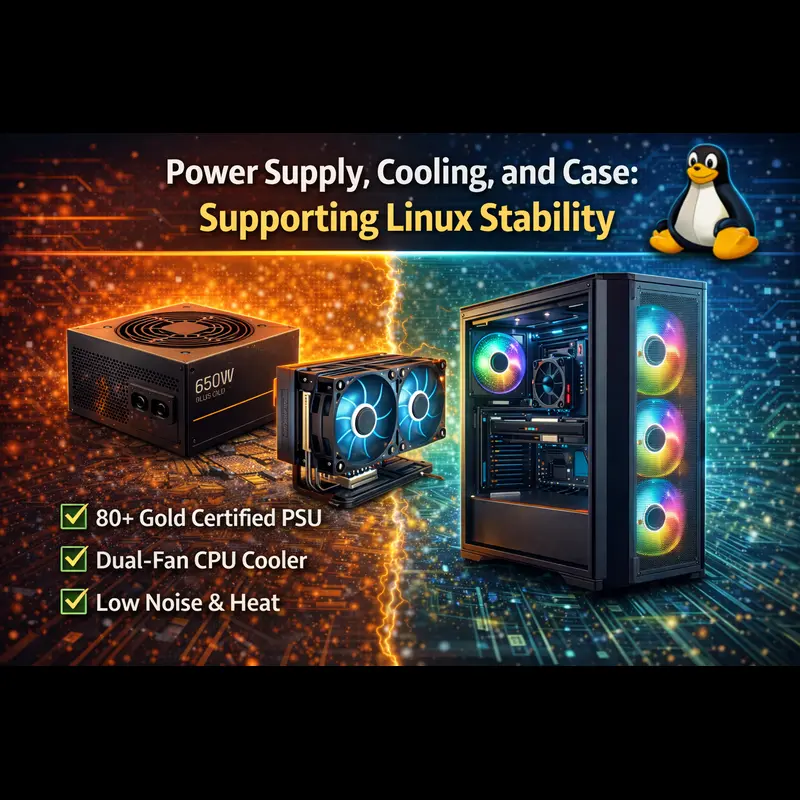
Power Supply, Cooling, and Case: Supporting Linux Stability (2025)
Power supplies, cooling solutions, and cases may seem peripheral to Linux compatibility, but they directly impact system stability, reliability, and longevity. Clean power delivery and proper cooling prevent subtle issues that are often mistaken for “Linux problems.”
Power Supplies: Clean Power Matters
Power supplies from reputable manufacturers such as Corsair, EVGA, Seasonic, and be quiet! work universally with Linux. The operating system does not care about PSU brand—but hardware stability certainly does.
- Mid-range systems: 650–750W (single GPU builds)
- High-end systems: 850–1000W (powerful GPUs)
- Efficiency ratings: 80+ Bronze to Titanium (affects power cost, not compatibility)
One Linux-specific consideration is power quality. Poor PSUs can cause USB disconnects under load or NVMe storage errors. These are hardware issues, but new users often mistakenly attribute them to Linux itself.
CPU Cooling: Air and Liquid Both Work
CPU coolers function independently of the operating system. High-quality air coolers such as the Noctua NH-D15 or be quiet! Dark Rock Pro 4 deliver excellent thermal performance with minimal noise—making them ideal for Linux workstations.
All-in-one (AIO) liquid coolers work mechanically without issue, though fan and RGB control may depend on Linux-compatible software support.
Fan and RGB Control on Linux
Cooling intersects with Linux compatibility primarily through fan and RGB control software. Tools like fancontrol work reliably for managing motherboard-connected fans and thermal curves.
For RGB lighting, OpenRGB supports hundreds of devices across many manufacturers, but support is not universal. If synchronized RGB lighting matters to you, research OpenRGB compatibility for your motherboard, RAM, GPU, and peripherals before purchasing.
Cases: Completely OS-Agnostic
PC cases have no interaction with Linux and can be chosen entirely based on airflow, noise levels, aesthetics, and build quality. A well-ventilated case improves cooling efficiency and overall system stability.
- High-Airflow Favorites: Fractal Design Meshify 2
- Best Value Airflow: Lian Li Lancool 216
- Clean Design: NZXT H7 Flow
These cases perform identically under Linux and other operating systems.
Final Takeaway: Stable Hardware Equals Stable Linux
Do not overlook the importance of quality power delivery and effective cooling. A stable Linux system starts with stable hardware, and clean power combined with proper airflow prevents issues that might otherwise be misattributed to software.
Invest wisely here, and your Linux PC will run quietly, reliably, and problem-free for years.
Assembly Tips and BIOS Configuration Before Installing Linux
Assembling a PC for Linux follows the same process as any PC build. However, a few BIOS/UEFI configuration steps before installation will save you potential headaches.
Physical assembly doesn’t differ for Linux—install your CPU, cooler, RAM, storage, GPU, and connect everything to the power supply as you would for any build. Ensure proper cable management for good airflow, double-check all power connections, and verify your RAM is installed in the correct slots (typically slots 2 and 4 for dual-channel on a four-slot board).
Initial POST and BIOS entry: On first boot, enter your motherboard’s UEFI firmware (usually by pressing Delete, F2, or F12 during startup). Before installing Linux, configure these critical settings:
UEFI vs Legacy boot mode: Set your system to UEFI mode exclusively. Modern Linux distributions install in UEFI mode by default, and this provides better security and compatibility. Disable CSM (Compatibility Support Module) or Legacy boot options.
Secure Boot: While you can disable Secure Boot to simplify installation, Ubuntu, Fedora, and most mainstream distributions now support Secure Boot properly. Leaving it enabled adds a layer of security without compatibility issues on these distributions. If using Arch or certain derivatives, you might prefer to disable it initially and enable it later with proper key enrollment.
Storage mode: Ensure SATA mode is set to AHCI rather than RAID or IDE mode. For NVMe drives, verify they’re recognized and not set to RAID.
Enable virtualization: If you plan to use virtual machines or containers (Docker, KVM, VirtualBox), enable Intel VT-x/VT-d or AMD-V/AMD-Vi in your BIOS. Linux distributions make heavy use of virtualization for development workflows.
Set boot priority: Ensure your primary NVMe or SATA drive is set as the first boot device. You’ll temporarily change this to boot from your Linux installation USB, but having it configured correctly helps.
Fan curves and power settings: While you’re in BIOS, configure reasonable fan curves for your CPU and case fans. Most motherboards default to overly conservative settings that make systems noisier than necessary.
Update UEFI firmware: Before installing Linux, check if a UEFI firmware update is available for your motherboard. Installing the latest stable firmware resolves many potential hardware compatibility issues. Download the firmware update from your motherboard manufacturer’s website and follow their flashing procedure (usually via USB stick and a built-in UEFI flashing tool).
With these BIOS settings configured, you’re ready to install Linux with optimal compatibility.
Installing Linux Without Driver Conflicts: Best Practices
Installation is where your careful hardware selection pays off. With compatible components, installing Linux should be completely straightforward.
Create installation media: Download your chosen distribution’s ISO file and create a bootable USB drive using Rufus (on Windows), dd (on Linux), or Balena Etcher (cross-platform). Use a USB 3.0 drive of at least 8GB for faster installation.
Boot from installation media: Insert your USB drive, restart your computer, and access the boot menu (usually F12, F8, or F11 during startup). Select your USB drive to boot into the Linux installer.
Connect to internet during installation: If your motherboard has Ethernet, connect it before starting installation. This allows the installer to download the latest updates and drivers during setup. If you chose an Intel Wi-Fi card as recommended, wireless will work immediately and you can connect during installation.
Partition scheme: For a dedicated Linux system, the installer’s automatic partitioning works well. If you want manual control, a typical setup includes:
- 512MB-1GB EFI system partition (if not already present)
- Primary partition for root (/) using ext4 or btrfs filesystem
- Optional separate /home partition for easy distro-hopping
- Swap partition or swapfile (8-16GB, or equal to RAM if using hibernation)
Installation process: Follow your distribution’s installer, which will detect all hardware automatically. With properly chosen components, you’ll see all devices recognized during installation:
- Display output through your GPU
- Ethernet connectivity working
- USB ports functioning for keyboard and mouse
- NVMe/SATA drives detected
The installation typically completes in 10-30 minutes depending on drive speed and whether you’re downloading updates during installation.
First boot: After installation completes, remove the USB drive and reboot. Your system should boot directly into Linux, presenting a login screen or desktop environment depending on your distribution choice. This is the moment of truth—with compatible hardware, everything simply works.
Post-Install Setup: Firmware Updates and Optimization
Even with perfect hardware selection, a few post-install steps ensure optimal performance and long-term stability.
System updates: Immediately after logging in, update all packages. On Ubuntu: sudo apt update && sudo apt upgrade. On Fedora: sudo dnf update. On Arch: sudo pacman -Syu. This ensures you have the latest kernel, drivers, and security patches.
Firmware updates with fwupd: Linux uses the fwupd tool for firmware updates to UEFI, NVMe drives, and various peripherals. Run fwupdmgr get-devices to see updatable hardware, then fwupdmgr update to install any available firmware updates. This keeps your system secure and can improve hardware performance.
Graphics driver optimization:
- AMD users: You’re already set. The AMDGPU driver is loaded and working. Verify with lspci -k | grep -A 3 VGA to confirm the amdgpu driver is in use.
- NVIDIA users: Install the proprietary driver via your distribution’s method (Ubuntu: Software & Updates → Additional Drivers, Fedora: RPM Fusion repositories, Pop!_OS: included by default). After installation, reboot and verify with nvidia-smi.
- Intel Arc users: Ensure you’re running kernel 6.2 or newer with uname -r. The i915 driver should load automatically.
Verify hardware acceleration: Run vainfo (install via va-utils package) to confirm VA-API video acceleration is working. For OpenGL info, run glxinfo | grep “OpenGL renderer”. These commands verify your GPU is properly configured for hardware acceleration.
Kernel selection: Most distributions choose the appropriate kernel automatically. However:
- Ubuntu LTS: Consider installing the HWE (Hardware Enablement) kernel for newer hardware support: sudo apt install linux-generic-hwe-24.04
- Fedora: You’re already on a recent kernel
- Arch: You’re running mainline; consider linux-lts for more stability if desired
Audio configuration: PipeWire is now standard on most modern distributions, replacing PulseAudio. Verify audio works by playing a test sound. If using professional audio interfaces, check their Linux compatibility on the manufacturer’s website.
Power management: For desktop systems, you’re set. Laptop builders should install TLP or auto-cpufreq for better battery management, though this guide focuses on desktop builds.
Enable necessary services: Enable and start services like bluetooth (if not already running): sudo systemctl enable bluetooth && sudo systemctl start bluetooth.
How to Verify Complete Hardware Compatibility on Linux
After installation and initial setup, it’s important to systematically verify that every hardware component works correctly under Linux. These checks ensure long-term stability and confirm that your system is truly 100% Linux-compatible.
CPU Verification
Confirm that all CPU cores and threads are correctly detected and functioning under load.
lscpuAll cores should appear in the output. Next, run a brief stress test:
sudo apt install stress
stress --cpu $(nproc)
Monitor CPU behavior with htop to ensure all cores scale and sustain load
without errors or throttling.
GPU Verification
Verify that your graphics card is detected and using the correct driver.
lspci -kFor NVIDIA systems, confirm driver status with:
nvidia-smiTest hardware acceleration and OpenGL support:
vainfo
glxinfo | grep "OpenGL renderer"
Finally, run a simple benchmark such as:
sudo apt install mesa-utils
glxgears -info
For real-world validation, try a GPU-intensive task like rendering a scene in Blender.
Memory (RAM) Verification
While free -h confirms installed memory, stability testing is essential.
Boot into memtest86+ from your GRUB menu and allow at least one full pass.
Any errors indicate faulty RAM or unstable memory settings that should be corrected.
Storage Verification
Ensure all storage devices are detected:
lsblkCheck NVMe drive health:
sudo apt install smartmontools
sudo smartctl -a /dev/nvme0n1
For SATA SSDs or HDDs:
sudo smartctl -a /dev/sdaNetwork Verification (Ethernet, Wi-Fi & Bluetooth)
Verify network interfaces:
ip addrTest connectivity:
ping google.comUse your desktop network manager to connect to Wi-Fi and verify stable throughput. Test Bluetooth by pairing a headset, keyboard, or mouse.
USB Port Verification
Plug devices into all available USB ports and confirm detection:
lsusbTest USB 3.x performance by copying large files to and from a USB storage device.
Audio Input & Output Verification
Test speakers, headphones, and microphones. Ensure all devices appear in your sound settings or via:
pavucontrolVerify correct input/output switching and microphone recording if applicable.
Complete Hardware Summary
Generate a full hardware overview:
sudo lshw -shortReview the output carefully. No devices should appear as UNCLAIMED or report missing drivers.
Final Confirmation
If all verification steps complete successfully, congratulations—you’ve built a genuinely 100% Linux-compatible PC where every component works as intended.
This final validation ensures your system will remain stable, performant, and frustration-free for years to come.
Common Mistakes to Avoid When Building a Linux PC
Even experienced builders make these mistakes when assembling their first dedicated Linux system:
Choosing the newest hardware: Brand-new hardware (released within the last 1-2 months) might not yet have kernel support. Graphics cards, in particular, need time for driver maturity. Aim for components that have been on the market for at least 3-6 months.
Ignoring Wi-Fi chipsets: Assuming all Wi-Fi “just works” leads to frustration when your Realtek-based card requires manual driver compilation. Always verify Wi-Fi chipsets before purchasing motherboards or add-on cards.
Buying NVIDIA without understanding the implications: NVIDIA cards work fine with proprietary drivers, but require ongoing maintenance. If you’re not willing to occasionally troubleshoot driver updates after kernel upgrades, choose AMD instead.
Overlooking UEFI firmware updates: Outdated motherboard firmware can cause bizarre issues from USB devices not working to NVMe drives not being detected. Always update to the latest stable firmware before installation.
Not testing installation media: A corrupted USB installation drive wastes hours. After creating installation media, verify its integrity before attempting installation.
Dual-booting without understanding the risks: Windows updates occasionally overwrite bootloaders. While this is fixable, it’s frustrating. Consider separate drives for Linux and Windows if dual-booting is necessary.
Assuming RGB software compatibility: If RGB synchronization is important to you, verify OpenRGB support for your specific components before purchasing. Otherwise, prepare to accept manual color configuration or mismatched RGB effects.
Skipping backup strategies: Even with stable hardware, have a backup plan. Use Timeshift or similar tools to create system snapshots before major updates.
Sample Build Configurations for Linux
Here are three complete build configurations representing different use cases and budgets, with every component verified for Linux compatibility.
Recommended Linux PC Builds (100% Compatible)
Below are real-world Linux PC build examples covering budget, mid-range, and high-end use cases. Every configuration prioritizes out-of-the-box Linux compatibility, stability, and long-term reliability.
Budget Linux Workstation (~$600)
Purpose: Development, office work, light content creation, web browsing
- CPU: AMD Ryzen 5 8600G ($229) – 6 cores, Radeon integrated graphics
- Motherboard: MSI B650M GAMING PLUS WIFI ($150) – AM5, Intel Wi-Fi
- RAM: Corsair Vengeance 32GB DDR5-6000 ($90)
- Storage: Crucial P3 Plus 1TB NVMe ($70)
- Power Supply: Corsair RM550x 550W 80+ Gold ($80)
- Case: Fractal Design Focus 2 ($65)
Total: ~$684
This build requires no discrete GPU thanks to the Ryzen 5 8600G’s excellent integrated Radeon graphics. Everything works immediately on any mainstream Linux distribution. Ideal for developers, students, and office users.
Mid-Range Linux Gaming PC (~$1,400)
Purpose: Gaming, streaming, content creation, multitasking
- CPU: AMD Ryzen 7 9700X ($359) – 8 cores, highly efficient
- GPU: AMD Radeon RX 7800 XT ($499) – Excellent 1440p gaming
- Motherboard: ASUS TUF Gaming X670E-PLUS WIFI ($289)
- RAM: G.Skill Flare X5 32GB DDR5-6000 ($110)
- Storage: Samsung 990 PRO 2TB NVMe ($160)
- Power Supply: Corsair RM750e 750W 80+ Gold ($110)
- Case: Lian Li Lancool 216 ($100)
Total: ~$1,627
This configuration delivers outstanding Linux gaming performance with zero driver concerns. The open-source AMDGPU stack ensures instant compatibility across all distributions. Add quality peripherals to complete the setup.
High-End Linux Gaming & Workstation (~$2,800)
Purpose: 4K gaming, video editing, 3D rendering, machine learning
- CPU: AMD Ryzen 9 9900X ($499) – 12 cores for heavy workloads
- GPU: AMD Radeon RX 7900 XTX ($899) – Flagship 4K performance
- Motherboard: ASUS ROG Strix X870E-E Gaming WIFI ($499)
- RAM: G.Skill Trident Z5 64GB DDR5-6400 ($230)
- Storage: Samsung 990 PRO 4TB NVMe ($330)
- Power Supply: Corsair HX1000i 1000W 80+ Platinum ($240)
- Case: Fractal Design Torrent ($200)
- CPU Cooler: Noctua NH-D15 ($110)
Total: ~$3,007
This premium all-AMD build handles virtually any Linux workload with absolute stability and zero driver complications. Ideal for professionals who demand workstation-grade performance and long-term reliability.
Frequently Asked Questions
Can I use NVIDIA GPUs with Linux?
Yes, NVIDIA cards work with proprietary drivers. However, AMD GPUs offer better out-of-the-box compatibility with open-source drivers. If you need CUDA for machine learning or prefer NVIDIA’s features, the proprietary drivers are stable but require occasional maintenance.
Do all motherboards work with Linux?
Nearly all modern motherboards work with Linux, but some features (like RGB control or specific fan controls) might have limited support. Stick with established brands like ASUS, MSI, Gigabyte, or ASRock, and verify the specific chipset has kernel support.
What’s the best Linux distribution for gaming?
Pop!_OS offers excellent out-of-the-box gaming support with Steam and driver management. Ubuntu, Fedora, and Arch (via Manjaro or EndeavourOS) are also excellent for gaming. The distribution matters less than your GPU choice—AMD cards work universally, NVIDIA requires driver installation.
How much RAM do I need for Linux?
Linux runs efficiently on less RAM than Windows. 16GB suffices for most users, 32GB is ideal for development and content creation, and 64GB+ benefits heavy multitasking or professional workloads.
Will Windows dual-boot work on these systems?
Yes, all these builds support dual-booting. Install Windows first on a separate drive or partition, then install Linux. Use separate physical drives when possible to avoid bootloader conflicts.
Do wireless keyboards and mice work with Linux?
Yes, Bluetooth and wireless USB peripherals work without issues. Proprietary software for macro programming might not be available, but basic functionality works universally.
Conclusion: Your Path to a Driver-Free Linux Experience
Building a 100% Linux-compatible PC in 2025 is remarkably straightforward when you make informed hardware choices. The key decisions—AMD for CPU and GPU, Intel for Wi-Fi, established motherboard chipsets, and recent-but-not-bleeding-edge components—virtually guarantee a frustration-free experience.
The Linux ecosystem has matured tremendously. Open-source drivers for AMD graphics deliver performance that matches or exceeds proprietary alternatives. Intel’s Wi-Fi cards work flawlessly. Modern motherboards from reputable manufacturers support Linux comprehensively. The days of spending hours hunting down obscure drivers are over for builders who choose carefully.
Your action plan is clear: select a mainstream distribution (Ubuntu LTS for stability, Fedora for freshness), build around AMD components for maximum compatibility, verify Wi-Fi chipsets, and avoid the newest hardware until kernel support matures. Following the guidance in this article, you’ll assemble a system that boots into Linux and immediately works—no driver compilation, no firmware hunting, no compromises.
Whether you’re building a budget workstation, a mid-range gaming PC, or a high-end production machine, Linux-compatible hardware is widely available and competitively priced. You no longer sacrifice anything for Linux compatibility; you gain a stable, efficient, and powerful operating system running on hardware that simply works.
Start your build with confidence, knowing that every component you’ve chosen has been verified for Linux compatibility. Your reward will be a system that performs beautifully for years to come, updating smoothly and running reliably without the driver headaches that once plagued Linux desktop users.
Disclaimer
The information provided in this article is for educational and informational purposes only. Hardware compatibility, software versions, product availability, and pricing are subject to change without notice. While every effort has been made to ensure accuracy based on available information as of December 2025, individual experiences may vary depending on specific hardware revisions, BIOS versions, Linux distributions, and kernel versions used.
Always verify current compatibility information from manufacturer websites, official Linux distribution documentation, and community resources before making purchasing decisions. The author and Linuxano.com are not responsible for any hardware incompatibilities, system issues, or financial decisions resulting from following the guidance in this article. Product recommendations do not constitute endorsements, and readers should conduct their own research based on their specific needs and use cases.
When building any PC, follow proper safety procedures, including grounding yourself to prevent electrostatic discharge and consulting official manufacturer installation guides.
Final Thoughts: Building a Truly 100% Linux-Compatible PC
Building a Linux PC in 2025 no longer requires guesswork or compromises. With the right component choices—particularly around CPU, GPU, motherboard chipsets, and wireless hardware—you can achieve a system that works perfectly from the first boot.
Linux thrives on open standards, mature kernel support, and stable hardware. By prioritizing components with strong upstream driver support and proven compatibility, you avoid driver headaches, unpredictable updates, and performance issues commonly blamed on the operating system.
Whether you’re building a budget workstation, a high-performance gaming PC, or a professional Linux workstation, the principles remain the same: choose established platforms, prefer open-source drivers where possible, and verify hardware functionality after installation.
Follow the guidance in this guide, and you’ll end up with a system that feels fast, stable, and refreshingly reliable—exactly how Linux is meant to run.
👉 Continue exploring Linux-compatible hardware Best WiFi Adapters for Linux: 2026
About the Author