

Bluetooth Not Working on Linux? A Distro-by-Distro Fix Guide (2026)
You connected your headphones, your keyboard, or maybe your wireless speaker — and nothing happened. No sound, no pairing, just a spinning icon or a flat-out error. If Bluetooth not working on Linux is the problem you’ve landed here to fix, you’re in the right place.
This isn’t a generic “have you tried restarting?” article. We’re going deep: distro-specific commands, common failure points in 2026, BlueZ daemon issues, kernel conflicts, firmware gaps, and rfkill blocks. Whether you’re on Ubuntu, Arch, Fedora, Linux Mint, or Pop!_OS, there’s a section here that speaks directly to your setup.
Why Bluetooth Breaks on Linux in the First Place
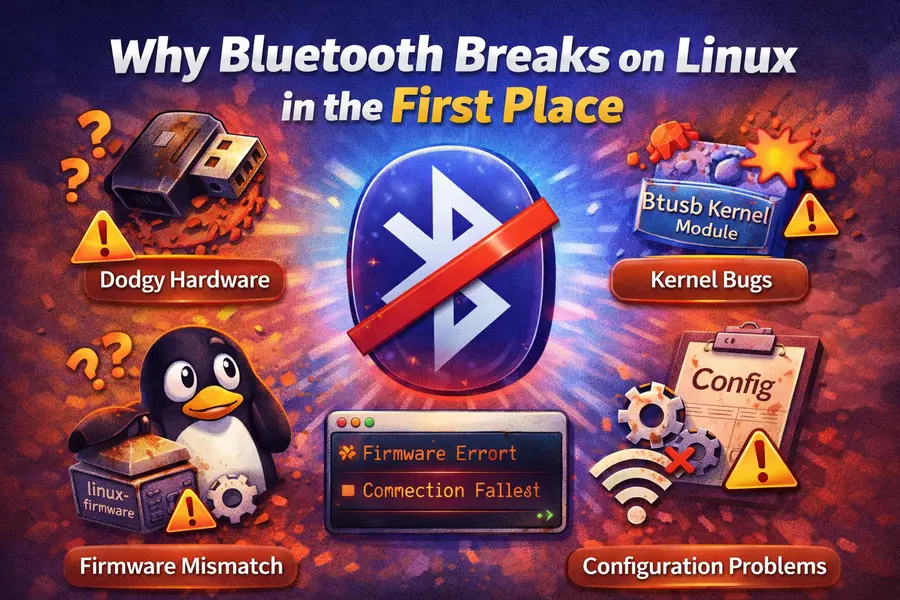
Before jumping into commands, it helps to understand why this keeps happening. Bluetooth on Linux relies on a stack of moving parts:
- BlueZ — the official Bluetooth protocol stack for Linux
- The kernel module (btusb or chipset-specific drivers)
- Firmware files — often proprietary, shipped via linux-firmware
- PipeWire or PulseAudio — for audio profiles (A2DP, HSP/HFP)
- systemd — to keep the bluetooth daemon running
When any one of these layers misbehaves — usually after a kernel update, a distro upgrade, or a cold boot — Bluetooth stops responding. The Linux kernel and firmware can have bugs that affect Bluetooth, and newer firmware packages sometimes contain fixes that haven’t yet landed in the main repositories.
Bluetooth also shares the 2.4GHz band with Wi-Fi, and on most machines both radios sit on the same chip. Interference from surrounding networks can cause connectivity and range problems that look like a software failure.
Step 1: Universal First Checks (Every Distro)
Run These Before Anything Else (Linux Bluetooth Fix)
These basic checks apply to all Linux distributions (Ubuntu, Fedora, Arch, Debian, etc.). Follow them step-by-step to diagnose Bluetooth issues.
1. Check if the Bluetooth adapter is detected
lsusb | grep -i bluetooth
# or
lspci | grep -i bluetooth
If nothing appears, your adapter may be powered off, hard-blocked, or missing drivers.
2. Check rfkill (common hidden issue)
rfkill list
If Bluetooth is blocked:
rfkill unblock bluetooth
Hard blocked = physical switch or BIOS setting.
Soft blocked = can be fixed with the command above.
3. Check if Bluetooth service is running
systemctl status bluetooth.service
If inactive, enable it:
sudo systemctl enable --now bluetooth.service
4. Load Bluetooth kernel module
lsmod | grep btusb
If no output, load the module:
sudo modprobe btusb
Step 2: The Quick Fix That Works Most of the Time
The standard procedure to resolve Bluetooth connectivity issues is to reinstall BlueZ — the official Bluetooth protocol software used by Ubuntu and most other Linux distributions. Missing or corrupted packages are often the root cause.
Reinstall Bluetooth Stack (Fix Broken Drivers on Linux)
If Bluetooth is still not working, reinstall the BlueZ stack based on your Linux distribution. This fixes corrupted packages and missing dependencies.
Ubuntu / Debian / Linux Mint
sudo apt purge bluez
sudo apt install bluez bluez-tools
sudo systemctl enable --now bluetooth.service
Fedora / RHEL / CentOS Stream
sudo dnf reinstall bluez
sudo systemctl enable --now bluetooth.service
Arch Linux / Manjaro
sudo pacman -S bluez bluez-utils
sudo systemctl enable --now bluetooth.service
Distro-by-Distro Fix Guide

Ubuntu 24.04 / 22.04 LTS
Ubuntu is the distro most people start with, and it has its fair share of Bluetooth headaches — especially after kernel updates.
Problem: Bluetooth doesn’t reconnect after sleep
When Ubuntu wakes from sleep, Bluetooth sometimes disappears entirely. One of the main causes is a bug in certain versions of BlueZ.
Advanced Bluetooth Fixes (Audio, Config & Power Issues)
If basic troubleshooting didn’t work, try these advanced fixes to resolve Bluetooth audio quality issues, service problems, and configuration errors.
1. Edit Bluetooth Configuration File
sudo nano /etc/bluetooth/main.conf
Find and update these values:
AutoEnable=true
ReconnectAttempts=7
FastConnectable=true
Then restart Bluetooth:
sudo systemctl restart bluetooth
2. Fix Low-Quality Audio (HSP instead of A2DP)
If your Bluetooth headset is stuck in low-quality mode, install required audio packages:
sudo apt install pulseaudio pulseaudio-utils pavucontrol pulseaudio-module-bluetooth
For PipeWire (Ubuntu 23.04+ and newer):
sudo apt install pipewire-audio wireplumber
3. Bluetooth Won’t Turn On (Hard Fix)
Reinstall core Bluetooth packages completely:
sudo apt reinstall --purge bluez gnome-bluetooth-3.0
sudo systemctl enable --now bluetooth
pavucontrol.
Linux Mint 22.x (Cinnamon / MATE / XFCE)
Linux Mint sits on top of Ubuntu, but has its own quirks. Recent forum threads from December 2025 and January 2026 show users on Mint 22.2 “Zara” still hitting Bluetooth issues after fresh installs.
A common problem on fresh Mint installs is that no Bluetooth adapter appears in the system at all. The first diagnostic step is to run inxi -EJxxxz to verify that your hardware has a Bluetooth device before trying software fixes.
Problem: “Connection to BlueZ failed” error
This error usually means the Bluetooth service isn’t running. A two-step fix works for most users:
Enable & Start Bluetooth Service (Linux)
If Bluetooth is not working, make sure the service is enabled and running. These commands work on most Linux distributions using systemd.
sudo systemctl enable bluetooth
sudo systemctl start bluetooth
enable → Starts Bluetooth automatically at boot.
start → Starts the service immediately.
sudo systemctl enable --now bluetooth
Problem: Bluetooth broke after kernel update
To confirm a kernel update broke Bluetooth, boot an older kernel from the GRUB advanced options menu. If Bluetooth works on the older kernel, the new one is the culprit. You can temporarily hold the problematic kernel while waiting for a fix:
sudo apt-mark hold linux-image-$(uname -r)
Problem: Hardware power drain / adapter not registering after reboot
Sometimes the fix is surprisingly physical: fully power off the machine, unplug it, and hold the power button for 30 seconds to drain residual charge. This can bring a vanished Bluetooth adapter back to life — especially on desktops with integrated WiFi/Bluetooth chipsets.
Fedora 41 / 42
Fedora ships with a very current kernel and PipeWire by default, which usually makes Bluetooth better than most distros out of the box — but when things go wrong, the troubleshooting is slightly different.
Advanced Bluetooth Checks (Adapter Status, Firmware & Audio Fix)
Use these commands to inspect your Bluetooth adapter, update firmware, and fix audio crashes on modern Linux systems.
1. Check Bluetooth Adapter Status
bluetoothctl show
This shows whether your adapter is powered, discoverable, and working.
2. Update Bluetooth Firmware (fwupd)
Updating firmware can fix compatibility issues, especially on newer hardware (common on Fedora and modern laptops).
sudo fwupdmgr refresh
sudo fwupdmgr update
3. Restart Bluetooth & Audio Services Properly
sudo systemctl restart bluetooth
systemctl --user restart wireplumber
If audio works but crashes when switching devices, the WirePlumber session manager is often the cause.
Arch Linux / Manjaro
Arch gets kernel and BlueZ updates faster than any other distro. BlueZ 5.84 was being used on Arch systems as of late 2025, and rolling updates occasionally introduce regressions that break device detection.
Arch Linux Bluetooth Setup & Advanced Fix (BlueZ + bluetoothctl)
Follow these steps to install the full Bluetooth stack, enable experimental features, and reliably pair devices on Arch Linux and Manjaro.
1. Install Full Bluetooth Stack
sudo pacman -S bluez bluez-utils bluez-obex
sudo systemctl enable --now bluetooth
Note: Since 2024, bluez-obex is separate. Install it if you want Bluetooth file transfer support.
2. Enable Experimental Features (Better Compatibility)
Edit the configuration file:
sudo nano /etc/bluetooth/main.conf
Add or update:
Experimental = true
KernelExperimental = true
Then restart Bluetooth:
sudo systemctl restart bluetooth
3. Pair Devices Using bluetoothctl (Most Reliable Method)
If GUI tools fail, use the terminal:
bluetoothctl
power on
scan on
pair [MAC_ADDRESS]
connect [MAC_ADDRESS]
trust [MAC_ADDRESS]
bluetoothctl often works even when GUI tools like Blueman fail — especially on Arch-based systems.
Pop!_OS 22.04 / 24.04
System76’s distro is popular with laptop users, and Bluetooth generally works well — until it doesn’t.
Some devices, particularly Apple or Sony headphones that use patented audio technology, may behave inconsistently on Linux since they are optimized for devices from the same ecosystem. Behavior or performance may vary, especially for microphone passthrough.
Reset Bluetooth Controller & Update Firmware (Linux Fix)
If Bluetooth is unstable, not detecting devices, or randomly disconnecting, resetting the controller and updating firmware can resolve low-level driver issues.
1. Reset Bluetooth Controller
sudo systemctl stop bluetooth
sudo rmmod btusb
sudo modprobe btusb
sudo systemctl start bluetooth
This reloads the btusb kernel module, fixing common USB Bluetooth adapter issues.
2. Update Bluetooth Firmware
Newer linux-firmware packages often include important Bluetooth bug fixes and hardware support updates.
sudo apt update && sudo apt install linux-firmware
If issues persist, consider downloading the latest firmware manually from official Linux kernel sources.
Distro Comparison: Bluetooth Out-of-the-Box in 2026
| Distro | BlueZ Version | Default Audio | Bluetooth Experience | Best For |
|---|---|---|---|---|
| Ubuntu 24.04 LTS | 5.72+ | PipeWire | Good, minor sleep issues | Beginners, stable setups |
| Linux Mint 22.2 | 5.72+ | PipeWire | Good, but kernel-sensitive | Desktop daily drivers |
| Fedora 41/42 | 5.79+ | PipeWire | Excellent, latest drivers | Laptop users, fresh hardware |
| Arch Linux | 5.84 (rolling) | PipeWire | Excellent when configured | Advanced users |
| Pop!_OS 24.04 | 5.72+ | PipeWire | Very good | NVIDIA laptops |
| Manjaro | 5.79+ | PipeWire | Good | Arch users wanting stability |
| Debian 12 | 5.66 | PulseAudio / PipeWire | Moderate, older stack | Servers, conservative setups |
Advanced Fixes for Persistent Problems
Bluetooth Not Found After Update & Connection Fix (All Linux Distros)
After a system update, Bluetooth may disappear or devices may fail to stay connected. Use these fixes to diagnose firmware issues and stabilize connections.
1. Bluetooth Not Detected After Update
sudo dmesg | grep -i bluetooth
Look for errors like “firmware file not found” or “device not recognized”.
Update firmware based on your distro:
# Debian / Ubuntu / Linux Mint
sudo apt install linux-firmware

# Fedora
sudo dnf install linux-firmware

# Arch Linux
sudo pacman -S linux-firmware
2. Devices Pair But Won’t Stay Connected
Edit Bluetooth config:
sudo nano /etc/bluetooth/main.conf
Add or update:
ReconnectAttempts=7
ReconnectIntervals=1,2,4,8,16,32,64
Mark devices as trusted:
bluetoothctl
trust [MAC_ADDRESS]
Dual-Boot Windows + Linux: Pairing Conflicts
This is a surprisingly common headache. When you pair a device on Windows and then boot into Linux, the device sees a different encryption key and refuses to pair. The fix involves copying Bluetooth link keys from Windows to Linux — search for “Bluetooth dual boot pairing fix Linux” for the detailed key-extraction method using chntpw.
Bluetooth Audio Cutting Out Under Heavy Wi-Fi Load
Because Bluetooth and Wi-Fi share the 2.4GHz spectrum and often sit on the same chip, heavy network traffic can cause audio dropouts that have nothing to do with software. Switch your Wi-Fi to 5GHz if your router supports it. On older adapters without dual-band support, you may need an external Bluetooth dongle.
When to Use Blueman vs. GNOME Bluetooth vs. bluetoothctl
For pairing and connecting devices, you can use bluetoothctl from the command line or graphical tools like Blueman or GNOME Bluetooth from the user interface. Here’s when to pick each:
bluetoothctl — Best when GUI tools crash or fail to detect your adapter. It interacts directly with the BlueZ daemon and is the most reliable option for diagnosis.
Blueman — A solid third-party graphical manager that works across desktops. Good for KDE and XFCE users where GNOME Bluetooth isn’t available.
GNOME Bluetooth — Integrated into GNOME Shell settings. Convenient for Ubuntu/Fedora GNOME users, but can glitch when BlueZ updates break the D-Bus interface.
Don’t mix Blueman and GNOME Bluetooth — running both simultaneously can cause conflicts. Stick to one.
Final Checklist Before Giving Up
Before deciding your hardware is incompatible, go through this:
- Check rfkill — rfkill list all and unblock if needed
- Verify adapter detection — lsusb | grep -i bluetooth
- Confirm service is running — systemctl status bluetooth
- Reinstall BlueZ — fresh install clears corrupted packages
- Update linux-firmware — covers missing or outdated firmware
- Edit main.conf — set AutoEnable=true and ReconnectAttempts=7
- Test an older kernel — if a recent update broke things, boot the previous kernel
- Hard power cycle — fully shut down, unplug, hold power button 30 seconds
Some Bluetooth adapters are simply not supported on Linux and may require a replacement. If all software steps fail and no driver exists for your adapter, a compatible USB Bluetooth dongle is often the simplest path forward.
Wrapping Up
Bluetooth not working on Linux is one of those issues that can range from a one-liner fix to a full afternoon of kernel debugging — depending on your hardware and distro. The good news is that in 2026, BlueZ has matured significantly and PipeWire has replaced the audio headaches that PulseAudio introduced. Most issues come down to a service that didn’t start, a firmware file that’s missing, or an rfkill block you didn’t know existed.
Start with the universal checks, move to your distro-specific section, and work through the advanced fixes if needed. And remember — if it broke after a kernel update, rolling back temporarily is a completely valid move while waiting for the upstream fix.
Good luck, and may your headphones finally pair on the first try.
Disclaimer
The fixes and commands shared in this guide are based on commonly reported solutions and publicly available documentation as of March 2026. Results may vary depending on your specific hardware, kernel version, and distro release. Always back up important data before making system-level changes. If a command doesn’t work as expected on your setup, check your distro’s official wiki or community forums for the most current guidance.
Related Linux Guides You Should Read
Want to improve your Linux experience beyond Bluetooth fixes? Check out these expert guides:
-
🖨️ Linux-Compatible Printers (2026): Complete Buyer’s Guide
Find printers that work flawlessly with Linux — no driver headaches.
-
💾 Linux File Systems Explained: ext4 vs Btrfs vs XFS
Understand which file system is best for performance, reliability, and backups.
-
💻 Best Linux Distros for Modern Laptops (2026 Guide)
Discover which Linux distributions offer the best hardware compatibility.
About the Author