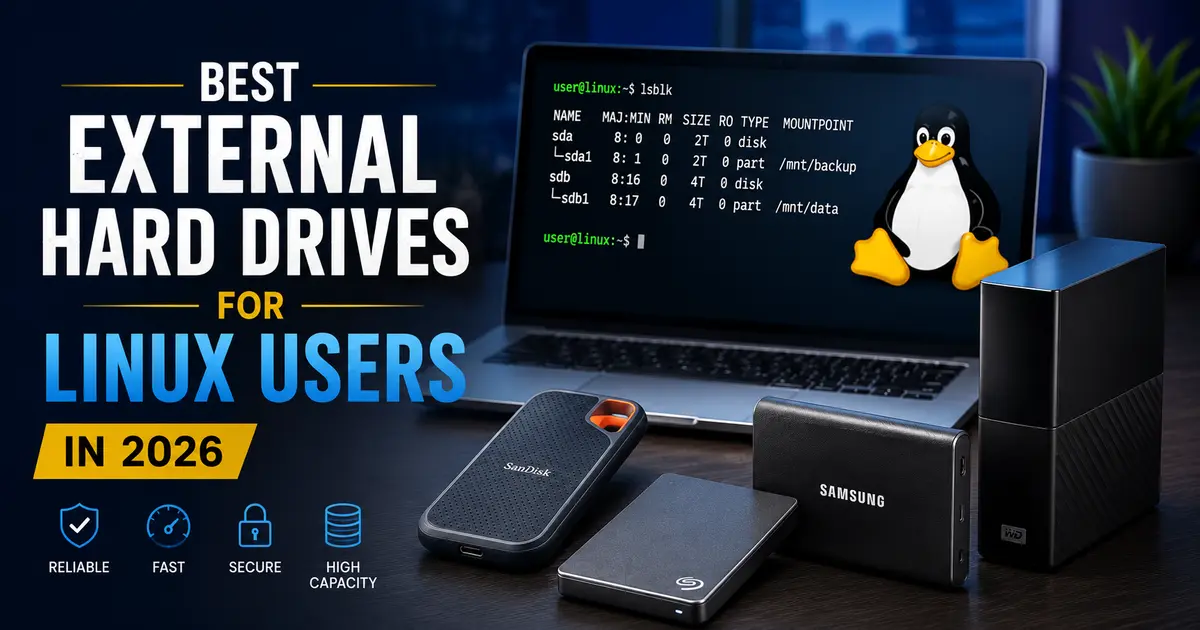
Best External Hard Drives for Linux Users
If you’ve spent any time running Linux as your daily driver, you already know the drill — not every piece of hardware cooperates the way you’d expect. External storage is no different. The good news? Finding the best external hard drives for Linux users in 2026 is far less painful than it used to be. Most modern drives play well with the kernel right out of the box. The challenge now isn’t compatibility — it’s knowing which drives actually hold up in real-world Linux workflows, whether that means running virtual machines off portable SSDs, doing live system backups with rsync, or simply storing a massive media archive.
This guide is built for people who actually use Linux — not dual-booters who occasionally open a terminal. Whether you’re on Ubuntu, Fedora, Arch, or Debian, every drive on this list has been evaluated through the lens of what Linux users genuinely need: solid driver support, reliable performance with UASP, formatting flexibility (ext4, exFAT, Btrfs), and honest value for money.
What Makes an External Drive “Linux-Friendly” in 2026?
Before diving into the picks, it’s worth covering what separates a good Linux drive from a frustrating one. A lot of buyers make the mistake of assuming that “plug-and-play” means the same thing on Linux as it does on Windows. It doesn’t — at least not always.
Plug-and-play compatibility is largely sorted these days. The Linux kernel has excellent support for USB Mass Storage and UAS (USB Attached SCSI) protocols. Most drives formatted in NTFS or exFAT will mount automatically on modern distros. But some drives — particularly those with proprietary hardware encryption chips — can cause headaches. The encryption layer may not be accessible from Linux, making the hardware security feature effectively useless.
Filesystem decisions matter a lot. If you’re using the drive exclusively with Linux, formatting to ext4 is almost always the right call. It supports journaling (critical for data integrity), handles large files without a sweat, and delivers better performance than exFAT for sustained workloads. That said, if you regularly swap the drive between Linux and Windows machines, exFAT is the safer cross-platform choice. Just know that ext4 is the power user option.
UASP support makes a meaningful speed difference. Drives and enclosures that support USB Attached SCSI Protocol (UASP) will outperform non-UASP devices noticeably when transferring large files. The Linux kernel has supported UASP since version 3.15, so any modern distro will take advantage of it automatically.
Proprietary software is irrelevant. Most drives ship with Windows-only backup tools. These won’t work on Linux, and that’s fine — you’ve got better tools anyway (rsync, Timeshift, borgbackup). Don’t pay a premium for software bundles you’ll never open.
Our Top Picks at a Glance
1. Samsung T9 Portable SSD — Best Overall for Linux Users
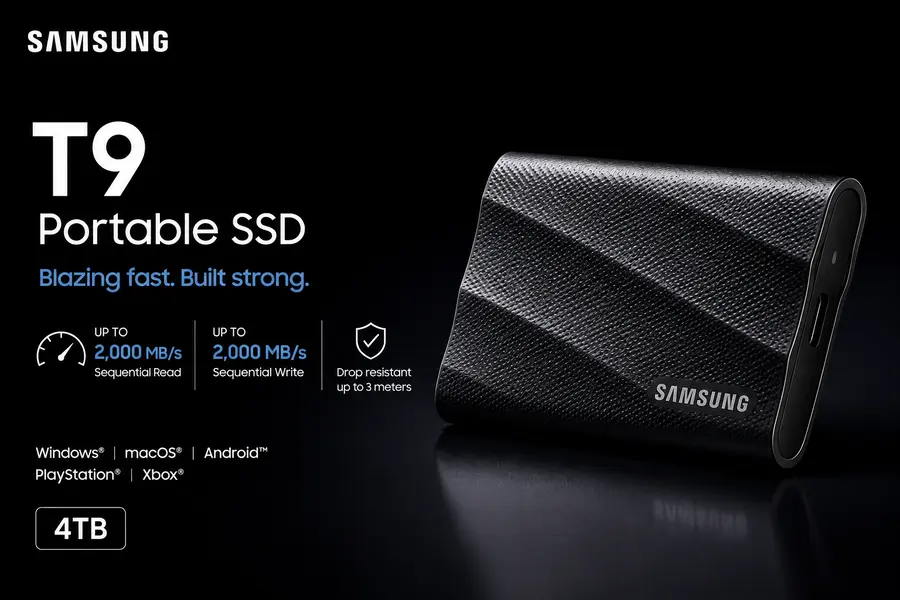
Specs: USB 3.2 Gen 2×2 | Up to 2,000 MB/s read/write | 1TB / 2TB / 4TB | 5-year warranty
The Samsung T9 is the gold standard for portable SSD performance in 2026, and it earns that title on Linux too. Plug it into a machine with a USB 3.2 Gen 2×2 port — which is increasingly common on modern laptops running Fedora or Ubuntu — and you’ll see real-world sequential reads hitting close to 1,900 MB/s. That’s transformative when you’re syncing 50GB VM snapshots or transferring raw footage.
What makes the T9 particularly good for Linux workflows is how predictably it behaves. In real-world usage, the T9 maintains its rated speeds through extended transfers without significant thermal throttling. Samsung’s Dynamic Thermal Guard keeps the drive temperature stable even during heavy, sustained workloads — something that cheaper Gen 2×2 drives routinely fail to do.
The rubberized chassis is genuinely tough. Samsung put it through tumbler tests, drop tests, and load evaluations during development. From user feedback across r/linux and various distro forums, the T9 is consistently praised for mounting instantly and working without any fuss on everything from Linux Mint to Arch.
One note: the T9 comes formatted in exFAT, which works natively on modern Linux kernels. If you want to switch to ext4 (recommended for Linux-only use), a quick mkfs.ext4 command and a chown to set permissions gets you there in minutes.
The Samsung Magician software for drive health monitoring is Windows/Mac only, but smartmontools on Linux provides comparable diagnostics — often more detailed, in fact.
✔ Pros
- Blistering 2,000 MB/s read speeds on Gen 2×2 ports
- Rock-solid thermal management over long transfers
- 5-year warranty — one of the best in its class
- Genuinely rugged rubber exterior
- Plug-and-play on every major Linux distro
✖ Cons
- Premium price point (1TB sits around $110–$130 in May 2026)
- Needs a USB 3.2 Gen 2×2 port to hit max speeds; falls back to ~1,000 MB/s on Gen 2
- Samsung Magician software doesn’t run on Linux
Best for: Developers, sysadmins, and content creators who want the fastest portable SSD available and don’t mind paying for it.
2. WD My Passport (Works with USB-C) — Best Budget-Friendly Portable HDD
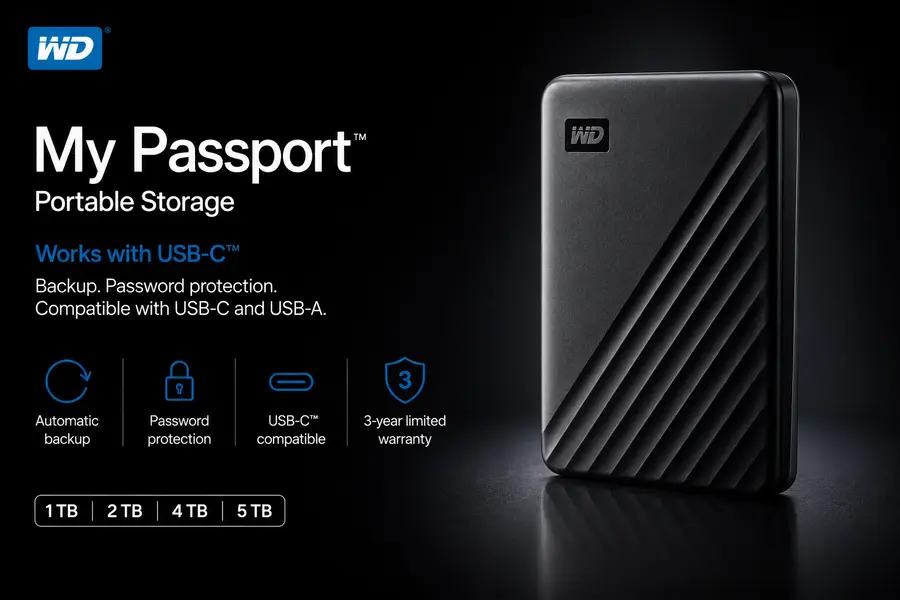
Specs: USB 3.2 Gen 1 | ~105–110 MB/s | 1TB to 6TB | 3-year warranty
If you need maximum gigabytes per dollar and portability is still a requirement, the WD My Passport remains one of the most dependable choices for Linux users in 2026. It’s been around long enough to have an excellent track record, and more recent versions include native USB-C connectivity (via adapter on some configurations), which is appreciated on newer hardware.
Based on testing, the My Passport delivers around 105–110 MB/s for sequential reads and writes. That’s nowhere near SSD territory, but for incremental backups, archiving documents, or storing a music and video collection, it’s completely adequate. Where it really shines is the price: the 2TB model frequently sells for around $55–$85, making the cost per terabyte hard to beat in the portable HDD segment.
Critically for Linux users — the My Passport works out of the box on virtually every distro. The hardware encryption feature requires WD’s own software to activate, which doesn’t run on Linux, but the drive functions perfectly without it. You can use LUKS encryption at the filesystem level instead, which is arguably more transparent and portable anyway.
The 3-year warranty is solid, and WD has a reasonable reputation for reliability. The drive does come with WD Backup software preloaded, but since it’s Windows-only, you’ll simply never interact with it on Linux.
✔ Pros
- Excellent price-to-capacity ratio
- Reliable plug-and-play on all major distros
- Available in up to 6TB
- Compact and bus-powered (no separate power brick)
- 3-year warranty
✖ Cons
- HDD speeds (~105 MB/s) feel sluggish compared to SSDs
- Hardware encryption requires Windows-only WD software
- Smaller 1TB/2TB variants may use 5400 RPM spindles
Best for: Linux home users who want reliable, budget-friendly storage for backups and media libraries without caring about speed.
Check latest price and availability on Amazon:
3. Seagate Expansion Desktop — Best for High-Capacity Linux Storage
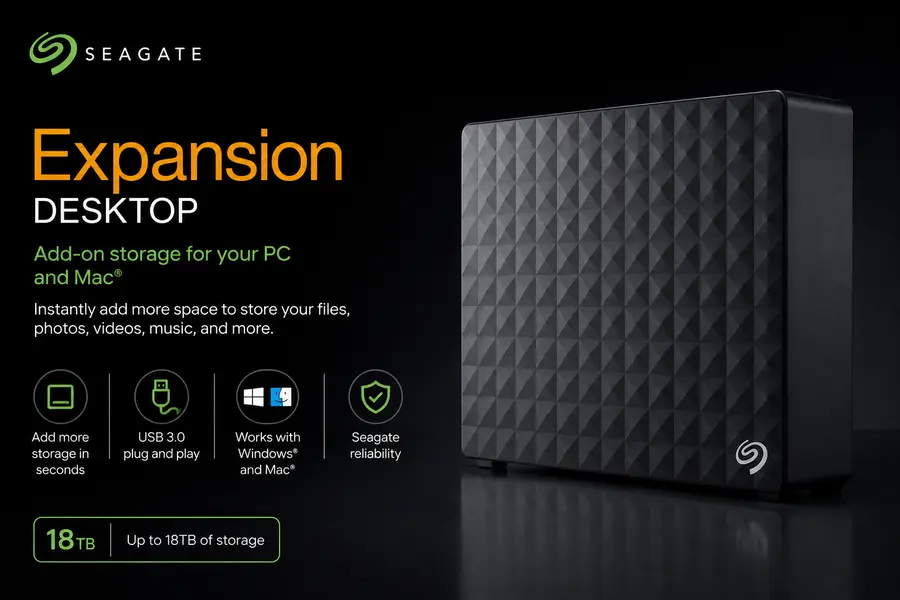
Specs: USB 3.0 | ~260–280 MB/s (3.5″) | Up to 28TB | 2-year warranty
When you need a lot of storage at the lowest possible cost per terabyte, the Seagate Expansion Desktop is the drive that keeps coming up. In 2026, it’s available up to 28TB — making it the go-to choice for home media servers, Linux NAS setups, and anyone archiving truly massive datasets.
The 3.5-inch form factor means this is a desktop drive, not something you carry around. It needs its own power adapter. But that constraint brings two real benefits: it’s significantly faster than 2.5-inch portable HDDs (our 16TB test units read and wrote at close to 280 MB/s), and it costs roughly $30 per terabyte — far cheaper than portable SSDs hovering around $70/TB.
From user feedback in Linux communities, the Expansion Desktop mounts cleanly as a USB mass storage device across Ubuntu, Fedora, and Debian without any driver requirements. Formatting it to ext4 for a Linux-only setup is straightforward with GParted or the mkfs command suite.
One thing to keep in mind: as with any HDD, the Expansion Desktop is more susceptible to mechanical failure than an SSD. For irreplaceable data, always maintain a backup copy elsewhere. The 2-year warranty is shorter than WD’s 3-year offering, which is worth noting.
✔ Pros
- Up to 28TB of storage — among the highest available in 2026
- ~$30 per terabyte — exceptional value
- Substantially faster than portable 2.5" HDDs (~280 MB/s)
- Works plug-and-play on Linux without any software
- Ideal for home servers and NAS-adjacent setups
✖ Cons
- Requires a separate power adapter — not portable
- 2-year warranty (shorter than some competitors)
- HDDs carry higher long-term failure risk compared to SSDs
- No bus power — needs a wall outlet nearby
Best for: Linux users running home servers, self-hosted media setups, or anyone who needs massive storage without breaking the bank.
Check latest price and availability on Amazon:
4. Crucial X9 Pro — Best Value Portable SSD for Linux
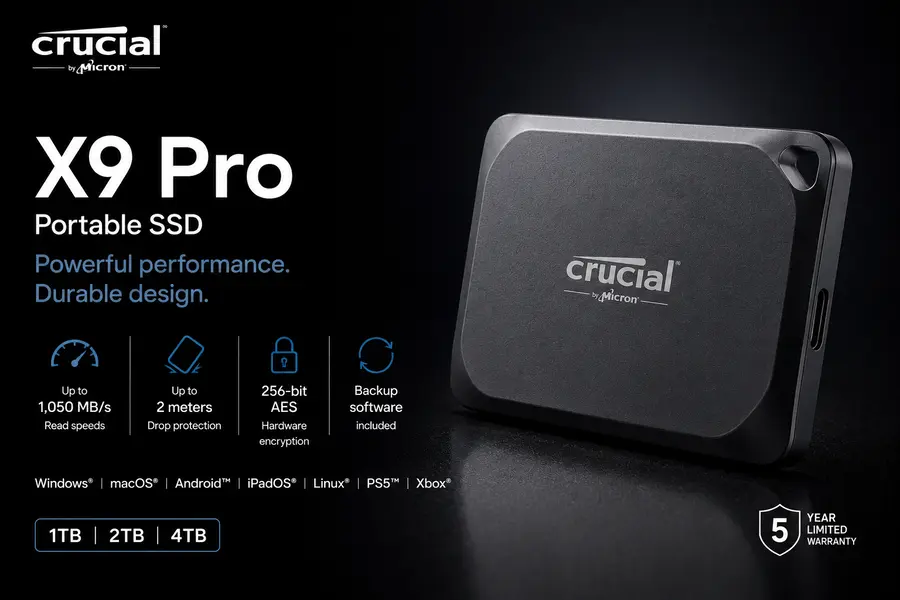
Specs: USB 3.2 Gen 2 | Up to 1,050 MB/s | 1TB / 2TB / 4TB | IP55-rated
The Crucial X9 Pro is where the price-to-performance conversation gets interesting for Linux users in 2026. At around $135 for 2TB, it delivers SSD-class speeds (up to 1,050 MB/s sequential reads) in a rugged, IP55-rated enclosure that handles both dust and low-pressure water jets.
In real-world usage, the X9 Pro performs reliably during sustained transfers. It’s a USB 3.2 Gen 2 drive rather than Gen 2×2, meaning its ceiling is around 10 Gbps — but for most day-to-day Linux workflows, 1,050 MB/s is more than enough. Transferring a 20GB VM image takes under 20 seconds.
The IP55 weather resistance is a meaningful differentiator in this price bracket. If your work takes you outdoors, to job sites, or just means living life without being precious about your hardware, the X9 Pro is more robust than many pricier alternatives.
On Linux, it mounts without issues across all tested distros. Crucial doesn’t pre-install any intrusive software on the drive, so there’s no Windows-only cruft to navigate around.
✔ Pros
- Impressive ~1,050 MB/s speeds at a fair price
- IP55 weather resistance (dust + water protection)
- No bundled software to worry about
- Compact and lightweight
- Available up to 4TB
✖ Cons
- Tops out at USB 3.2 Gen 2 speeds (no Gen 2×2)
- No hardware encryption that functions on Linux
- Competition from PNY RP60 at similar price points
Best for: Linux users who want a fast, rugged portable SSD without paying the Samsung T9 premium.
Check latest price and availability on Amazon:
5. LaCie Rugged SSD Pro 5 — Best Premium Drive for Professional Linux Workflows
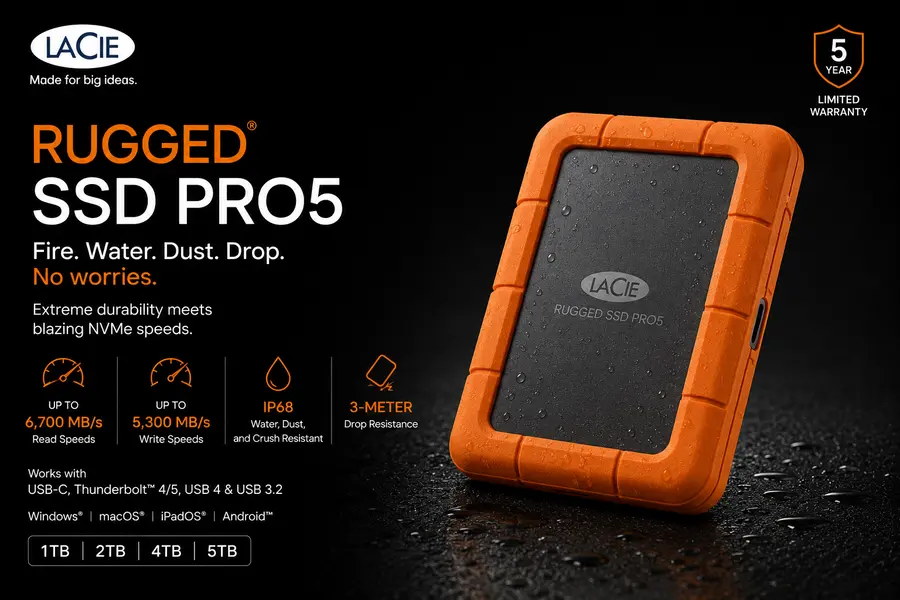
Specs: Thunderbolt / USB-C | Up to 6.6 GB/s (TB5 config) | 2TB / 4TB | 5-year warranty with Rescue Data Recovery
This is the drive for people whose data is genuinely worth protecting. The LaCie Rugged SSD Pro 5 is built for creative professionals and heavy-duty Linux users who can’t afford data loss. At $329 for 2TB and $529 for 4TB, it’s expensive — but it justifies the cost with five-year warranty coverage, Rescue Data Recovery Services, and extraordinary throughput via Thunderbolt connectivity.
In a Thunderbolt 5 configuration, this drive pushes past 6 GB/s — making it relevant for video editors working with 8K RAW footage or data scientists handling enormous datasets. For Linux users on high-end workstations (think ThinkPads with Thunderbolt 4, or desktop builds with Titan Ridge controllers), it’s an absolute beast.
The rugged aluminum-and-rubber housing is MIL-STD-810G tested and drop-resistant up to 6.6 feet. It’s waterproof too. This drive is designed to survive field work.
On Linux, Thunderbolt drives require ensuring the Thunderbolt controller is authorized. Modern Ubuntu and Fedora handle this reasonably well, and the bolt command-line tool simplifies authorization when needed. Once authorized, the drive performs flawlessly.
✔ Pros
- Extraordinary speeds via Thunderbolt 5
- Military-grade ruggedness (MIL-STD-810G)
- 5-year warranty + professional Rescue Data Recovery
- Premium build quality and brand reputation
✖ Cons
- High cost ($329–$529)
- Thunderbolt authorization on Linux requires a brief setup step
- Overkill for most everyday users
- Thunderbolt performance limited on non-TB host machines
Best for: Linux-based creative professionals, data engineers, or power users who need maximum speed and maximum reliability.
Check latest price and availability for LaCie Rugged SSD models:
6. SanDisk Extreme PRO — Best Rugged Portable SSD for Outdoor Linux Use
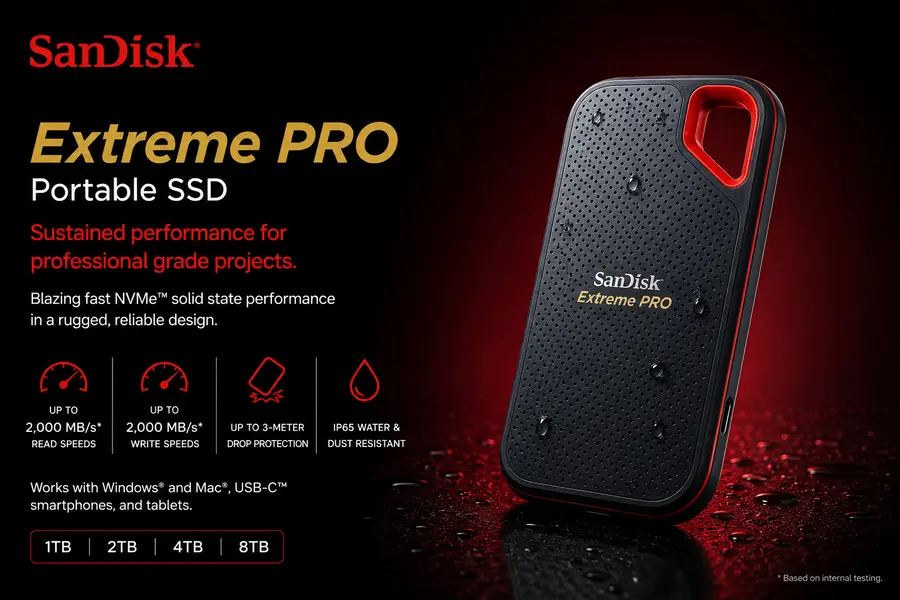
Specs: USB 3.2 Gen 2×2 | Up to 2,000 MB/s | 1TB / 2TB / 4TB | IP65-rated | 5-year warranty
SanDisk’s Extreme PRO consistently holds its rated speeds through full-drive transfers — a detail that separates it from many competitors that throttle significantly after the SLC cache fills. For Linux users doing large sequential operations (cloning drives, moving VM backups, transferring RAW photo libraries), that consistency matters a lot.
The IP65 rating offers full dust resistance and protection against low-pressure water jets from any direction — a step up from the Crucial X9 Pro’s IP55. The drive can handle being rained on, splashed, or set down on a wet surface without complaint.
At around $150 for 2TB, the Extreme PRO sits between the Crucial X9 Pro and the Samsung T9. From user feedback, it’s particularly popular with field-based Linux users — photographers, videographers, and geoscientists — who carry their laptop and storage through outdoor environments.
Linux compatibility is excellent. It mounts as UASP storage automatically on kernel versions 4.x and above. The drive ships in exFAT, so reformatting to ext4 is optional but straightforward.
✔ Pros
- Sustained 2,000 MB/s speeds with minimal throttling
- IP65-rated — meaningfully tougher than IP55 competitors
- 5-year warranty
- Consistent real-world performance under heavy workloads
- Plug-and-play on Linux
✖ Cons
- Slightly pricier than the Crucial X9 Pro for similar SSD speeds
- Needs USB 3.2 Gen 2×2 port for peak throughput
- Proprietary encryption not Linux-compatible
Best for: Linux users who work in the field or need consistently fast transfers in rugged conditions.
Check latest price and availability on Amazon:
7. WD Elements Desktop — Best Budget High-Capacity Desktop HDD for Linux
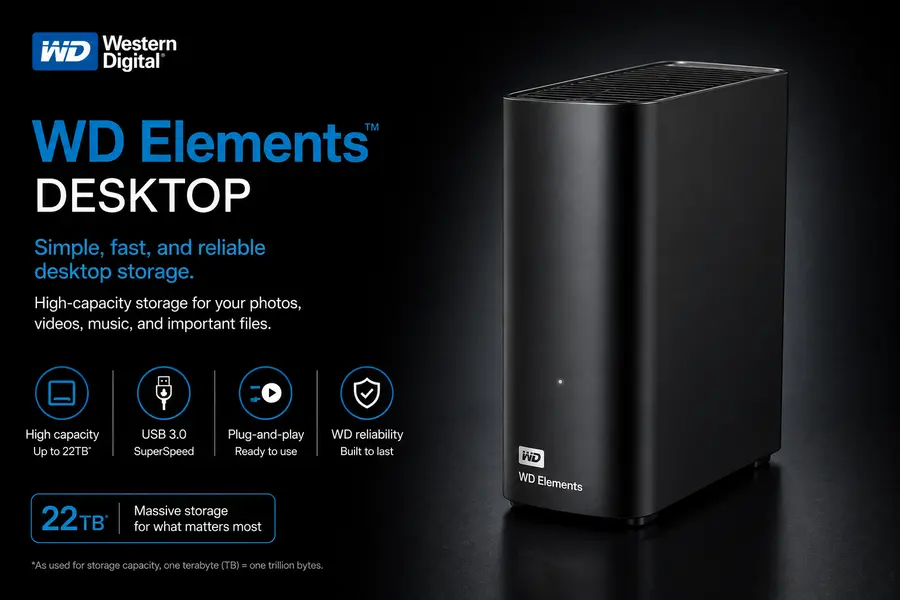
Specs: USB 3.0 | ~130–140 MB/s | 4TB to 18TB+ | 3-year warranty
The WD Elements Desktop is the no-frills option for Linux users who need serious storage at home without paying LaCie prices. It skips bundled software, fancy enclosures, and extras you don’t need — it’s just a reliable HDD in a plain black box, and it works.
For a dedicated Linux backup drive, an archive server, or a machine designated to store ISO files and project backups, the Elements Desktop is hard to fault. At around $40–$90 depending on capacity, the cost per terabyte is favorable, and the 3-year warranty provides adequate peace of mind.
In real-world usage, WD’s 7200 RPM models (typically the larger-capacity variants) deliver ~130–140 MB/s sequential transfer rates over USB 3.0 — adequate for backup workflows where you’re not waiting around staring at a progress bar.
The Linux experience is clean: mount, format, use. No proprietary software dependencies, no hidden partition for Windows utilities. Just a drive.
✔ Pros
- Clean, no-frills design with no Windows-only bloat
- Available in capacities up to 18TB+
- 3-year warranty
- Works flawlessly on all major Linux distros
- Better $/TB than portable alternatives
✖ Cons
- Requires wall power (no bus-powered operation)
- HDD speeds aren’t suitable for running software or VMs directly
- Heavier and less portable than 2.5" drives
Best for: Linux users who want a reliable desktop backup drive or bulk storage archive without any unnecessary complexity.
Check latest price and availability on Amazon:
File System Guide for Linux Users
Choosing the right file system for your external drive is one of those decisions that’s easy to get wrong once and annoying to fix later. Here’s a quick practical breakdown:
ext4 — The best choice if the drive will only ever touch Linux machines. It supports journaling (protects against data corruption on unexpected shutdowns), handles files up to 16TB, and delivers better performance than exFAT for sequential workloads. The downside is that Windows and macOS can’t read ext4 natively — you’d need third-party tools. If you do reformat to ext4, remember to run sudo chown $USER:$USER /mount/point after formatting with GParted, or you’ll run into permissions issues.
exFAT — The practical cross-platform choice. Works natively on Windows, macOS, and Linux (exFAT support has been in the mainline kernel since 5.7). No file size limits, and no complicated permissions setup. If the drive will occasionally visit a Windows machine, exFAT is the path of least resistance.
Btrfs — Worth considering if you’re comfortable with the ecosystem. Btrfs supports transparent compression, built-in snapshots, and checksumming. It’s overkill for most external drive use cases, but for users already running Btrfs on their root filesystem, it enables seamless Timeshift snapshots to the external drive.
NTFS — The only reason to use NTFS on Linux is if someone hands you a pre-formatted drive and you don’t want to reformat it. Linux reads and writes NTFS fine these days (via the ntfs3 kernel driver introduced in kernel 5.15), but it’s not optimal. Don’t start with NTFS if you have a choice.
What to Consider Before You Buy
Speed vs. Capacity
The fundamental trade-off in 2026 remains unchanged: SSDs are fast and compact; HDDs are cheap and spacious. SSDs typically cost around $70 per terabyte, while quality HDDs land around $30 per terabyte for desktop drives. If you’re running VMs, booting live systems, or doing active creative work from the drive, pay for SSD performance. If it’s an archive or backup drive, an HDD will serve you well.
Interface: USB-A, USB-C, or Thunderbolt?
Most modern Linux laptops and motherboards ship with USB-C ports that support USB 3.2 Gen 2 (10 Gbps). That’s enough for the Crucial X9 Pro and WD My Passport SSD. If you want Samsung T9 or SanDisk Extreme PRO performance, you need USB 3.2 Gen 2×2 (20 Gbps) — check your laptop specs before assuming it’s there. Thunderbolt 4 ports technically cap at 10 Gbps for USB devices, which is worth knowing.
Warranty and Reliability
For drives storing critical data, warranty length matters. Samsung and SanDisk offer 5-year warranties on their flagship portable SSDs. WD offers 3 years on the Elements Desktop and My Passport. Seagate’s Expansion Desktop comes with only 2 years, which is shorter than you’d hope. LaCie’s Rescue Data Recovery Services bundled with their drives are genuinely useful for professionals.
Hardware Encryption on Linux
Almost all hardware-encrypted drives rely on proprietary management software that only runs on Windows or macOS. On Linux, these encryption features are typically inaccessible. The better approach: use LUKS (Linux Unified Key Setup) at the software level. It’s supported by every major distro, works with any drive, and gives you full control over your encryption keys.
🚀 Quick Recommendations by Use Case
Final Thoughts
The market for external storage in 2026 is genuinely excellent for Linux users. The kernel-level driver situation has matured to the point where most drives just work — no fumbling with kernel modules or udev rules for the drives on this list. The bigger decisions now are around speed, capacity, and durability rather than compatibility.
If budget isn’t a constraint and speed is critical, the Samsung T9 is the drive to get. It’s the best portable SSD for Linux users available today. For most people though, the WD My Passport hits a sweet spot that’s hard to argue with. And if you’re building out a home server or archive, the Seagate Expansion Desktop offers more terabytes for the money than almost anything else on the market.
Whatever you pick, remember that the best external hard drive for Linux is the one that’s formatted correctly, mounted reliably, and part of a sensible backup strategy. No single drive replaces a solid rsync schedule or a good borgbackup setup — but the right hardware makes those workflows a whole lot smoother.
Disclaimer
This article is intended for informational purposes only. The product recommendations, prices, and availability mentioned in this guide are based on research conducted in May 2026 and may have changed since publication. We do not guarantee the accuracy of pricing or stock availability on third-party platforms such as Amazon. Some links in this post may be affiliate links, which means we may earn a small commission at no extra cost to you if you make a purchase through them. This does not influence our recommendations — every drive on this list was selected based on performance, Linux compatibility, and genuine value. Always do your own research before making a purchasing decision, and verify current specs and pricing directly with the retailer or manufacturer.
🔗 Related Linux Guides
Looking to build the ultimate Linux workstation or gaming setup? Check out these helpful guides next:
About the Author