
Most wireless mice “work” on Linux. The cursor moves, the buttons click, the wheel scrolls. The trouble starts after that. Bluetooth drops after suspend, a thumb button does nothing, or the battery level is a mystery.
This guide is for people who want wireless mice that don’t suck on Linux: reliable, smooth, and remappable without a fight. Every product is sold in the US, and specs come from manufacturer pages and spec sheets. The Linux details come from project documentation (Solaar, libratbag, the Arch Wiki), because manufacturers rarely cover that part.
How I chose: a mouse had to be sold in the US, list Linux support or have documented community support, and offer a connection method that survives suspend and reboot. I haven’t claimed hands-on testing for any model. Where something is community-reported rather than official, the text says so.
What “works on Linux” actually means
Four things to check
- Connection reliability: reconnects after suspend and works at the login screen
- Smooth scrolling: high-resolution scrolling needs the right protocol support
- Button remapping: back, forward, thumb, and gesture buttons
- Battery visibility: knowing the level before it dies
The Logitech HID++ factor
Most picks here are Logitech, and that’s deliberate. Logitech uses a proprietary protocol called HID++, and the Linux community has built solid tooling for it.
- Solaar manages pairing, battery status, and settings for Logitech devices on Unifying, Bolt, Lightspeed, and Nano receivers, plus many devices on USB or Bluetooth. It isn’t a driver and doesn’t support other brands.
- logiops (the
logiddaemon) handles button and gesture remapping. The Arch Wiki says Bolt support arrived in v0.3.0 but still has rough edges. - libratbag and Piper configure gaming mice from several brands. Support depends on the specific model, so check the device list first.
The Options+ gap
Logi Options+ exists for Windows and macOS only. Logitech’s own notes say that on other systems, basic functions work without software. Practically, that means the sensor, wheel, and buttons work on most popular distros without extra drivers. Anything beyond that comes from community tools.
Bluetooth or receiver?
Use the receiver for boot-time use (BIOS, disk-encryption prompts), desktops, and the most predictable link. Use Bluetooth on laptops when you’d rather keep ports free.
Two practical notes:
- Logi Bolt isn’t compatible with older Unifying devices, and Bolt devices won’t pair with other Logitech receivers.
- The MX Master 4 receiver is USB-C, and Logitech lists a USB-C port as a requirement. USB-A-only desktops need Bluetooth or an adapter.
Solaar’s documentation lists the Bolt receiver (046d:c548) as supported, with up to six paired devices.
Quick comparison
| Mouse | Best for | Connection | Sensor | Battery (rated) | List price (US) |
|---|---|---|---|---|---|
| Logitech MX Master 4 | All-round productivity | Bluetooth LE + Logi Bolt USB-C | Up to 8,000 DPI | Up to 70 days | $119.99 |
| Logitech MX Anywhere 3S | Laptops and travel | Bluetooth LE (Bolt on Business version) | Up to 8,000 DPI | Up to 70 days | About $85–$90* |
| Logitech Lift | Vertical ergonomics | Bluetooth LE + Logi Bolt | 4,000 DPI | Up to 24 months (1 AA) | $79.99 |
| Logitech MX Ergo S | Trackball fans | Bluetooth LE + Logi Bolt | Up to 2,048 DPI | Up to 4 months | $119.99 |
| Logitech G309 Lightspeed | Budget, light gaming | Lightspeed 2.4 GHz + Bluetooth LE | Up to 25,600 DPI | 300+ hours (1 AA) | $79.99 (launch MSRP) |
*Pricing for the Anywhere 3S varies by retailer and colour. Check the live price. Street prices on the G309 and Ergo S are often lower.
1. Logitech MX Master 4: best overall
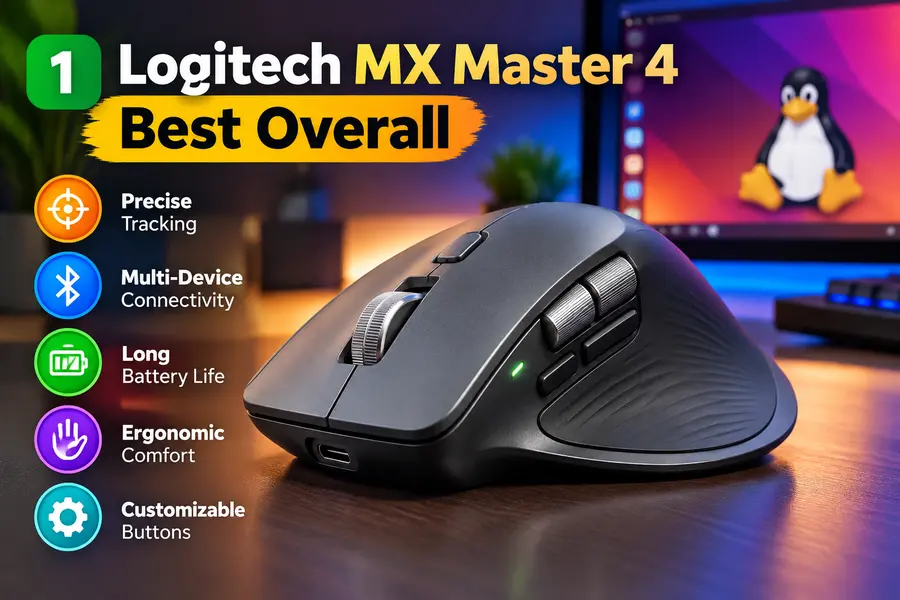
Verified specs
- Darkfield sensor, 200–8,000 DPI in 50 DPI steps
- Bluetooth LE or Logi Bolt USB-C receiver, up to 3 devices
- USB-C rechargeable, up to 70 days (650 mAh per Logitech’s datasheet)
- 128.2 × 88.4 × 50.8 mm, 150 g
- MagSpeed wheel plus thumb wheel
- New: haptic feedback, Actions Ring, and a harder ABS shell
Linux experience: Logitech lists Linux support over both Bluetooth and Bolt, with basic functions working without software. The headline features are the catch. Haptics and the Actions Ring are configured in Options+. Community projects built on Solaar and HID++ can control haptics and replicate the ring, and Solaar exposes haptic settings. Treat all of that as experimental.
Pros: excellent wheel, comfortable for medium-to-large hands, three-device switching.
Cons: the new features are Windows/macOS-first, it needs a USB-C port for the receiver, and it’s the priciest pick here.
Skip it if you own an MX Master 3S. An upgrade mostly buys the features that are hardest to use on Linux. The 3S is still sold at many US retailers, so check stock.
More info: MX Master 4 | MX Master 4 for Business
2. Logitech MX Anywhere 3S: best compact mouse
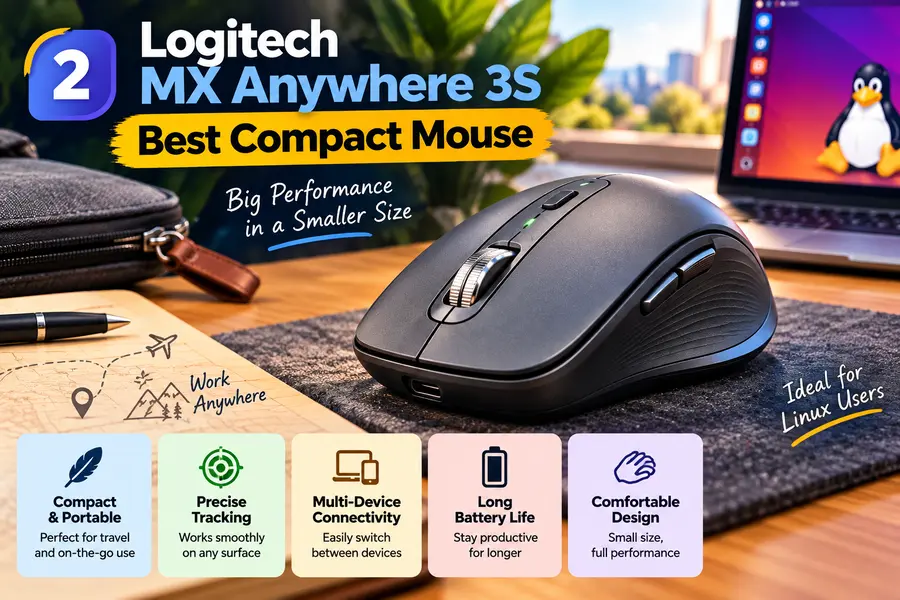
Verified specs
- Darkfield sensor, up to 8,000 DPI
- Bluetooth LE, up to 3 devices. The consumer version ships without a receiver, while the Business version ($99.99) uses Logi Bolt.
- USB-C rechargeable, up to 70 days, about 3 hours from a 1-minute charge
- 100.5 × 65 × 34.4 mm, 95 g with battery
- MagSpeed wheel, 6 buttons, Quiet Click switches
Linux experience: Logitech lists Linux support. Phoronix reported that Linux 6.19 added the 3S to the kernel’s HID++ allowlist for Bluetooth, enabling high-resolution scrolling and related features. Run a recent kernel.
Pros: small but not tiny, quiet clicks, kernel-level HID++ support.
Cons: Bluetooth-only in the consumer version, tiring for large hands, fewer buttons than the MX Master.
More info: Anywhere 3S for Business | Logitech spec sheet
3. Logitech Lift: best vertical mouse

Verified specs
- 57° vertical angle, for small to medium hands
- 4,000 DPI sensor (400–4,000 in 100 DPI steps)
- Bluetooth LE or Logi Bolt, up to 3 devices
- One AA battery, up to 24 months
- Four customizable side buttons plus a SmartWheel
Linux experience: Logitech lists Linux as supported. Remapping goes through Solaar or logiops.
Pros: two years on one AA, an approachable first vertical mouse, fair price.
Cons: not for large hands, and a lower DPI ceiling than the MX line.
More info: Logitech Lift for Business
4. Logitech MX Ergo S: best trackball
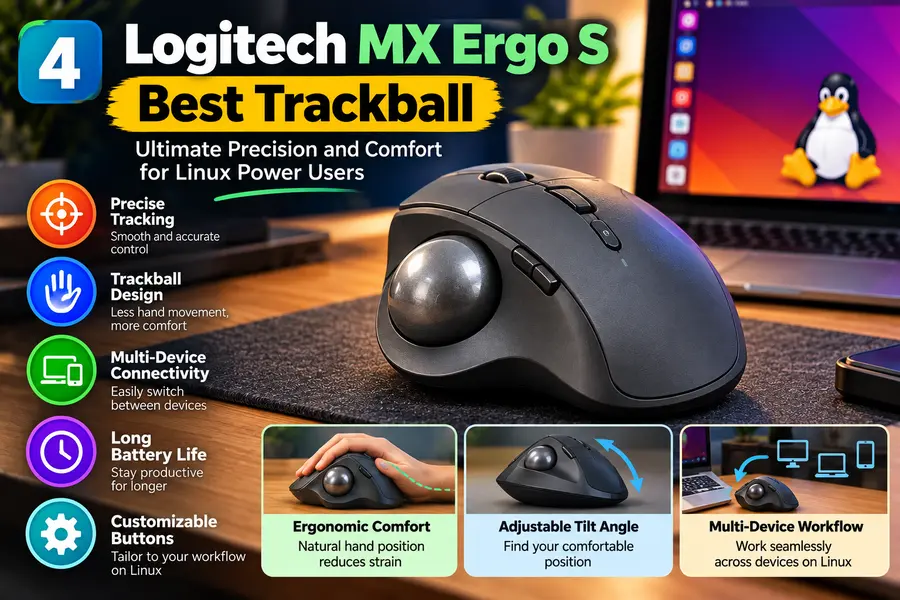
Verified specs
- 20° adjustable tilt, which Logitech says reduces forearm muscle strain by 27%
- Up to 2,048 DPI
- Bluetooth LE or included Logi Bolt receiver, up to 2 devices
- USB-C rechargeable, up to 4 months (cable not included)
- Clicks about 80% quieter than the original MX Ergo, per Logitech
- About 259 g with the metal tilt plate
Linux experience: Logitech lists Linux for both receiver and Bluetooth, with sensor, wheel, and buttons supported on most popular distros. The precision-mode button works without software.
Pros: no hand travel, long battery life, six customizable buttons.
Cons: a week or two to adapt, heavy, and only two Easy-Switch slots.
More info: MX Ergo S
5. Logitech G309 Lightspeed: best budget pick
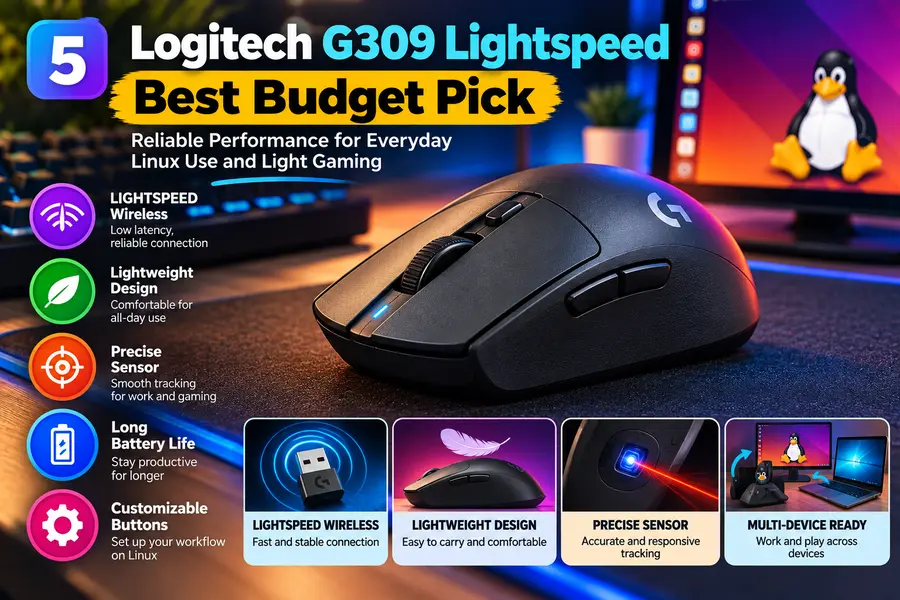
Verified specs
- HERO 25K sensor, 100–25,600 DPI
- Lightspeed 2.4 GHz or Bluetooth LE, range up to 10 m
- One AA: over 300 hours on Lightspeed, about 600 hours on Bluetooth
- 86 g with battery, 68 g with a PowerPlay pad (sold separately)
Linux experience: Be aware that Logitech lists Windows and macOS for this model, and G HUB is Windows/macOS only. On Linux it works as a standard mouse, and Solaar supports Lightspeed receivers for pairing. I couldn’t confirm this model on libratbag’s list, so check before relying on Piper.
Pros: very light for a swappable-AA mouse, excellent battery life, affordable.
Cons: no official Linux support, gaming styling, and no rechargeable option without PowerPlay.
More info: G309 specification page
Which one should you buy?
- MX Master 4: one mouse for everything, if you accept some community tooling.
- MX Anywhere 3S: laptop users who want size and quiet clicks, on a recent kernel.
- Lift: anyone with hand or wrist strain who wants low maintenance.
- MX Ergo S: trackball fans.
- G309: a lighter, cheaper mouse with community-level Linux support.
Buying a non-Logitech mouse? Check these first
I limited the picks to hardware with documented Linux support. If you’re considering another brand, check:
- Does the maker list Linux? If not, look for user reports on your distro.
- Does it pair over standard Bluetooth HID? These generally work without vendor software.
- Is a 2.4 GHz dongle required? Dongles usually enumerate as standard USB HID devices.
- Is it on libratbag’s device list? That decides whether Piper can configure it.
- Does configuration need a web app or Windows-only software? Plan on setting it up once on another machine.
Linux setup by distro
Skip this if your mouse already works for you. Otherwise, install Solaar first. Don’t run Solaar alongside another Logitech manager, since newer tools like OpenLogi warn that they compete for HID++ access.
Ubuntu, Linux Mint, Pop!_OS, and other Debian-based distros
sudo apt install solaarUbuntu carries solaar in the universe repository, and Debian has its own package. Solaar’s documentation warns that distro versions can lag, and offers a stable PPA for Ubuntu/Kubuntu if you need something newer. Reboot or replug your receiver after installing so the udev rules apply.
Fedora
sudo dnf install solaarFedora ships Solaar in its standard repositories, and the udev rules come as a solaar-udev subpackage. Fedora 43 and 44 carried version 1.1.20 at the time of writing.
Arch Linux and Arch-based distros
sudo pacman -S solaarSolaar is in Arch’s extra repository. The Arch Wiki’s MX Master page lists logiops as an AUR package. CachyOS, Manjaro, and EndeavourOS users should check their own repositories, since package sets differ.
openSUSE
Solaar’s documentation links a community-maintained openSUSE package. Search for it on software.opensuse.org and confirm the version matches current Solaar.
NixOS
The Solaar documentation points to a community flake (Svenum/Solaar-Flake), and nixpkgs carries logiops (version 0.3.5 at the time of writing). Because the NixOS module approach also registers udev rules, prefer a module-based setup over a bare package install.
Any distro: Flatpak
flatpak install flathub io.github.pwr_solaar.solaarThe Flatpak doesn’t install the udev rule, so you copy it manually as root into /etc/udev/rules.d. Use rules.d-uinput/42-logitech-unify-permissions.rules on Wayland, or rules.d/42-logitech-unify-permissions.rules on X11. Then run sudo udevadm control --reload-rules or reboot.
Any distro: pip or pipx
pipx install --system-site-packages solaarThis also skips the udev rule, so copy it manually, as above.
Wayland versus X11
Solaar’s documentation says it runs best under X11 with the Xtest extension. It runs under Wayland, but parts of Solaar rules won’t work, and simulating input needs write permission on /dev/uinput.
Quick troubleshooting
- Mouse not showing in Solaar: re-check the udev rule, reload rules, and replug the receiver.
- Old Solaar version: use your distro’s newer repository, a PPA, or Flatpak.
- Scrolling feels off: try the other connection method. The Arch Wiki notes that high-resolution scrolling can depend on how the mouse is connected.
- Remapping not applying at boot: check that the
logidservice is enabled and running.
Frequently asked questions
Do Logitech mice work on Linux?
Yes. Logitech lists Linux as supported on the MX Master 4, MX Anywhere 3S, Lift, and MX Ergo S, with basic functions working without extra software.
Is there a Logi Options+ for Linux?
No. Options+ is available for Windows and macOS only, so Linux users rely on community tools like Solaar and logiops.
Does AnonSurf make me completely anonymous?
No, it routes system traffic through Tor, but logins, browser fingerprints and habits can still identify you.
Is AnonSurf the same as a VPN?
No, AnonSurf uses the Tor network, while a VPN sends traffic through one provider you have to trust.
Which kernel does Parrot OS 7.4 use?
It ships with Linux kernel 7.1 on a Debian 13.6 “Trixie” base.
Final thoughts
The best wireless mice on Linux are the ones that match how you work and how much tinkering you’ll tolerate. Logitech’s MX and Ergo lines stay the practical choice because the community has built real tooling around them. Just go in knowing the premium software features arrive on Windows and macOS first.
If you’re unsure, start with the MX Master 4 for a desk or the MX Anywhere 3S for a laptop, then add Solaar for battery readouts and settings.
Sources and further reading
- Solaar documentation
- Solaar installation guide
- Solaar supported devices
- Solaar Flatpak on Flathub (GitHub)
- Solaar on Fedora Packages
- logiops on GitHub
- libratbag on GitHub
- Piper on GitHub
- Arch Wiki: Logitech MX Master
- Phoronix: MX Anywhere 3S HID++ support in Linux 6.19
- Logitech MX Master 4 for Business datasheet (PDF)
Disclaimer: This article is for informational purposes only. Specifications, prices, and software support come from manufacturer pages and US retailer listings and can change without notice, so confirm details on the manufacturer’s website before you buy. Linux compatibility varies by distribution, kernel version, and desktop environment. Community tools mentioned here are third-party projects and are not supported by Logitech. This site isn’t affiliated with any manufacturer named above.
About the Author