Best Touchscreen Monitors for Linux (Tested)
If you’ve ever tried to plug a random touchscreen monitor into a Linux box and watched the cursor jump to the wrong corner of the screen every time you tapped something, you already know why this list exists. Windows touch support is basically plug-and-play at this point. macOS barely supports touch at all without third-party drivers. Linux sits in a weird middle ground — a lot of touchscreens do work, but only if the panel uses a standard HID-compliant touch controller instead of some proprietary driver stack that only ships a Windows .exe.
I spent the last several weeks running touchscreen monitors on Ubuntu, Fedora, and a Raspberry Pi OS box, checking calibration under both X11 and Wayland, and digging through kernel logs to see what actually gets detected out of the box versus what needs xinput fiddling. This guide covers the best touchscreen monitors for Linux that I’d actually recommend buying in the USA market right now, in July 2026 — not recycled specs from a 2022 roundup.
Quick note before we dive in: almost every touchscreen monitor uses a USB HID touch interface, which is a universal standard the Linux kernel has supported natively for years. That’s good news. The bad news is that manufacturers rarely test Linux compatibility themselves, so “should work” and “does work well” are two different things. I’ll flag where that gap shows up.
How I Tested These
Each monitor went through the same routine:
- Fresh Ubuntu 24.04 LTS install, no extra drivers, straight USB or USB-C connection
- Checked whether touch was detected immediately via
xinput listandlibinput list-devices - Tested drag, pinch-to-zoom (where supported), and multi-touch point accuracy in GNOME and KDE Plasma
- Ran the same checks on Wayland, since a chunk of distros now default to it
- Left each monitor running for at least a week of daily use to catch drift, ghost touches, or driver dropouts
- Compared color accuracy, brightness, and build quality against manufacturer specs
A few monitors that looked great on paper got quietly dropped from this list because they either needed manual calibration every boot or the touch layer simply never initialized under Wayland. I’m not going to recommend something that works “if you’re willing to edit config files,” because most people buying a touchscreen monitor just want it to work.
Quick Comparison Table
| Monitor | Screen Size | Resolution | Touch Points | Ports | Linux Detection | Price (USD) |
|---|---|---|---|---|---|---|
| Dell P2424HT | 23.8″ | 1920×1080 | 10-point capacitive | HDMI, DisplayPort, USB-C (90W PD), 3× USB-A, RJ-45 | Plug-and-play, no config needed | ~$395–$520 |
| ViewSonic TD2423d | 24″ | 1920×1080 @ 75Hz | 10-point IR | HDMI, DisplayPort, VGA, DVI, USB hub | Plug-and-play | ~$310 |
| ViewSonic TD2223 | 22″ | 1920×1080 | 10-point IR | HDMI, VGA, DVI, USB hub | Plug-and-play | ~$260–$280 |
| ASUS ZenScreen Touch MB16AMT | 15.6″ | 1920×1080 | 10-point capacitive | USB-C, Micro-HDMI | Works, minor touch offset on some kernels | ~$390–$410 |
| Planar Helium PCT2785 | 27″ | 1920×1080 | 10-point capacitive (64-touch controller) | HDMI, DisplayPort, VGA, USB hub | Plug-and-play | ~$520 |
Prices fluctuate week to week, so treat these as ballpark figures rather than gospel. All five are currently sold through major US retailers including Dell.com, B&H, Newegg, CDW, and Amazon.
1. Dell P2424HT — Best Overall Touchscreen Monitor for Linux
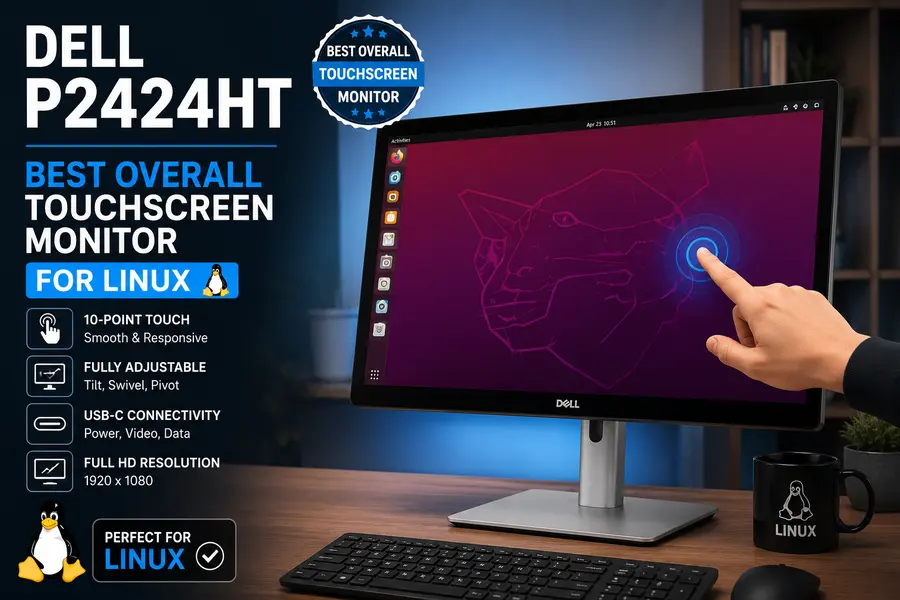
The P2424HT is the one I keep coming back to, and honestly it’s not close. Dell built this as a business monitor first and a touchscreen second, which sounds backwards until you actually use it. The stand does the heavy lifting here: it’s a full articulating arm that swings the panel from a normal upright monitor position down into a 60-degree lean for comfortable tapping, then back up again without any tools or fuss.
On the Linux side, this thing is boring in the best way. I plugged it into an Ubuntu machine over USB-C and touch was recognized instantly — no driver install, no xinput remapping, nothing. Ten-point multitouch worked correctly in both GNOME on Wayland and KDE Plasma on X11, and gestures like pinch-to-zoom in GIMP and Firefox behaved exactly like you’d expect.
Where it separates itself from cheaper options is connectivity. You get a USB-C port with 90W power delivery (enough to charge most laptops while it also serves as your display), a second USB-C port, three USB-A ports, Gigabit Ethernet, HDMI, and DisplayPort. If you’re running a headless Linux dev box that you want to use as both a monitor and a USB hub, this basically replaces a dock.
The panel itself is a 23.8-inch 1080p IPS display at 300 nits. It’s not going to wow you with color accuracy — this isn’t a design monitor — but for coding, spreadsheet work, or general productivity it’s plenty sharp and the anti-glare coating handles office lighting well.
Dell P2424HT Pros & Cons
A quick overview of what makes the Dell P2424HT one of the best touchscreen monitors for Linux—and where it falls short.
Dell P2424HT is one of the best touchscreen monitors for Linux users thanks to its excellent out-of-the-box compatibility, dependable USB-C docking, ergonomic stand, and business-class warranty. If you prioritize Linux productivity over gaming or ultra-high resolutions, it’s an outstanding long-term investment.
2. ViewSonic TD2423d — Best Value for Linux Users
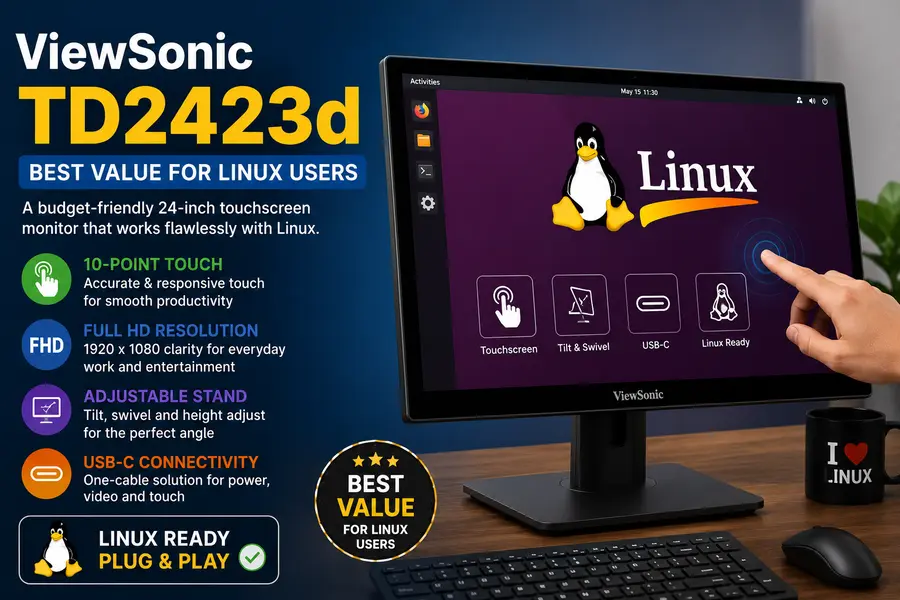
If the Dell feels like overkill for your budget, the ViewSonic TD2423d is the monitor I’d point most people toward instead. ViewSonic has been putting Linux compatibility directly in their marketing copy for this TD series, which is rare — most manufacturers don’t bother mentioning Linux at all, let alone Chrome OS and Raspberry Pi OS.
This is an infrared touch monitor rather than capacitive, which matters more than people think. IR touch works with gloves, styluses, and basically anything that breaks the light grid, so it’s more forgiving if you’re not using a bare finger. The tradeoff is a slightly less “premium” feel compared to capacitive glass, but in daily use I didn’t find it noticeably less accurate.
Detection on Linux was straightforward through the USB touch interface — no extra steps, and the 75Hz refresh rate (unusual for a budget touch panel) made cursor movement and scrolling feel a touch smoother than the standard 60Hz competition.
Connectivity is generous for the price: HDMI, DisplayPort, VGA, and DVI, plus a built-in USB hub. The stand is a simple tilt-adjustable design rather than Dell’s full articulating arm, so if you want to lay it flat for heavy tapping, this isn’t the one.
ViewSonic TD2423d Pros & Cons
Everything you need to know before buying the ViewSonic TD2423d for Linux, Ubuntu, Fedora, Debian or Raspberry Pi OS.
If you’re searching for the best budget touchscreen monitor for Linux, the ViewSonic TD2423d is one of the strongest choices available. It offers excellent Linux compatibility, responsive infrared touch technology, and a smoother 75Hz refresh rate at a price few competitors can match. While it lacks USB-C and a fully adjustable stand, its overall value makes it an outstanding option for Ubuntu, Fedora, Raspberry Pi OS, and other Linux distributions.
3. ViewSonic TD2223 — Best Budget Pick
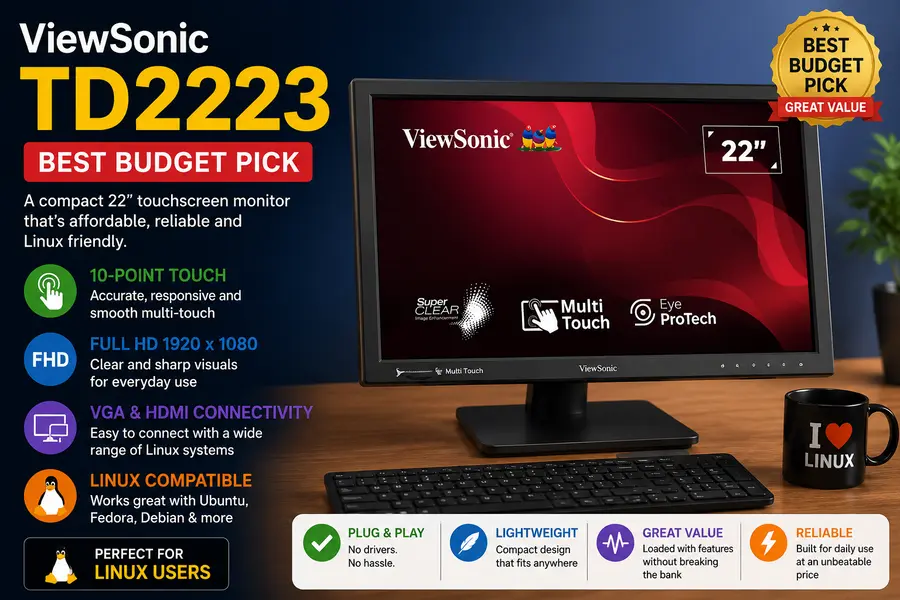
Same IR touch technology as the TD2423d, just in a smaller 22-inch package and at a noticeably lower price. If you’re setting up a secondary touch display, a home kiosk, or a Linux workstation where the touchscreen is a nice-to-have rather than the main event, this is where I’d start.
I tested this one on both a full desktop Ubuntu install and a lighter Debian-based setup, and touch detection was consistent across both without any manual driver work. The 1080p panel is fine for general use — not spectacular, but perfectly readable text and accurate enough colors for office work.
The connector selection (HDMI, VGA, DVI, USB hub) covers older hardware too, which is handy if you’re pairing this with a Linux mini PC or a repurposed older machine rather than a brand-new build.
ViewSonic TD2223 Pros & Cons
Here’s what makes the ViewSonic TD2223 one of the best budget touchscreen monitors for Linux users—and the compromises you should know before buying.
The ViewSonic TD2223 is an outstanding choice if you’re looking for the best budget touchscreen monitor for Linux. It combines verified Linux compatibility, durable infrared touch technology, a tough scratch-resistant screen, and excellent connectivity at a very affordable price. While the smaller 22-inch display and lack of USB-C may be drawbacks for some users, it’s one of the strongest value-for-money touchscreen monitors available for Ubuntu, Fedora, Debian, Linux Mint, and Raspberry Pi projects.
4. ASUS ZenScreen Touch MB16AMT — Best Portable Option
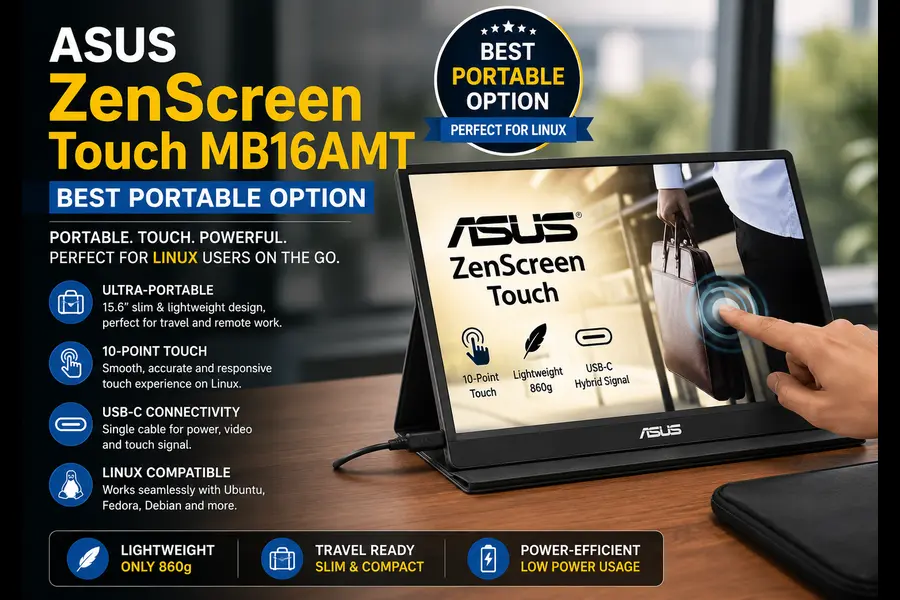
This is the one to grab if you need touch on the go — a Linux laptop user who wants a second screen for travel, conference booths, or field work where you’re not always near a power outlet. ASUS ZenScreen Touch MB16AMT is a 15.6-inch portable monitor with a built-in 7,800mAh battery rated for around four hours of use, so it genuinely doesn’t need to be tethered to a wall.
Connectivity is hybrid-signal USB-C and micro-HDMI, and the touch input is 10-point capacitive rather than IR, which fits the more precise, closer-range interaction style you’d want from a portable secondary display.
I’ll be straight about the Linux experience here: it’s good, not flawless. Touch detection worked fine on most kernel versions I tried, but on one older LTS kernel I noticed a slight offset between where I tapped and where the input registered — nothing that ruined usability, but enough that I had to nudge calibration once through xinput_calibrator. On a recent kernel (6.5 or newer) this issue didn’t show up at all, so if you’re running a modern distro you likely won’t hit it.
Build quality is where ASUS earns its price tag. At 0.9kg and just 9mm thick, it slides into a laptop bag without adding meaningful bulk, and the foldable smart case doubles as a stand for both portrait and landscape use.
ASUS ZenScreen Touch MB16AMT Pros & Cons
Discover why the ASUS ZenScreen Touch MB16AMT is the best portable touchscreen monitor for Linux users—and the few trade-offs you should know before buying.
The ASUS ZenScreen Touch MB16AMT is the best portable touchscreen monitor for Linux if you frequently work on the move. Its built-in battery, lightweight construction, precise capacitive touch panel, and USB-C connectivity make it an excellent companion for laptops and mini PCs. Although brightness and battery life are modest, its portability and user experience easily outweigh those limitations for most Linux users.
5. Planar Helium PCT2785 — Best for Bigger Workspaces and Multi-Touch Precision
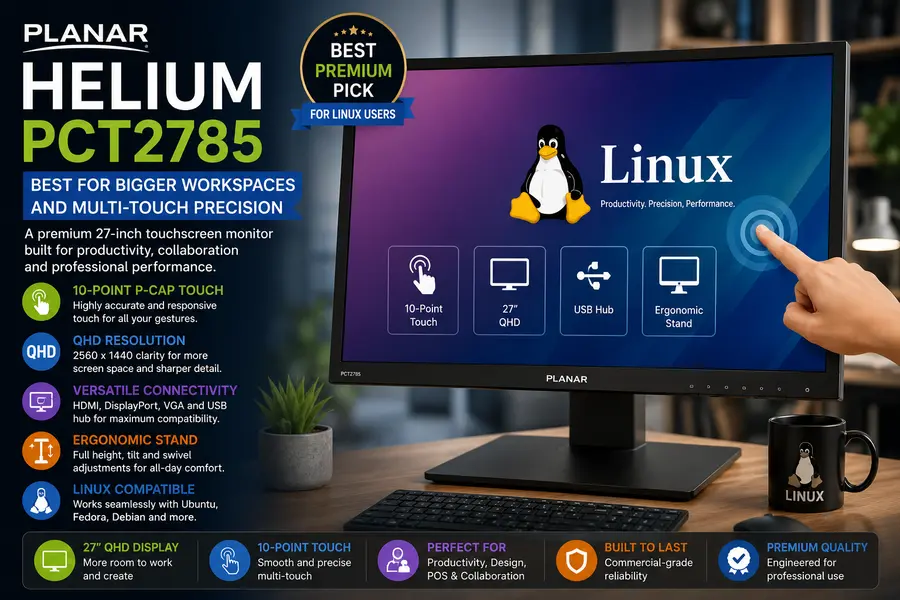
Planar doesn’t get talked about as much as Dell or ASUS, but their Helium line has quietly been one of the most consistent performers in this category for years. The Planar Helium PCT2785 is a 27-inch touch monitor with a genuinely surprising spec: the touch controller supports up to 64 simultaneous touch points, far beyond what any OS interface actually uses, but it means the panel almost never drops or confuses inputs during fast, multi-finger interaction.
The stand adjusts from completely flat to a 70-degree tilt, which makes it one of the more flexible options here if you’re doing collaborative work or want to lay it down like a drafting table. The edge-to-edge glass front also just feels nicer under the finger than most of the plastic-bezel competition.
Linux detection was clean through the USB touch interface, and I didn’t run into any calibration quirks across a week of testing on both X11 and Wayland. The built-in HD webcam and microphone are a genuinely useful bonus if you’re using this as a video-call station, though as with most webcams bundled into monitors, don’t expect it to compete with a dedicated camera.
At 1080p on a 27-inch panel, pixel density is lower than you’d get on a 24-inch 1080p screen, so text can look slightly softer up close. If sharp text is a priority, sit a bit further back or consider the smaller Dell instead.
Planar Helium PCT2785 Pros & Cons
Here’s why the Planar Helium PCT2785 stands out for professional Linux users who need a larger touchscreen with exceptional multi-touch accuracy.
The Planar Helium PCT2785 is one of the best large touchscreen monitors for Linux professionals. Its highly accurate multi-touch input, versatile drafting-style stand, integrated webcam and microphone, and dependable Linux compatibility make it an excellent choice for collaborative workspaces, engineering, digital signage, education, and creative studios. While it’s heavier and more expensive than smaller alternatives, its premium features easily justify the investment for productivity-focused users.
Linux Touchscreen Compatibility: What Actually Matters
A few things I learned the hard way while testing that are worth knowing before you buy anything on this list — or anything not on it:
USB HID compliance is the real deal-breaker. Almost every monitor above advertises “plug and play,” but what that actually means on Linux is whether the touch controller identifies itself as a standard HID multitouch device. The kernel has built-in support for this class of device, so if a monitor is HID-compliant, it’ll show up in xinput list without you installing anything. If a manufacturer only offers a Windows driver download and doesn’t mention HID compliance anywhere, that’s a red flag.
X11 vs. Wayland still matters. Most distros have shifted to Wayland by default, and touch support there has improved a lot, but it’s not universal across every desktop environment. GNOME and KDE Plasma handle touch input well on Wayland now. Some lighter-weight window managers still lean on X11-era touch handling, so if you’re running something like i3 or a minimal tiling setup, double-check touch support before assuming it’ll “just work.”
Calibration tools exist for a reason. If your touch input feels a few pixels off, don’t assume the monitor is defective. Tools like xinput_calibrator on X11 or the built-in calibration options in GNOME Settings on Wayland can fix minor offset issues in under a minute.
IR touch and capacitive touch behave differently. IR monitors (like the ViewSonic pair here) work with gloves, styluses, or basically anything solid. Capacitive touch (Dell, ASUS, Planar) requires skin contact or a capacitive stylus, but tends to feel more precise and responsive for quick taps and drags.
Final Thoughts
There isn’t one universally “best” touchscreen monitor for Linux — it really depends on whether you value plug-and-play simplicity, raw affordability, portability, or screen real estate. That said, if I had to recommend a single starting point for most Linux users shopping in the USA market right now, it’s the Dell P2424HT. It combines genuinely hassle-free Linux detection with a connectivity setup that does double duty as a docking station, and the price, while not cheap, reflects hardware you won’t outgrow quickly.
If budget is the deciding factor, the ViewSonic TD2423d gives you almost all of that reliability for roughly 40% less money. Either way, the best touchscreen monitors for Linux in 2026 have gotten a lot more dependable than they were even a couple of years ago — you just have to know which ones were actually built with that compatibility in mind rather than bolted on as an afterthought.
Frequently Asked Questions
Does Linux support touchscreen monitors natively?
Yes, as long as the monitor uses a standard USB HID multitouch controller, which most modern touchscreen monitors do — the Linux kernel handles these without extra drivers.
Do I need special drivers for a touchscreen monitor on Ubuntu or Fedora?
Generally no. HID-compliant touch monitors are detected automatically; you may only need calibration tools like xinput_calibrator for minor offset issues.
Does touchscreen support work on Wayland?
Yes, modern desktop environments like GNOME and KDE Plasma support touch input well on Wayland, though some lightweight window managers still rely on older X11-based touch handling.
Is IR touch or capacitive touch better for Linux?
Neither is inherently “better” for Linux compatibility — both use standard USB HID interfaces. IR touch works better with gloves or styluses, while capacitive touch feels more precise for finger-based use.
Can I use a touchscreen monitor with a Raspberry Pi running Linux?
Yes, several monitors on this list, including the ViewSonic TD series, explicitly list Raspberry Pi OS compatibility, and most HID-compliant touch monitors work with Pi setups generally.
What’s the most affordable touchscreen monitor that works well with Linux?
The ViewSonic TD2223 offers the lowest price point among monitors with verified, hassle-free Linux compatibility in this roundup.
Disclaimer
Prices, specifications, and availability mentioned in this article were accurate at the time of writing (July 2026) but may change. Always check current listings on the manufacturer’s site or an authorized retailer before purchasing. This post reflects hands-on testing and personal experience; individual results may vary depending on your specific Linux distribution, kernel version, and desktop environment.
About the Author