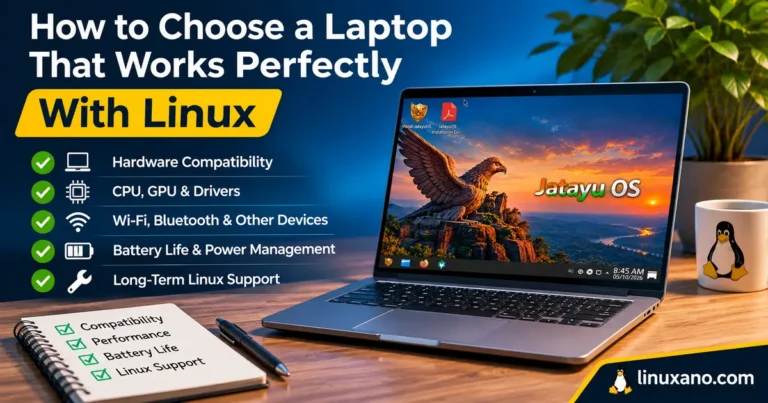
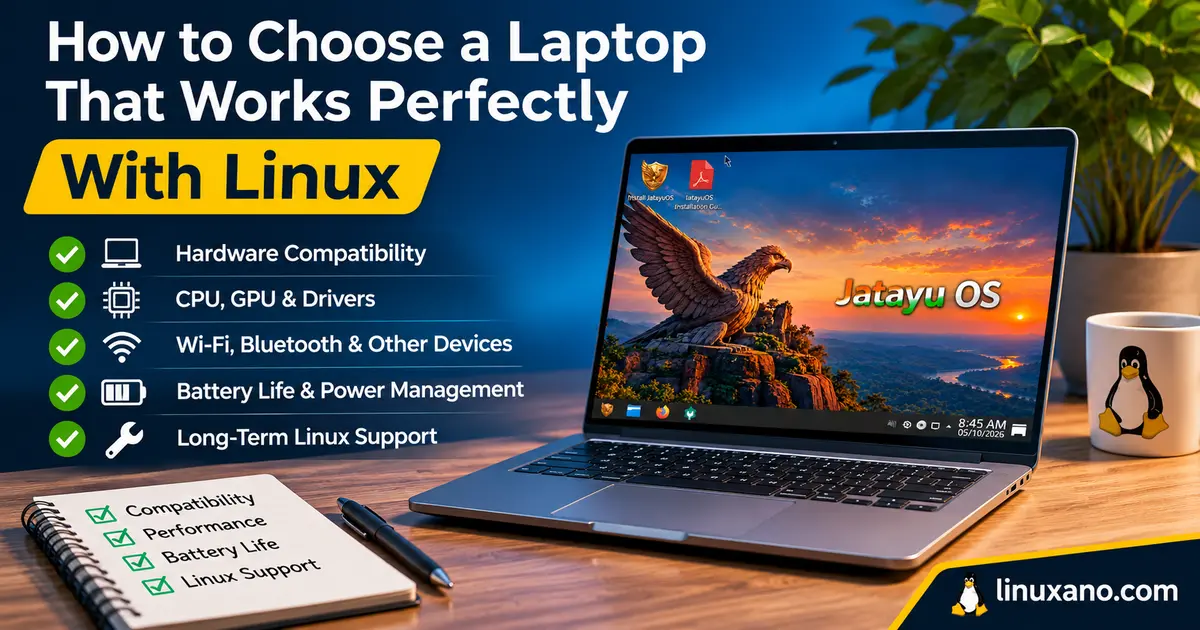
How to Choose a Laptop That Works Perfectly With Linux
Anyone who has bought a laptop and then lost a weekend to dropped Wi-Fi, a dead fingerprint reader, or a lid that never wakes up knows the problem. Hardware that looks perfect on a spec sheet can be miserable under Linux when a single component has no driver.
The good news is that 2026 is the best year yet to avoid that. Framework now sells a laptop certified for Ubuntu, System76 has rebuilt its flagship ultraportable around Intel’s newest chips, and Lenovo has new ThinkPads on Canonical’s certified-hardware list. This guide shows you how to choose a laptop that works perfectly with Linux: which components matter, which traps to avoid, and which models deserve a place on your shortlist this November.
Choose Your Perfect Linux Laptop
7 essential things to check before buying a Linux-compatible laptop. Make a smarter decision and avoid hardware compatibility problems.
Choose Your Linux Distribution First
Newer processors may require newer kernels. Match your laptop with a suitable distribution such as Ubuntu 26.04 LTS or Fedora.
Prefer Intel or AMD x86
Traditional Intel and AMD x86 laptops generally offer broader Linux compatibility. Snapdragon X and Apple Silicon still have trade-offs.
Choose Graphics Carefully
Integrated graphics suit most users. Consider dedicated graphics for CUDA, demanding applications and heavy gaming.
Check the Wi-Fi Chipset
Intel is generally a safe choice. MediaTek is usually fine, while some Broadcom chipsets may need additional driver work.
Consider Linux-First Laptops
Prefer Linux-certified or Linux-first laptops when your budget allows. They can reduce hardware compatibility risks.
Check Hardware Compatibility
Consult Ubuntu Certified Hardware and the Linux Hardware Database before purchasing.
🔌 07 / Test With a Linux Live USB
Whenever possible, boot a Linux Live USB before installing. Test Wi-Fi, Bluetooth, audio, graphics, touchpad and sleep functionality.
Don’t buy a laptop based only on its processor or RAM. Check complete hardware compatibility, driver availability and Linux kernel requirements before spending your money.
How We Researched This Guide
This guide is built from manufacturer announcements, Canonical’s certified-hardware listings, vendor documentation, and independent testing from Phoronix and Notebookcheck, all published through November 2026. Where sources disagree on a price or spec, we give a range or say so. Vendor prices move often, so treat every figure as a starting point and confirm it on the seller’s page.
What “Works Perfectly” Actually Means
Booting to a desktop is a low bar. A laptop that works perfectly with Linux passes every item below without kernel parameters or compiled drivers:
- Wi-Fi and Bluetooth connect on first boot and survive suspend and resume.
- Closing the lid saves battery, and opening it returns you to a working desktop.
- The touchpad supports smooth gestures under Wayland.
- Webcam, microphone and speakers work in video calls.
- Brightness keys, keyboard backlight and function keys respond.
- Firmware updates arrive through your normal update tool.
- External monitors and USB-C docks behave.
Use that list as a scorecard. Fail two or three items and you’ll feel it daily, however fast the CPU is.
Step 1: Choose Your Distribution First
Most buying guides skip this, yet it changes which laptops are safe. Brand-new chips often need a recent kernel and graphics stack, and distributions update at very different speeds.
Here’s where things stand this autumn, based on Phoronix’s August 2026 testing:
- Ubuntu 26.04 LTS ships Linux 7.0. It’s stable and long-supported, but it can trail slightly on very new silicon.
- Fedora 44, Arch, CachyOS and openSUSE Tumbleweed were on Linux 7.1. Phoronix found that moving a Panther Lake laptop from kernel 7.0 to 7.1 delivered measurable performance gains.
- System76 preinstalls Pop!_OS 24.04 LTS (with the COSMIC desktop), Ubuntu 24.04 LTS or Ubuntu 26.04 LTS.
If you want a set-it-and-forget-it machine, choose an LTS release and a laptop certified for it. If you want the newest hardware, choose Fedora and accept more frequent updates.
One warning from Framework’s community forum: older Ubuntu 24.04 point releases had suspend and Wi-Fi trouble on some Ryzen AI laptops, which owners say Ubuntu 26.04 resolved. Kernel age matters more than brand loyalty.
Step 2: Pick a CPU Platform With a Good Track Record
Intel Core Ultra Series 3 (Panther Lake)
Panther Lake debuted in 2026 laptops from Framework, System76 and Lenovo. Phoronix reported that the Framework Laptop 13 Pro runs well on Ubuntu 26.04 LTS and other modern distributions. Intel has a long history of landing Linux support early, which is why Intel platforms tend to be the lowest-risk pick.
AMD Ryzen AI 300 Series
AMD is excellent on Linux, especially for integrated graphics. Framework, TUXEDO and Lenovo all offer AMD models. The caveat is the one above: pair it with a recent kernel such as Ubuntu 26.04 or Fedora.
Snapdragon X and Apple Silicon
Treat both with caution. Snapdragon laptops depend on Arm-specific firmware work that mainstream distributions don’t yet treat as a smooth, certified experience. Apple Silicon can run Asahi Linux, but some hardware features remain incomplete. If your goal is zero friction, stay with x86.
Step 3: Get the Graphics Decision Right
Graphics problems cause more Linux laptop regrets than any other component.
- Integrated Intel Arc or AMD Radeon uses open-source drivers that ship in the kernel and Mesa. It’s the smoothest option for battery life, Wayland and suspend. Phoronix’s distribution tests on the Framework 13 Pro used an Arc B390 integrated GPU, and all six distributions installed without special setup.
- NVIDIA discrete GPUs work, but add moving parts. RTX 50-series (Blackwell) cards need NVIDIA’s open kernel modules, and hybrid graphics must be configured so the dGPU sleeps when idle.
- Who truly needs a dGPU: people running CUDA workloads, 3D rendering or serious gaming. Everyone else gets longer battery life and fewer headaches from integrated graphics.
If you do want NVIDIA, buy a model certified with that exact GPU. Canonical’s list includes ThinkPad T1g Gen 9 configurations with an RTX 5060 Max-Q (Core Ultra 7 366H) and an RTX 5070 Max-Q (Core Ultra 9 386H), both certified for Ubuntu 26.04 LTS. Someone tested the full combination.
Step 4: Check the Wi-Fi and Bluetooth Chip
The wireless card is a small part with outsized consequences, and many spec sheets leave it out.
| Chip family | Typical Linux experience |
|---|---|
| Intel (AX/BE series) | Safest choice, widely supported |
| MediaTek (MT7921/MT7925) | Usually fine on recent kernels; check reports for your exact model |
| Realtek | Mixed; some need extra firmware or out-of-tree drivers |
| Broadcom | Long history of user complaints; avoid |
Look up the chip name on the manufacturer’s spec page or in the Linux Hardware Database. If the card is soldered down, you can’t swap in an Intel one later, so verify it before you buy.
Step 5: Judge Firmware, Suspend and Battery Together
These three are linked, and they separate “works” from “works perfectly.”
Suspend and resume. Many modern laptops use Modern Standby-style sleep, which Linux handles as s2idle. Drain during suspend varies by model, so read owner reports on overnight battery loss.
Firmware updates. Check whether the vendor participates in the Linux Vendor Firmware Service (LVFS), which delivers BIOS and device updates through fwupd. Framework, System76, Star Labs, TUXEDO, Lenovo and Dell all take part. These updates sometimes patch security flaws, so this matters beyond convenience.
Open firmware. System76 ships coreboot-based open firmware, and Star Labs also uses coreboot. It’s a bonus for privacy-minded buyers, not a requirement for a good experience.
Battery reality check. Marketing numbers are best-case. System76 advertises up to 18 hours on the 2026 Lemur Pro. Framework has long traded some battery density for repairability, though the 13 Pro’s 74Wh pack is 21% larger than the previous generation’s. Read independent battery tests before you trust any claim.
Step 6: Don’t Forget the Small Hardware
These are the details that quietly ruin a laptop:
- Fingerprint reader: Check the libfprint supported-device list. Some sensors have no Linux driver.
- Webcam: Newer platforms sometimes use camera designs that need extra software, so confirm your exact model works.
- Audio: Many laptops rely on Sound Open Firmware. Speaker and microphone quality can differ from the Windows experience.
- Touchpad: Precision-style pads generally work well under libinput. Haptic touchpads, like the one on the Framework 13 Pro, are newer, so look for Linux-specific reviews.
- Cellular (WWAN): Notebookcheck’s June 2026 test of the ThinkPad T16 Gen 5 AMD noted that Lenovo lists Fedora and Ubuntu as supported, but some features, such as a WWAN module, may not work. Skip cellular modems unless the vendor confirms Linux support.
- Display: Matte panels and high refresh rates are fine, but fractional scaling and HDR depend on your desktop environment.
Step 7: Decide How You Want to Buy
There are three routes, and each trades risk against price.
- Linux preinstalled (lowest risk). System76, TUXEDO and Star Labs design for Linux, so drivers, firmware and support line up. Framework’s 13 Pro also ships with Ubuntu preloaded.
- Distribution-certified (low risk). Search Ubuntu’s certified laptop database for your exact model. Certification covers listed configurations only, so a different CPU or GPU option may not be included. Linux Magazine has also reported that Ubuntu 26.10 will include a built-in certified-hardware check.
- Generic laptop, self-installed (highest risk). This works best on ThinkPads and similar business machines with years of community documentation. It’s the cheapest route, but troubleshooting is your job.
Comparison Table: Linux Laptops Worth Shortlisting (November 2026)
Prices are launch or starting figures from official announcements and reputable coverage. Memory and storage costs have been volatile this year, so confirm on the vendor’s site before ordering.
| Laptop | Processor and graphics | Display and battery | Memory and storage | Linux support | Starting price |
|---|---|---|---|---|---|
| Framework Laptop 13 Pro | Intel Core Ultra 5, X7 or X9 (Series 3), or AMD Ryzen AI 300 | 13″ touch display; 74Wh | LPCAMM2 LPDDR5X up to 64GB; NVMe | Ubuntu Certified; Ubuntu preinstall option | About $1,499 (pre-built Ubuntu); DIY Edition cheaper |
| System76 Lemur Pro (2026) | Core Ultra 5 325 (14″ only) or Core Ultra X7 358H (Arc graphics) | 14″ or 16″ matte 16:10, 100% sRGB; 73Wh, up to 18 hrs claimed | Up to 32GB RAM; up to 4TB storage | Pop!_OS 24.04, Ubuntu 24.04 or 26.04 preinstalled; coreboot open firmware | From $1,999 |
| System76 Adder Pro | Intel Panther Lake with RTX 5060 or RTX 5070 | 15.3″; weighs about 1.53 kg | Configurable at order | Pop!_OS 24.04 or Ubuntu 26.04 preinstalled | Not announced at the July 2026 launch |
| TUXEDO InfinityBook Pro 14 Gen10 | AMD Ryzen AI 300 (up to 12 cores), Radeon 800M | 14″ 2880×1800, 120Hz, matte | DDR5-5600 up to 128GB; two M.2 NVMe slots | Linux preinstalled; Intel AX210 Wi-Fi 6E (no Wi-Fi 7) | From about €1,100 to €1,200 |
| Lenovo ThinkPad T1g Gen 9 | Core Ultra 7 366H + RTX 5060 Max-Q, or Core Ultra 9 386H + RTX 5070 Max-Q | Varies by configuration | Configure-to-order | Both configs certified for Ubuntu 26.04 LTS | Configure-to-order |
| Lenovo ThinkPad T16 Gen 5 AMD | AMD Ryzen | 16″ | Configure-to-order | Fedora and Ubuntu listed in Lenovo’s documentation; WWAN may not work | Configure-to-order |
Model Notes: Pros and Cons
Framework Laptop 13 Pro
Pros
- First Framework certified for Ubuntu, with Ubuntu preinstall available.
- 74Wh battery and a redesigned aluminum chassis.
- Modular, repairable design with free repair manuals.
Cons
- Early batches sold out shortly after launch, so expect waiting times.
- Pricing is sensitive to RAM and storage costs.
- Not the pick if battery life is your only priority.
System76 Lemur Pro (2026)
Pros
- Open firmware and Linux-first support from the company that builds it.
- New 16-inch option and a weight reported under 3 pounds.
- Wi-Fi 7 and one of the longest claimed battery lives in this group.
Cons
- Starts at $1,999, more than some Windows laptops with the same Core Ultra X7 358H chip.
- Extra RAM and storage raise the price quickly.
- Conservative styling.
TUXEDO InfinityBook Pro 14 Gen10
Pros
- Two NVMe slots and RAM up to 128GB, rare for an ultrabook.
- Built for Linux, with a matte 120Hz 2.8K panel.
- Good serviceability.
Cons
- Notebookcheck noted no Wi-Fi 7 and no 6GHz support.
- One USB port is the older 2.0 standard.
- Based in Germany, so US buyers should check shipping, duties and support terms.
Lenovo ThinkPads
Pros
- A huge user base means almost every Linux problem is documented.
- Certified discrete-GPU options exist for Ubuntu 26.04 LTS.
- Fedora and Ubuntu support listed on current models.
Cons
- Certification is configuration-specific.
- Some options, like cellular modems, may not work.
- Premium configurations get expensive.
Budget Reality in 2026
Memory and storage prices climbed sharply this year. PC Perspective reported that Framework had to pass higher RAM and storage costs on to customers, and Phoronix called the 13 Pro pricey in today’s inflated market.
Ways to stretch your money:
- Buy a DIY edition when offered, and supply your own storage and OS.
- Put RAM ahead of CPU tier. 32GB is comfortable for containers, VMs and many browser tabs.
- Consider a used business ThinkPad if you’re happy to self-install. Drivers are mature and community knowledge is deep.
- Skip the discrete GPU unless your work needs it.
How to Test Before You Commit
You can check compatibility cheaply before spending anything:
- Boot a live USB in a store or on a friend’s identical model, then test Wi-Fi, sound, camera and brightness.
- Search the exact model on the Arch Wiki laptop pages, Ubuntu’s certified list and the Linux Hardware Database.
- Read post-launch coverage from Phoronix, Notebookcheck and the vendor’s community forum.
- Confirm the return window. If you’re buying a generic laptop, 30 days is your insurance.
- Test overnight suspend in week one, then run a firmware update through your distro’s updater.
Red Flags to Avoid
- A soldered Broadcom or obscure Wi-Fi chip.
- Brand-new silicon paired with an old LTS kernel.
- “Linux compatible” with no named distribution or version.
- Exotic extras: cellular modems, niche fingerprint sensors, unusual cameras.
- No Linux firmware update path (BIOS updates only as a Windows .exe).
- Reviews that only test Windows.
Find the Right Linux Laptop for You
Not every buyer needs the same laptop. Choose according to your priorities, budget and workload.
Maximum peace of mind
System76 Lemur Pro
Or an Ubuntu-preinstalled Framework 13 Pro. Ideal for buyers who want Linux support out of the box.
Repair and upgrade for years
Framework Laptop 13 Pro
A strong choice for users who value repairability, modular components and long-term upgrades.
Well-documented corporate-grade machine
ThinkPad
Choose a ThinkPad configuration listed on Ubuntu’s certified hardware page.
NVIDIA graphics
ThinkPad T1g Gen 9
Consider certified RTX configurations or System76 GPU-equipped models for demanding graphics workloads.
Buying in Europe
TUXEDO
Consider local warranty, regional service and Linux-focused technical support.
Tight budget
Used ThinkPad
A carefully inspected refurbished ThinkPad running Fedora or Ubuntu can be a sensible option.
Check the exact processor, GPU, Wi-Fi chipset, display, BIOS and Linux certification. Support can differ between configurations of the same laptop family.
Frequently Asked Questions
What is the most important factor when choosing a Linux laptop?
Hardware compatibility, especially the Wi-Fi chip, graphics and suspend behavior. Pick components with in-kernel driver support, ideally in a model certified for your distribution.
Is Intel or AMD better for Linux laptops?
Both work well in 2026. Intel has traditionally been safest for brand-new hardware, while AMD is excellent when paired with a recent kernel like Ubuntu 26.04 or Fedora.
Do NVIDIA graphics work on Linux laptops?
Yes, but they add complexity compared with Intel or AMD integrated graphics. Buy a configuration certified with that exact GPU and use your distribution’s recommended driver.
What does “Ubuntu Certified” mean?
It means Canonical has tested that specific laptop configuration with Ubuntu, including hardware, firmware and drivers. Certification covers listed configurations, not every option of a model.
Are ThinkPads still good for Linux?
Yes, they remain one of the best-supported choices thanks to deep community documentation and Lenovo’s Linux support. Confirm your exact configuration, especially for options like cellular modems.
Is a MacBook a good Linux laptop?
Not for a flawless experience. Asahi Linux supports Apple Silicon, but some hardware features remain incomplete.
Should I buy a laptop with Linux preinstalled?
It’s the lowest-risk route because the vendor has aligned drivers, firmware and support. It costs more upfront but usually saves troubleshooting time.
How much RAM do I need for a Linux laptop in 2026?
16GB suits general use, and 32GB is more comfortable for containers, virtual machines and heavy multitasking. With memory prices elevated, favor upgradeable RAM.
Which Linux distribution is best for new laptops?
Ubuntu 26.04 LTS is the stable choice, while Fedora gives newer kernels. For very new hardware, lean toward the faster-moving option.
How can I check Linux compatibility before buying?
Search the exact model on the Arch Wiki, Ubuntu’s certified list and the Linux Hardware Database, then boot a live USB if possible. Make sure the retailer offers a return window.
Conclusion
Learning how to choose a laptop that works perfectly with Linux comes down to a repeatable process. Choose your distribution first, favor Intel or AMD x86 platforms, and lean on integrated graphics unless you genuinely need NVIDIA. Verify the Wi-Fi chip, check firmware and suspend behavior, and buy a certified or Linux-first configuration wherever your budget allows.
For most people this November, the shortlist is clear. The Framework Laptop 13 Pro suits those who value repairability, the System76 Lemur Pro suits those who want a lightweight Linux-first machine, TUXEDO suits European buyers who want upgradeable hardware, and a certified ThinkPad suits those who want deep community support. Whichever you pick, test before you commit and keep the return window in mind.
Disclaimer: Prices, specifications and availability change frequently, and memory and storage costs have been unstable in 2026. Details here reflect manufacturer information and technology publications through November 2026 and may differ by region or configuration. Always confirm current specs, Linux certification status and return policies with the seller before buying. This article is for general informational purposes only and is not professional or financial advice.
Explore More Linux Laptops
Choosing the right Linux laptop takes more than a quick specification check. Explore our expert reviews and buying guides to find your ideal machine.
Best Linux Laptops
Discover the best Linux-compatible laptops for developers, professionals, students and everyday users.
Explore the guideBest ThinkPads for Linux
Compare Linux-friendly ThinkPad options for reliability, productivity, programming and long-term use.
Discover ThinkPadsTUXEDO Stellaris 16 Gen8 Review
Take a closer look at the TUXEDO Stellaris 16 Gen8, a powerful laptop designed with Linux users in mind.
Read the reviewAbout the Author