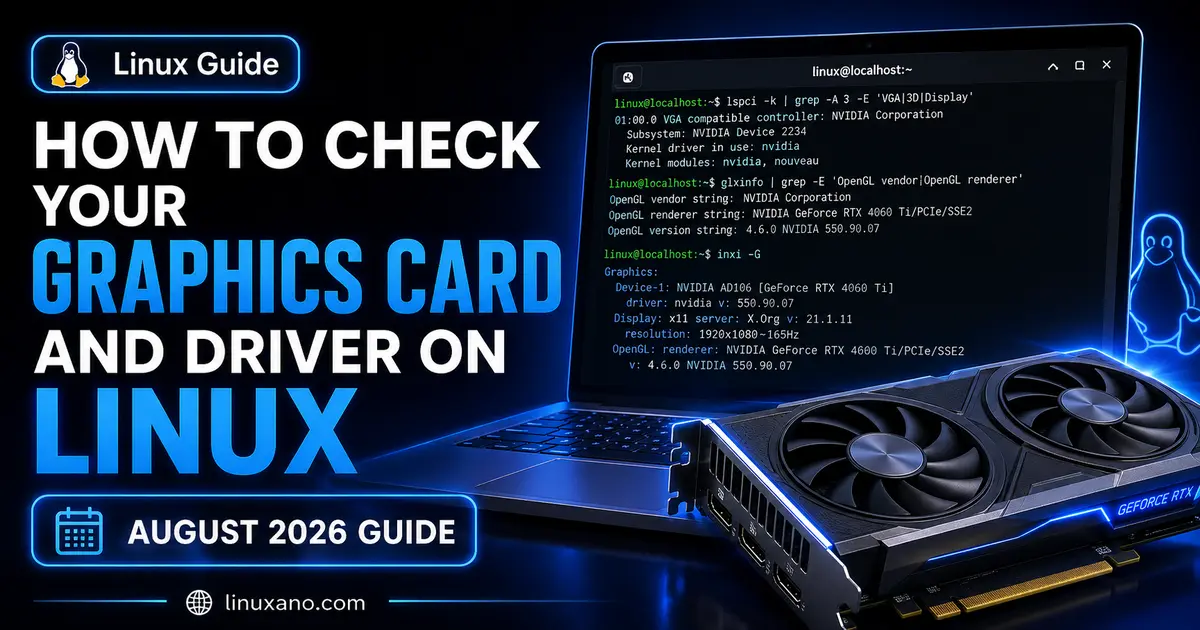
How to Check Your Graphics Card and Driver on Linux (August 2026 Guide)
If you have ever opened a terminal and typed a random command hoping it would tell you what GPU you have, you already know the problem. Linux does not hand you this information the way Windows does with its Device Manager. There is no single “About This GPU” button. Instead, the answer is scattered across a handful of tools, and which one works best depends on your distro, your desktop environment, and whether you are running NVIDIA, AMD, or Intel graphics.
This guide walks through how to check your graphics card and driver on Linux using the actual commands and tools that work in 2026, not outdated advice recycled from a decade-old forum post. Whether you are debugging a black screen after a kernel update, deciding if you need to update your NVIDIA driver, or just curious what silicon is powering your desktop, you will find a reliable method here.
Why Checking Your GPU and Driver Matters
Before jumping into commands, it helps to understand why this even comes up so often on Linux.
Unlike Windows, where the driver and the operating system are tightly bundled by one vendor’s update mechanism, Linux graphics stacks are modular. You might have:
- A physical GPU (NVIDIA, AMD, or Intel)
- A kernel driver (nouveau, amdgpu, i915/xe, or NVIDIA’s proprietary module)
- A userspace driver stack (Mesa for open drivers, or NVIDIA’s own libraries)
- A display server (Xorg or Wayland) that talks to all of the above
When something breaks — tearing, crashes, a game refusing to launch, or CUDA suddenly not detecting your card — the first diagnostic step is always the same: confirm what hardware you actually have and what driver is currently loaded. Guessing wastes time. Verifying takes thirty seconds.
Quick Answer: The Fastest Way to Check
If you just want the short version, open a terminal and run:
lspci -k | grep -EA3 'VGA|3D|Display'This single command tells you the GPU model and, in most cases, the kernel driver currently in use. For NVIDIA cards specifically, follow it up with:
nvidia-smiThat’s the fast path. Everything below explains the deeper methods, what the output actually means, and how to handle trickier cases like laptops with two GPUs.
Method 1: Using lspci (Works on Every Distro)
lspci lists all PCI devices connected to your system, and your graphics card is one of them. It ships by default on almost every Linux distribution because it is part of the pciutils package.
lspci | grep -i vgaExample output:
01:00.0 VGA compatible controller: NVIDIA Corporation AD104 [GeForce RTX 4070] (rev a1)If you have a laptop with hybrid graphics, add 3D to the search so you catch the discrete card too:
lspci | grep -Ei 'vga|3d'To also see which kernel driver is bound to the device, use the -k flag:
lspci -k | grep -EA3 'VGA|3D'That will show a line like Kernel driver in use: amdgpu or Kernel driver in use: nvidia. This one detail answers the most common question people have: “is my open-source driver loading, or the proprietary one?”
Why this method is reliable: lspci reads directly from PCI configuration space, not from a userspace daemon that might be misconfigured. Even if your display server has crashed, lspci still works over SSH or from a TTY.
Method 2: inxi — The Most Human-Readable Option
If lspci output feels too raw, inxi is the tool most Linux forum moderators ask you to run when you post a hardware problem, because it packages everything into a clean summary.
Install it if it is not already present:
# Debian/Ubuntu
sudo apt install inxi

# Fedora
sudo dnf install inxi

# Arch
sudo pacman -S inxi
Then run:
inxi -GSample output:
Graphics:
  Device-1: NVIDIA AD104 [GeForce RTX 4070] driver: nvidia v: 580.126.20
  Display: x11 server: X.Org v: 21.1.16 driver: X: loaded: nvidia
  gpu: nvidia resolution: 2560x1440~144Hz
  API: OpenGL v: 4.6.0 renderer: NVIDIA GeForce RTX 4070/PCIe/SSE2
This is genuinely the fastest way to get GPU model, driver name, driver version, and even your active resolution and refresh rate in one shot. If you’re troubleshooting and planning to ask for help on a forum or Reddit, paste this output — it saves everyone three follow-up questions.
Method 3: glxinfo for OpenGL Details
glxinfo is part of the mesa-utils package and tells you what your system reports for OpenGL rendering — useful when you want to confirm whether hardware acceleration is actually active, or whether you have accidentally fallen back to software rendering (llvmpipe).
sudo apt install mesa-utils   # Debian/Ubuntu
glxinfo | grep -i "opengl renderer"
If you see:
OpenGL renderer string: NVIDIA GeForce RTX 4070/PCIe/SSE2…you’re running proper hardware acceleration. But if the output says:
OpenGL renderer string: llvmpipe (LLVM 18.1.8, 256 bits)…that means your system is rendering graphics on the CPU instead of the GPU. This usually points to a missing or broken driver, and it’s one of the most common causes of laggy desktops after a fresh install.
On Wayland-based systems, the equivalent tool is eglinfo, part of the same mesa-utils package on most distros.
Method 4: NVIDIA-Specific Tools
If you have an NVIDIA card and the proprietary driver installed, nvidia-smi (System Management Interface) is your best friend. It ships with every NVIDIA Linux driver package.
nvidia-smiTypical output as of the current NVIDIA driver cycle looks like this:
+-----------------------------------------------------------------------------+
| NVIDIA-SMI 595.91.07     Driver Version: 595.91.07     CUDA Version: 13.0   |
|-------------------------------+----------------------+----------------------+
| GPU  Name        Persistence-M| Bus-Id        Disp.A | Volatile Uncorr. ECC |
| Fan  Temp  Perf  Pwr:Usage/Cap|         Memory-Usage | GPU-Util  Compute M. |
|===============================+======================+======================|
|   0  NVIDIA GeForce RTX 4070   Off  | 00000000:01:00.0  On |                  N/A |
| 30%   45C    P8    12W / 200W |    612MiB / 12282MiB |      2%      Default |
+-------------------------------+----------------------+----------------------+
This single screen tells you the driver version, CUDA toolkit version, GPU temperature, power draw, memory usage, and running processes. It’s the standard tool for anyone doing machine learning, video editing, or gaming performance troubleshooting on NVIDIA hardware.
As of August 2026, NVIDIA maintains three active driver branches for Linux worth knowing about:
- Production Branch (595.91.07) — the recommended default for most desktop and workstation users. Longer support window, fewer bleeding-edge features.
- New Feature Branch (610.57.04) — gets the newest features first (recent updates include GLX indirect-rendering crash fixes and improvements around descriptor heap handling for Vulkan), but with a shorter individual support window.
- Legacy Branch (470.256.02) — for older GPUs (roughly Kepler-era and earlier) that the modern driver no longer supports.
If nvidia-smi returns “command not found,” that almost always means the NVIDIA kernel module is not loaded — either the proprietary driver isn’t installed, or your system is currently running the open-source nouveau driver instead.
To check which one is active:
lsmod | grep -E 'nvidia|nouveau'If nouveau shows up and nvidia doesn’t, you’re on the open-source driver — functional for basic desktop use, but missing CUDA support and typically well behind on gaming performance.
Method 5: AMD-Specific Checks
AMD GPUs on Linux run through the amdgpu kernel driver paired with Mesa’s RADV (Vulkan) and RadeonSI (OpenGL) userspace drivers — almost entirely open source, which is a meaningfully different situation from NVIDIA.
Check the kernel driver:
lspci -k | grep -A3 VGAYou should see Kernel driver in use: amdgpu for anything from the RX 400 series onward. Older cards fall back to the deprecated radeon driver.
For Mesa version and Vulkan details:
vulkaninfo --summaryOr, more simply:
glxinfo | grep "OpenGL version"As of August 2026, the Mesa 26.2 series is the current stable branch (26.2.1 shipped in late August with fixes across AMD, Intel, ARM, and Qualcomm drivers), while Mesa 26.1.8 remains the conservative choice for anyone who prefers a slower-moving update cadence. Which version you actually have depends heavily on your distro:
- Ubuntu 26.04 LTS ships Mesa 26.0.x by default
- Rolling-release distros like Arch or openSUSE Tumbleweed typically track close to the latest 26.2.x release
- Fedora usually lands somewhere in between, refreshing Mesa roughly every release cycle
If you need newer Mesa than your distro provides, the Kisak-Mesa PPA (Ubuntu/Debian derivatives) or simply switching to a rolling release are the two realistic paths — compiling Mesa from source is possible but rarely worth the maintenance headache for a desktop user.
Method 6: Intel Graphics Checks
Intel integrated graphics on modern chips (12th Gen and later) use the xe kernel driver, while older generations still rely on i915. Both are open source and bundled directly into the Linux kernel.
lspci -k | grep -A3 VGALook for Kernel driver in use: i915 or Kernel driver in use: xe. For driver capability details:
intel_gpu_topThis live-updates GPU engine utilization, similar in spirit to nvidia-smi, and is part of the intel-gpu-tools package.
GUI Options (No Terminal Required)
Not everyone wants to live in a terminal, and that’s fine — several graphical tools cover the same ground.
- GNOME Settings → About shows a basic graphics summary, though it’s often generic and doesn’t show driver version.
- KDE System Settings → About This System gives a similarly high-level view.
- GPU Viewer (available via Flatpak or distro repos) is purpose-built for this exact task — it displays GPU model, driver version, OpenGL/Vulkan capabilities, and monitor information in a clean tabbed interface.
- hardinfo2 is a community-maintained fork of the old HardInfo tool, still actively updated in 2026, and produces a full system report including GPU details you can export and share.
For most troubleshooting scenarios, though, terminal tools remain faster and more precise, since GUI tools sometimes lag behind on reporting the exact driver version or fail silently on unusual hardware configurations.
Comparison Table: Which Tool Should You Use?
| Tool | Best For | Shows Driver Version | Works Without X/Wayland | Install Required |
|---|---|---|---|---|
lspci -k | Quick hardware + driver identification | No (only driver name) | Yes | No (pre-installed) |
inxi -G | Full readable summary, forum troubleshooting | Yes | Yes | Usually yes |
glxinfo | Confirming hardware acceleration is active | Partial (via Mesa version) | No | Yes (mesa-utils) |
nvidia-smi | NVIDIA driver, CUDA, GPU monitoring | Yes | Yes | Comes with NVIDIA driver |
intel_gpu_top | Intel GPU live utilization | No | Yes | Yes (intel-gpu-tools) |
| GPU Viewer | Visual overview, less technical users | Yes | No | Yes (Flatpak/repo) |
Common Problems and What They Actually Mean
“Command not found: nvidia-smi”
The NVIDIA proprietary driver isn’t installed, or you’re running an NVIDIA card on the open-source nouveau driver. Confirm with lsmod | grep nouveau.
OpenGL renderer shows “llvmpipe”
You’re on software rendering. This usually happens after a driver removal, a botched kernel update that broke DKMS modules, or a Wayland session that lacks proper GPU acceleration support for your setup.
Two GPUs listed in lspci but only one seems active
Common on laptops with NVIDIA Optimus or AMD hybrid graphics. Use prime-select query (Ubuntu/Debian) or check /etc/X11/xorg.conf.d/ for GPU-switching configuration to see which one is currently rendering your desktop.
Driver version looks outdated after a distro update
Distro repositories often lag behind vendor releases by weeks or months, since packages need to be tested against the specific kernel version your distro ships. If you need the absolute latest, NVIDIA’s .run installer or AMD’s upstream Mesa builds are the way to bypass repo delays — with the tradeoff of manual maintenance going forward.
A Note on the NVIDIA Nova Driver
Worth knowing if you’re paying attention to where Linux graphics is headed: NVIDIA has been developing an open-source, Rust-based kernel driver called Nova, positioned as a long-term successor to the reverse-engineered nouveau project. It’s still landing incrementally in upstream kernel development branches, with recent work focused on GSP boot handling, virtualized GPU support, and firmware handling for Hopper and Blackwell-generation hardware. It isn’t something typical desktop users are running as their daily driver yet, but if you’re checking lsmod output in the next year or two, don’t be surprised if nova starts showing up alongside nouveau and nvidia as a third option.
Putting It All Together: A Simple Diagnostic Routine
If you want one repeatable process to run whenever something graphics-related feels off, do this in order:
lspci -k | grep -EA3 'VGA|3D'— confirm the card and the currently bound kernel driverinxi -G— get a full readable summary including driver versionglxinfo | grep "OpenGL renderer"— confirm hardware acceleration is active, not software fallbacknvidia-smiorintel_gpu_top(vendor-dependent) — check live driver status and utilization- Compare your driver version against your vendor’s current release page to see if you’re behind
This five-step routine covers the vast majority of “what GPU driver am I actually running” questions, and it works whether you’re on Ubuntu, Fedora, Arch, or something more obscure.
Frequently Asked Questions
How do I check my graphics card and driver on Linux without installing anything?
Run lspci -k | grep -EA3 ‘VGA|3D’ in a terminal — it’s pre-installed on virtually every distro and shows both the GPU model and the active kernel driver.
What command shows my NVIDIA driver version on Linux?
Run nvidia-smi, which displays the driver version, CUDA version, and live GPU status in a single output.
Why does glxinfo show “llvmpipe” instead of my GPU name?
It means your system is rendering with software instead of hardware acceleration, usually due to a missing, broken, or unloaded GPU driver.
Is inxi better than lspci for checking GPU info?
inxi -G gives a more complete, readable summary including driver version and resolution, while lspci is faster for a quick hardware-only check.
How do I know if I’m using the open-source or proprietary NVIDIA driver?
Run lsmod | grep -E ‘nvidia|nouveau’ — if nvidia appears, you’re on the proprietary driver; if only nouveau appears, you’re on the open-source one.
Final Thoughts
Learning how to check your graphics card and driver on Linux isn’t just a troubleshooting skill — it’s basic system literacy that saves you from guessing when something breaks. Between lspci, inxi, glxinfo, and vendor-specific tools like nvidia-smi or intel_gpu_top, you have everything needed to identify exactly what hardware you’re running and whether the right driver is actually loaded and working. Bookmark this guide, keep these commands handy, and the next time your desktop starts acting up, you’ll know exactly where to look first.
Further Reading and Official Sources
For anyone who wants to go straight to the source rather than take a blog post’s word for it, these are the official pages worth bookmarking alongside this guide:
- NVIDIA Unix Driver Downloads — official production, new feature, and legacy branch releases for Linux
- NVIDIA Driver Documentation — release notes, changelogs, and version-specific fixes
- Mesa3D Official Documentation — release notes and driver support matrices for open-source GPU drivers
- Arch Wiki: NVIDIA — one of the most detailed community-maintained NVIDIA-on-Linux references, applicable well beyond Arch itself
- Arch Wiki: AMDGPU — configuration and troubleshooting reference for AMD’s open driver stack
- Kernel.org GPU Driver Documentation — upstream documentation for the DRM subsystem, i915/xe, and amdgpu kernel drivers
- Phoronix — ongoing coverage of Mesa releases, kernel GPU patches, and Linux graphics benchmarks
Cross-checking your findings against these sources is good practice, especially before making driver changes on a production or work machine.
Disclaimer
This guide is provided for general informational and educational purposes. Driver version numbers, package names, and default Mesa versions shipped by specific distributions change frequently and may have been updated since publication — always verify against your distribution’s official documentation and the vendor pages linked above before making changes to your system. Modifying kernel drivers or graphics configurations carries some risk of display issues or boot problems; consider backing up your configuration first, and proceed at your own discretion.
About the Author