Top 10 Linux Hardware Mistakes Beginners Make (2)
Switching to Linux is exciting. You’ve heard the stories — blazing-fast performance, rock-solid stability, total control over your system. And Linux in 2026 really is better than it’s ever been. More hardware works out of the box, driver support has improved dramatically, and the community is enormous.
But here’s the part nobody warns you about: even with all that progress, the top 10 Linux hardware mistakes beginners make can still turn your smooth installation day into a weekend-long troubleshooting nightmare. The frustrating thing is that most of these pitfalls aren’t about Linux being bad — they’re about going in blind and making avoidable choices.
This guide breaks down exactly where new Linux users go wrong with hardware, why it happens, and what you should do instead. Whether you’re buying a new laptop, building a desktop, or setting up an older machine, this is the stuff you wish someone had told you before you started.
Mistake #1: Not Checking Hardware Compatibility Before Buying or Installing

This is the big one. It catches more beginners than anything else on this list.
People see that Linux is free and open-source, assume it runs on everything, and just dive straight into installation. Sometimes that works perfectly. Other times, they boot the installer and find that the Wi-Fi doesn’t connect, the touchpad acts erratic, or the screen resolution is stuck at 800×600.
The fix is simple: always test before you commit. Every major Linux distribution — Ubuntu, Fedora, Linux Mint, Debian — lets you create a bootable live USB. Boot from it, spend 20 minutes clicking around, and see what works. If your Wi-Fi connects automatically, your display looks right, and the touchpad behaves normally, you’re almost certainly good to go. If something’s broken in the live environment, it’ll be broken after installation too.
Beyond live testing, there are dedicated resources worth knowing about. The Linux Hardware Database collects anonymous hardware reports from real Linux users around the world, and you can search it by device to see reported compatibility status. Ubuntu also maintains its own hardware certification database. These aren’t perfect, but they’ll tell you a lot before you spend money or commit to an installation.
The rule of thumb: if you can’t find a single forum post or compatibility report about your specific hardware running Linux, that’s a red flag.
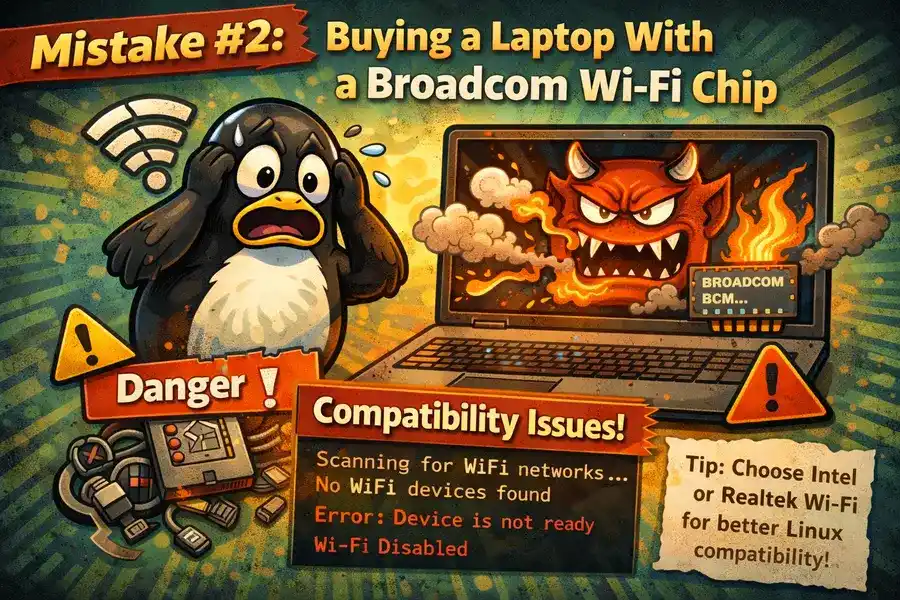
Mistake #2: Buying a Laptop With a Broadcom Wi-Fi Chip
If there’s one hardware component that has given Linux beginners more grief than any other over the past decade, it’s Broadcom Wi-Fi adapters. And as of April 2026, this is still very much a live issue.
Broadcom’s proprietary drivers are not included in the Linux kernel by default. This means that right after installation, your Wi-Fi simply won’t work — and because Wi-Fi isn’t working, you can’t download the drivers to fix it. It’s a catch-22 that sends new users scrambling for an ethernet cable or mobile hotspot just to get their system functional.
Intel Wi-Fi chips, on the other hand, are essentially plug-and-play on Linux. The drivers are built into the kernel, support is excellent, and you’ll almost never have to think about them. MediaTek and Qualcomm Wi-Fi chips have also gotten significantly better in recent years.
Before buying any laptop for Linux use, check what Wi-Fi chip it uses. You can usually find this in the spec sheet or by searching the model number alongside “Wi-Fi chipset.” If it says Broadcom, keep looking. If it says Intel AX200, AX210, or any recent Intel Wi-Fi module, you’re in great shape.
This single piece of research can save you hours of headaches on day one.
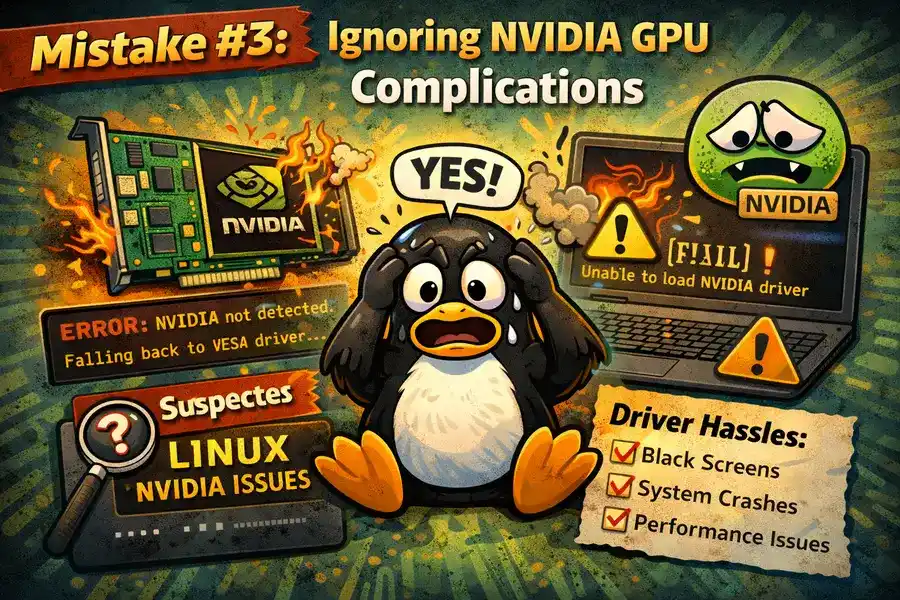
Mistake #3: Ignoring NVIDIA GPU Complications
NVIDIA and Linux have a complicated relationship, and beginners routinely underestimate how much friction is involved.
Here’s the situation: NVIDIA provides proprietary drivers for Linux, and in 2026 those drivers are genuinely good — especially with NVIDIA having opened parts of their driver stack. The performance is solid, gaming works well, and Wayland support has improved considerably. But getting to that point is not always straightforward.
The open-source Nouveau driver that ships by default with most distros offers only basic functionality. For anything GPU-intensive — gaming, video editing, machine learning, or even running multiple monitors at custom refresh rates — you’ll need the proprietary NVIDIA driver. Installing it is manageable, but there are specific pitfalls around Secure Boot (more on that in the next section), dual-GPU (Optimus) laptop configurations, and kernel updates that can break driver loading.
AMD GPUs are a much smoother experience on Linux. The open-source AMDGPU driver is built directly into the kernel, requires zero proprietary software, and works beautifully for most use cases including gaming. If you’re buying new hardware specifically for Linux and you have a choice between an AMD and NVIDIA GPU at a similar price point, AMD is almost always the easier path.
That said, if you already have an NVIDIA card or you’re getting it for CUDA-related work, don’t be scared off. Just expect to spend an extra hour on driver setup and be ready for occasional friction during major kernel updates.
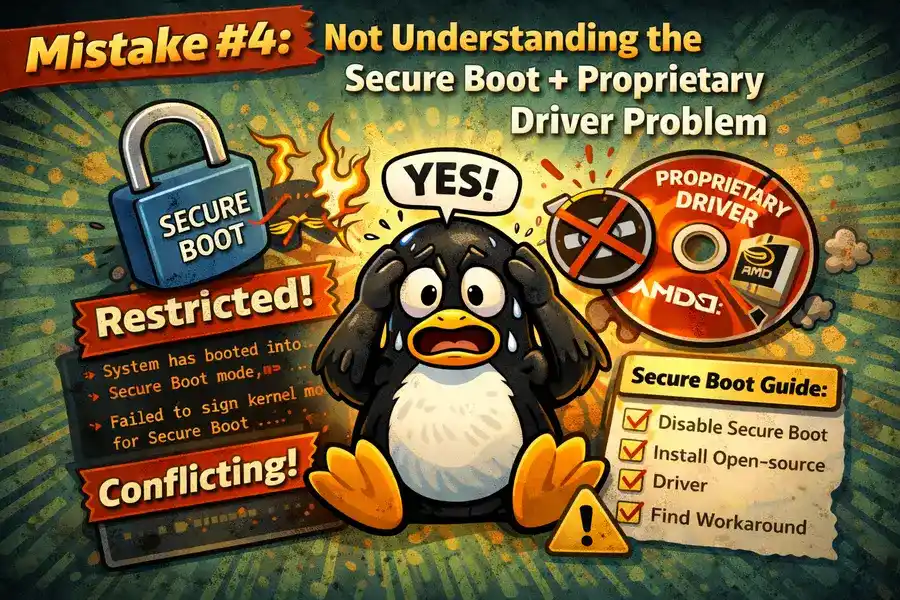
Mistake #4: Not Understanding the Secure Boot + Proprietary Driver Problem
Secure Boot is a UEFI firmware feature designed to prevent unauthorized software from running during boot. It’s a good security feature. But for Linux beginners, it creates a very confusing situation when combined with NVIDIA drivers.
The issue is this: Secure Boot requires all kernel modules to be cryptographically signed. NVIDIA’s proprietary drivers are kernel modules. Most Linux distributions handle this through something called MOK (Machine Owner Key) — they ask you to create a key during driver installation and enroll it in your UEFI firmware. If you skip that step, or if a BIOS update resets your firmware settings (which resets Secure Boot state), your NVIDIA driver will appear installed but simply won’t load at boot time.
This has confused thousands of users. The driver shows as installed in the driver manager. Everything looks fine. But the system boots using the fallback software renderer instead, performance is terrible, and the second monitor doesn’t show up.
The fix depends on your situation:
- If you enable Secure Boot after installing NVIDIA drivers, you need to sign the kernel modules using MOK.
- If you update your BIOS/UEFI and drivers stop working, check whether the update reset Secure Boot to enabled.
- You can run mokutil –sb-state in a terminal to check your current Secure Boot status.
- For many setups, simply disabling Secure Boot in UEFI is the easiest solution — though if you dual-boot with Windows 11, that may have complications.
The key thing is just knowing this interaction exists. Most beginners don’t, and they spend days confused about why a “successfully installed” driver isn’t doing anything.
Mistake #5: Picking a Distro That Doesn’t Match Their Hardware
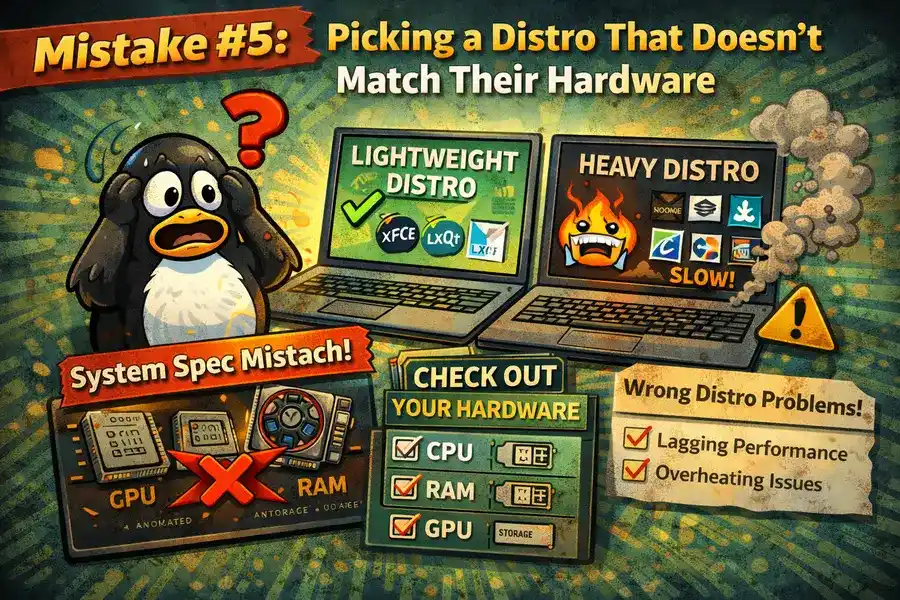
Not all Linux distributions are equal when it comes to hardware support, and choosing the wrong one for your specific machine creates unnecessary problems.
Rolling-release distributions like Arch Linux or Manjaro ship very recent kernel versions, which often means better support for newer hardware. If you bought a laptop released in the last six months, you might need a kernel from 2025 or 2026 to get full support for your CPU’s power management or your GPU’s display output. A Long-Term Support (LTS) distro running an older kernel might struggle with that hardware.
On the flip side, if you’re installing Linux on a corporate machine that needs stability, or on a 5-year-old laptop where everything already works, a stable LTS release like Ubuntu 24.04 LTS is a much better choice. Fewer updates means fewer things that can break.
Some general guidance:
- New hardware (< 1 year old): Fedora, Manjaro, or the latest non-LTS Ubuntu tend to ship newer kernels with better support.
- Hardware that’s 2-5 years old: Ubuntu LTS, Linux Mint, or Debian Stable — rock solid and well-tested.
- Very old hardware (10+ years): Lightweight distros like Lubuntu, Linux Mint XFCE, or antiX breathe new life into machines with limited RAM and older CPUs.
- Specific laptops (ThinkPads, Dell XPS, System76 machines): These often have community-tested configurations and excellent Linux support regardless of distro.
Spending 30 minutes researching which distro works best for your specific laptop model before installing is always time well spent.
Mistake #6: Forgetting to Check Printer and Scanner Compatibility
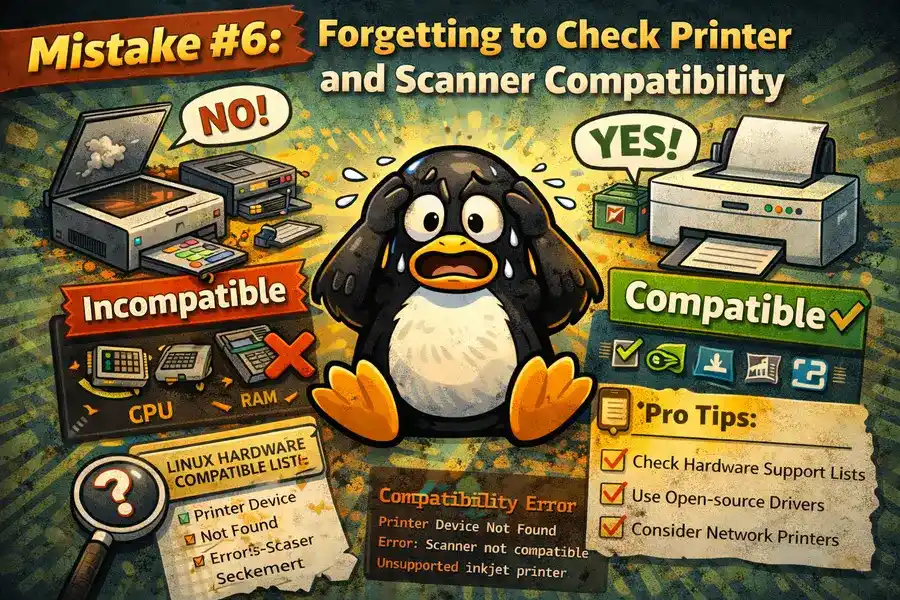
Printers are notoriously inconsistent on Linux, and this catches a lot of beginners off guard — especially people switching from Windows or macOS where “just plug it in and it works” is the norm.
HP printers are generally the best supported. The hplip package provides drivers for a huge range of HP hardware, and most HP printers will work reasonably well. Canon and Epson have also improved their Linux support considerably. Brother printers are hit-or-miss depending on the model, and many require manual driver downloads from the manufacturer’s website.
The real trap is all-in-one printers where scanning functionality is separate from printing. A printer might work perfectly for printing but have zero Linux support for its scanner component. This is especially common with cheaper consumer-grade multifunction devices.
Before buying a printer for a Linux setup, search the specific model number with “Linux” or check the OpenPrinting database. It’s the most comprehensive list of Linux-compatible printers available and will tell you whether support is “perfect,” “mostly working,” or “doesn’t work at all.”
Fingerprint readers are another often-forgotten peripheral. Many laptops ship with fingerprint readers that simply have no Linux driver. If fingerprint authentication matters to you, check the libfprint supported hardware list before assuming it’ll work.
Mistake #7: Assuming All USB Peripherals “Just Work”
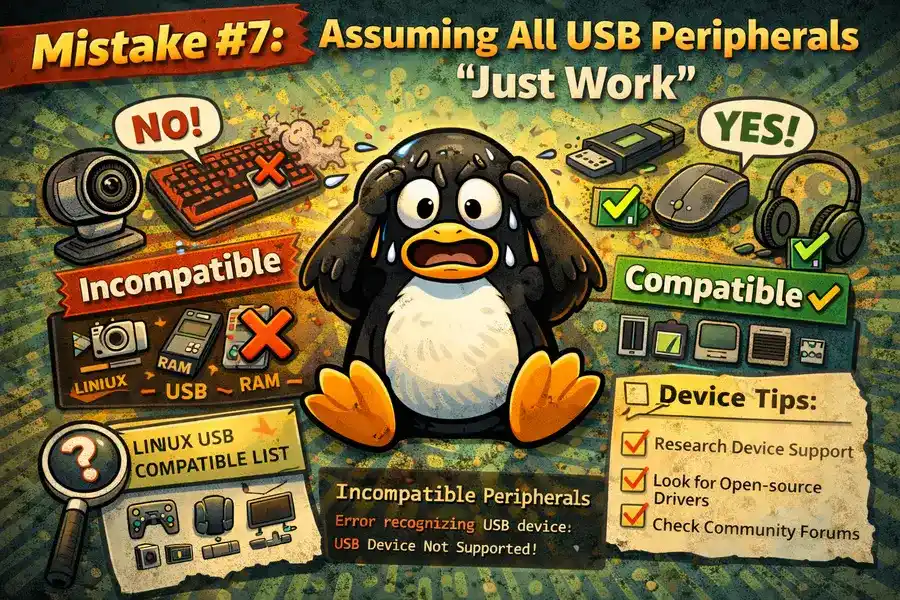
Most USB devices — mice, keyboards, USB hubs, basic flash drives — work perfectly on Linux with zero configuration. This part is genuinely great.
But there are specific categories of USB peripherals where Linux support is patchy or nonexistent, and beginners often get blindsided by them.
USB audio interfaces are a common pain point for musicians and podcasters. Many cheap and mid-range interfaces are class-compliant (meaning they need no drivers) and work fine on Linux. But some interfaces from Focusrite, PreSonus, and other brands use proprietary protocols that require Windows or macOS software. Always check before buying if audio production is part of your workflow.
Capture cards and streaming hardware are another area of concern. Elgato, for example, has a product lineup where Linux support ranges from “works great” to “completely unsupported.” External Elgato capture dongles via USB generally work. Many of their internal PCIe cards and more advanced products do not have proper Linux drivers.
Drawing tablets from Wacom are generally well-supported on Linux through the open-source libwacom and xf86-input-wacom drivers. Huion and XP-Pen tablets have also improved significantly, but some newer models may lag a few months behind until kernel support lands.
The pattern here is the same: a quick search before buying saves a lot of frustration after the fact.
Mistake #8: Running on Too Little RAM and Blaming Linux
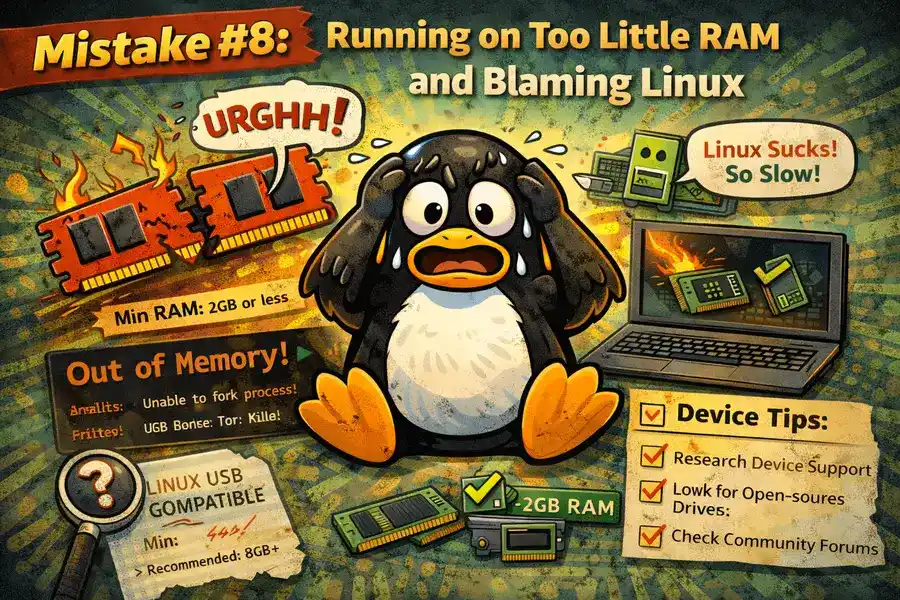
This isn’t exactly a hardware compatibility issue, but it’s one of the most common hardware-related mistakes beginners make: they install a full desktop environment on a machine with 2GB or 4GB of RAM, watch it crawl, and conclude that Linux is slow.
RAM usage on Linux varies enormously by desktop environment:
- GNOME (default on Ubuntu, Fedora): 1.2–1.8GB at idle. Requires 8GB to feel comfortable with modern workloads.
- KDE Plasma: Surprisingly efficient in recent versions, around 700MB–1.2GB at idle.
- XFCE: Around 350–500MB at idle. Excellent for 4GB machines.
- LXQt: Even lighter, sometimes as low as 200–300MB idle.
If you’re setting up an older machine with 4GB of RAM and you want a snappy experience, choose XFCE or LXQt rather than GNOME. Linux Mint’s XFCE edition is a great starting point — it’s polished, beginner-friendly, and runs well on hardware that GNOME would make feel sluggish.
Conversely, if you’re on modern hardware with 16GB+ RAM, GNOME is a pleasure to use and the memory overhead is irrelevant. Just match your desktop environment to your hardware.
Mistake #9: Not Backing Up Before Experimenting With Drivers or Partitions
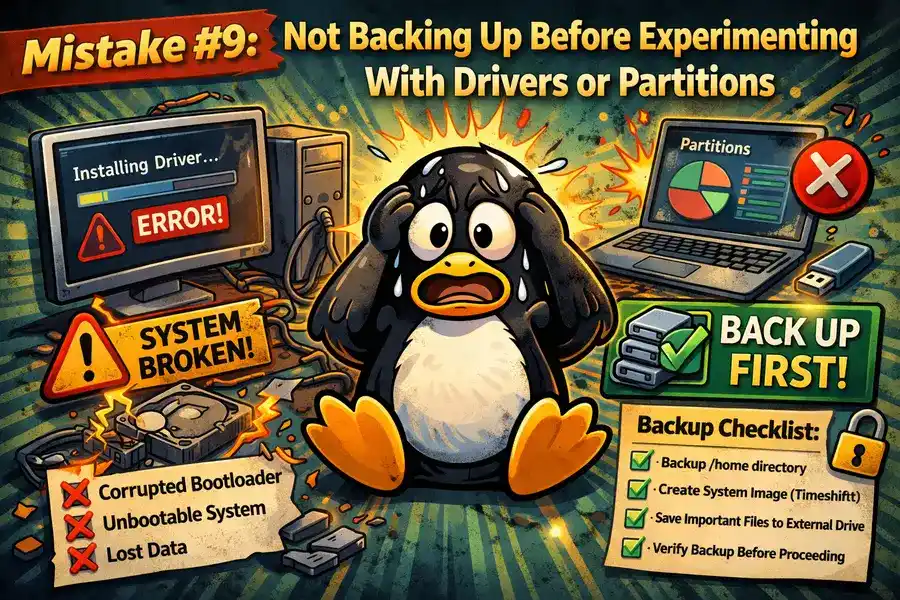
Linux encourages curiosity. That’s one of its best qualities. But it also means it’s very easy to break things, and beginners often do so without a backup in place.
The most common scenarios where this goes wrong:
Dual-boot partition mistakes. Setting up dual boot with Windows requires careful partition management. Installing Linux to the wrong partition, accidentally overwriting the Windows bootloader, or misconfiguring GRUB can leave you with a system that won’t boot into either OS. Tools like GParted are powerful but unforgiving — one wrong click and data is gone.
Driver experimentation. Trying to install NVIDIA drivers using commands copied from a forum post written for a different distro version can leave your system in an unbootable state. This is especially risky when those commands modify the bootloader or kernel modules.
System snapshots are your friend. Linux Mint includes Timeshift by default, which takes filesystem snapshots similar to Windows System Restore. Ubuntu can use Timeshift as well. If you’re planning to install proprietary drivers, add PPAs, or make significant system changes, take a Timeshift snapshot first. If things go sideways, rolling back takes minutes.
For dual-boot setups, also keep a Windows recovery USB handy. It has nothing to do with Linux specifically, but Windows sometimes decides its bootloader needs repair after Linux touches the drive, and the recovery USB will sort that out in minutes.
Mistake #10: Skipping System Updates Before Hardware Configuration
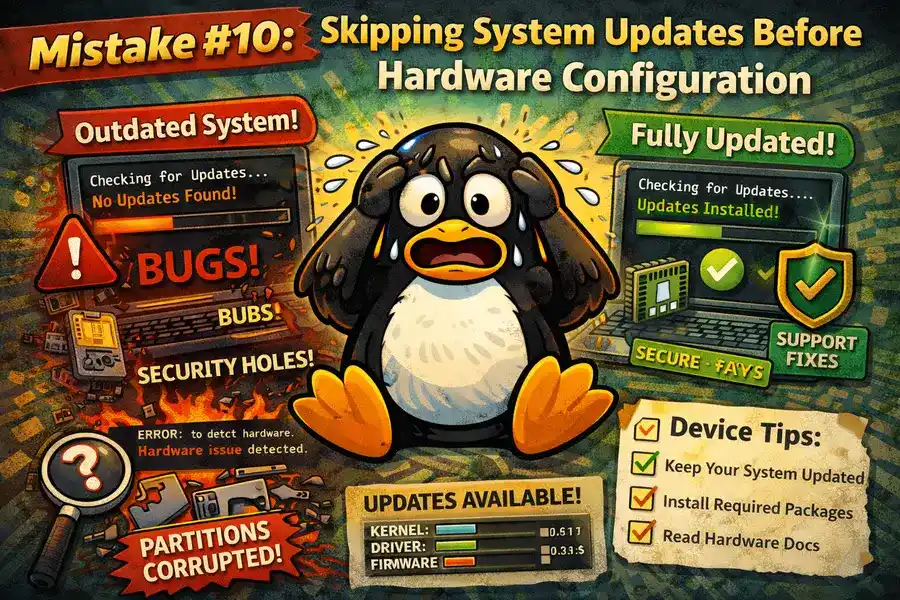
This one is subtle but important. New users often install Linux, get impatient, and immediately start trying to configure hardware or install applications — before running system updates.
Why does this matter? The kernel version that ships on an installation ISO is often months old by the time you download it. Newer kernel versions frequently include improved hardware support, bug fixes for specific devices, and updated firmware packages. Trying to configure Wi-Fi or install GPU drivers on a stale kernel when a newer one is available and would fix the problem automatically is a frustrating waste of time.
The other issue is firmware. Many pieces of hardware depend on firmware files to function properly — Wi-Fi cards, Bluetooth adapters, certain GPUs. Linux distributes these through packages like linux-firmware. If that package isn’t current, devices may not initialize correctly, even if the kernel driver itself is present.
The right order when setting up a new Linux system:
- Install the OS from your live USB.
- Connect to the internet (via ethernet if Wi-Fi isn’t working yet).
- Run all system updates (sudo apt update && sudo apt upgrade on Ubuntu/Debian-based systems, or use the graphical update manager).
- Reboot into the updated kernel.
- Then start configuring hardware, installing drivers, and customizing your setup.
This sequence alone prevents a significant portion of the hardware headaches that beginners report.
| Hardware Component | ✅ Good Choice for Linux | ⚠️ Caution |
|---|---|---|
| Wi-Fi | Intel AX200 / AX210, MediaTek | Broadcom (needs extra steps) |
| GPU (Desktop) | AMD RX Series | NVIDIA (proprietary drivers) |
| GPU (Laptop) | AMD Integrated, Intel Arc | NVIDIA Optimus (complex setup) |
| Printers | HP (HPLIP), Epson | Some Canon, Brother models |
| USB Audio | Class-compliant interfaces | Proprietary protocol devices |
| Drawing Tablets | Wacom, newer Huion | XP-Pen (varies by model) |
| Fingerprint Readers | Check libfprint list | Most are unsupported |
| Streaming Devices | USB Elgato capture dongles | Elgato PCIe cards, hubs |
Final Thoughts
The top 10 Linux hardware mistakes beginners make all share a common theme: going in without information. Linux hardware compatibility in 2026 is genuinely good — far better than it was five years ago — but it rewards a small amount of upfront research with a dramatically smoother experience.
You don’t need to be an expert to avoid these pitfalls. You just need to check your Wi-Fi chipset before buying, test with a live USB before installing, run updates before configuring anything, and know that NVIDIA + Secure Boot is a relationship worth understanding before you dive into it.
The Linux community is large and helpful. Whatever hardware question you have, someone on the forums or Reddit has almost certainly dealt with the same thing. Use those resources, do your homework before committing to hardware purchases, and you’ll spend a lot more time actually enjoying Linux and a lot less time debugging why things don’t work.
Have a Linux hardware question or a mistake you wish you’d known about before? Drop it in the comments — community knowledge is what makes Linux better for everyone.
Disclaimer
The information in this article is based on general Linux hardware experience and community-sourced knowledge as of April 2026. Hardware compatibility can vary depending on your specific Linux distribution, kernel version, and device firmware. Always verify compatibility for your exact hardware model before making purchasing decisions. The author is not responsible for any data loss or system issues that may arise from following the guidance provided here. When in doubt, consult your distro’s official documentation or community forums.
About the Author