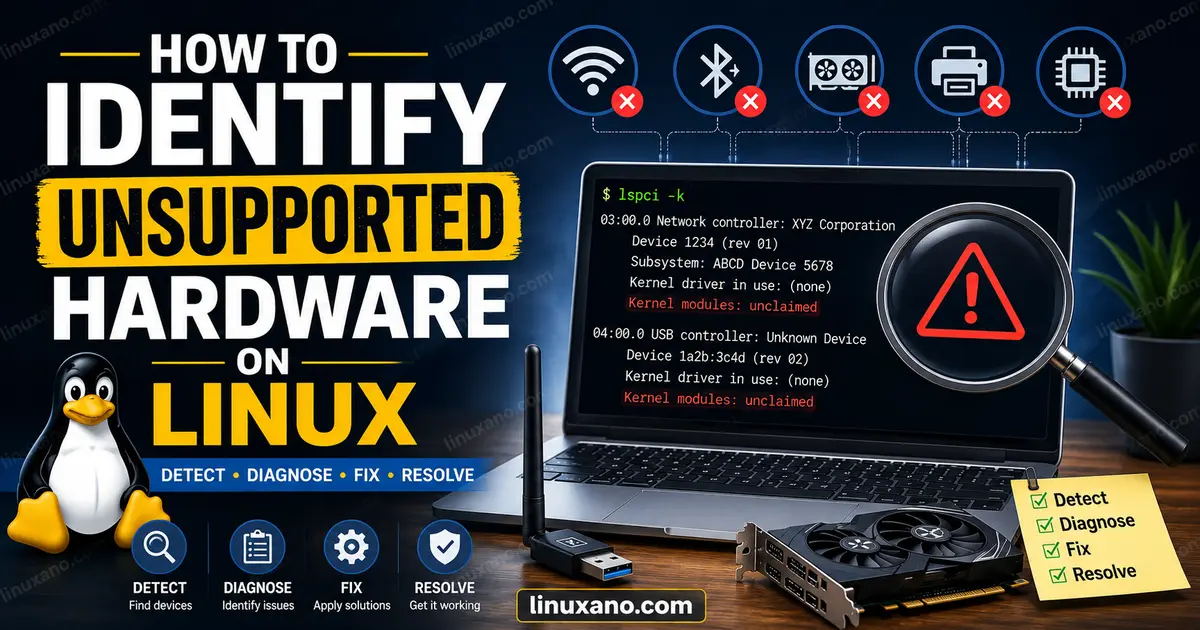
How to Identify Unsupported Hardware on Linux
You plug in a new Wi-Fi adapter, boot into your favorite Linux distro, and… nothing. No connection. No device entry. No error message — just silence. Or maybe your laptop’s fingerprint reader shows up in the system settings but refuses to enroll your finger. Or your webcam works fine in Windows but produces a black screen in Linux.
These are classic symptoms of unsupported or partially supported hardware. If you’ve spent any time running Linux as a daily driver, you’ve almost certainly run into at least one of them. Knowing how to identify unsupported hardware on Linux is one of the most practical skills you can develop — because the first step toward fixing any hardware problem is understanding exactly what Linux does and doesn’t recognize.
This guide walks through the tools, commands, logs, and databases you need to diagnose hardware issues across Ubuntu, Fedora, Debian, Arch Linux, and Linux Mint.
What Does Unsupported Hardware Mean in Linux?
Not all hardware problems are created equal. Before diving into diagnostics, it helps to understand the different levels of support.
Fully supported hardware works out of the box. The kernel ships with the necessary driver, the device is detected on boot, and everything functions as expected — no manual intervention required. A good example is most Intel Wi-Fi adapters, which have been well-supported in the Linux kernel for years.
Partially supported hardware is detected by Linux, but not all features work. Your USB webcam might stream video but refuse to adjust the focus automatically. A Bluetooth headset might pair successfully but drop audio quality during calls. You get functionality, but not the full experience.
Unsupported hardware either isn’t detected at all, or Linux detects the device but has no driver to drive it. The device sits there, invisible or inert, because the kernel has nothing to talk to it with.
Missing driver situations fall into a related category. Sometimes a driver exists but isn’t included in the default kernel — often because it’s proprietary, out-of-tree, or requires firmware that can’t be freely distributed. Broadcom Wi-Fi chipsets are a well-known example of this.
Understanding which category your problem falls into changes the troubleshooting path significantly.
Common Signs That Hardware Is Not Supported
Before running any diagnostic commands, pay attention to the symptoms. They point you toward the right tool.
Device Not Detected
The device doesn’t appear anywhere — not in system settings, not in file manager, not when you run lsusb or lspci. This usually means either the kernel has no driver at all, or there’s a firmware issue preventing enumeration.
Missing Wi-Fi or Bluetooth
Your network manager shows no wireless interface, or the Bluetooth toggle is greyed out in system settings. This is one of the most common Linux hardware frustrations, especially on laptops with Realtek or Broadcom chipsets.
Graphics Problems
The display works, but at a low resolution. You can’t change the refresh rate. Screen tearing is constant. Or the system boots to a blank screen. These often point to missing GPU drivers or a mismatch between the nouveau/radeon open-source drivers and the hardware’s requirements.
Non-Working Webcam
The camera appears in /dev/video* but shows a black screen in applications. Or it doesn’t appear at all. UVC-compliant webcams generally work well; proprietary devices with custom protocols often don’t.
Audio Device Issues
Sound settings show no output devices, or only HDMI shows up when you expect a headphone jack. Sometimes only some ports work. ALSA and PipeWire handle most modern audio hardware well, but some USB audio devices and laptop sound chips (especially those using Realtek HDA variants) need extra configuration.
Printer Problems
CUPS can’t find or communicate with your printer. Or it installs but produces garbled output. Printer support on Linux varies wildly depending on whether the manufacturer provides a Linux driver or whether a community-maintained driver exists.
USB Device Failures
A USB device shows up in lsusb but doesn’t function. This can happen with USB docking stations, drawing tablets, and specialty input devices that rely on vendor-specific protocols.
How to Check Which Hardware Linux Detects
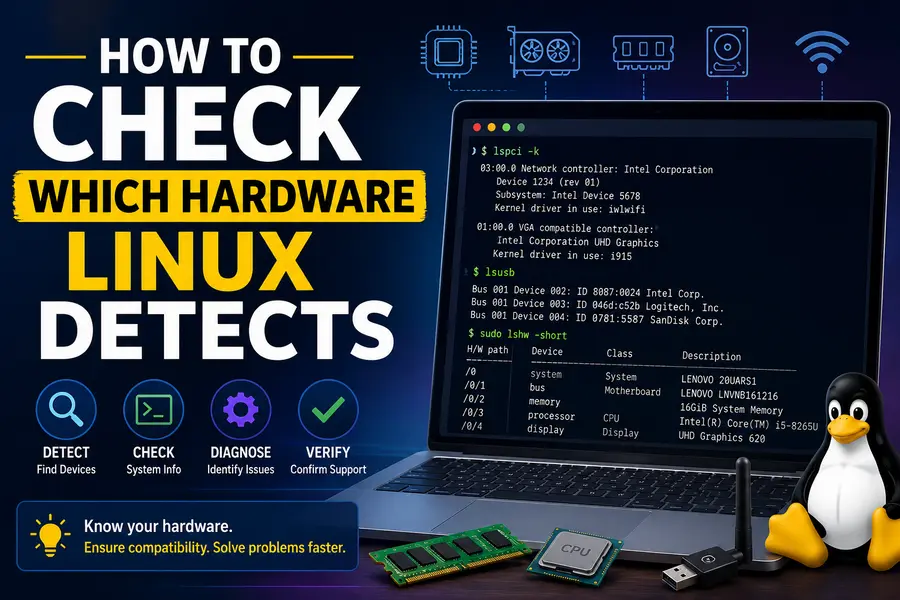
These are the core tools for finding out what Linux sees — and what it doesn’t.
lspci
lspci lists all devices connected to the PCI bus, including internal components like network cards, graphics cards, and sound chips.
lspciFor more detail — including the driver in use:
lspci -kSample output:
03:00.0 Network controller: Realtek Semiconductor Co., Ltd. RTL8821CE 802.11ac PCIe Wireless Network Adapter
        Subsystem: Hewlett-Packard Company RTL8821CE 802.11ac PCIe Wireless Network Adapter
        Kernel driver in use: rtw88_8821ce
        Kernel modules: rtw88_8821ce
If you see Kernel driver in use: (none), that device has no active driver.
lsusb
lsusb lists devices connected to USB buses — adapters, webcams, audio devices, peripherals.
lsusbTo see verbose output for a specific device:
lsusb -v -d 046d:c52bReplace 046d:c52b with the vendor:product ID from the base lsusb output.
lshw
lshw (list hardware) gives a comprehensive picture of your entire system. It requires root to show full detail.
sudo lshwFor a cleaner summary by class:
sudo lshw -class network
sudo lshw -class display
Look for entries marked UNCLAIMED — those are devices with no driver attached.
*-network UNCLAIMED
     description: Network controller
     product: BCM43142 802.11b/g/n
     vendor: Broadcom Inc.
UNCLAIMED is a strong indicator of missing driver support.
hwinfo
hwinfo provides very detailed hardware information, including driver status and device paths. It’s not always installed by default.
# Ubuntu/Debian
sudo apt install hwinfo

# Fedora
sudo dnf install hwinfo

# Arch Linux
sudo pacman -S hwinfo
hwinfo --short
hwinfo --network
hwinfo --gfxcardinxi
inxi is arguably the friendliest hardware overview tool. It’s compact, readable, and great for quickly assessing system hardware and driver status.
# Install if needed
sudo apt install inxi   # Debian/Ubuntu/Mint
sudo dnf install inxi   # Fedora

inxi -Fxz
The -F flag gives a full summary, -x adds extra detail, and -z hides identifying info. Pay attention to the Network section — it shows the driver in use or flags problems.
How to Identify Missing Drivers
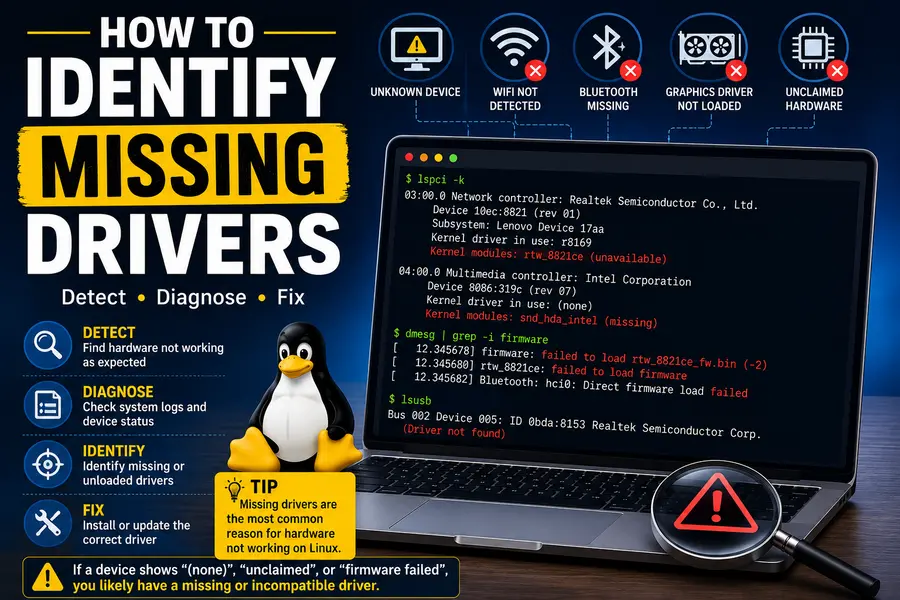
Detecting the hardware is step one. Checking whether a driver is loaded is step two.
Using lsmod
lsmod shows all currently loaded kernel modules (drivers).
lsmodPipe it through grep to search for a specific driver:
lsmod | grep iwlwifi
lsmod | grep nvidia
lsmod | grep btusb
If nothing comes back, that module isn’t loaded — which means either it’s not installed, it failed to load, or it’s not needed.
Using modinfo
modinfo shows details about a specific kernel module, including its version, dependencies, and the hardware it supports.
modinfo iwlwifi
modinfo rtw89
If modinfo returns ERROR: Module not found, the driver module isn’t present in your kernel at all.
Using dmesg to Catch Driver Load Failures
dmesg shows kernel ring buffer messages, which include everything that happens during boot — including driver load successes and failures.
sudo dmesg | grep -i firmware
sudo dmesg | grep -i error
sudo dmesg | grep -i "failed to load"
A common output for missing firmware:
[ 5.432198] iwlwifi 0000:02:00.0: Direct firmware load for iwlwifi-ty-a0-gf-a0-72.ucode failed with error -2That -2 means ENOENT — file not found. The driver loaded, but it can’t find the firmware blob it needs. The fix: install the appropriate firmware package.
Using System Logs to Find Hardware Problems
dmesg
Run dmesg immediately after connecting a device to see what the kernel makes of it:
sudo dmesg -wThe -w flag keeps it running and shows new messages in real time. Plug in your device and watch what appears. A healthy detection looks like:
[12345.678] usb 1-1: new high-speed USB device number 4 using xhci_hcd
[12345.890] usb 1-1: New USB device found, idVendor=046d, idProduct=c52b
An unhealthy one might show nothing, or show probe errors.
journalctl
On systemd-based distros (Ubuntu, Fedora, Arch, Debian, Mint — basically everything modern), journalctl gives you access to the full system journal.
# Hardware events since last boot
journalctl -b | grep -i "usb\|pci\|firmware\|driver"

# Watch for new events in real time
journalctl -f

# Filter by kernel messages only
journalctl -k
For a USB device that keeps disconnecting:
journalctl -b | grep -i "disconnect\|error\|reset"Xorg Logs
If you’re running an X11 session (still the default on many setups), the Xorg log is invaluable for GPU and display driver issues.
cat /var/log/Xorg.0.log | grep -E "\(EE\)|\(WW\)"(EE) means error; (WW) means warning. The log will specifically call out failed driver loads, missing firmware, and display configuration problems.
Wayland Considerations
On Wayland (the default in modern GNOME and increasingly in KDE), there’s no Xorg log. Instead, GPU and compositor issues show up in journalctl:
journalctl -b | grep -i "drm\|gpu\|wayland\|mutter\|kwin"Wayland also surfaces driver problems differently — a GPU without proper KMS support, for instance, will cause the compositor to fall back to software rendering, which you’ll notice through dramatically degraded performance.
How to Check Hardware Compatibility Databases
Before buying hardware or giving up on a piece of equipment, check whether someone else has already tested it.
Linux Hardware Database — One of the most comprehensive community-driven databases for Linux hardware compatibility. You can search by device name, vendor, or kernel module. Users upload hardware probe results showing exactly what works and what doesn’t.
Ubuntu Certified Hardware — Canonical maintains an official list of hardware certified to work with Ubuntu. Particularly useful for laptops and servers. Certification levels indicate how thoroughly the hardware has been tested.
Fedora Hardware Support — Fedora ships a very current kernel, so hardware that works in Fedora usually works broadly. The Fedora community wiki tracks known hardware issues and quirks.
Vendor compatibility pages — A growing number of laptop manufacturers — including Dell, Lenovo, HP, and Framework — publish Linux compatibility information. Framework’s hardware is designed specifically for Linux and has excellent community documentation.
The Arch Linux Wiki — Not just for Arch users. The Arch Wiki’s hardware pages are among the most thorough anywhere. If you’re troubleshooting a Broadcom Wi-Fi chip, a Realtek audio codec, or an NVIDIA driver issue, there’s almost certainly a detailed page about it.
Common Hardware Categories That Still Cause Problems
Wi-Fi Adapters
This is the most common Linux hardware headache in 2026. The problem chipsets are well-known: Broadcom BCM43xx series adapters require either the b43 driver with firmware or the proprietary wl driver. Realtek RTL88xx series adapters — including the RTL8821CE and RTL8852BE — often need out-of-tree drivers that aren’t in the mainline kernel. MediaTek MT7921 and similar chips have improved significantly and now have decent mainline support, but early kernel versions still have issues.
The rule of thumb: Intel Wi-Fi adapters (using iwlwifi) and Atheros/ath9k/ath11k chipsets are your safest bets.
NVIDIA Graphics Cards
NVIDIA on Linux is a perennial source of frustration. The open-source nouveau driver works for basic display output but lacks proper power management and performance for gaming or GPU compute. The proprietary NVIDIA driver delivers full performance but requires manual installation and doesn’t always play nicely with Wayland or newer kernel versions.
Since NVIDIA open-sourced its kernel modules in 2022, the situation has improved, but driver management still requires more care than AMD or Intel graphics — both of which are fully supported in-kernel via amdgpu and i915.
Bluetooth Devices
Most Bluetooth controllers work fine, but cheap USB Bluetooth dongles with Realtek or CSR chipsets can be unreliable. Bluetooth audio devices (especially those using aptX or LDAC codecs) depend on PipeWire for codec support. The btusb module handles the hardware side; audio quality issues are usually PipeWire configuration problems, not driver issues.
Fingerprint Readers
Support varies enormously by device. Goodix fingerprint readers are hit-or-miss. Many Synaptics readers now work via the libfprint library and fprintd daemon, but only if the specific sensor model is in libfprint’s device list. fprint.freedesktop.org maintains a list of supported devices.
RGB Controllers
RGB lighting controllers — for keyboards, motherboards, and fans — are largely unsupported in Linux’s kernel. Third-party tools like OpenRGB have made serious progress, but support depends entirely on the specific controller chip. If RGB management is important to you, check OpenRGB’s compatibility list before buying.
USB Docking Stations
Docks using DisplayLink technology require a proprietary driver from Synaptics/DisplayLink. Without it, the dock’s video outputs won’t work. The driver exists and can be installed manually, but it doesn’t ship with any distribution.
Thunderbolt docks generally work better, especially on Intel systems where the thunderbolt kernel module handles device authentication.
Specialty Peripherals
Drawing tablets (Wacom and Huion), game controllers, and MIDI devices vary widely. Wacom tablets have excellent kernel support via the wacom module. Huion tablets require either the digimend driver or Huion’s own Linux driver. Most standard USB game controllers work via xpad or usbhid; wireless controllers using proprietary receivers may not.
Distribution-Specific Hardware Detection Tools
Ubuntu
Ubuntu includes a graphical Additional Drivers tool (software-properties-gtk) that automatically detects hardware needing proprietary drivers — most commonly NVIDIA GPUs and Broadcom Wi-Fi adapters — and offers to install them with one click. From the terminal:
ubuntu-drivers devices
sudo ubuntu-drivers autoinstall
Fedora
Fedora’s GNOME Settings system information screen shows detected hardware at a glance. For driver installation, RPM Fusion repositories provide access to proprietary drivers not in the default repos. After enabling RPM Fusion:
sudo dnf install akmod-nvidia # for NVIDIAArch Linux
Arch has no GUI detection tool, by design. Instead, the workflow is: run lspci -k and lsusb, identify missing drivers, consult the Arch Wiki, and install the appropriate package from the official repos or AUR. Tools like paru or yay make AUR access easier.
Debian
Debian’s default install omits non-free firmware, which can leave hardware like Realtek Wi-Fi adapters and Intel graphics firmware non-functional. Enabling the non-free and non-free-firmware repositories and installing firmware-linux-nonfree resolves many hardware issues:
sudo apt install firmware-linux-nonfree firmware-realtek firmware-iwlwifiLinux Mint
Mint inherits Ubuntu’s Driver Manager tool with a cleaner interface. It’s found under Menu → Administration → Driver Manager. It detects the same hardware Ubuntu does and makes driver installation straightforward for newcomers.
What to Do When Hardware Is Unsupported
Install Missing Drivers
Start by identifying what’s missing, then search your distribution’s package manager:
# Ubuntu/Debian
apt search rtl8821ce

# Fedora
dnf search broadcom

# Arch
pacman -Ss firmware
Sometimes the driver is in a separate firmware package that needs to be installed alongside the kernel module.
Update the Kernel
Newer kernels include drivers for more hardware. If you’re on an older kernel and a device isn’t working, check whether a newer kernel version includes the needed module.
uname -r # check current kernel versionOn Ubuntu, you can install a newer HWE (Hardware Enablement) kernel. On Fedora, the kernel is already cutting-edge. On Arch, the kernel updates continuously.
Check Vendor Drivers
Some manufacturers provide official Linux drivers. NVIDIA, DisplayLink, and Huion all offer downloadable drivers. The quality varies — NVIDIA’s is excellent, others less so — but they’re often the only option for proprietary hardware.
Use Alternative Drivers
The community sometimes maintains out-of-tree drivers for hardware the mainline kernel doesn’t support. DKMS (Dynamic Kernel Module Support) makes installing and maintaining these easier:
sudo apt install dkmsThen install the driver package, which will rebuild the module automatically when your kernel updates.
Replace Incompatible Hardware
Sometimes the most practical solution is hardware replacement. A $15 Intel-based USB Wi-Fi adapter (like those using the AX200 chipset) will work perfectly on Linux. A cheap Realtek one may never work reliably. Knowing your chipsets before buying saves hours of frustration.
Consider USB Adapters with Better Linux Support
For Wi-Fi specifically, USB adapters using Mediatek MT7612U or Atheros AR9271 chipsets have strong Linux support. For Ethernet, adapters using ASIX AX88179 or Realtek RTL8153 chipsets are widely compatible.
Linux Commands Cheat Sheet for Hardware Troubleshooting
| Command | Purpose |
|---|---|
lspci -k | List PCI devices and their active kernel drivers |
lsusb -v | List USB devices with verbose detail |
sudo lshw -short | Compact hardware summary; flags UNCLAIMED devices |
inxi -Fxz | Full system info with driver status |
lsmod | Show all loaded kernel modules |
modinfo <module> | Show details and supported hardware for a module |
sudo dmesg | grep -i firmware | Find firmware load failures in kernel log |
journalctl -b -k | Kernel messages from current boot |
sudo dmesg -w | Watch kernel messages in real time |
hwinfo --short | Detailed hardware info including driver status |
ubuntu-drivers devices | Detect hardware needing proprietary drivers (Ubuntu) |
cat /var/log/Xorg.0.log | grep "(EE)" | X11 display driver errors |
lspci -nn | Show PCI devices with numeric vendor/device IDs |
sudo lshw -class network | Network hardware detail only |
Common Mistakes Linux Users Make
Assuming all hardware works automatically. The Linux kernel supports an enormous range of hardware, but not everything. Never assume compatibility before purchasing, especially for laptops, Wi-Fi adapters, and printers.
Ignoring chipset compatibility. Product names are unreliable — two devices with nearly identical names can use entirely different chipsets with different support levels. Always find the actual chipset model before buying.
Installing random drivers from GitHub. Out-of-tree drivers from unofficial sources can introduce instability and security issues. Prefer distribution packages or DKMS modules with active maintenance when possible.
Not checking logs. Most hardware problems leave clear error messages in dmesg or journalctl. Skipping log analysis and jumping straight to forums wastes time.
Using outdated kernels. Linux hardware support improves with every kernel release. Running a 3-year-old kernel and wondering why new hardware doesn’t work is a common trap. Keep your kernel reasonably current.
Overlooking firmware packages. The driver and the firmware are separate things. A kernel module can load successfully but still fail if the firmware blob it needs isn’t installed. Always check dmesg for firmware-related errors.
❓ Frequently Asked Questions
Everything you need to know about identifying unsupported hardware on Linux.
Conclusion
Hardware problems on Linux are almost never random — they follow patterns, leave traces in logs, and respond to systematic investigation. Whether you’re chasing a missing Wi-Fi driver, a silent Bluetooth adapter, or a GPU that refuses to initialize properly, the process is the same: identify what Linux detects, check whether a driver is loaded, read the logs for errors, and look up your specific hardware in compatibility databases.
Knowing how to identify unsupported hardware on Linux puts you in control of the troubleshooting process rather than guessing. With tools like lspci, lshw, inxi, dmesg, and journalctl, you can build a clear picture of exactly where the chain breaks — whether it’s a missing kernel module, absent firmware, an unloaded driver, or genuinely unsupported hardware that needs a replacement.
The practical next steps: start with inxi -Fxz for a quick overview, follow up with sudo lshw for depth, then dig into dmesg and journalctl for specific error messages. Check the Linux Hardware Database and your distribution’s wiki for your specific device. And if you’re buying new hardware, verify chipset compatibility before you open your wallet — five minutes of research saves hours of frustration.
🔗 Continue Your Linux Hardware Journey
Learn more about Linux hardware compatibility, troubleshooting, and performance optimization with these helpful guides.
Disclaimer
This article is intended for informational purposes only. Linux hardware compatibility can vary depending on your kernel version, distribution, and specific hardware revision. The information provided reflects general community experience and known driver support as of June 2026, but individual results may differ. Always verify compatibility with your specific hardware before making purchasing decisions. We are not responsible for any system changes, data loss, or hardware issues that may result from following the steps in this guide.
About the Author