How to Check Motherboard Linux Compatibility Before Buying (2026 Guide)
Most modern desktop motherboards will boot Linux without much drama. Plug in an Ubuntu or Fedora installer, and the CPU, RAM, and basic graphics will almost certainly work. The problem shows up afterward, once you rely on everything else the board advertises.
Onboard Wi-Fi might not associate with your router. The 2.5GbE or 5GbE port might not appear until you install an out-of-tree driver. Bluetooth might pair but drop audio. Fan curves might be invisible to lm-sensors. RGB lighting almost certainly won’t work the way it does in Windows.
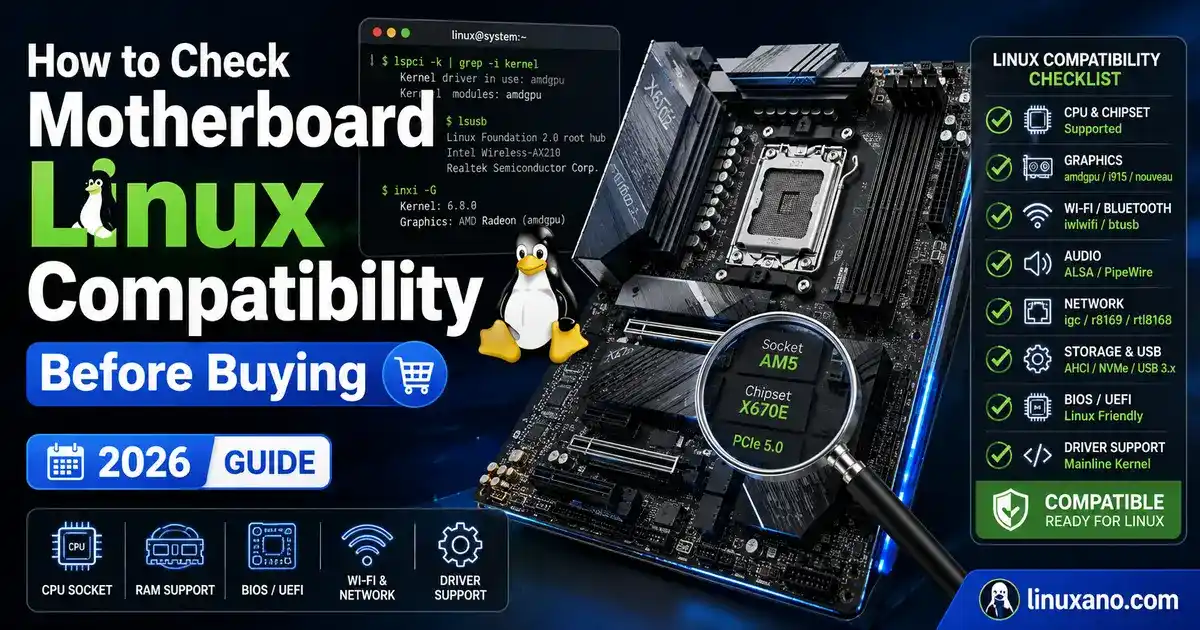
None of this means the board is “incompatible” with Linux in a blanket sense. Individual components have varying support levels, and the only way to know before buying is to check them individually. This guide covers how to check motherboard Linux compatibility before buying, component by component, so you’re not guessing after the return window closes.
Motherboard Linux Compatibility Checklist
| Component | What to Identify | Why It Matters | Risk |
|---|---|---|---|
| CPU socket/chipset | AM5, LGA1851, SKU | Platform-level kernel support | Low |
| Ethernet controller | Exact model (RTL8125/8126, I225/I226) | May need out-of-tree/recent drivers | Medium |
| Wi-Fi chipset | Exact model, not just “Wi-Fi 7” | New chips lag on firmware | Worth checking |
| Bluetooth | Often paired with Wi-Fi module | Separate firmware/driver path | Worth checking |
| Audio codec | Realtek ALC series | Basic audio works; edges vary | Low–Medium |
| Storage controller | AHCI vs RAID mode | RAID-only can hide drives | Medium |
| USB controller | Native vs third-party | Watch for USB4 quirks | Low |
| BIOS/UEFI | Version, AGESA/microcode | Bugs affect boot, power states | Worth checking |
| Secure Boot | Signing behavior | Matters for third-party modules | Worth checking |
| Sensors/fan controller | Super I/O chip | hwmon support is chip-specific | Worth checking |
| RGB controller | Vendor-specific chip | Often partially supported | Medium |
1. Start With the Exact Motherboard Model and Revision
Manufacturers frequently ship the “same” board with different components depending on region or manufacturing run. Revision 1.0 and 1.1 of an identical model can carry a different Wi-Fi module or audio codec, especially on mid-cycle refreshes.
Before researching anything, pull the exact model number and revision from the manufacturer’s own specification page — not a retailer listing, which often lags or simplifies details. ASUS, MSI, Gigabyte, and ASRock all publish per-model spec pages and manuals listing the actual controller chips used.
Searching something broad like “ASUS B650 Linux” mixes results from a dozen SKUs with different networking hardware. Searching the specific controller model gives results that apply to your board.
[Best Intel Motherboards for Ubuntu and Fedora Users]
2. Check the Motherboard Chipset and Linux Kernel Support
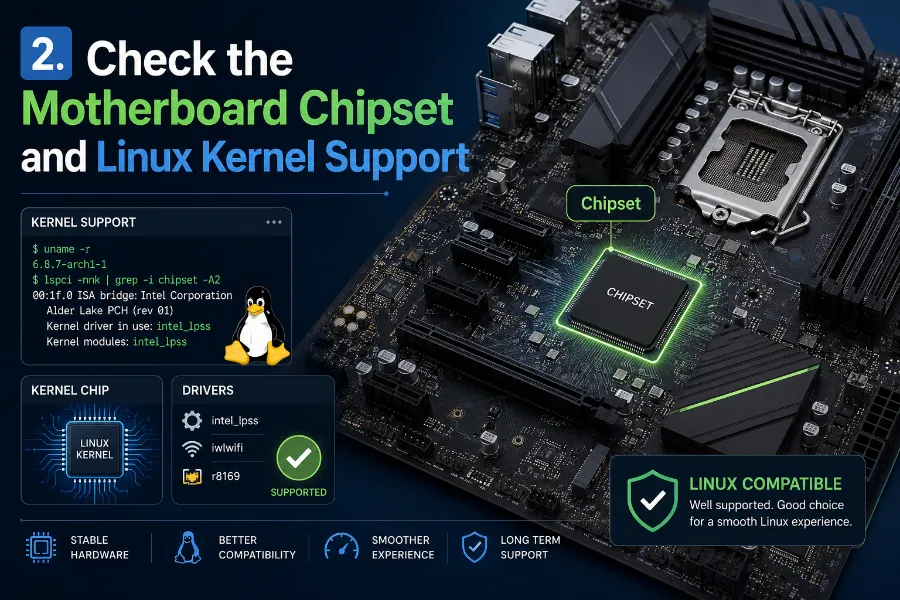
As of August 2026, AMD’s mainstream desktop platform is still Socket AM5, spanning B650/X670 through the newer B850/X870/X870E and X970E chipsets — AMD’s own chipset comparison page lays out exactly what each tier supports. AMD has committed to AM5 for its upcoming Zen 6 “Ryzen 10000” chips, so boards bought today should stay relevant through a BIOS update rather than a socket change.
Intel’s current desktop platform is Socket LGA1851 with the Z890 chipset, covering Arrow Lake and Arrow Lake Refresh (“Core Ultra 200S Plus”) — Intel’s own Z890 product specifications list the chipset’s PCIe lane count, USB configuration, and memory support in detail. Intel’s next platform, Nova Lake on LGA1954, is expected late 2026 and will require new motherboards — not a drop-in upgrade for Z890 boards.
Chipset-level Linux support for both platforms is mature; the platform chipsets are rarely the source of problems. CPU socket compatibility and Linux driver support are separate questions — a board being electrically compatible with a CPU says nothing about whether its onboard Wi-Fi or LAN chip has a working driver.
3. Check the Ethernet Controller
This is one area where the exact chip matters more than the marketing copy. “2.5G LAN” or “5G LAN” tells you the port speed, not which silicon drives it, and that silicon determines your actual Linux experience.
Realtek’s RTL8125 (2.5GbE) is extremely common on mid-range and high-end boards, with both an in-kernel r8169 driver and Realtek’s own out-of-tree r8125 driver; some distributions ship only baseline support until a newer kernel adds fuller handling. The newer RTL8126 (5GbE) gained kernel support more recently, so an older kernel is more likely to need a manually built driver.
Intel’s I225 and I226 2.5GbE controllers have a long track record on Linux through the in-tree igc driver and are generally a safer bet for immediate support. This doesn’t mean Realtek chips don’t work — they do, on current kernels — but check the controller and minimum kernel version needed before installing an older-release distribution.
Before buying, look up the LAN chip in the board’s specifications, then search that chip name alongside “Linux kernel driver” rather than the motherboard name alone.
4. Check the Wi-Fi Chipset Carefully
“Wi-Fi 6E” or “Wi-Fi 7” on a spec sheet says nothing about Linux support by itself. The silicon vendor and model number determines whether the chip works out of the box, needs a firmware update, or doesn’t work yet.
Intel’s Wi-Fi 7 parts (BE200, BE201, BE202, BE211, BE213) use the in-kernel iwlwifi driver and are broadly reliable on Linux — Intel documents Linux driver support directly on its Wi-Fi driver download page, which is worth checking for the specific model’s current status. That said, some users have reported pairing issues on certain AMD platforms — worth checking against your exact board and CPU combination.
MediaTek’s Wi-Fi 7 lineup is more fragmented. The MT7925 has in-kernel support through the mt76 driver family. The MT7927, electrically similar but not identical, only gained upstream Linux driver patches well after MT7925 support landed, and older distribution releases may not include it. MediaTek’s older MT7902 chipset went without any Linux driver for roughly two years before patches were finally posted for mainline inclusion in early 2026 — a reminder that Windows availability tells you nothing about a chip’s Linux timeline.
If a board uses a very recent Wi-Fi chipset, check the minimum kernel version, whether linux-firmware needs an update, and whether your distribution’s release ships both. Don’t assume “Intel always works” or “MediaTek never works” — check the specific model.
[Internal link: Best Linux-Compatible Motherboards for AMD Ryzen]
5. Check Bluetooth Separately
Wi-Fi and Bluetooth are often built into the same physical module but function through different interfaces and drivers — Wi-Fi typically over PCIe, Bluetooth over a USB-style interface internally. Solid Wi-Fi support doesn’t guarantee solid Bluetooth support, and vice versa.
This has played out with recent MediaTek combo modules, where reverse-engineering happened for Bluetooth and Wi-Fi as two distinct efforts. Before buying, search the Bluetooth half of the chipset separately, and check for firmware requirements in your distribution.
6. Check the Audio Codec
Most desktop boards use a Realtek ALC-series codec — the ALC1220 and ALC4080 show up constantly, and newer variants follow the same pattern — handled through the kernel’s generic HD-audio driver stack. Plug in speakers or headphones and playback typically just works on current distributions, with no separate driver install needed.
The rough edges tend to show up in specific situations rather than everyday use: front-panel jack detection sometimes needs manual configuration, microphones can register at inconsistent input levels, unusual speaker layouts (5.1, 7.1, or non-standard front/rear configurations) occasionally need tweaking, and digital outputs like S/PDIF can be hit or miss depending on the codec revision. None of this is a hard blocker — it’s the kind of thing solved with alsamixer or a PipeWire configuration change rather than a driver hunt — but if front-panel audio quality matters to your build, it’s worth a quick search against your specific codec model before buying.
7. NVMe, SATA, and Storage Controllers
Standard NVMe and AHCI-mode SATA storage is about the safest territory in a modern Linux build — the drivers are mature and built into the kernel across essentially all current AMD and Intel boards, so this rarely factors into a purchase decision.
The exception worth knowing about: some boards default storage to a RAID mode in BIOS rather than AHCI, and firmware or software RAID (including Intel VMD on some platforms) can behave inconsistently under Linux or need extra configuration just to see the drives. If you’re not planning to use RAID, switching storage mode to AHCI before installing Linux sidesteps the issue entirely. If you do need RAID, Linux’s own software RAID (mdadm) tends to be a more predictable path than relying on motherboard firmware RAID.
8. BIOS/UEFI and Firmware Support Matter More Than Many Buyers Realize
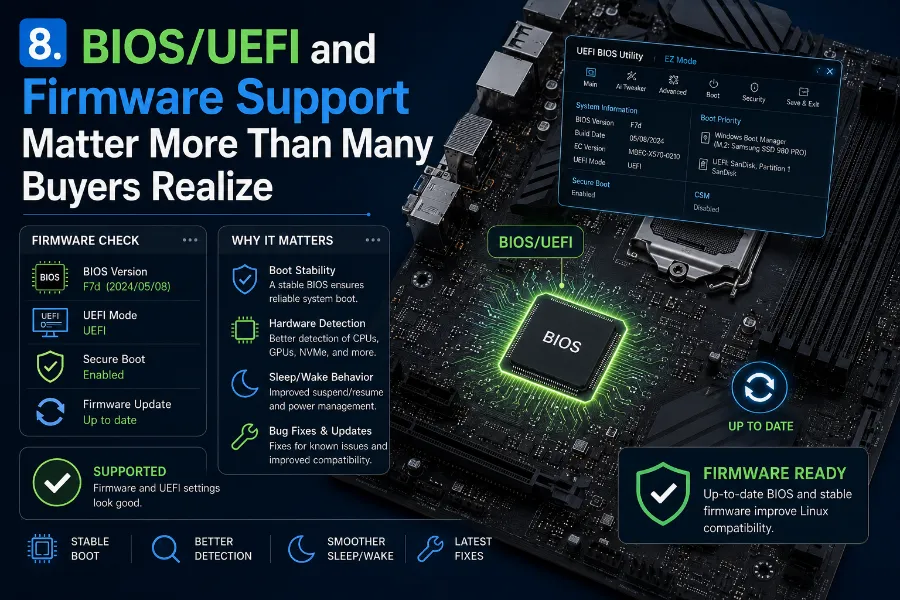
A motherboard can be broadly Linux-compatible while a specific BIOS revision still causes real problems — boot hangs, USB wake issues, or memory training bugs tied to an AGESA (AMD) or microcode (Intel) update. This is a firmware issue, not a kernel driver issue, and it affects Windows users too, but Linux users often hear about fixes later since vendor announcements are Windows-focused.
Before buying, check the BIOS changelog on the manufacturer’s support page for recent updates addressing boot stability, USB behavior, or memory compatibility. Resizable BAR (ReBAR) and Above 4G Decoding are also firmware settings that can affect GPU behavior under Linux if left disabled, particularly with newer graphics cards.
[Internal link: How to Update BIOS Safely on Linux]
9. Secure Boot and Linux
Secure Boot support on Linux is more mature than it used to be, and disabling it outright is rarely necessary. Ubuntu and Fedora both support Secure Boot out of the box using signed shim bootloaders and signed kernels.
The main complication comes from third-party kernel modules that aren’t signed by default — proprietary NVIDIA drivers being the most common example, along with some DKMS-built modules. Distributions increasingly handle this through built-in signing tools, but if running a custom kernel or unusual modules, understand your distribution’s signing workflow rather than assuming it will “just work,” or reflexively disabling Secure Boot.
10. Sensors, Fan Control, and Temperature Monitoring
The system working under Linux and every sensor being exposed to Linux tools are two different things. Temperature and fan-speed monitoring generally goes through the hwmon subsystem, which depends on the specific Super I/O or embedded controller chip being recognized by a matching driver.
Mainstream boards using common Super I/O chips (Nuvoton and ITE parts are widespread) are usually picked up correctly by lm-sensors after running sensors-detect. Higher-end enthusiast boards sometimes use elaborate, proprietary fan and voltage controllers not fully exposed to Linux tools, meaning you see some sensors but not full fan-curve control. If granular fan control matters, search the board’s Super I/O chip alongside “hwmon” before buying.
11. RGB and Vendor Control Software
RGB lighting is one of the weaker areas of desktop Linux support, so go in with realistic expectations. Manufacturer software like ASUS Aura, MSI Mystic Light, or Gigabyte RGB Fusion is Windows-only, and Linux support comes almost entirely from the community-maintained OpenRGB project.
OpenRGB supports a wide range of motherboard RGB controllers, but support is device-specific and depends on someone having reverse-engineered that controller’s protocol. A board not being listed doesn’t mean it never will be, but don’t buy assuming RGB will work. None of this affects whether the motherboard functions under Linux — RGB is entirely separate from the board’s core operation.
12. Suspend, Resume, and Power Management
Sleep and wake behavior is heavily influenced by motherboard firmware, not just the kernel. Problems can include failing to wake, USB devices not resuming, or wake-on-LAN not working.
These issues are often board- and BIOS-specific rather than universal to a chipset, making them hard to predict from a spec sheet. Before buying, search the exact board model alongside “suspend” or “S3 sleep” and “Linux,” and treat isolated forum complaints as a signal to investigate rather than a guaranteed dealbreaker — check whether a firmware update resolved it and how recent the reports are.
13. How to Research a Motherboard Before Buying It
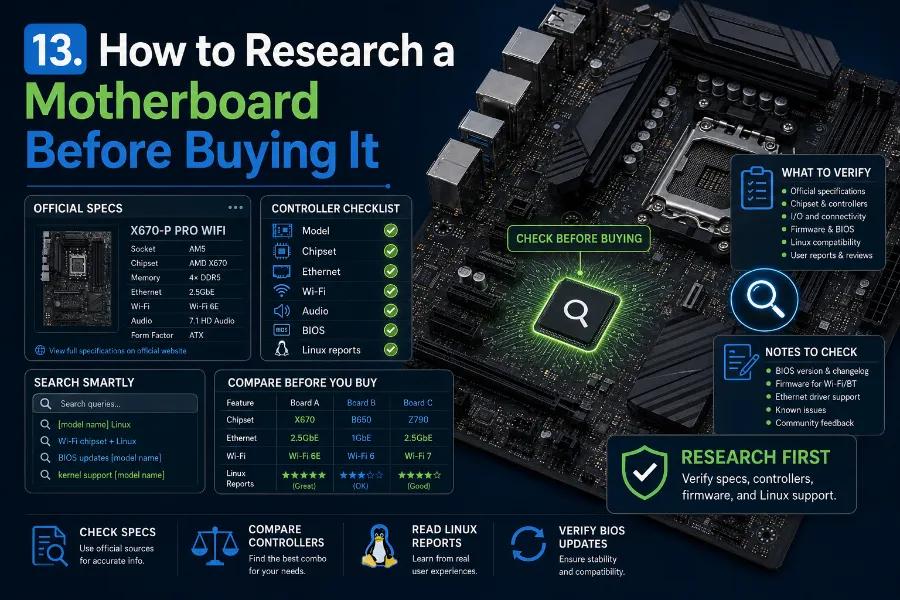
Step 1. Open the official motherboard specification page from the manufacturer, not a retailer listing.
Step 2. Write down the exact chipset, Ethernet controller, Wi-Fi chipset, and audio codec models.
Step 3. Check kernel documentation or driver source for each controller — the kernel.org source tree is the most authoritative record of what’s actually supported.
Step 4. Check the Linux Hardware Database for reports tied to the exact board model.
Step 5. Check the Arch Wiki, Ubuntu, and Fedora docs and community reports for the same board or chipset — the Arch Wiki tends to document chipset and peripheral quirks in more technical detail than most distribution docs.
Step 6. Search "[exact motherboard model]" Linux, then repeat for each controller name.
Step 7. Review the BIOS update history on the manufacturer’s support page.
Step 8. For unusually new hardware, confirm the minimum kernel and linux-firmware version needed, and check your target distribution includes them.
Forum posts are useful early-warning signals, but treat a single complaint with caution — corroborate it against official documentation or multiple independent reports.
A useful shortcut if you already have Linux running on similar hardware, or can boot a live USB on the exact machine: lspci -v lists every PCI device along with the kernel driver currently bound to it, which tells you immediately whether your Ethernet or Wi-Fi controller has a working in-tree driver or is falling back to a generic one. dmidecode -t baseboard reports the exact board model and revision the system sees, which is worth checking against what you searched for if you bought a floor model or open-box unit where the listed revision might not match what shipped.
[Internal link: How to Identify Unsupported Hardware on Linux]
14. AMD vs Intel Motherboards for Linux: Does Platform Matter?
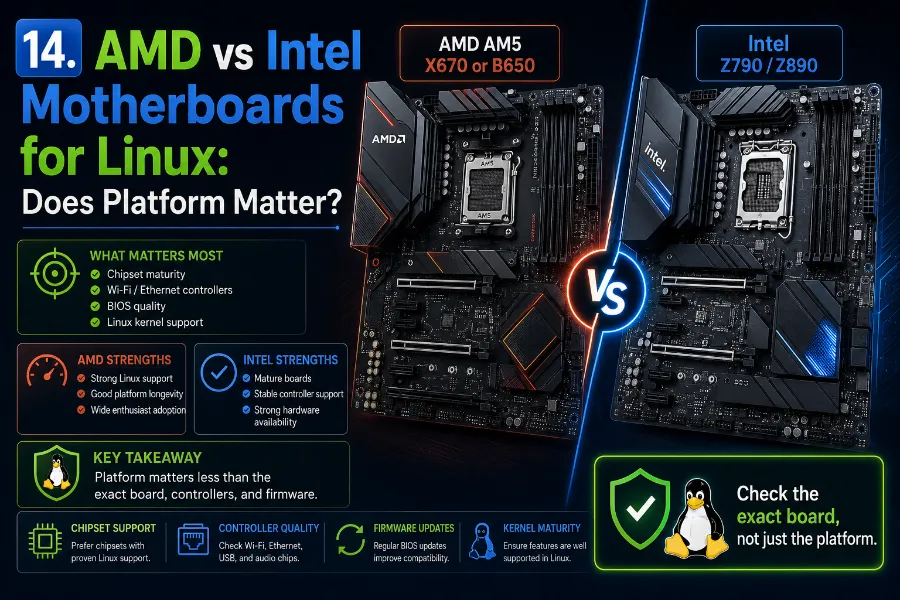
Neither platform is universally better for Linux at the chipset level in 2026. Both AM5 and LGA1851 have mature, well-supported chipset drivers, and the CPU platform itself is rarely where compatibility problems originate.
What varies is board-to-board: BIOS quality, the specific Wi-Fi and LAN controllers a vendor chose, and how quickly that vendor pushes firmware fixes. AM5’s longer lifespan — carrying through to Zen 6 — gives it an edge in accumulated BIOS maturity simply because more revisions have shipped and more bugs have been found. A board using a Linux-friendly chipset can still ship with an awkward Wi-Fi or RGB controller, so the individual board still needs checking on its own merits.
15. Example: Evaluating a Motherboard Before Buying
Motherboard: ASUS ROG Strix B650E-F Gaming WiFi (AM5)
This is a genuinely current, US-available board as of August 2026, and its specifications are pulled directly from ASUS’s own product support page rather than a retailer listing.
- Chipset: AMD B650 (per ASUS’s own spec table — the “B650E” in the product name refers to PCIe 5.0 support, not a distinct chipset SKU) — mature Linux support
- Ethernet: Intel 2.5GbE controller — ASUS’s own spec sheet lists this as “Intel 2.5G Ethernet” without printing the exact SKU, but Intel’s 2.5GbE desktop parts (I225-V, I226-V) all use the in-tree
igcdriver, so the family is what matters more than the exact revision — confirm vialspcion a review unit or an owner’s forum post if you want the precise model - Wi-Fi: MediaTek MT7922 (confirmed via ASUS’s own driver downloads page) — in-kernel
mt76support, generally reliable - Bluetooth: Paired with the MT7922 module — check separately for firmware needs
- Audio: Realtek ALC4080 — basic playback works via HD-audio
- BIOS: Check the changelog for AGESA updates on memory training and boot stability
Compatibility outlook: Generally low risk on a current kernel and distribution release. The Intel Ethernet controller and MediaTek MT7922 Wi-Fi chip are both well-covered in-kernel, which puts this board ahead of boards using newer or less-established Realtek or MediaTek silicon.
This isn’t a claim the board was personally tested — it’s a demonstration of the research process applied to publicly available manufacturer specifications, cross-checked against the board’s own driver-download page rather than relying on marketing copy alone.
A second example, on the Intel side, that shows why “check the exact chip” isn’t just theoretical advice: the MSI MAG Z890 Tomahawk WiFi lists an Intel Killer E5000 5Gbps LAN controller and an Intel Killer BE1750x Wi-Fi 7 module in its official specifications, plus a Nuvoton NCT6687D-M Super I/O chip for sensors. The “Intel Killer” branding on the LAN side is misleading in a way that matters directly for this guide’s advice: Phoronix reported that the Killer E5000 is actually a re-badged Realtek RTL8126 controller, and mainline kernel support for its specific device ID only landed in Linux 6.15 — boards using it were effectively unrecognized on distributions running older kernels, even though the same physical silicon (RTL8126) had already been supported under its native Realtek device ID for longer. Owners on Debian and Proxmox forums confirmed the same fix: either wait for a 6.15+ kernel or install Realtek’s own out-of-tree driver package. The BE1750x Wi-Fi module, by contrast, is genuine Intel silicon and uses the standard iwlwifi path, though some users have reported firmware-loading issues on non-mainstream platforms.
The lesson holds regardless of platform: two boards on the same generally Linux-friendly chipset (Z890, in this case, same as the earlier B650 example on AM5) can carry completely different — and differently risky — networking silicon under a nearly identical-sounding marketing name. Checking the board’s spec sheet is necessary, but checking what that chip’s device ID actually maps to in the kernel is what catches problems like this before they show up as a dead Ethernet port on install day.
16. Red Flags to Watch for Before Buying
- A brand-new Wi-Fi chip with no track record of Linux support yet
- A LAN controller the manufacturer doesn’t clearly identify
- Spec pages that omit chipset or controller details entirely
- A proprietary fan or RGB controller with no OpenRGB or hwmon coverage
- A board released so recently that no community reports exist yet
- Storage defaulting to RAID-only with no documented AHCI option
- Multiple unresolved Linux reports tied to the exact board model
- Pairing very new hardware with an older, less current distribution
17. What Usually Does NOT Require Worry
It’s easy to come away from a guide like this thinking every component on a motherboard is a potential landmine. Most of them aren’t. Standard USB ports, conventional SATA and AHCI-mode storage, standard NVMe drives, and core chipset functionality on current AM5 and LGA1851 boards are about as boring — in the good sense — as PC hardware gets under Linux. These rely on drivers that have been in the kernel for years, not newly introduced silicon still working out device-ID quirks, so spending research time here has a much lower payoff than checking the networking and RGB controllers this guide focuses on.
A Note on Laptops
This guide focuses on desktop ATX, mATX, and ITX motherboards used in DIY builds, where you choose the board as a standalone component. Laptops don’t work this way — the Wi-Fi module, and sometimes storage and I/O controllers, are often soldered or tied to a specific OEM configuration, with no “swap the motherboard” option.
If buying a laptop for Linux, research the complete laptop model and its individual components — particularly the Wi-Fi module — rather than treating it like a motherboard purchase.
FAQ
Do motherboards need drivers on Linux?
The chipset is usually handled by drivers built into the kernel, but onboard Wi-Fi, LAN, and audio chips each rely on their own driver or firmware, which is why checking them separately matters.
How do I know if a motherboard is Linux compatible?
Identify the exact controllers (Ethernet, Wi-Fi, Bluetooth, audio) from the manufacturer’s spec page, then check Linux kernel and firmware support for each individually rather than relying on the board name alone.
Does Linux work with all AMD motherboards?
AMD’s AM5 chipsets have mature Linux support, but onboard components like Wi-Fi and LAN chips vary by board and need checking separately.
Does Linux work with all Intel motherboards?
Intel’s current LGA1851 chipsets have mature Linux support, but as with AMD boards, onboard networking and audio controllers vary and should be checked individually.
Is ASUS, MSI, Gigabyte, or ASRock better for Linux?
There isn’t reliable evidence one manufacturer is consistently better for Linux; compatibility depends more on an individual board’s controllers and BIOS quality than the brand.
Does motherboard Wi-Fi work on Linux?
Many current Wi-Fi chipsets, including Intel’s Wi-Fi 7 parts and MediaTek’s MT7925, have solid in-kernel support, but newer variants can lag on driver and firmware availability, so the exact model needs checking.
What motherboard chipset is best for Linux?
Both AM5 and current LGA1851 chipsets have mature platform-level Linux support, so the bigger factor is the specific onboard networking, audio, and sensor controllers a board uses.
Compatibility details change quickly as new kernel releases, firmware, and distribution versions ship. The information above reflects public documentation as of August 2026; verify current driver and firmware status against the manufacturer’s specifications and official kernel documentation before purchasing.
About the Author