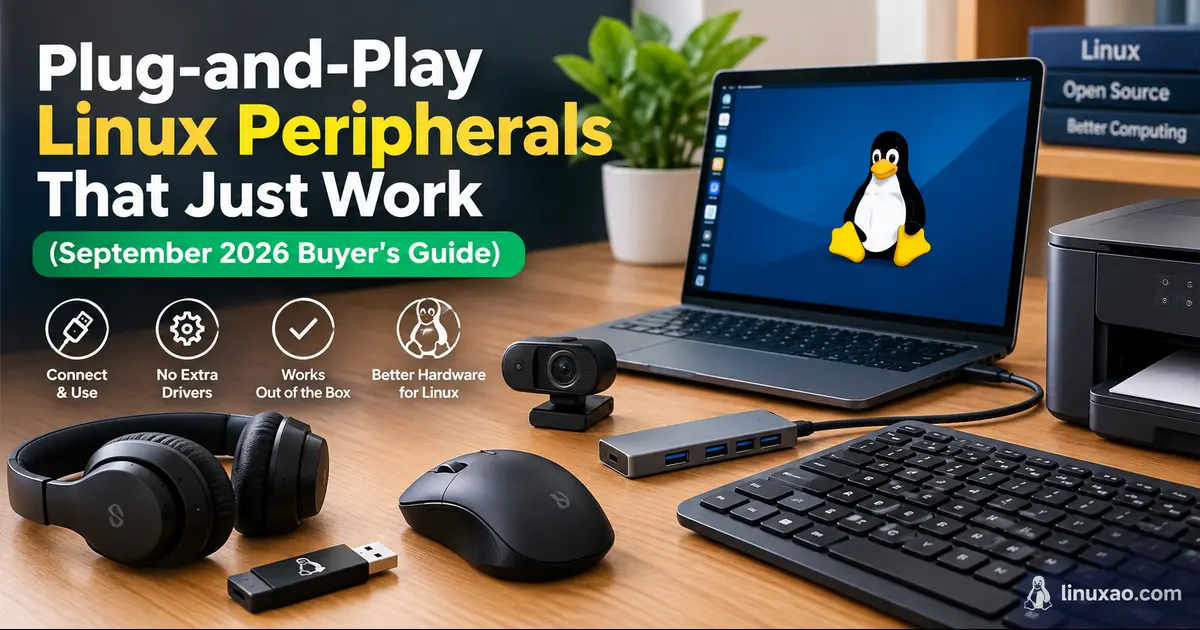
Plug-and-Play Linux Peripherals That Just Work (2026 Buyer's Guide)
If you’ve ever plugged in a “universally compatible” gadget on Linux and watched it do absolutely nothing, you already know why this guide exists. Finding genuinely Plug-and-Play Linux Peripherals That Just Work is still harder than it should be in 2026, even though the Linux desktop is more polished than ever across Ubuntu, Fedora, Linux Mint, Pop!_OS, and Arch-based distros.
The good news: the hardware landscape has quietly gotten a lot better. Manufacturers like Logitech, HP, Keychron, and Samsung now build products around USB standards that Linux has supported natively for years — UVC for webcams, USB HID for mice and keyboards, and USB Mass Storage for drives. When a device follows these standards, there’s no driver hunt, no compiling kernel modules at 1 a.m., and no forum thread from 2019 promising a fix that never came.
I put this list together by cross-checking manufacturer spec sheets, official Linux support statements, kernel driver documentation, and current stock availability across US and global marketplaces as of September 2026. A few ground rules I stuck to: nothing that’s been quietly discontinued, nothing where “Linux support” turns out to mean “it charges over USB and that’s it,” and nothing where the plug-and-play claim falls apart the moment you dig into a support forum. Here’s what actually holds up.
What “Plug-and-Play” Actually Means on Linux
Before jumping to recommendations, it helps to know what’s happening under the hood, because this is exactly what separates a peripheral that works instantly from one that needs three terminal commands and a prayer.
- UVC (USB Video Class) — Webcams that follow this standard are recognized by the Linux kernel’s built-in
uvcvideodriver. No manufacturer software needed. This is the single most important spec to check before buying a webcam for Linux. - USB HID (Human Interface Device) — Covers mice, keyboards, and most game controllers. HID devices are handled natively by the kernel, which is why almost any basic mouse or keyboard works instantly, even if the fancy side buttons don’t. The Arch Wiki’s input device documentation is a good place to sanity-check a specific model before buying.
- USB Mass Storage / UASP — External drives that use this class show up as a regular block device the moment you plug them in. No formatting gymnastics required, as long as the drive isn’t pre-formatted in a proprietary filesystem.
- CUPS and IPP Everywhere — Most modern printers support IPP (Internet Printing Protocol), which Linux’s CUPS printing system can talk to directly, often without installing any manufacturer driver package at all. You can check kernel-level driver status for any USB device against the mainline Linux kernel source if you want to go a layer deeper than manufacturer claims.
Devices that stick to these open standards are the ones worth buying. Devices that lean on proprietary companion apps for basic functionality are the ones that turn into a weekend project.
Best Plug-and-Play Webcams for Linux

Logitech C920x HD Pro
Ask around in any Linux forum for a webcam recommendation and this is the one that comes up first, over and over. It’s fully UVC-compliant, meaning it’s recognized instantly by uvcvideo on Ubuntu, Fedora, Debian, and Arch without installing anything. It ships with 1080p at 30fps, stereo mics, and a metal tripod mount, and it plays nicely with Zoom, Google Meet, and OBS Studio running natively on Linux.
Pros:
- Zero-driver setup across every major distro
- Sharp 1080p image with solid low-light correction
- Works with
v4l2-ctlandguvcviewfor manual exposure and focus tweaks
Cons:
- Logitech’s Logi Options+ companion app is Windows/macOS only, so Linux users lose the GUI controls
- Autofocus can hunt slightly in mixed lighting
Buy it: Logitech C920x HD Pro Webcam on Amazon
Logitech C270
For anyone who just needs a webcam for video calls without spending much, the C270 is still around in 2026 and still just works. It’s 720p rather than 1080p, but the UVC compliance means the plug-and-play experience is identical to its pricier sibling.
Pros:
- Budget-friendly and widely stocked
- Genuinely driverless setup, even on lightweight distros
- Compact clip-on design fits any monitor
Cons:
- 720p resolution feels dated next to 1080p rivals
- No physical privacy shutter
Buy it: Logitech C270 HD Webcam on Amazon
Best Plug-and-Play Mice for Linux
Logitech MX Master 3S
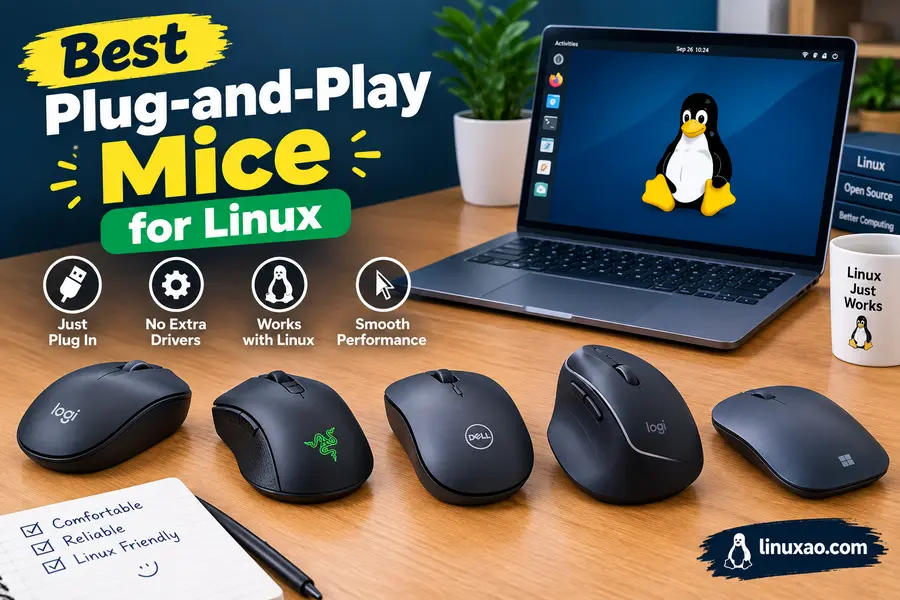
Most “cross-platform” mice quietly mean Windows and Mac. This one doesn’t — Logitech officially lists Linux as a supported operating system for the MX Master 3S, and it shows. Plug it in via the USB-C receiver or Bluetooth and every core function — the 8K DPI Darkfield sensor, the free-spinning MagSpeed scroll wheel, and all seven buttons — works immediately through standard HID and Bluetooth HID profiles.
Pros:
- Recognized instantly with no drivers, official Linux support listed by Logitech
- Ultra-quiet clicks and buttery-smooth scrolling that feels genuinely premium
- Multi-device Bluetooth pairing works well for switching between a Linux desktop and a laptop
Cons:
- Deep button remapping requires Logi Options+, which doesn’t run natively on Linux (the open-source
logiopsproject fills the gap but needs manual configuration) - Pricier than most wireless mice in this category
Buy it: Logitech MX Master 3S on Amazon
Logitech Signature M650
If the MX Master 3S feels like overkill, the M650 covers the basics extremely well. It’s a simple Bluetooth/USB receiver mouse with quiet clicks and a comfortable shape, and because it relies purely on standard HID, there’s genuinely nothing to configure on Linux.
Pros:
- Dead-simple setup, works the second you turn it on
- Comfortable for all-day use, available in multiple sizes
- Long battery life rated at up to 24 months
Cons:
- No side scroll wheel or advanced gesture controls
- Fewer programmable buttons than the MX line
Buy it: Logitech Signature M650 on Amazon
Best Plug-and-Play Keyboards for Linux
Keychron K6 / K2 Series
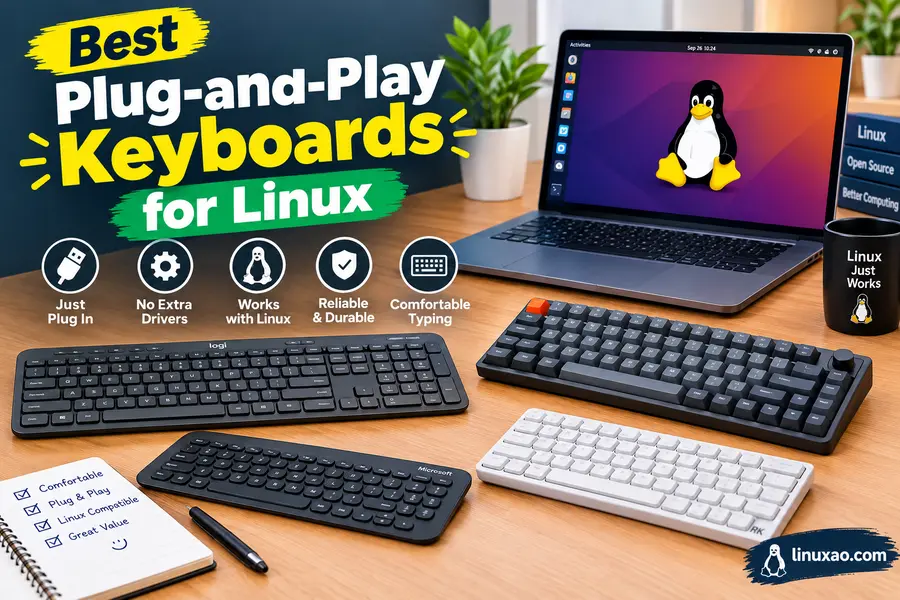
Keychron has built a real following in the Linux community, and it’s not an accident. The company explicitly markets Linux compatibility on its K-series wireless mechanical keyboards and even maintains a dedicated Linux user community for setup help. These boards connect over Bluetooth or a 2.4GHz dongle and register as standard HID keyboards, so every key works out of the box.
Pros:
- Hot-swappable switches, so you can change the feel without soldering
- Bluetooth pairing with up to three devices, handy for switching between a Linux box and a phone
- Compact 65% and 75% layouts available for smaller desks
Cons:
- Media keys and Fn-row shortcuts occasionally need a manual keymap tweak on non-QMK-based older models
- Function-layer behavior can differ slightly between distros’ default keyboard settings
Buy it: Keychron K6 Wireless Mechanical Keyboard · Also on Amazon
Logitech MX Keys S
For a low-profile, quieter option, the MX Keys S is another Logitech product with official Linux support. It pairs over Bluetooth or the USB receiver and includes backlighting that automatically adjusts based on ambient light and hand proximity.
Pros:
- Instant recognition with no drivers needed
- Comfortable, quiet key travel great for long typing sessions
- Smart backlighting works without any extra software
Cons:
- Function-key customization needs Logi Options+, unavailable natively on Linux
- Not mechanical, so it won’t satisfy tactile-switch enthusiasts
Buy it: Logitech MX Keys S on Amazon
Best Plug-and-Play Printers for Linux
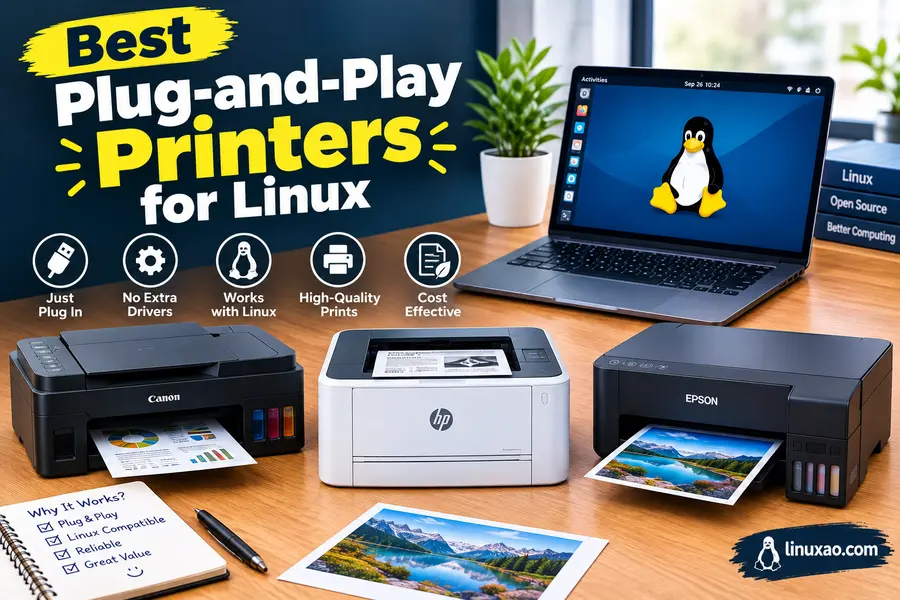
Printing has historically been the weakest link in the Linux peripheral story, but HP has invested seriously in this space through its open-source HPLIP project. As of the HPLIP 3.26.4 release in mid-2026, HP’s Linux driver stack covers more than 3,490 printer models across its LaserJet, OfficeJet, DeskJet, and Envy lines, working alongside CUPS for printing and SANE for scanning. That number matters more than it sounds — it’s the difference between “plug it in and print” and spending an afternoon compiling a driver from source.
HP LaserJet Pro MFP 3106sdw
This is one of the newer models added to HPLIP’s supported device list, and it’s a genuinely solid all-in-one for a home office. It handles printing, scanning, and copying, connects over Wi-Fi or USB, and shows up correctly in most distros’ printer setup wizard without extra downloads, since many distros bundle recent HPLIP packages already.
Pros:
- Backed by HP’s own open-source Linux driver project
- Wireless duplex printing and a built-in scanner in one machine
- Setup through the standard GNOME/KDE printer wizard in most cases
Cons:
- Toner cartridges aren’t the cheapest in this printer’s class
- Very latest Linux distro releases sometimes lag a few months behind official HPLIP installer support
Buy it: HP LaserJet Pro MFP 3106sdw on Amazon
Brother HL-L2460DW
Brother has quietly built a reputation among Linux users as being just as dependable as HP, sometimes more so, because its printers rely heavily on standard IPP and PostScript/PCL emulation rather than heavier proprietary drivers. The HL-L2460DW is a compact monochrome laser printer that most distros detect automatically over network or USB.
Pros:
- Detected automatically via IPP on most modern distros, often no driver package needed
- Fast print speeds for the price point
- Compact footprint, good for small home offices
Cons:
- Monochrome only, so it’s not a fit if you need color prints
- Brother’s official Linux driver packages, while solid, aren’t quite as actively maintained as HPLIP
Buy it: Brother HL-L2460DW on Amazon
External Storage That Just Works
Samsung T9 Portable SSD
External SSDs are about as close to true plug-and-play as hardware gets on Linux, because USB Mass Storage and UASP support has been rock solid in the kernel for well over a decade. The Samsung T9 shows up immediately as a block device, with read speeds up to 2,000MB/s over USB 3.2 Gen 2×2.
Pros:
- Instant recognition, no formatting needed if you reformat to ext4 or keep exFAT for cross-platform use
- Genuinely fast sequential speeds for backups and large file transfers
- Rugged shock-resistant design
Cons:
- Ships pre-formatted in exFAT, so Linux-only users may want to reformat for native permissions support
- Premium pricing compared to spinning external drives
Buy it: Samsung T9 Portable SSD on Amazon
SanDisk Extreme Portable SSD V2
A close alternative, the SanDisk Extreme Portable SSD V2 offers similar plug-and-play behavior with IP65 water and dust resistance, which makes it a good pick for anyone who wants a rugged drive for field work or travel setups running Linux.
Pros:
- Reliable UASP support means fast transfer speeds without extra configuration
- IP65 rating adds real durability for outdoor or travel use
- Compact and light enough to carry daily
Cons:
- Real-world speeds fall a bit short of the rated maximum
- exFAT default format needs reformatting for Linux permission handling
Buy it: SanDisk Extreme Portable SSD on Amazon
USB-C Docks and Hubs
Plugable 14-in-1 USB-C Dock
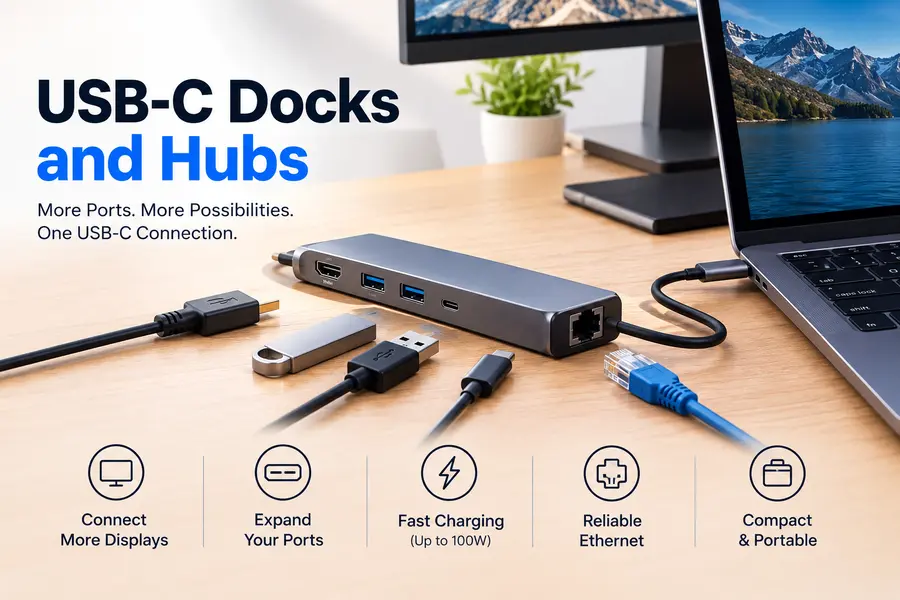
Docking stations are trickier than most peripherals because they combine multiple controllers — Ethernet, display output, card readers — into one device. Plugable has built a strong reputation with the Linux community specifically because its docks rely on well-supported chipsets (commonly Realtek for Ethernet, DisplayLink or native DP Alt Mode for video) that have mature open-source kernel support.
Pros:
- Ethernet port uses a Realtek chipset with in-kernel driver support, so wired networking works immediately
- Multiple display outputs supported through DisplayPort Alt Mode
- Wide port selection covers most workstation needs in a single cable
Cons:
- DisplayLink-based docks (a different tech than DP Alt Mode) need the separate
evdidriver package on some distros - Can get warm under heavy multi-display load
Buy it: Plugable USB-C Docking Station on Amazon
Anker 555 USB-C Hub
For a lighter, more portable option, Anker’s 555 hub covers HDMI, USB-A, SD card, and power delivery in a compact unit. It relies on standard USB video and storage classes, so there’s no software layer required for the essentials.
Pros:
- Compact and travel-friendly compared to full docking stations
- HDMI output works through native DP Alt Mode, no extra drivers
- Good port variety for a hub this size
Cons:
- Doesn’t include Ethernet, unlike larger docks
- Passthrough charging speeds vary depending on laptop and cable
Buy it: Anker 555 USB-C Hub on Amazon
Wi-Fi and Bluetooth Adapters
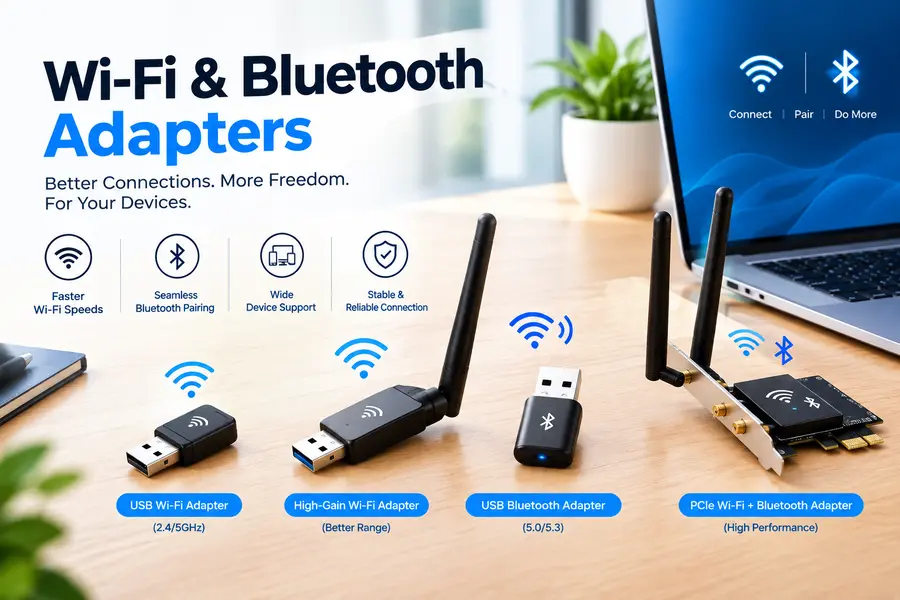
Wireless networking is the one category where “plug-and-play” genuinely depends on the chipset inside the adapter, not just the brand on the box. Broadcom and older Realtek chips have historically been the troublemakers on Linux, while Intel and newer MediaTek-based chipsets have excellent in-kernel support.
TP-Link Archer TX20U Plus
This adapter uses a MediaTek chipset that’s supported directly in recent Linux kernels (6.x series and newer), meaning most current distro releases detect it without any manual driver compilation. It supports Wi-Fi 6 speeds and Bluetooth 5.0 in one USB stick.
Pros:
- In-kernel MediaTek driver support means no DKMS modules to maintain
- Combines Wi-Fi 6 and Bluetooth in a single adapter
- Compact form factor barely sticks out of a USB port
Cons:
- Very brand-new kernel releases occasionally need a point release before full feature support lands
- Antenna performance is decent but not class-leading for long-range use
Buy it: TP-Link Archer TX20U Plus on Amazon
Headsets That Don’t Need Software

Jabra Evolve2 40
USB audio devices are handled by the Linux kernel’s native ALSA/PipeWire stack, so a headset that sticks to standard USB Audio Class avoids the driver headaches some gaming headsets create. The Evolve2 40 is a business-focused headset that shows up immediately as an audio input/output device with no extra configuration.
Pros:
- True plug-and-play through USB Audio Class, recognized instantly by PipeWire
- Strong noise-canceling mic quality for calls
- Comfortable for long work-from-home days
Cons:
- Fewer flashy features than gaming-oriented headsets
- Some EQ and busylight features need Jabra’s app, which isn’t available on Linux
Buy it: Jabra Evolve2 40 on Amazon
Quick Comparison Table
| Peripheral | Category | Plug-and-Play Standard | Best For | Approx. Price |
|---|---|---|---|---|
| Logitech C920x HD Pro | Webcam | UVC | Video calls, streaming | $70 |
| Logitech C270 | Webcam | UVC | Budget video calls | $30 |
| Logitech MX Master 3S | Mouse | USB HID / Bluetooth HID | Productivity, ergonomics | $100 |
| Logitech Signature M650 | Mouse | USB HID | Everyday use, simplicity | $40 |
| Keychron K6 | Keyboard | USB HID / Bluetooth HID | Mechanical typing feel | $70 |
| Logitech MX Keys S | Keyboard | USB HID / Bluetooth HID | Quiet, low-profile typing | $110 |
| HP LaserJet Pro MFP 3106sdw | Printer | IPP / HPLIP | Home office all-in-one | $280 |
| Brother HL-L2460DW | Printer | IPP | Fast monochrome printing | $200 |
| Samsung T9 Portable SSD | Storage | USB Mass Storage / UASP | Fast backups, large files | $130 (1TB) |
| SanDisk Extreme Portable SSD V2 | Storage | USB Mass Storage / UASP | Rugged, travel use | $110 (1TB) |
| Plugable 14-in-1 Dock | Dock | DP Alt Mode / Realtek Ethernet | Multi-monitor workstation | $220 |
| Anker 555 USB-C Hub | Hub | DP Alt Mode / USB Mass Storage | Portable setups | $60 |
| TP-Link Archer TX20U Plus | Wi-Fi Adapter | In-kernel MediaTek driver | Desktop wireless upgrade | $50 |
| Jabra Evolve2 40 | Headset | USB Audio Class | Work calls, meetings | $150 |
How to Check Plug-and-Play Compatibility Before You Buy
Manufacturer marketing and real-world Linux behavior don’t always match, which is exactly why every recommendation above was checked against official compatibility statements, kernel driver documentation, and community-reported results rather than a spec sheet alone. A little pre-purchase homework saves a lot of frustration. Here’s what to check before buying any peripheral for Linux:
- Search the exact model number plus “Linux” rather than trusting a vague “cross-platform” claim on the box.
- Look for UVC, USB HID, or USB Audio Class mentions in the spec sheet — these are the categories with the most mature kernel support.
- Check the Linux kernel’s mailing list or the device’s Arch Wiki page, since community-documented compatibility is often more accurate than manufacturer marketing.
- Run
lsusbanddmesgafter plugging in, if you already own the device or can test it in-store, to confirm the kernel recognizes it correctly. - Prefer official Linux support statements over community workarounds. If a manufacturer lists Linux as a supported OS, that’s a stronger signal than user reports of “it worked for me.”
FAQ
Do I need special drivers for a UVC webcam on Linux?
No. UVC-compliant webcams are recognized automatically by the Linux kernel’s built-in uvcvideo module, so there’s nothing to install.
Will Logitech’s Options+ software work on Linux?
No, Logi Options+ is Windows and macOS only, but basic mouse and keyboard functions still work through standard HID, and open-source tools like logiops can restore advanced button remapping.
Are HP printers still the most Linux-friendly brand in 2026?
HP remains a strong choice thanks to its open-source HPLIP project, which now supports over 3,490 printer models, though Brother is a solid IPP-based alternative.
Do external SSDs need to be reformatted for Linux?
Not strictly, since exFAT works fine on Linux, but reformatting to ext4 gives you full native permissions if the drive will stay on a Linux-only setup.
What’s the safest Wi-Fi adapter chipset for Linux?
Intel and recent MediaTek chipsets generally offer the best in-kernel driver support, while older Broadcom and Realtek chips can sometimes require extra DKMS modules.
Final Thoughts
The list above should make one thing clear: 2026 is a genuinely good year to be shopping for Plug-and-Play Linux Peripherals That Just Work. Between mature kernel drivers, manufacturers finally listing Linux as an officially supported OS, and open-source projects like HPLIP closing the printing gap, you no longer need to gamble on hardware compatibility the way Linux users did a decade ago. Stick to devices built on open standards like UVC, USB HID, and IPP, double-check model-specific compatibility before you buy, and you’ll end up with a setup that works the moment you plug it in — no terminal required.
Disclaimer: Prices, specifications, and product availability were accurate at the time of writing and may change. This post may contain affiliate links, and we may earn a commission on qualifying purchases at no extra cost to you. Always verify current compatibility on the manufacturer’s official site before purchasing.
More Linux Hardware Guides
Looking for more Linux-compatible hardware? Explore these practical buying guides and find devices that work well with Linux.
Best USB Audio Interfaces for Linux
Compare class-compliant USB audio interfaces for Linux, including options for recording, podcasts, music production and home studios.
Read the Linux audio guide →Best Touchscreen Monitors for Linux
See tested touchscreen monitors with Linux compatibility, touch detection, calibration, USB-C connectivity and everyday usability.
See the tested monitors →Best Docking Stations for Linux
Compare Linux-friendly Thunderbolt, USB4 and docking stations for multiple displays, USB devices, Ethernet and laptop charging.
Find the right Linux dock →About the Author