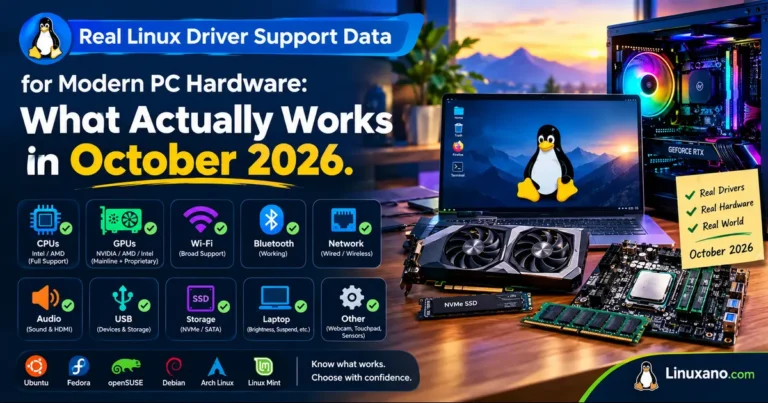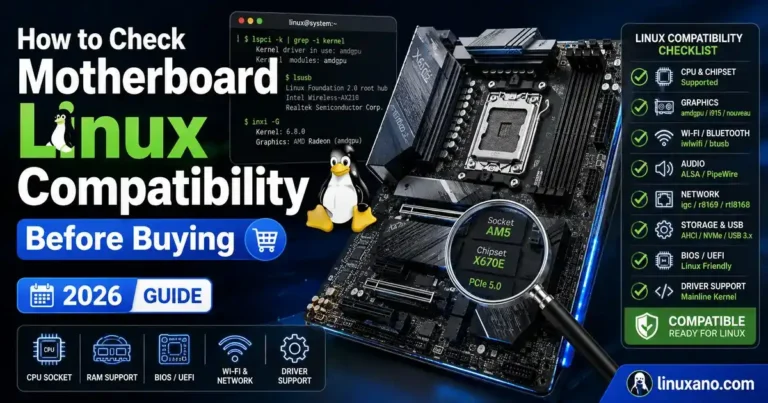
Buying a PC for Linux still isn’t as simple as picking whatever’s on sale at Best Buy. Windows hides a lot of hardware sins behind Microsoft-signed drivers that ship automatically. Linux doesn’t have that luxury everywhere — some components just work out of the box, and others will have you googling error codes at 1 a.m. before your first boot even finishes.
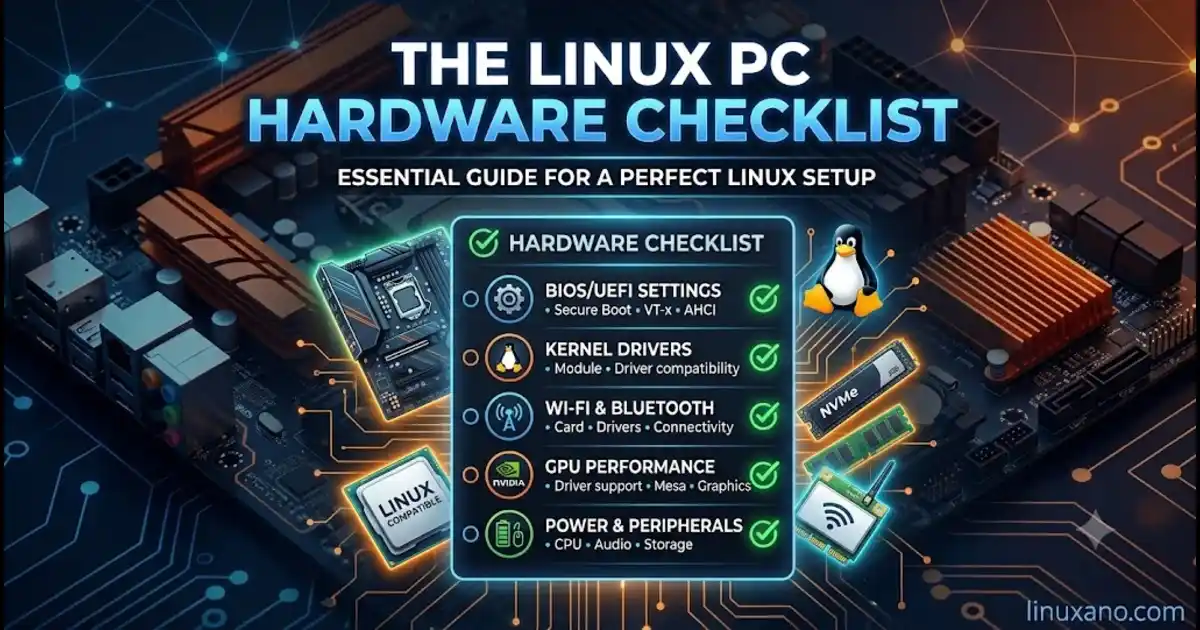
That’s exactly why The Linux PC Hardware Checklist exists. Whether you’re building a desktop, buying a laptop off a retail shelf, or importing one from a Linux-first vendor, the difference between a machine that “just works” and one that fights you for months usually comes down to five things: the BIOS, the GPU, the Wi-Fi card, driver support, and a handful of smaller components people forget to check until it’s too late.
I’ve set up dozens of machines running everything from Ubuntu and Fedora to Arch and openSUSE over the years, and the pattern is always the same — the hardware that causes problems isn’t random. It’s predictable, and it’s avoidable if you know what to look for before you swipe your card. This guide walks through every layer of that decision, with real comparisons and current information as of September 2026.
Why Hardware Compatibility Still Matters in 2026
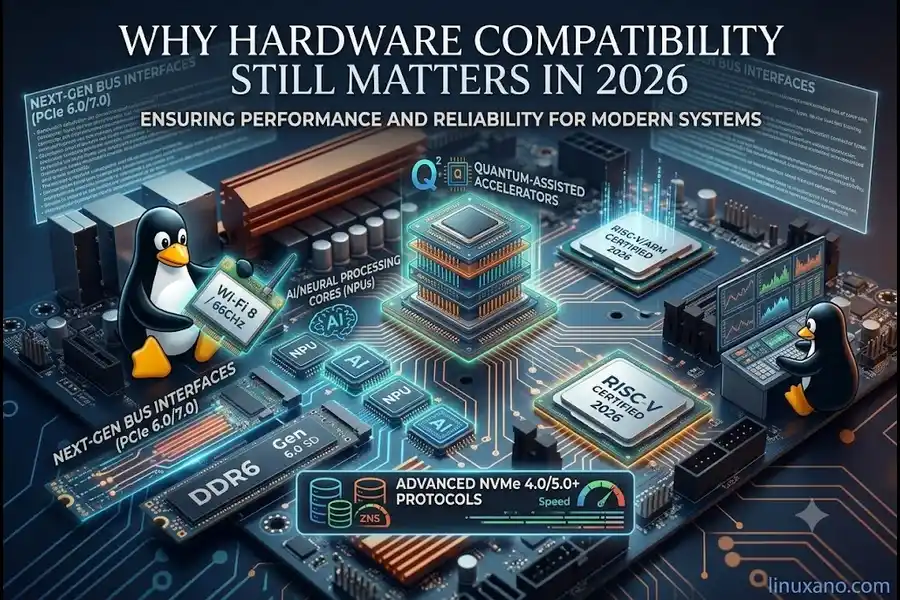
Linux hardware support has genuinely gotten better. The kernel has moved into the 7.x series this year, and mainline support for new silicon lands faster than it used to — Intel and AMD both upstream their laptop platform drivers well ahead of retail launch these days, and NVIDIA’s open-source GPU kernel modules are now the default install path on most major distros instead of an opt-in extra.
That said, “better” doesn’t mean “solved.” Wi-Fi chipsets, fingerprint readers, and certain hybrid-GPU laptop configurations still cause more support tickets than anything else. The gap between a good Linux experience and a frustrating one is almost always decided before you ever install the OS — at the point you choose the hardware.
Start With the BIOS/UEFI Settings
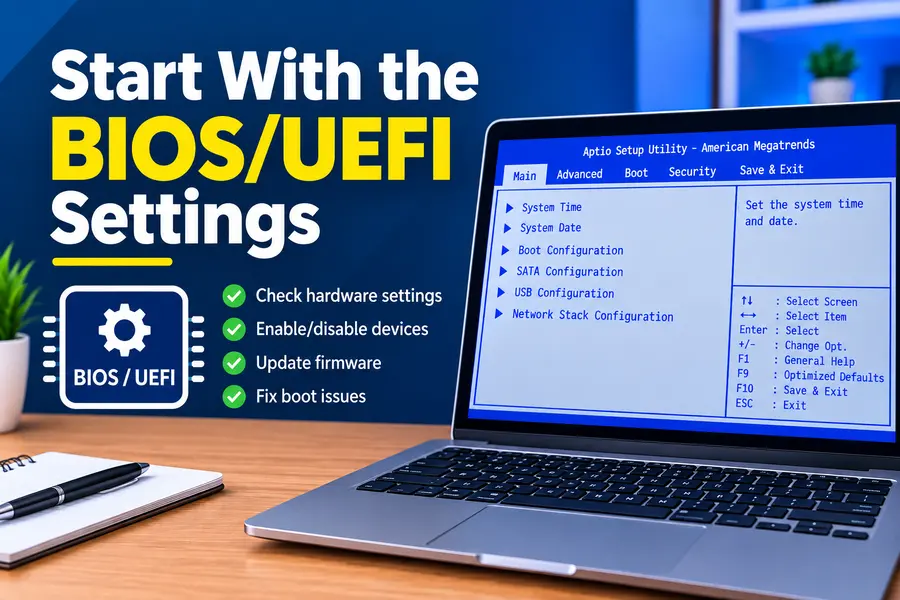
Before you even think about GPUs or Wi-Fi cards, the BIOS is where most Linux installs quietly succeed or fail. A handful of settings determine whether your installer boots cleanly, whether your SSD shows up, and whether your system wakes from sleep properly.
Secure Boot
Secure Boot gets a bad reputation in Linux forums, but in 2026 it’s mostly a non-issue. Ubuntu, Fedora, openSUSE, and Debian all ship a Microsoft-signed shim that works with Secure Boot enabled. The real trouble comes from:
- Proprietary NVIDIA drivers, which need to be signed with a Machine Owner Key (MOK) you enroll yourself
- Rolling distros like Arch or Gentoo, where you’re managing your own boot chain
- Custom kernel modules (Wi-Fi drivers pulled from GitHub, VirtualBox, etc.)
If you’re running a mainstream distro with an open-source GPU driver stack, leave Secure Boot on. If you know you’ll need the proprietary NVIDIA driver or you’re compiling your own kernel modules, you’ll want to be comfortable enrolling a MOK key, or simply disable Secure Boot from the start.
Fast Boot and CSM
“Fast Boot” in the BIOS (not the Windows one) skips hardware initialization steps to shave a second or two off startup. It occasionally causes USB installers to be invisible in the boot menu. Turn it off while you’re installing, then re-enable it later if you want.
CSM (Compatibility Support Module) is legacy BIOS emulation for old MBR-based installs. Almost nothing needs this anymore — leave it disabled and install in pure UEFI mode. Mixing CSM and UEFI is one of the most common reasons dual-boot setups break.
TPM 2.0
Linux itself doesn’t require TPM 2.0, but full-disk encryption tools like LUKS with TPM-bound unlocking, and newer secure-boot-attestation workflows, benefit from having it enabled. Nearly every PC sold since 2022 has it built in — just confirm it’s switched on if you plan to use disk encryption tied to the hardware.
Resizable BAR / Smart Access Memory
Resizable BAR (AMD calls its version Smart Access Memory) lets the CPU access the entire GPU memory pool at once instead of in small chunks. It’s supported in the Linux kernel and by Mesa and the NVIDIA driver alike, and it gives a real, measurable frame-rate bump in games under Proton and native Vulkan titles. Enable it in the BIOS if the option exists — there’s essentially no downside on modern hardware. Phoronix has published extensive benchmarks showing the real-world gains across different GPU generations if you want to see the numbers for yourself.
The GPU Checklist: The Single Biggest Factor
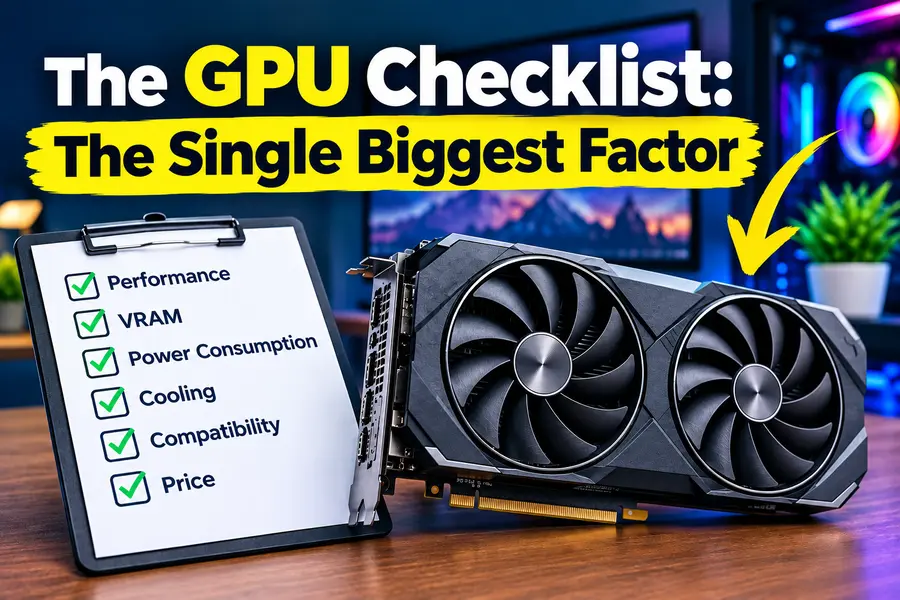
If there’s one component that decides how smooth your Linux experience will be, it’s the graphics card. Not because GPUs are “bad” on Linux now — they’re genuinely good — but because the three vendors behave completely differently.
Intel Integrated Graphics
Intel’s Xe and Xe2 graphics (Arc, Lunar Lake, Panther Lake) use fully open-source drivers built directly into the kernel and Mesa. There’s no separate driver to install, no DKMS module to rebuild after kernel updates, and no proprietary blob to worry about. This is the closest thing to zero-maintenance graphics on Linux today. If you want a laptop where you never think about the GPU again, Intel integrated graphics is the safest bet.
AMD Radeon (Integrated and Discrete)
AMD’s Mesa driver (RADV for Vulkan, radeonsi for OpenGL) is also fully open-source and mainlined. AMD’s approach to Linux has been consistently strong for years — new GPU generations typically get day-one or near-day-one kernel support because AMD’s engineers upstream the code themselves. RDNA 3 and RDNA 4 discrete cards, along with the integrated graphics in Ryzen AI laptop chips, work well without any extra driver installation on current kernels.
NVIDIA
NVIDIA is the one vendor where “it depends” is still the honest answer, though the situation has improved a lot. As of 2026, NVIDIA’s open-source kernel modules (not to be confused with the fully open Nouveau driver) are the recommended and default install path on Turing-generation cards and newer, including the RTX 40 and RTX 50 series. Distros like Ubuntu, Fedora, and CachyOS now default new installs to these open kernel modules rather than the fully closed blob.
The catch: NVIDIA still ships a separate userspace driver stack, so a kernel update can occasionally require a DKMS rebuild, and driver releases for brand-new GPU generations (like early Blackwell cards) sometimes lag a few weeks behind the Windows release. Suspend/resume on NVIDIA laptops with hybrid graphics is also still the single most common bug report you’ll find in distro forums — GSP firmware timeouts on resume show up regularly in kernel bug trackers even on current 590–610 series drivers.
Bottom line: if gaming or CUDA work is the priority, NVIDIA remains the fastest hardware and the ecosystem has matured a lot — just budget a little patience for driver updates. If you want the absolute least friction, AMD or Intel graphics win.
Wi-Fi and Bluetooth: Where Good Laptops Go Wrong
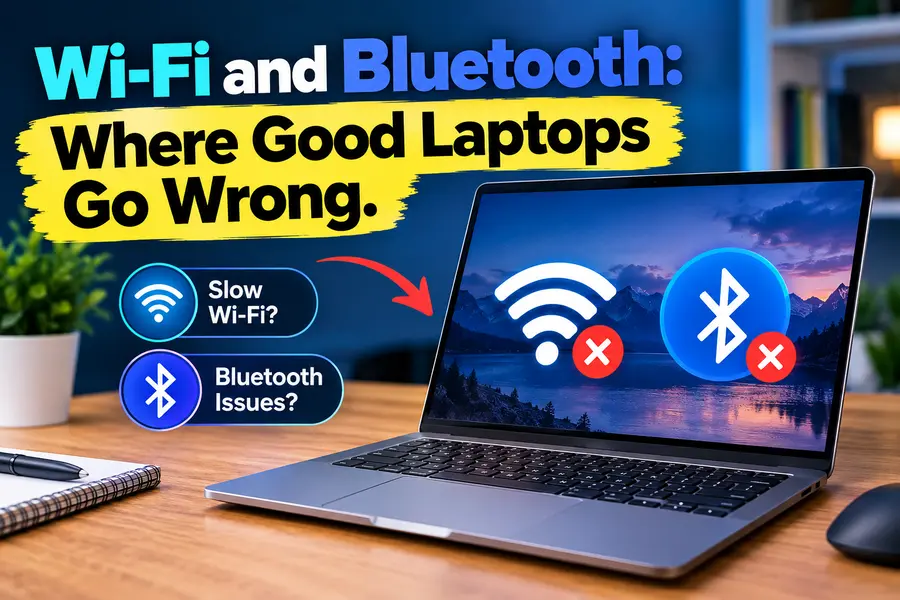
This is the checklist item people skip most often, and it’s the one that causes the most buyer’s remorse. A laptop can have a great CPU and GPU and still be miserable to use if the wireless card drops connections or Bluetooth pairing is unreliable.
Chipsets That Work Well
- Intel Wi-Fi 6E/7 (AX211, AX411, BE200) — Mainlined into the kernel, extremely reliable, the safest choice by a wide margin.
- MediaTek MT7921/MT7922/MT7925 — Common in recent Ryzen laptops and increasingly in Intel systems too. Support has matured significantly; still occasionally needs a firmware update via
linux-firmwarefor full stability, but generally solid on kernels 6.6 and newer. - Qualcomm Atheros (older ath9k/ath10k cards) — Reliable, well-supported, mostly found in older or budget machines.
Chipsets to Be Cautious About
- Broadcom (BCM43xx family), common in some ultrabooks and most Apple hardware, historically requires proprietary firmware blobs (
broadcom-staorbcmwl) and has a spottier track record with suspend/resume and Bluetooth coexistence. - RealTek RTL8852 series cards, used in a lot of budget and mid-range Windows laptops, are hit-or-miss. Some variants work fine out of the box on newer kernels; others need out-of-tree drivers compiled manually, which then break every time the kernel updates unless you’re using DKMS.
The practical move here: before buying any laptop that isn’t from a Linux-focused vendor, search the exact Wi-Fi chip model (check the spec sheet or a teardown review) plus “Linux” before you buy. Five minutes of searching saves weeks of frustration.
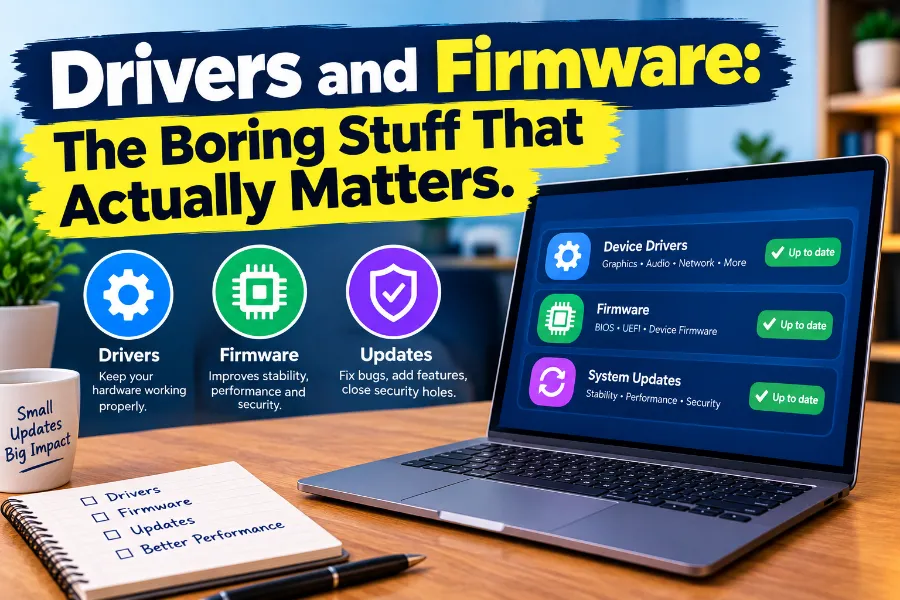
Drivers and Firmware: The Boring Stuff That Actually Matters
linux-firmware
Most modern hardware — Wi-Fi cards, GPUs, some SSD controllers — needs binary firmware blobs to function, even with open-source drivers. These live in the linux-firmware package (or linux-firmware-git on rolling distros). Keeping this package current is just as important as kernel updates. If your Wi-Fi or Bluetooth randomly stops working after a fresh install, an outdated firmware package is the first thing to check.
fwupd and LVFS
The Linux Vendor Firmware Service (LVFS) lets you update BIOS/UEFI firmware, SSD firmware, and even some laptop dock firmware directly from Linux using fwupdmgr, without booting into Windows. Dell, Lenovo, HP, and most of the Linux-first vendors publish to LVFS now. Before buying, it’s worth checking whether a laptop’s manufacturer actually publishes firmware updates there — some budget brands simply don’t, which means you’re stuck on whatever BIOS version shipped from the factory.
DKMS vs. In-Kernel Drivers
Any driver that isn’t built into the mainline kernel (proprietary NVIDIA, some Wi-Fi cards, certain webcam sensors) relies on DKMS (Dynamic Kernel Module Support) to rebuild itself every time you update your kernel. This usually works fine, but it’s an extra point of failure — and it’s exactly why hardware with in-kernel, mainlined drivers is less risky long-term than hardware that depends on out-of-tree modules.
The Small Stuff People Forget
- Fingerprint readers — Support depends entirely on
fprintdhaving a driver for your exact sensor. Synaptics and Goodix sensors are hit-or-miss depending on model; check before assuming this feature will work. - Webcams with IR (Windows Hello cameras) — The RGB feed almost always works; the IR depth sensor for facial login frequently doesn’t have Linux support at all.
- Touchpads — Precision touchpads (I2C HID) generally work great with gestures under libinput. Older PS/2-emulated touchpads can feel laggy or miss multi-touch gestures.
- Audio (especially laptop speaker/mic arrays) — Modern laptops increasingly need SOF (Sound Open Firmware) support for proper audio routing. Most current-generation Intel and AMD laptops are supported, but it’s worth a quick search for older or unusual models.
- Hybrid GPU switching (Optimus) — Laptops with both integrated and NVIDIA discrete graphics need
supergfxctlor similar tools to switch modes cleanly. It works well today, but it’s an extra moving part that Intel/AMD-only laptops simply don’t have.
Comparison: Linux-Friendly Hardware Options in September 2026
Here’s how the main paths to a Linux PC actually compare right now, based on what ships today and what’s realistically available in the US market.
| Option | GPU Support | Wi-Fi Reliability | Pre-installed Linux | Best For |
|---|---|---|---|---|
| Dell XPS 13 / Precision (Ubuntu-certified builds) | Intel Xe — excellent, zero-config | Intel AX211 — excellent | Yes, factory Ubuntu option | Buyers who want retail availability plus certification |
| Lenovo ThinkPad (Linux-certified X1/T-series) | Intel/AMD integrated — excellent | Intel or MediaTek — mostly excellent | Yes, select models certified for Ubuntu/Fedora | Business users, best keyboard, wide port selection |
| Framework Laptop 13/16 | Intel Xe or AMD Radeon — excellent; Framework 16 offers a swappable AMD dGPU module | Intel or MediaTek — excellent | Ships with Linux support guides; not preloaded by default but fully validated | Repairability, modularity, tinkerers |
| System76 (Lemur Pro, Pangolin, Thelio desktops) | Intel/AMD integrated or NVIDIA (desktops) — excellent, custom Pop!_OS tuning | Intel/MediaTek — excellent | Yes, Pop!_OS or Ubuntu preloaded | Buyers who want zero setup and dedicated support |
| Tuxedo Computers (InfinityBook, Pulse) | Intel/AMD, some NVIDIA options — excellent | Intel — excellent | Yes, Tuxedo OS or Ubuntu preloaded | European buyers, deep BIOS-level Linux tuning tools |
| Build-your-own desktop (AMD Ryzen + Radeon) | AMD Radeon — excellent, fully open-source | User’s choice — pick Intel/MediaTek card | No, self-installed | Full control, best price-to-performance, gamers |
| Generic Windows laptop (unverified) | Varies — NVIDIA hybrid setups need extra config | Varies — Broadcom/RealTek are the risk | No | Budget buyers willing to research every component first |
A quick read on that table: if you want the least amount of setup work, buy from a vendor that preloads Linux — System76, Tuxedo, and Dell/Lenovo’s certified configurations all fall into that category, and their component choices are already vetted. If you want the best value and don’t mind installing the OS yourself, an AMD-based build (desktop or laptop) is consistently the path with the fewest driver headaches, because AMD’s entire stack — CPU, GPU, and most paired Wi-Fi cards — is open-source and mainlined.
Step-by-Step: How to Vet a PC Before You Buy It
- Look up the exact Wi-Fi chipset model, not just “Wi-Fi 6E” or “Wi-Fi 7.” Manufacturer spec sheets, or a teardown/review video, usually list the exact chip.
- Check the GPU vendor and generation. Intel and AMD are close to plug-and-play. NVIDIA works well but budget time for driver setup, and check if it’s a hybrid (Optimus-style) laptop.
- Search “[laptop model] + Linux” before buying. Reddit’s r/linuxhardware, the Arch Wiki hardware pages, and Linux-focused YouTube reviewers cover most current-generation models.
- Confirm BIOS access isn’t locked down. Some ultra-budget and a few enterprise-locked laptops restrict boot order changes or Secure Boot toggling. Rare, but worth a quick check in reviews.
- Check if the vendor publishes firmware to LVFS. This tells you whether you’ll get BIOS updates without needing Windows.
- If buying a desktop, prioritize the GPU and Wi-Fi card as separate line items rather than trusting a prebuilt’s spec sheet — you can often swap a risky Wi-Fi card for a known-good Intel one for under $30.
- For laptops, check suspend/resume reports specifically. This is the single most common complaint in Linux laptop reviews, more than any single component failing outright.
Common Mistakes to Avoid
Buying Linux-compatible hardware is about more than checking a manufacturer’s driver page. Avoid these common compatibility mistakes before choosing your next laptop or PC.
Assuming Linux drivers mean plug-and-play
A manufacturer may advertise Linux drivers, but those drivers can be old kernel modules that no longer compile or work correctly with modern Linux kernels.
Buying the newest CPU or GPU at launch
New hardware can arrive before full Linux support reaches every distribution. Distro-packaged kernels may also lag behind upstream kernel support.
Ignoring the internal Wi-Fi card
A USB Wi-Fi adapter can save you in an emergency, but relying on one every day because the internal wireless card has poor Linux support quickly becomes frustrating.
Skipping BIOS and firmware updates
Battery drain, sleep problems, Thunderbolt issues and other hardware bugs can sometimes be fixed through BIOS or firmware updates rather than Linux kernel updates.
Not checking distro-specific support
Ubuntu HWE kernels, Fedora’s faster kernel cadence and rolling distributions such as Arch can provide different levels of support for newer hardware.
Frequently Asked Questions
Do I need to disable Secure Boot to install Linux?
No — Ubuntu, Fedora, Debian, and openSUSE all support Secure Boot out of the box; you’d only need to disable it for certain proprietary drivers or custom kernel builds.
Is NVIDIA still bad for Linux in 2026?
No, it’s much better than it used to be, with open-source kernel modules now the default on most distros, though it still needs slightly more setup than AMD or Intel graphics.
Which Wi-Fi chipset is safest for Linux?
Intel Wi-Fi 6E/7 cards (AX211, AX411, BE200) have the most consistent, trouble-free track record on Linux.
Can I run Linux on any Windows laptop I already own?
Usually yes, but check the exact Wi-Fi chip, fingerprint reader, and whether it uses NVIDIA hybrid graphics, since those are the most common points of friction.
Do I need a certified Linux laptop, or can I install it myself?
You don’t need a certified laptop, but buying one from Dell, Lenovo, System76, or Tuxedo removes almost all the guesswork since every component has already been validated.
What’s the biggest hardware mistake new Linux PC buyers make?
Ignoring the Wi-Fi chipset — it’s the single most common source of post-install problems, even more than GPU issues.
Final Thoughts
None of this means Linux hardware support is fragile in 2026 — it’s genuinely in the best shape it’s ever been, with the kernel now well into its 7.x series and both AMD and Intel treating Linux as a first-class platform from day one. But “mostly great” still has exceptions, and those exceptions cluster predictably around a few components: the BIOS settings you never touch, the Wi-Fi chip nobody reads the spec sheet for, and GPU driver quirks that show up only after you’ve already unboxed the machine.
That’s the whole point of The Linux PC Hardware Checklist — not to scare you away from a purchase, but to turn “I hope this works” into “I already checked, and it does.” Run through the BIOS settings, confirm your GPU vendor’s driver situation, look up the exact Wi-Fi chip, and lean toward hardware with mainlined, open-source drivers wherever you have a choice. Do that, and your next Linux PC will boot up, connect to Wi-Fi, and just work — which, honestly, is all anyone actually wants from a computer.
Further Reading
- kernel.org — official Linux kernel releases and documentation
- Arch Wiki: Laptop hardware guides — model-by-model compatibility notes
- Ubuntu Certified Hardware catalogue — search any laptop before buying
- LVFS / fwupd — check firmware update support for a given vendor
- NVIDIA Open GPU Kernel Modules — driver source and issue tracker
- r/linuxhardware — real-world compatibility reports from other buyers
Disclaimer: This guide reflects hardware and driver information current as of September 2026. Linux kernel versions, driver support, and vendor certification programs change frequently — always verify specifications and compatibility directly with the manufacturer or official project documentation before making a purchase decision.
More Linux Hardware Guides
Building or upgrading a Linux PC? These guides can help you choose compatible hardware and avoid common compatibility problems.
About the Author